Do Bluetooth Adapters Work For Pc Everything Inside
Yes, Bluetooth adapters work for PC and they are an easy way to add wireless connectivity to any desktop or laptop. Whether you want to connect headphones, speakers, or peripherals, a Bluetooth adapter makes it simple. This guide covers how they work, what to look for, and how to set one up in minutes.
Do Bluetooth adapters actually work for PC? The short answer is yes. But there is a lot more to know before you buy one. A Bluetooth adapter is a small USB device that adds wireless connectivity to your computer. It lets you connect headphones, speakers, keyboards, and other peripherals without any cables. If your PC does not have Bluetooth built in, an adapter is the easiest and most affordable fix.
Many people assume they need a new computer to go wireless. That is not true at all. A simple USB Bluetooth adapter can transform an old desktop into a wireless-friendly machine. You can connect your favorite Bluetooth headphones, stream music, and even use wireless keyboards and mice. The whole process is simpler than most people think.
In this guide, we will walk through everything you need to know about Bluetooth adapters for PC. We will cover how they work, what types are available, setup steps, common problems, and tips to get the best performance. By the end, you will know exactly which adapter to buy and how to get it running.
Key Takeaways
- Bluetooth adapters are plug-and-play devices that give any PC wireless Bluetooth capability without needing built-in support.
- Most adapters work with Windows 10 and 11 out of the box, with minimal setup required.
- Bluetooth 5.0 adapters offer the best range and speed, making them ideal for audio streaming and peripherals.
- Compatibility matters — not all adapters work equally well with every device or operating system.
- Setting up a Bluetooth adapter is straightforward and usually takes less than five minutes.
- Troubleshooting common issues like pairing failures or dropped connections is usually simple and quick.
📑 Table of Contents
- What Is a Bluetooth Adapter for PC?
- Do Bluetooth Adapters Really Work for PC?
- Types of Bluetooth Adapters for PC
- How to Set Up a Bluetooth Adapter for PC
- Common Problems and How to Fix Them
- Can You Use a Bluetooth Adapter with Other Devices?
- What to Look for When Buying a Bluetooth Adapter
- Final Thoughts
What Is a Bluetooth Adapter for PC?
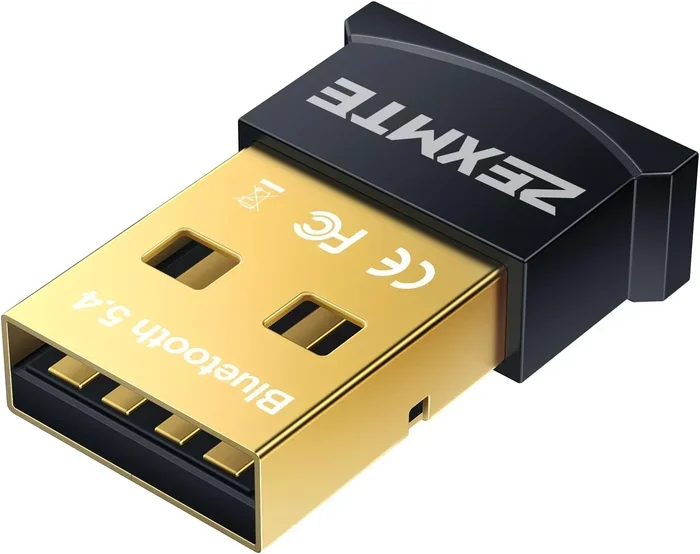
A Bluetooth adapter is a small hardware device that plugs into your PC and adds Bluetooth wireless capability. Most adapters are USB dongles. You plug them into a USB port, and your computer recognizes them as a Bluetooth device. Some adapters come with a cable that plugs into a USB port, while others are compact stick-style designs that stay flush with the port.
The adapter acts as a bridge between your PC and Bluetooth-enabled devices. It sends and receives wireless signals using radio waves. This is the same basic technology used in smartphones, tablets, and smart home devices. The adapter just brings that capability to a PC that does not have it built in.
There are two main types of Bluetooth adapters. The first is a standard USB dongle. The second is a PCIe card that installs inside your desktop tower. USB dongles are the most popular because they are easy to use and portable. PCIe cards offer a more permanent solution and can provide a stronger signal in some cases.
How Does a Bluetooth Adapter Work?
A Bluetooth adapter communicates with other devices using short-range radio waves. These waves operate on the 2.4 GHz frequency band. When you pair a device, like Bluetooth headphones, the adapter creates a small wireless network between your PC and that device. Data transfers back and forth through this connection.
The adapter handles all the pairing and connection management. Your PC operating system talks to the adapter through a driver. The driver tells the adapter which devices to look for and how to maintain connections. Modern Windows versions include built-in drivers for most popular adapters, so you do not need to install anything extra.
The range of a Bluetooth adapter depends on the version it supports. Bluetooth 4.0 can reach about 30 feet. Bluetooth 5.0 can reach up to 80 feet or more in open spaces. The newer versions also offer faster data transfer speeds, which is great for audio streaming and file transfers.
Do Bluetooth Adapters Really Work for PC?
Absolutely. Bluetooth adapters work very well for PCs when you choose the right one. They are widely used in offices, homes, and even gaming setups. The key is picking an adapter that matches your needs and your PC’s operating system.
Most modern adapters work seamlessly with Windows 10 and Windows 11. They also work with older versions like Windows 7 and 8, though you may need to download a driver manually. If you use a Mac, some adapters are compatible, but you should check the product specifications before buying.
One thing to keep in mind is that not all adapters are the same. Some are designed for basic tasks like connecting a keyboard and mouse. Others are built for audio streaming and support higher-quality codecs. If you want to connect Bluetooth headphones for music or gaming, look for an adapter that supports aptX or aptX HD codecs.
Here are some common uses for a Bluetooth adapter on a PC:
- Connecting wireless headphones and earbuds
- Streaming audio to Bluetooth speakers
- Using a wireless keyboard and mouse
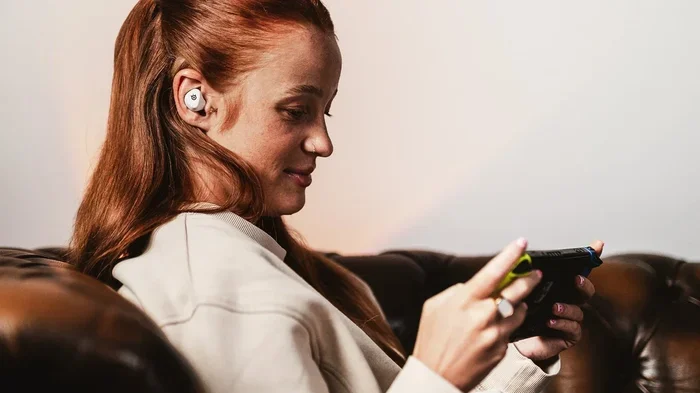
- Connecting a game controller, like those used for Bluetooth headphones with Switch setups
- Transferring files between devices wirelessly
- Connecting a Bluetooth printer
Each of these use cases works reliably with a good-quality adapter. The experience is close to what you would get with a PC that has Bluetooth built in.
Types of Bluetooth Adapters for PC
Not all Bluetooth adapters are created equal. There are a few different types, and each serves a different purpose. Understanding the differences helps you choose the right one.
USB Bluetooth Dongles
USB dongles are the most popular type of Bluetooth adapter. They are small, affordable, and plug directly into a USB port. Most cost between $10 and $30. They work with almost any PC that has a USB port, whether it is a desktop or a laptop.
USB dongles are great for everyday use. They handle audio streaming, file transfers, and peripheral connections with ease. If you just want to connect a pair of wireless headphones or a wireless mouse, a basic USB dongle is all you need.
PCIe Bluetooth Cards
PCIe cards install inside your desktop computer on an expansion slot. They offer a more permanent and stable connection than USB dongles. Because they are installed internally, they often have better signal strength and less interference.
PCIe cards are a good choice for desktop users who want a reliable, long-term solution. They are slightly more expensive than USB dongles, but they offer better performance. If you build or upgrade a gaming PC, a PCIe Bluetooth card can be a solid addition.
Bluetooth 4.0 vs Bluetooth 5.0 Adapters
The version of Bluetooth an adapter supports matters a lot. Bluetooth 5.0 is the current standard and offers significant improvements over older versions.
Here is a quick comparison:
- Bluetooth 4.0: Range up to 30 feet, slower data transfer, widely compatible
- Bluetooth 5.0: Range up to 80 feet, faster data transfer, better battery efficiency
- Bluetooth 5.3: Latest version with improved stability and lower power consumption
For most users, a Bluetooth 5.0 adapter is the sweet spot. It offers great range, fast speeds, and works with almost all modern devices. If you want the best experience, go for Bluetooth 5.0 or higher.
How to Set Up a Bluetooth Adapter for PC
Setting up a Bluetooth adapter is easy and takes just a few minutes. You do not need any special technical skills. Here is how to do it step by step.
Step 1: Plug in the Adapter
Insert the Bluetooth adapter into a USB port on your PC. If you are using a USB hub, make sure it is powered. Some adapters work better when plugged directly into the PC rather than through a hub.
Windows should recognize the adapter automatically. You may see a notification that a new device is being installed. Wait for this process to finish before moving to the next step.
Step 2: Install Drivers (If Needed)
Most modern adapters work with Windows 10 and 11 without extra drivers. However, if your PC does not recognize the adapter, you may need to install drivers manually. Check the manufacturer’s website for the latest driver downloads.
Some adapters come with a driver CD in the box. You can also use that, but downloading the latest version from the website is usually better. Updated drivers fix bugs and improve compatibility.
Step 3: Turn on Bluetooth on Your PC
Go to Settings, then Devices, and click on Bluetooth and other devices. Toggle Bluetooth on. Your PC will start scanning for nearby Bluetooth devices.
Make sure the device you want to connect is in pairing mode. For most headphones and speakers, this means holding down the power button or a dedicated pairing button until a light flashes.
Step 4: Pair Your Device
Click on Add Bluetooth or other device in the settings menu. Select Bluetooth from the list of options. Your PC will show a list of available devices. Click on the device you want to connect and follow any on-screen prompts.
Once paired, the device will appear in your list of connected devices. You can now use it wirelessly. The connection should stay stable as long as the device is within range.
Quick Tip: If you are connecting Bluetooth headphones for gaming, make sure to test the audio latency before a gaming session. Some adapters may have slight delays that can affect gameplay.
Common Problems and How to Fix Them
Bluetooth adapters work well most of the time. But occasionally, you may run into issues. Here are the most common problems and how to solve them.
Adapter Not Recognized by PC
If your PC does not recognize the adapter, try a different USB port. Some USB ports provide more power than others. Also, try plugging the adapter directly into the PC instead of through a USB hub.
If that does not work, check the Device Manager for any error messages. You may need to update or reinstall the Bluetooth driver. Right-click on the Start menu, open Device Manager, expand the Bluetooth section, and look for any yellow warning icons.
Device Won’t Pair
If a device will not pair, make sure it is in pairing mode. Most devices only stay in pairing mode for a short time. Turn Bluetooth off and on again on both the PC and the device you want to connect.
Also, check if the device is already connected to another device. Many Bluetooth devices can only connect to one source at a time. Disconnect it from your phone or tablet before trying to pair it with your PC.
Connection Drops Frequently
Interference from other wireless devices can cause connection drops. Wi-Fi routers, microwaves, and even USB 3.0 ports can interfere with Bluetooth signals. Try moving your PC closer to the connected device.
If you are using a USB 3.0 port, try switching to a USB 2.0 port. USB 3.0 can sometimes cause interference with 2.4 GHz Bluetooth signals. This is a common issue that many people overlook.
Audio Quality Is Poor
If the audio sounds choppy or low quality, your adapter may not support the codec your headphones use. Check if your headphones support aptX or AAC codecs and buy an adapter that supports the same codecs.
Also, make sure your Bluetooth adapter is not too far from the audio device. Walls, furniture, and other obstacles can weaken the signal and reduce audio quality.
Can You Use a Bluetooth Adapter with Other Devices?
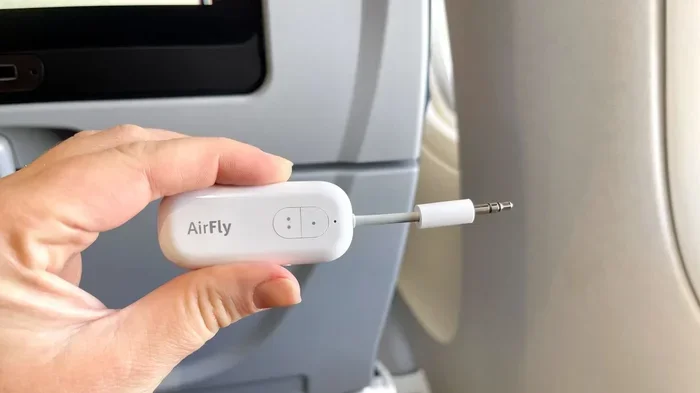
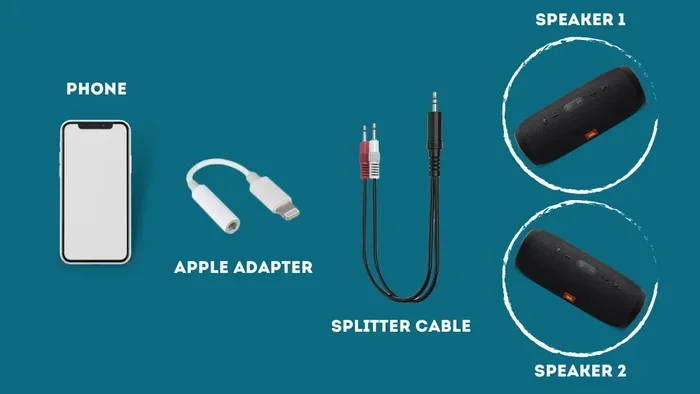
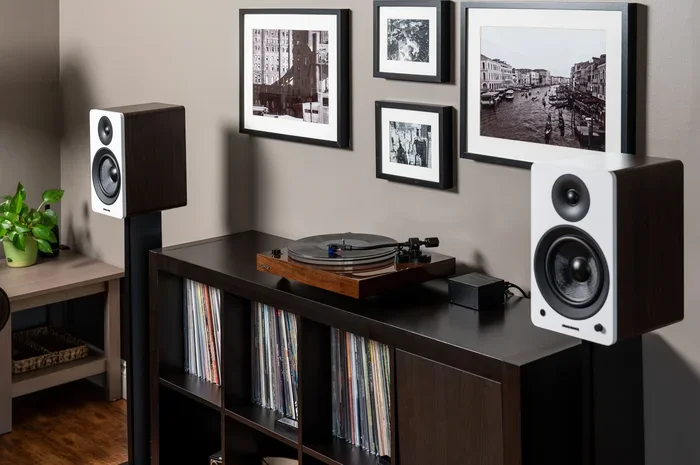
Yes, Bluetooth adapters are not just for PCs. You can use them with a variety of devices. For example, you can use an adapter to turn regular speakers into Bluetooth speakers by connecting it to a 3.5mm audio output. This is a popular and affordable way to add wireless capability to older speakers.
Some people use Bluetooth adapters with car stereos to enable wireless audio streaming. You can also connect them to gaming consoles, TVs, and even printers. The versatility of a Bluetooth adapter makes it a useful tool for many setups.
Just remember that compatibility varies by device. Always check the specifications of both the adapter and the device you want to connect. Most modern devices use standard Bluetooth protocols, so they should work together without issues.
What to Look for When Buying a Bluetooth Adapter
Choosing the right Bluetooth adapter can be confusing with so many options on the market. Here are the key factors to consider.
- Bluetooth Version: Go for Bluetooth 5.0 or higher for the best range and speed.
- Codec Support: If you care about audio quality, look for adapters that support aptX, aptX HD, or LDAC codecs.
- USB Port Type: Make sure the adapter fits your PC’s USB ports. Some PCs only have USB-C, so you may need an adapter with a USB-C connector.
- Range: If you need to move around freely, choose an adapter with a longer range.
- Driver Compatibility: Check that the adapter supports your operating system before buying.
- Brand and Reviews: Stick with reputable brands and read user reviews to avoid cheap adapters that underperform.
Some popular and reliable Bluetooth adapter brands include TP-Link, ASUS, and Edimax. These brands offer adapters at various price points and consistently deliver good performance. Reading reviews on sites like Amazon or Best Buy can also help you find the best option for your needs.
One thing many people overlook is the size of the adapter. If you are using a laptop, a compact dongle that stays flush with the USB port is much more convenient than a bulky adapter with a cable sticking out. For desktop PCs, size is less of a concern since the PC sits in one place.
Final Thoughts
Bluetooth adapters are a simple and effective way to add wireless connectivity to any PC. They work reliably, are easy to set up, and cost very little. Whether you want to connect wireless headphones, stream music to a speaker, or go completely cable-free with your peripherals, a Bluetooth adapter gets the job done.
The key is choosing the right adapter for your needs. Consider the Bluetooth version, codec support, and compatibility with your operating system. Once you have the right adapter, setup takes just a few minutes and you will be enjoying wireless connectivity right away.
If you are still deciding, start with a basic Bluetooth 5.0 USB dongle. It covers most use cases and works with nearly every PC. You can always upgrade to a more advanced adapter later if your needs change. The beauty of a Bluetooth adapter is that it is an inexpensive upgrade that makes a big difference in how you use your PC every day.