Copy Azw File Kindle Everything You Need to Know Today
Copying AZW files to your Kindle is simpler than you think. This guide covers every method — USB, email, and Wi-Fi — so you can transfer Kindle books quickly and easily. Whether you use a Kindle e-reader or the Kindle app, you will find step-by-step instructions that work today.
Key Takeaways
- AZW is Amazon’s native Kindle format: Understanding this file type helps you manage your library better.
- Multiple transfer methods exist: USB, email, and Wi-Fi all let you copy AZW files to your device.
- DRM protection can complicate things: Know the limits before you try to copy protected books.
- The Kindle app works on many devices: You are not limited to a Kindle e-reader hardware device.
- Organization matters: Proper file management keeps your reading experience smooth and enjoyable.
- Conversion is sometimes needed: Some formats need to change before they work on Kindle.
📑 Table of Contents
- What Is an AZW File and Why Does It Matter?
- Why You Might Need to Copy AZW Files to Kindle
- How to Copy AZW Files to Kindle Using USB
- How to Copy AZW Files Using Amazon’s Email Feature
- Copying AZW Files Using Wi-Fi and the Kindle App
- Understanding DRM and Copyright Protection on AZW Files
- Converting AZW Files for Kindle Compatibility
- Organizing Your Kindle Library After Copying Files
- Troubleshooting Common Issues When Copying AZW Files
- Frequently Asked Questions
- Final Thoughts on Copying AZW Files to Kindle
What Is an AZW File and Why Does It Matter?
An AZW file is the main format Amazon uses for Kindle books. When you buy an eBook from Amazon, it usually comes as an AZW file. This format was built specifically for the Kindle e-reader and the Kindle app. If you want to copy AZW file Kindle style content to your device, you need to understand what this file type is all about.
The AZW format started as a modified version of the Mobipocket format. Amazon bought Mobipocket back in 2005. Since then, they have used AZW as their go-to file type. It supports features like bookmarks, highlights, and notes. These are all things Kindle users love.
There are a few versions of AZW files. AZW1, AZW3, and AZW4 are the main ones. AZW3 is also called KF8. It supports more fonts and better formatting. Most modern Kindle books use AZW3. So when you are copying AZW files to Kindle, you are usually dealing with this newer format.
Knowing about AZW files helps you manage your library. You can sideload books, share files, and organize content more easily. It also helps when you run into issues. Understanding the basics makes everything else much simpler.
How AZW Files Differ from Other eBook Formats
Not all eBook formats are the same. EPUB is the most common open format. PDF is great for documents. MOBI was the older Kindle format. But AZW is Amazon’s own creation. It works best on Kindle devices and the Kindle app.
AZW files support DRM (Digital Rights Management). This is Amazon’s way of protecting copyright. It also supports Amazon’s special features. These include X-Ray, GoodReads integration, and Whispersync. Other formats do not have these features built in.
If you try to open an AZW file on a non-Kindle device, it might not work. That is because the format is tied to Amazon’s ecosystem. This is an important thing to know before you start transferring AZW files to Kindle.
Why You Might Need to Copy AZW Files to Kindle
There are many reasons you might need to copy AZW files to your Kindle. Maybe you downloaded a book from a third-party source. Perhaps you bought a book on a computer and want it on your Kindle. Or maybe you are organizing your library and need to move files around.
Whatever the reason, knowing how to copy AZW files to Kindle gives you more control. You are not stuck using only Amazon’s store. You can add personal documents, sideload free books, and manage your content your way. This flexibility is one of the best things about Kindle.
Some people also have multiple Kindle devices. They want the same book on their Kindle Paperwhite and their Kindle Fire tablet. Copying files manually makes this possible. You do not need to buy the same book twice.
Common Scenarios Where You Need to Copy Files
Here are some common situations where you will need to copy AZW files:
- You bought a book on Amazon’s website: The file downloads to your computer. You need to move it to your Kindle.
- You received a free eBook online: Many free Kindle books come as AZW files. You want to add them to your device.
- You converted a file to AZW: You used a tool to change EPUB or PDF to AZW. Now you need to get it onto your Kindle.
- You are setting up a new Kindle device: You want to transfer all your existing books to a new device.
- You are backing up your library: You want to save copies of your AZW files on your computer.
Each of these scenarios requires a slightly different approach. The good news is that all of them are easy once you know the steps.
How to Copy AZW Files to Kindle Using USB
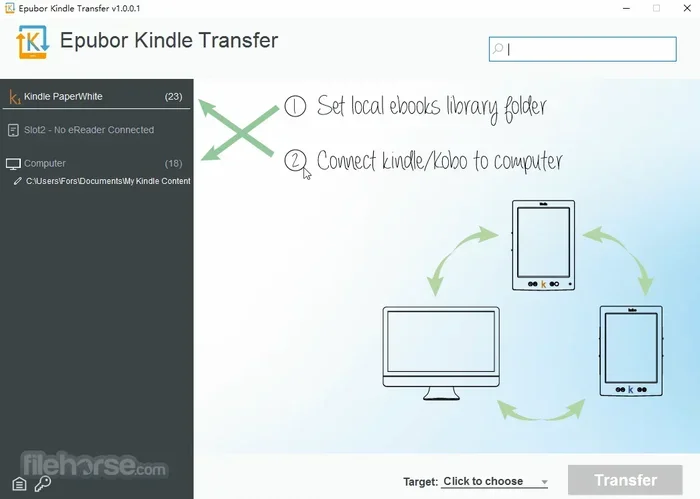
Using a USB cable is the most direct way to copy AZW files to Kindle. It works with all Kindle e-reader devices. You do not need Wi-Fi or an Amazon account for this method. It is fast and reliable.
Step-by-Step USB Transfer Guide
Follow these simple steps to transfer your AZW files using a USB cable:
- Connect your Kindle to your computer using a USB cable.
- Wait for your computer to recognize the device. It will show up as a removable drive.
- Open the Kindle drive on your computer.
- Look for a folder called “documents.” This is where your books go.
- Copy your AZW file and paste it into the “documents” folder.
- Safely eject the Kindle from your computer.
- Disconnect the USB cable.
- On your Kindle, go to your library. The new book should appear there.
That is it! Your book is now on your Kindle. You can start reading right away. This method works for personal AZW files and most non-DRM protected books.
Tips for USB Transfers
Here are a few tips to make USB transfers smoother:
- Use a high-quality USB cable. Cheap cables can cause connection issues.
- Make sure your Kindle is charged before you start.
- Do not disconnect the cable while transferring. Wait for the transfer to finish completely.
- If your book does not show up, try restarting your Kindle.
- Keep your AZW files organized in folders on your computer. This makes future transfers easier.
USB transfer is the go-to method for most people. It is simple, fast, and does not require any special software. If you are wondering how to copy AZW file Kindle style content, USB is the answer for most users.
How to Copy AZW Files Using Amazon’s Email Feature
Amazon has a built-in feature that lets you send files to your Kindle via email. This is called “Send to Kindle.” It works over Wi-Fi. You do not need a USB cable. This method is great when you are on the go.
Setting Up Send to Kindle
Before you can use this feature, you need to set it up. Here is how:
- Go to Amazon’s “Manage Your Content and Devices” page.
- Find your Kindle device in the list.
- Note the Kindle email address. It will look something like “[email protected].”
- Make sure “Allow Personal Document Email” is turned on.
- Add your sending email address to the approved list.
Once this is set up, you can email AZW files to your Kindle address. Amazon will convert and deliver the file wirelessly. It usually takes just a few minutes.
How to Email an AZW File to Your Kindle
Here is the process step by step:
- Attach your AZW file to an email.
- Send the email to your Kindle address ([email protected]).
- Wait for Amazon to process the file.
- Check your Kindle library. The book should be there.
This method is very convenient. You can send books from your phone, tablet, or any device with email. It is perfect for quick transfers. Just remember that Amazon may convert the file to a Kindle-friendly format during delivery.
Limitations of the Email Method
There are a few things to keep in mind. The email method works best with smaller files. Very large files may take longer to process. Also, some DRM-protected books cannot be sent this way. Amazon’s system will block protected files from personal email delivery.
If you are trying to copy AZW file Kindle content that has DRM protection, the email method may not work. In that case, USB transfer is your best bet. Always check the file type and protection status before you choose a method.
Copying AZW Files Using Wi-Fi and the Kindle App
If you use the Kindle app on a phone, tablet, or computer, you have more options. The Kindle app syncs your library through Wi-Fi. This means you can get books onto your device without any cables.
Using the Kindle App to Access AZW Files
The Kindle app is available for iOS, Android, Windows, and Mac. It acts like a mini Kindle device on your screen. Here is how you can use it to access AZW files:
- Download the Kindle app from your device’s app store.
- Sign in with your Amazon account. This connects the app to your Kindle library.
- Go to “Send to Kindle” on Amazon’s website. Upload your AZW file from there.
- The file will sync to your Kindle app automatically.
- Open the app and start reading.
This wireless method is very popular. It works well for people who read on multiple devices. Your reading progress syncs across all of them through Whispersync. This is one of the biggest advantages of the Amazon ecosystem.
Wi-Fi Transfer Tips
A few tips to make Wi-Fi transfers work better:
- Make sure both your device and your computer are on the same Wi-Fi network.
- Keep the Kindle app updated to the latest version.
- If a book does not appear, try signing out and back in.
- Use the “Send to Kindle” web tool for the easiest file uploads.
- Be patient with large files. They take longer to sync over Wi-Fi.
Wi-Fi transfers are the most convenient method. They require no cables and no extra software. For most people, this is the preferred way to copy AZW files to Kindle devices and apps.
Understanding DRM and Copyright Protection on AZW Files
DRM stands for Digital Rights Management. It is a technology that protects copyrighted content. Most AZW files you buy from Amazon have DRM protection. This means you cannot freely copy or share them.
What DRM Means for Your Files
When an AZW file has DRM, it is tied to your Amazon account. You can read it on any device linked to your account. But you cannot easily copy it to a friend’s Kindle. You also cannot remove the DRM and share the file online.
DRM exists to protect authors and publishers. It stops piracy and unauthorized distribution. Most people do not have a problem with this. They just want to read their books on their own devices.
However, DRM can be a problem if you want to copy AZW file Kindle content to a new device that is not linked to your Amazon account. Or if you want to back up your files. In these cases, you may need to remove DRM first. Note that removing DRM may violate copyright laws in your country. Always check the laws in your area before you try this.
How to Tell if a File Has DRM
It is not always obvious if a file has DRM. Here are some clues:
- Files from Amazon’s store: Almost always have DRM.
- Files from third-party sites: May or may not have DRM. Check the source.
- Personal documents: Usually do not have DRM.
- Free public domain books: Typically do not have DRM.
If you are unsure, try copying the file to your Kindle using USB. If it works, there is likely no DRM. If it does not show up or gives an error, DRM might be the issue.
Converting AZW Files for Kindle Compatibility
Sometimes you need to convert files before you can use them on Kindle. Not all eBook formats work directly with Kindle devices. Conversion tools can help you turn other formats into AZW files.
Popular Conversion Tools
Here are some tools that can convert files to AZW format:
- Calibre: This is a free, open-source eBook management tool. It supports many formats including EPUB, MOBI, and PDF. You can convert any of these to AZW.
- Amazon’s Send to Kindle: Amazon’s own tool can convert EPUB files to AZW automatically.
- Online converters: Several websites offer free file conversion. Use these with caution and only with non-DRM files.
When You Need to Convert Files
You might need to convert files in these situations:
- You downloaded an EPUB file: EPUB does not work natively on most Kindle devices. You need to convert it.
- You have a PDF: PDFs work on Kindle but the formatting is often poor. Converting to AZW can fix this.
- You want to sideload a MOBI file: MOBI is an older Kindle format. AZW works better on modern devices.
Conversion is a simple process with the right tool. Calibre is the most popular choice. It is free, powerful, and easy to use. Once you convert your file to AZW, you can copy AZW file Kindle style content to your device using any method we covered above.
Quick Conversion Steps with Calibre
Here is a quick look at how to convert files using Calibre:
- Download and install Calibre from the official website.
- Add your file to Calibre by clicking “Add books.”
- Select the file in your library.
- Click “Convert books.”
- Choose AZW or AZW3 as the output format.
- Click “OK” to start the conversion.
- Find the converted file in Calibre’s folder.
- Copy it to your Kindle using USB or Send to Kindle.
That is all there is to it. Calibre handles the heavy lifting. You just need to copy the finished file to your Kindle device.
Organizing Your Kindle Library After Copying Files
Once you have copied your AZW files to Kindle, it is a good idea to organize them. A well-organized library makes it easier to find the books you want to read. It also improves your overall reading experience.
Tips for Organizing Your Kindle Library
Here are some simple tips to keep your Kindle library neat:
- Use Collections: Kindle lets you create collections. Think of them like folders. You can organize books by genre, author, or read status.
- Delete what you do not need: Old books take up storage space. Remove books you have finished reading.
- Name your files clearly: When copying files, use clear file names. This helps you find books faster on your device.
- Use the Kindle app’s search feature: You can search your entire library by title or author.
- Sync regularly: Let Whispersync do its job. It keeps your library organized across all your devices.
Organization might seem like a small thing. But it makes a big difference when you have a large library. You will spend less time looking for books and more time reading them.
Managing Storage Space on Your Kindle
Kindle devices have limited storage. An 8 GB Kindle can hold thousands of books. But if you copy many large files, you can fill it up. Here is how to manage your storage:
- Check your storage: Go to Settings on your Kindle. Look at how much space is used and how much is free.
- Archive old books: Archived books are removed from your device but stay in your cloud library. You can download them again anytime.
- Remove personal documents: If you have PDFs or large files you no longer need, delete them.
- Use the cloud: Amazon stores your books in the cloud. You do not need to keep every book on your device at all times.
Good storage management keeps your Kindle running smoothly. It also ensures you always have room for new books.
Troubleshooting Common Issues When Copying AZW Files
Sometimes things do not go as planned. Your file might not show up on your Kindle. Or it might look wrong. Here are some common problems and how to fix them.
The File Does Not Appear on My Kindle
This is the most common issue. Here is what to do:
- Make sure you put the file in the right folder. It should be in the “documents” folder.
- Check that the file has the .azw extension. Some files use .mobi or .epub instead.
- Try restarting your Kindle device.
- Make sure the file is not DRM protected if you are using USB transfer.
- Try disconnecting and reconnecting the USB cable.
Most of the time, one of these steps fixes the problem. Be patient and work through the list.
The Book Looks Wrong or Has Formatting Issues
If your book looks strange, the file might be corrupted. Or it might not be a true AZW file. Try these fixes:
- Re-download the file from the original source.
- Convert the file again using Calibre.
- Check that the file is not a PDF that needs reformatting.
- Try opening the file on a different Kindle device or app.
Formatting issues are usually easy to fix. A fresh copy or a new conversion almost always solves the problem.
My Kindle Says the File Is Not Supported
This error means the file type is not compatible. Make sure you are trying to open an AZW file. If you have an EPUB or MOBI file, convert it first. The Kindle app and most modern Kindle devices support AZW, AZW3, and KFX formats natively.
Frequently Asked Questions
Can I copy AZW files to Kindle without a USB cable?
Yes, you can. You can use Amazon’s “Send to Kindle” email feature or the Send to Kindle web tool. Both work over Wi-Fi. You just need your Kindle email address and an internet connection. This is the easiest wireless method for most users.
Are AZW files the same as MOBI files?
They are similar but not the same. AZW is Amazon’s updated version of the MOBI format. MOBI was the older Kindle format. AZW3 (also called KF8) is the current standard. Most modern Kindle devices prefer AZW over MOBI. If you have a MOBI file, you can convert it to AZW using Calibre.
Can I copy DRM-protected AZW files to another device?
DRM-protected files are tied to your Amazon account. You can download them on any device linked to your account. But you cannot simply copy the file to a friend’s Kindle. The DRM prevents unauthorized sharing. If you need to move files between devices, use Amazon’s cloud sync feature.
What is the best tool for converting files to AZW format?
Calibre is the best free tool for converting files to AZW format. It supports many input formats including EPUB, MOBI, PDF, and TXT. It is easy to use and works on Windows, Mac, and Linux. Amazon’s own “Send to Kindle” tool also does conversions automatically.
How many AZW files can a Kindle hold?
It depends on your Kindle model and the file sizes. An 8 GB Kindle can hold thousands of AZW files. Most AZW books are between 1 and 5 MB. So even a basic Kindle can hold several hundred books. If you use cloud storage, you can access even more books without using local storage.
Is it legal to copy AZW files I have purchased?
Yes, you can copy files you have purchased for your own personal use. You can transfer them to your own Kindle devices. You can back them up on your computer. What you cannot do is share or distribute DRM-protected files to others. That would violate copyright law and Amazon’s terms of service.
Final Thoughts on Copying AZW Files to Kindle
Copying AZW files to your Kindle is a skill every Kindle user should have. It gives you more control over your library. It lets you read books from any source. And it makes managing your content much easier.
We have covered every method in this guide. USB transfer is the most reliable. Email and Wi-Fi are the most convenient. The Kindle app gives you wireless flexibility. And conversion tools like Calibre help when you need to change file formats.
Remember to respect copyright and DRM protections. Only copy files you have the right to use. Keep your library organized for the best reading experience. And do not be afraid to troubleshoot when issues come up.
With the knowledge in this guide, you can confidently copy AZW files to Kindle any time you need to. Your reading experience will be better, your library will be more flexible, and you will get the most out of your Kindle device. Start trying these methods today and take full control of your Kindle content.