Connect Panasonic Bluray Player Internet Netflix Setup
Are you ready to connect Panasonic Bluray player internet Netflix and start streaming? Setting up your Panasonic Blu-ray player for online streaming is easier than you think. This guide will show you the exact steps to get your streaming service running on your home network without any hassle. Let us dive right in and get your device ready for endless movie nights!
If you want to connect Panasonic Bluray player internet Netflix, you are in the right place. Setting up your media player for online streaming is easier than you think. You do not need to be a tech expert to get it done. In this guide, we will walk you through every single step. You will learn how to link your device to your home network and start watching movies in minutes. We will cover both wireless and wired methods. You will also learn how to fix common problems. Let us dive right in and get your device ready for endless movie nights!
Key Takeaways
- Easy Wi-Fi Connection: You can link your device to your wireless router in just a few minutes.
- Simple Setup Wizard: The Panasonic interface walks you through the process step by step.
- Fast Streaming: A strong home network ensures smooth playback and no annoying buffering.
- Quick Updates: Keeping your firmware current helps you access the latest Netflix features.
- Multiple Methods: You can use Wi-Fi or a wired Ethernet cable for your internet link.
- Better Picture Quality: A dedicated media player often has better video processing than a smart TV.
📑 Table of Contents
- Why Connect Your Panasonic Blu-ray Player to the Internet?
- What You Need Before You Start
- How to Connect Panasonic Bluray Player Internet Netflix via Wi-Fi
- Using an Ethernet Cable for a Stable Link
- Installing the Netflix App on Your Device
- Troubleshooting Common Connection Issues
- Quick Tips for the Best Experience
- Common Mistakes to Avoid
- Expert Insights on Home Networks
- Final Thoughts
Why Connect Your Panasonic Blu-ray Player to the Internet?
You might wonder why you need to go online with your media player. After all, you already use it to watch discs. But adding an internet link opens up a whole new world of fun and entertainment. You get access to popular streaming services like Netflix. This means you can watch brand-new movies without leaving your couch. It also lets you check for a firmware update. These updates keep your device running smoothly. They also add new features and fix old bugs. Your smart TV might do this, but a dedicated Blu-ray player often has better video processing. You get sharper pictures and clearer sound. The audio output is usually much better too. Connecting to the web makes your player much more useful. It turns a simple disc player into a full entertainment hub. You do not need a new smart TV to enjoy online content. Just add the internet link. It is a simple upgrade that changes everything about how you watch movies at home. You will wonder how you ever lived without it.
Unlock a World of Streaming
When you connect Panasonic Bluray player internet Netflix, you unlock a huge library of films and shows. You no longer need to buy or rent physical discs from the store. Instead, you just pick a movie from the Netflix app. The setup wizard makes this easy. It guides you through the wireless connection step by step. You just need your home network name and password. Once linked, you can browse thousands of titles. You can also use other apps like YouTube or Amazon Prime Video. The streaming service works just like it does on a smart TV. The big difference is the picture quality. A Blu-ray player often has a better processor. This means smoother motion and better color. You also get better audio output. The sound is richer and deeper. You can hear every whisper and explosion clearly. This level of streaming quality makes movie nights much better for the whole family.
Beyond Disc Playback
A media player is not just for old DVDs anymore. With an internet link, it becomes a smart hub. You can stream music from your favorite apps. You can watch funny videos on YouTube. You can even browse the web if your model allows it. This turns your old stereo or TV setup into a modern entertainment center. It is a great way to get more life out of your current gear. You do not need to buy a new smart TV. Just add the internet connection. It is a simple upgrade that saves you a lot of money. You also get access to free apps. Many services offer free movies with ads. This gives you even more variety to choose from. Your disc playback is still great. But now you have so many more options. You can switch between a physical disc and a digital movie in seconds. The flexibility is truly amazing. You get the best of both worlds right in your living room.
What You Need Before You Start
Before you try to link your device, you need a few things. Being prepared saves you time and frustration. You do not want to stop halfway through the process and look for a missing cable. Here is what you should have ready before you begin the setup.
Check Your Internet Speed
Your home network needs to be fast enough. Streaming high-quality video takes up a lot of data. A slow wireless connection leads to buffering. That annoying pause ruins the fun of watching a movie. Check your internet speed using a phone or computer. You want at least 5 to 10 megabits per second. This is enough for standard HD streaming. If you want 4K quality, you need much faster speeds. Ask your internet provider for a plan that fits your needs. A strong internet speed makes all the difference. It ensures your movies play without stopping. It also makes the picture look its best. You will notice the difference right away. Do not skip this step. It is the foundation of a great setup. Slow internet will only cause frustration later on.
Gather Your Gear
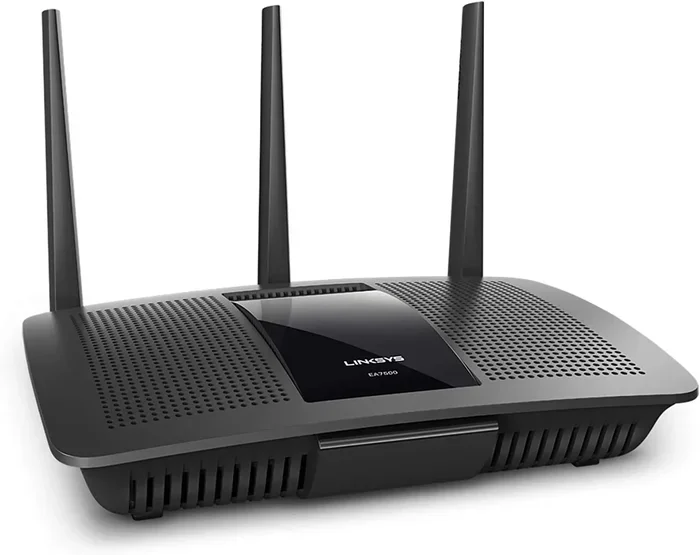
You will need a few items to get started. First, you need your Panasonic Blu-ray model. Know the brand and model number. This helps if you need to look up specific steps online. Second, you need your wireless router. This is the box that sends out the Wi-Fi signal. Third, make sure you know your network name and password. You can find this on the router or your internet bill. If you plan to use a wired link, grab an ethernet cable. This cable plugs directly into your player. It gives you a very stable link. You should also have your HDMI cable ready. This connects the player to your TV. A good HDMI cable ensures the best picture and audio output. Having everything ready makes the whole process much smoother. It takes the stress out of setting up a new device.
Check Your TV Input
Do not forget to check your TV input source. You need to make sure your TV is set to the right port. Usually, this is HDMI 1 or HDMI 2. Use your TV remote to switch inputs. If you do not see a picture, press the input button. This is a simple step that many people forget. It can save you a lot of confusion later. Once your TV is on the right input, you are ready to go. The setup will be much smoother from there.
How to Connect Panasonic Bluray Player Internet Netflix via Wi-Fi
The most common way to go online is through Wi-Fi. It is easy and does not need any extra cables. Most people use this method. It keeps your living room tidy and free of clutter. Here is exactly how to do it step by step.
Step-by-Step Wireless Setup
Start by turning on your player. Press the home button on your Panasonic remote. Look for the network or settings menu on the screen. Use the arrow keys to find network settings. Select the option for wireless setup. The device will start searching for available networks. This is called the setup wizard. It will show a list of names. Find your home network from the list. Click on it to select it. You will be asked to enter a password. Use the on-screen keyboard to type it in. Make sure you type it correctly. Passwords are case-sensitive, so watch for capital letters. Once entered, select connect. Wait a few seconds while the player tests the link. If it works, you will see a success message. You are now online and ready to stream. If it fails, double-check your password. A small typo can cause a big problem.
Finding Your Network Name
Sometimes, your network name does not show up right away. Do not panic. This happens more often than you think. First, make sure your wireless router is turned on. Check if the lights are blinking normally. Move your player closer to the router. Walls and doors can block the wireless signal. You can also restart your router. Unplug it from the wall for ten seconds. Plug it back in and wait for it to fully start. Then try the search again. The setup wizard should find your network now. A strong Wi-Fi connection is key for good streaming quality. If you still have trouble, you might need to check your wireless router settings. Some routers hide their network name. You can go into the router settings to unhide it. This makes it easier for your media player to find it. You can also try changing the wireless channel on your router. This can reduce interference from your neighbors’ networks.
Using WPS for a Faster Link
If you have a modern wireless router, you can use WPS. This stands for Wi-Fi Protected Setup. It is a very fast way to connect. Look for the WPS button on your router. Press it once. Then go to your player and select the WPS option. The device will connect automatically. You do not need to type in the password. This saves a lot of time. It is a great trick to know. Just make sure your router supports WPS. Most routers made in the last ten years do. This method is perfect if you have a lot of guests connecting to your home network too. It is the easiest way to get online quickly.
Using an Ethernet Cable for a Stable Link
While Wi-Fi is popular, a wired link has big benefits. You plug a cable directly from your router to your player. This is called an ethernet connection. It is very reliable and often much faster. Here is when and how to use it.
Wired vs. Wireless Connection
Let us compare the two methods side by side. A wireless connection is very convenient. You do not need to run cables across the room. Anyone can do it in minutes. But it can be slow sometimes. Walls and other devices can slow it down. This can cause buffering during a big action scene. An ethernet cable gives you a direct path. The speed is much faster and more stable. There is less lag or delay. The streaming quality is often better too. For the best picture and sound, a wired link is best. It is the professional choice for serious movie watchers. You get the most out of your Panasonic Blu-ray model this way. You never have to worry about a weak signal again.
When to Choose a Cable
You should use a cable if you have problems. If your movies keep stopping to load, switch to a wire. If you are watching 4K content, a cable helps a lot. It handles the large file sizes much better. You also need a cable if your router is close to your player. You can hide the cable under a rug. This keeps your room looking nice. An ethernet cable is a great tool. It makes your internet link super strong. You will never worry about a weak signal again. It is a simple change that makes a huge difference. You will notice the speed right away when you start streaming.
| Connection Type | Speed | Convenience | Stability |
|---|---|---|---|
| Wi-Fi | Good | Very High | Moderate |
| Ethernet Cable | Excellent | Moderate | Very High |
Installing the Netflix App on Your Device
Now that you are online, you need the Netflix app. Most newer Panasonic players have it built-in. Older models might need a download. Here is how to find and use it on your media player.
Navigating the Setup Wizard
Go back to the home screen on your player. Look for the Netflix icon. It is usually red and white. If you see it, click on it with your remote. The setup wizard will ask you to sign in. If you do not have an account, you can create one on your phone first. Then sign in on the TV screen. Use the Panasonic remote to type your email. It takes a little time. Be patient and use the arrow keys. Once signed in, Netflix will load your profile. You can now browse movies and shows. Use the arrow keys to scroll up and down. Press the OK button to select a title. You can search for specific movies too. Just use the search bar on the screen. The streaming service will start playing right away. You can adjust the quality in the app settings. This helps if your home network is slow. You want the best streaming quality without annoying stops. You can also set up parental controls here. This keeps your kids safe while they watch.
Managing Your App and Updates
Once you have the Netflix app, you need to keep it updated. App updates fix bugs and add new features. Go to the app store on your player. Check for any available updates. You should also check for a system update regularly. This keeps the whole device running well. A firmware update can improve your network settings. It can also fix audio output issues. Always make sure you have the latest version. This ensures you get the best performance. It also keeps you safe from online threats. A well-maintained media player lasts for many years. You will enjoy smooth disc playback and fast streaming for a long time. Do not ignore update notifications. They are there to help you.
Troubleshooting Common Connection Issues
Sometimes things do not work right away. Do not worry. Most problems have simple fixes. You can solve them at home without calling a technician. Here are the most common issues and how to fix them.
Fixing Buffering Problems
Buffering happens when the video pauses to load more data. This is very common and very annoying. It usually means your internet speed is too slow. Check your network settings to see the signal strength. If the signal is weak, move closer to the router. You can also restart your wireless router. Turn it off and on again. This often fixes slow speeds instantly. You should also close other apps on your player. Too many apps running in the background can slow things down. A quick restart of the player itself can also help. These steps stop buffering fast. You can get back to enjoying your movie. Remember, a strong Wi-Fi connection is the key to smooth playback. If you still have issues, try lowering the streaming quality. This uses less data and plays more smoothly.
Updating Your Firmware
An old firmware can cause connection problems. Firmware is the software that runs your player. You should always check for a firmware update. Go to the settings menu on your device. Look for system update or firmware update. Select the option to check now. If an update is available, install it. This can fix bugs and improve your Wi-Fi connection. It also adds new features to your media player. Always keep your device updated. It works better and lasts longer. A system update ensures your network settings are optimized. It can even improve your streaming quality. Do not ignore these prompts. They are there to help you. A simple update can solve many problems you are facing.
Resetting the Network Settings
If nothing else works, you can reset the network settings. This clears out any old or broken settings. Go to the network settings menu. Look for an option to reset or initialize. Confirm that you want to do this. You will need to enter your Wi-Fi password again. This is like starting the setup wizard from the very beginning. It often fixes stubborn connection issues. Just make sure you know your network name and password before you reset. This saves you a lot of time and frustration. After the reset, try connecting again. It usually works perfectly the second time. Always keep your password written down somewhere safe.
Quick Tips for the Best Experience
Here are some quick tips to make your viewing better than ever. Follow these simple rules and you will love your setup.
- Always use the latest version of the Netflix app.
- Place your wireless router in a central spot in your home.
- Restart your player once a week to clear the cache.
- Use an ethernet cable for 4K movies to avoid buffering.
- Keep your network password written down in a safe place.
- Update your firmware regularly to get the newest features.
- Use a strong, unique password for your home network.
- Close unused apps on the player to save memory.
- Keep your player away from other electronics that cause interference.
- Check your HDMI cable to ensure it is plugged in tightly.
Common Mistakes to Avoid
Many people make mistakes when setting up their device. Avoiding these will save you a lot of headaches. Here is what you should not do.
- Do not type your password wrong. It is case-sensitive and must match exactly.
- Do not put your router in a closed cabinet. The wireless signal needs space to spread out.
- Do not ignore firmware updates. They fix important bugs and security issues.
- Do not use a very old ethernet cable. Get a newer one for the best speed.
- Do not forget to restart your router when things go wrong.
- Do not use a weak Wi-Fi password. It slows down your home network and lets others use it.
- Do not forget to check the audio output settings on your TV.
- Do not try to run the setup wizard while the player is very hot. Let it cool down first.
Expert Insights on Home Networks
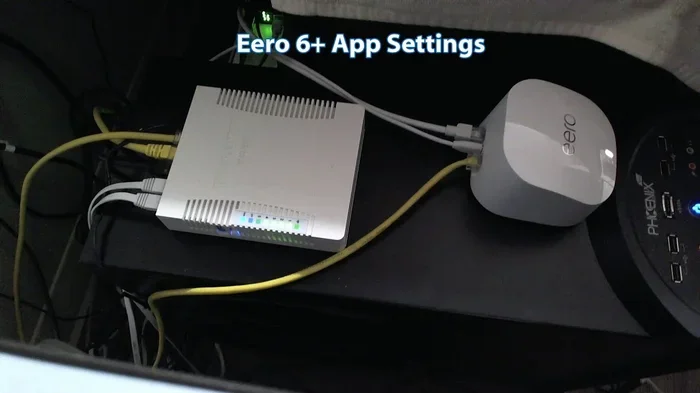
Experts say a good home network is the foundation of great streaming. A strong wireless router makes a huge difference in how your movies look and sound. Look for a router that supports the latest Wi-Fi standards. This is called Wi-Fi 6 or 802.11ax. It handles many devices at once without slowing down. You can also use a mesh system if your house is big. This spreads the wireless signal everywhere. A good network means no buffering. It means you can enjoy your favorite shows in high quality. The Panasonic Blu-ray model works best with a fast, stable link. Take time to set up your network right. It is worth the effort. A great network makes every streaming session perfect. You will notice the difference in the picture and sound quality immediately. You can also use a powerline adapter if your router is far away. This sends the internet signal through your home’s wiring. It is a great trick for older houses. Your media player will thank you for the strong connection.
Final Thoughts
Connecting your device to the web is a great move. You get access to endless movies and shows. The process is simple if you follow the steps carefully. Just use the setup wizard and enter your network settings correctly. Whether you use Wi-Fi or a cable, you will enjoy the results. You can now connect Panasonic Bluray player internet Netflix with ease. Grab some popcorn and hit play. Your next favorite movie is waiting for you. Enjoy the show and happy streaming! You have done a great job setting up your home entertainment system.
Frequently Asked Questions
How do I find my network password?
You can usually find your network password on the back of your wireless router. Look for a sticker that says “Password” or “Key.” You can also check your internet provider’s app on your phone. If you changed it and forgot it, you may need to log into your router settings through a web browser.
Why is my Netflix app not working?
The Netflix app might need an update. Go to the app store on your player and check for updates. If that does not work, restart your player. Sometimes the app just needs a fresh start to connect to the streaming service properly.
Can I use a VPN with my Blu-ray player?
Most Panasonic players do not support VPN apps directly. If you need to use a VPN, you should set it up on your wireless router instead. This will protect your entire home network and allow the player to connect through the VPN automatically.
What if my setup wizard keeps crashing?
First, restart your player and try again. Make sure your firmware is updated to the latest version. An old system can cause the setup wizard to freeze. If it still crashes, you may need to reset the network settings to clear out any broken data.
Do I need a smart TV to use Netflix?
No, you do not need a smart TV at all. You just need a media player with internet capability. Your regular TV works perfectly fine as long as you connect the player with an HDMI cable and set the TV to the right input source.
How do I improve my streaming quality?
Use an ethernet cable for the best and most stable results. This gives you a direct link to your router. You can also close other apps running on your device to free up memory. If you are still having trouble, lower the streaming quality in the Netflix app settings.