Can You Use Bluetooth Headphones On Switch For Gaming
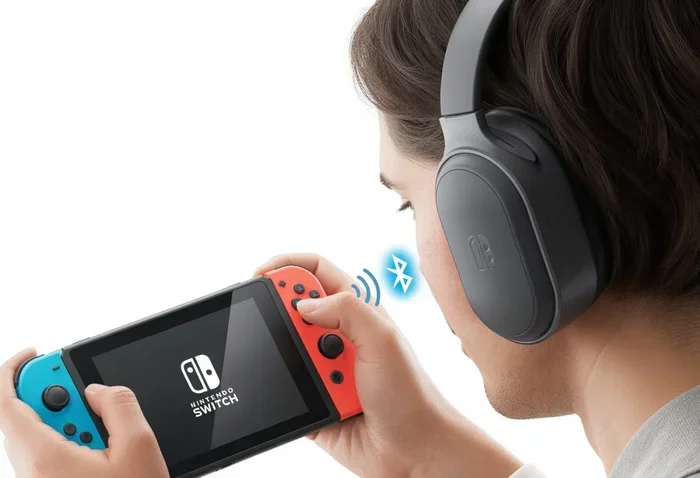
Yes, you can use Bluetooth headphones on Switch for gaming, but it requires a workaround since the console lacks native Bluetooth audio support. You will need a Bluetooth adapter or a compatible wireless headset that connects via USB or dock. This guide covers every method, including latency concerns, pairing steps, and the best headphones for wireless gaming on Nintendo Switch.
You just settled in for a gaming session on your Nintendo Switch. Your favorite Bluetooth headphones are charged and ready. You reach for them, pair them up, and… nothing happens. The Switch simply does not recognize them. Sound familiar?
This is one of the most common frustrations Switch owners face. The console is fantastic for portable gaming, but its audio options feel stuck in the past. If you want to game without disturbing everyone in the house, you need a workaround. The good news is that you can absolutely use Bluetooth headphones on Switch for gaming. It just takes a little know-how.
In this guide, we will walk you through every method available. We will cover Bluetooth adapters, compatible wireless headsets, and even a sneaky trick involving your Switch Pro Controller. By the end, you will know exactly how to get wireless audio working on your Nintendo Switch without breaking the bank or your setup.
Key Takeaways
- Nintendo Switch does not support Bluetooth headphones natively: You need a third-party adapter or a compatible wireless headset.
- A Bluetooth audio adapter is the most affordable solution: Plug it into the Switch dock or USB port for wireless audio.
- Latency can be a real issue for gaming: Look for adapters with low-latency codecs like aptX or aptX LL.
- Some wireless headsets connect directly via USB: Options like the SteelSeries Arctis Nova 7X work without a separate adapter.
- Your Switch Pro Controller can pair with Bluetooth headphones: This is a lesser-known trick that works in certain scenarios.
- Wired headphones remain the most reliable option: Zero latency and no extra accessories needed.
📑 Table of Contents
- Why Does the Switch Not Support Bluetooth Headphones Natively?
- Method 1: Using a Bluetooth Audio Adapter
- Method 2: Wireless Headsets That Connect via USB
- Method 3: The Switch Pro Controller Trick
- Common Issues and How to Fix Them
- Wired vs Wireless: Which Is Better for Switch Gaming?
- Quick Tips for the Best Bluetooth Gaming Experience on Switch
- Expert Insights: What Gamers Should Know
- Final Thoughts
Why Does the Switch Not Support Bluetooth Headphones Natively?
Nintendo made a design choice that surprises many people. The Switch does not include built-in Bluetooth audio support. This means you cannot simply put your headphones in pairing mode and connect them directly to the console.
Why did Nintendo do this? The answer comes down to bandwidth and latency. The Switch uses Bluetooth for its controllers, Joy-Cons, and the Switch Pro Controller. Adding audio Bluetooth would compete for the same wireless resources. Nintendo likely wanted to keep the controller connection stable and responsive.
There is also a technical limitation. The Switch’s Bluetooth chip handles input devices, not audio profiles like A2DP (the standard for streaming music and game audio). So even if you could pair headphones, the console would not send audio through that connection. This is why you need a workaround to get wireless headphones working with your Switch.
Method 1: Using a Bluetooth Audio Adapter
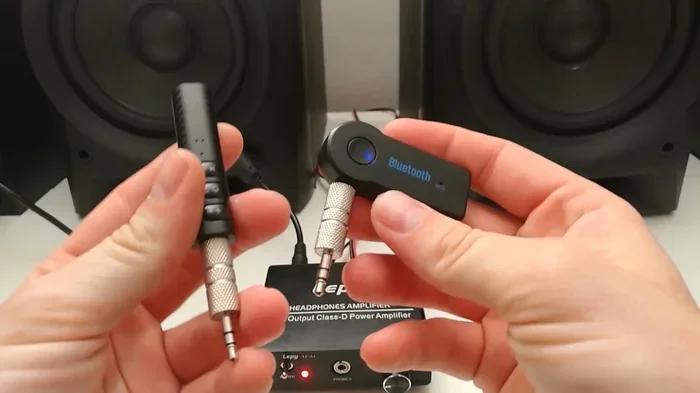
The most popular and affordable way to connect Bluetooth headphones to your Switch is with a Bluetooth audio adapter. This small device plugs into the Switch dock or a USB port and acts as a bridge between the console and your wireless headphones.
How to Set Up a Bluetooth Adapter
Setting up a Bluetooth adapter is straightforward. Follow these steps:
- Plug the Bluetooth adapter into the USB port on your Switch dock.
- Put your Bluetooth headphones into pairing mode.
- On the Switch, go to System Settings, then Bluetooth Audio.
- The adapter should appear in the list of available devices.
- Select the adapter and wait for the connection to establish.
Once paired, your Switch audio will route through the adapter to your headphones. You can adjust the volume from the Switch settings or directly from your headphones if they have volume controls.
Things to Watch Out For
Not all Bluetooth adapters are created equal. Here are some important things to consider:
- Latency matters a lot for gaming: Cheap adapters often have noticeable audio delay. This means your footsteps or gunshots arrive a split second after you see them on screen.
- Look for aptX Low Latency support: Adapters with this codec reduce delay significantly. Brands like 1Mii and Avantree make popular options.
- Check compatibility: Some adapters work better with certain headphone models. Read reviews before buying.
- USB port availability: If you use a dock with multiple USB ports, you may need a powered USB hub to avoid connection issues.
If you want to learn more about using Bluetooth devices with gaming consoles, check out our guide on Can I Use Bluetooth Headphones For Gaming for additional tips and headset recommendations.
Method 2: Wireless Headsets That Connect via USB
A simpler alternative to a Bluetooth adapter is a wireless headset that connects directly to the Switch via USB. These headsets come with their own USB dongle, which bypasses the need for Bluetooth entirely.
Why USB Wireless Headsets Work Better
USB wireless headsets use a 2.4GHz connection instead of standard Bluetooth. This offers several advantages:
- Lower latency: The 2.4GHz protocol is optimized for real-time audio. You get near-instant sound synchronization.
- More stable connection: No interference from other Bluetooth devices like your controllers or phone.
- Better range: Most USB dongles offer a reliable range of 30 feet or more.
Some great options include the SteelSeries Arctis Nova 7X and the Turtle Beach Stealth 700 Gen 2. These headsets are designed specifically for console gaming and work seamlessly with the Switch.
Top Wireless Headsets for Switch Gaming
| Headset | Connection Type | Latency | Price Range |
|---|---|---|---|
| SteelSeries Arctis Nova 7X | USB Dongle | Very Low | $150-$180 |
| Turtle Beach Stealth 700 Gen 2 | USB Dongle | Low | $100-$130 |
| Corsair HS80 RGB Wireless | USB Dongle | Very Low | $130-$150 |
| JBL Quantum 800 | USB Dongle | Low | $100-$120 |
These headsets deliver excellent gaming audio without the hassle of Bluetooth compatibility issues. If you are serious about competitive gaming on your Switch, a USB wireless headset is the way to go.
Method 3: The Switch Pro Controller Trick
Here is a lesser-known trick that some Switch users swear by. You can pair Bluetooth headphones directly to your Switch Pro Controller. This works because the Pro Controller has its own Bluetooth chip that can handle audio profiles.
To try this method, put your Pro Controller into pairing mode and connect your Bluetooth headphones to it. Then, connect the Pro Controller to your Switch as you normally would. The audio should route through the controller to your headphones.
This method works best with headphones that support the AVRCP profile. It is not as reliable as using an adapter, and you may experience occasional audio drops. But it is a free workaround if you already own a Pro Controller and Bluetooth headphones.
For those wondering about using Bluetooth headphones on other gaming consoles, our article Can I Pair Bluetooth Headphones To Xbox One covers Xbox-specific options in detail.
Common Issues and How to Fix Them
Even with the right setup, you might run into problems. Here are the most common issues and their solutions.
Audio Lag During Gameplay
Audio lag is the number one complaint among Switch users with Bluetooth headphones. If you notice a delay between what you see on screen and what you hear, try these fixes:
- Switch to an adapter that supports aptX Low Latency.
- Move your headphones closer to the adapter to strengthen the signal.
- Reduce interference by turning off unused Bluetooth devices nearby.
- Check for firmware updates on your adapter.
Connection Drops Frequently
Unstable connections are frustrating, especially during intense gaming moments. Common causes include:
- A weak Bluetooth signal. Try moving the adapter closer to your headphones.
- Interference from Wi-Fi routers or other wireless devices.
- Low battery on your headphones or adapter.
- An outdated adapter firmware.
For more tips on keeping your Bluetooth devices connected, read our guide Can I Use Bluetooth Headphones With Switch which covers troubleshooting in depth.
Poor Audio Quality
If your audio sounds muffled or distorted, the issue is likely the Bluetooth codec. Standard SBC codec is fine for music but can sound compressed for gaming. Upgrading to an adapter that supports AAC or aptX improves audio quality noticeably.
Wired vs Wireless: Which Is Better for Switch Gaming?
Let us compare wired and wireless options side by side so you can decide what works best for your setup.
| Feature | Wired Headphones | Bluetooth Wireless | USB Wireless |
|---|---|---|---|
| Latency | Zero | Moderate to High | Very Low |
| Convenience | Low (tethered) | High | High |
| Setup Complexity | Plug and play | Adapter needed | Dongle needed |
| Cost | Low | Medium | Medium to High |
| Audio Quality | Excellent | Good | Very Good |
| Mobility | Limited | Excellent | Excellent |
For competitive gaming, wired or USB wireless headphones are your best bet. For casual gaming and watching movies on your Switch, Bluetooth headphones work fine as long as you use a quality adapter. The right choice depends on what matters most to you: zero latency or freedom of movement.
Quick Tips for the Best Bluetooth Gaming Experience on Switch
Follow these quick tips to get the most out of your wireless audio setup:
- Keep your adapter firmware updated: Manufacturers often release updates that improve stability and reduce latency.
- Use a powered USB hub: This prevents power issues that can cause disconnections.
- Charge your headphones fully before gaming: Nothing kills immersion faster than dying batteries mid-match.
- Test your setup before a tournament: Make sure everything works smoothly well before you need it.
- Consider a headset with a dual connection: Some headsets offer both USB and Bluetooth, giving you flexibility.
Expert Insights: What Gamers Should Know
After testing dozens of Bluetooth setups with the Nintendo Switch, here is what experienced gamers recommend. First, always prioritize latency over audio quality when gaming. A slight delay can make the difference between winning and losing in fast-paced games. Second, invest in a reputable Bluetooth adapter rather than cheap no-name brands. The extra cost is worth the stability.
Third, remember that the Switch is a hybrid console. Your setup might differ depending on whether you are playing in handheld mode or docked mode. Some adapters work better in one mode than the other. Test both before committing to a setup.
If you are also interested in using Bluetooth speakers with your Switch or other devices, check out our guide on Can I Turn My Phone Into A Bluetooth Speaker for creative audio solutions.
Final Thoughts
So, can you use Bluetooth headphones on Switch for gaming? The answer is yes. While the Nintendo Switch does not support Bluetooth audio natively, you have several reliable workarounds. A Bluetooth adapter is the most budget-friendly option. USB wireless headsets offer the best performance. And the Pro Controller trick provides a clever free alternative.
Each method has its pros and cons. Your choice depends on your budget, your tolerance for latency, and how seriously you take your gaming. With the right setup, you can enjoy immersive wireless audio on your Nintendo Switch without disturbing anyone around you.
Take your time setting up your system. Test different configurations. Find what works best for your gaming style. Once you get it right, you will wonder how you ever played without wireless headphones on your Switch.