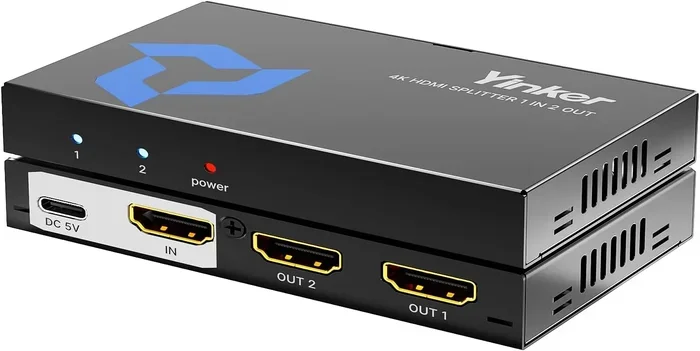
Can You Split HDMI To Two Outputs and Watch Two Screens
Yes, you can split HDMI to two outputs and watch two screens at the same time. An HDMI splitter takes a single video source and sends the same signal to multiple displays. Whether you want to mirror your laptop on a TV or share content in a conference room, a splitter makes it simple and affordable.
Key Takeaways
- HDMI splitters let you duplicate content: One source feeds two or more screens with the same video and audio.
- Powered splitters work best: They boost the signal so you don’t lose quality over longer cable runs.
- Resolution matters: Make sure your splitter supports the resolution you need, from 1080p to 4K.
- Not all splitters are equal: Some only handle video, while others also extract audio for separate speakers.
- Signal degradation can happen: Using too many splitters or long cables may weaken your picture quality.
- Setup is simple: Plug in, connect your cables, and power on — no tech skills required.
- HDMI splitters and switches serve different purposes: A splitter duplicates, while a switch selects between sources.
📑 Table of Contents
- Can You Split HDMI To Two Outputs and Watch Two Screens?
- What Is an HDMI Splitter and How Does It Work?
- Types of HDMI Splitters for Dual Outputs
- How to Set Up an HDMI Splitter for Two Screens
- Common Problems and How to Fix Them
- Best Use Cases for HDMI Splitting
- HDMI Splitter vs. HDMI Switch: What Is the Difference?
- Tips for Choosing the Right HDMI Splitter
- Frequently Asked Questions
- Final Thoughts
Can You Split HDMI To Two Outputs and Watch Two Screens?
If you have ever wanted to show the same content on two screens at once, you have probably asked yourself this question. The short answer is yes. You can split an HDMI signal to two outputs and watch the same content on two different displays. But how you do it, and whether the quality holds up, depends on the right equipment and a few simple steps.
HDMI splitters are small, affordable devices that take one HDMI input and send the exact same signal to two or more outputs. They are popular for home setups, office presentations, and even digital signage. In this guide, we will walk you through everything you need to know. You will learn how splitters work, which type to buy, and how to avoid common mistakes.
Whether you are a casual user who wants to mirror a phone screen on a TV or a business professional setting up a conference room, this article has you covered. Let us dive in and explore the world of HDMI splitting together.
What Is an HDMI Splitter and How Does It Work?
An HDMI splitter is a device that takes a single HDMI input and duplicates the signal across multiple outputs. Think of it like a water pipe splitter — one stream of water goes in, and two streams come out. In this case, the “water” is your video and audio signal.
When you plug a source device into the splitter, the splitter copies the digital signal and sends identical copies to each connected display. Both screens show the same content at the same time. This process is called mirroring.
How the Signal Travels
Here is a simple breakdown of how the process works:
- Source device: This is your laptop, Blu-ray player, gaming console, or streaming stick.
- HDMI splitter: The device receives the signal and duplicates it.
- Output cables: Two or more HDMI cables carry the duplicated signal to each display.
- Displays: Monitors, TVs, or projectors that show the same content.
The entire process happens in real time. There is almost no delay, which makes splitters great for live presentations and gaming. The splitter does not compress or alter the signal. It simply copies it. That is why a good-quality splitter preserves your original picture and sound quality.
Do You Need a Powered or Passive Splitter?
This is an important distinction. A powered HDMI splitter uses an external power source, usually a small USB cable. It amplifies the signal before sending it to each output. This keeps the signal strong, especially when you use longer cables.
A passive splitter does not need external power. It simply divides the signal. Passive splitters work fine for short distances, but the signal can weaken over longer cable runs. For most users, a powered splitter is the safer choice.
Types of HDMI Splitters for Dual Outputs
Not all splitters are the same. Different models serve different needs. Here is a look at the most common types you will find on the market.
Basic 1×2 HDMI Splitter
This is the most popular type. It has one input and two outputs. It duplicates the signal to two screens. Most basic models support 1080p Full HD resolution. Some newer models also handle 4K Ultra HD content.
HDMI Splitter with Audio Extraction
Some splitters come with an extra feature: they can pull the audio signal out through a separate port. This is handy if you want to send video to one screen and audio to a separate speaker system. These models often include an optical audio output or a 3.5mm headphone jack.
4K and HDR-Compatible Splitters
If you have a 4K TV or a monitor that supports High Dynamic Range (HDR), you need a splitter that can handle those signals. Not every splitter supports 4K or HDR. Always check the product specifications before you buy. Look for labels like “4K x 2K” or “HDR 10 compatible” on the packaging.
HDMI Splitter with EDID Management
EDID stands for Extended Display Identification Data. It is how your devices talk to each other about resolution and format. Some splitters have built-in EDID management, which helps both displays show the best possible picture without flickering or black screens. This is a nice feature for people who want a hassle-free setup.
How to Set Up an HDMI Splitter for Two Screens
Setting up an HDMI splitter is surprisingly easy. You do not need any technical skills. Follow these steps and you will be up and running in minutes.
Step-by-Step Setup Guide
- Choose your location: Place the splitter near your source device. Make sure there is enough space for the cables.
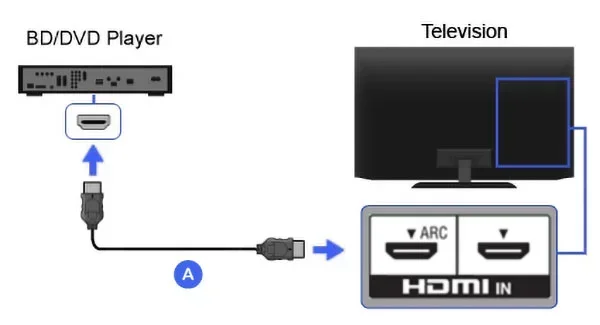
- Connect the input cable: Plug an HDMI cable from your source device (like a laptop or streaming stick) into the splitter’s input port.
- Connect the output cables: Plug one HDMI cable from each output port on the splitter to your two displays.
- Power the splitter: If you have a powered splitter, plug in the USB power cable. Some splitters draw power directly from the source device.
- Turn on all devices: Power on your source device and both displays. Switch each display to the correct HDMI input.
- Check the picture: Both screens should now show the same content. If not, try unplugging and replugging the cables.
Quick Tips for a Smooth Setup
- Use high-quality HDMI cables to avoid signal loss.
- Keep cables as short as possible for the best performance.
- If one screen shows no signal, try a different HDMI port on that display.
- Label your cables so you always know which cable goes where.
- For longer cable runs, use a powered splitter to boost the signal.
One thing people often overlook is the resolution settings on the source device. Make sure your source is set to a resolution that both displays support. If one screen is 1080p and the other is 4K, the splitter will usually default to the lower resolution. Both screens will then display 1080p.
Common Problems and How to Fix Them
Even though HDMI splitters are simple devices, you might run into a few issues. Here are the most common problems and their solutions.
No Signal on One Screen
This happens more often than you might think. The first thing to check is your cable connections. Make sure each HDMI cable is firmly plugged in at both ends. If the cable is loose, the signal will not reach the display.
Next, try a different cable. Sometimes the cable itself is faulty. If you are using a long cable, signal loss could be the culprit. Switch to a shorter, higher-quality cable and see if that fixes the problem.
Flickering or Black Screens
Flickering usually points to a bandwidth issue. A passive splitter may struggle with high-resolution content. Upgrading to a powered splitter often solves this. Also, make sure your cables are rated for the resolution you are using. A cable rated for 1080p will struggle with 4K content.
Audio Not Working
If your video looks great but there is no sound, check a few things. First, make sure your displays have speakers or are connected to an audio system. Second, check the audio settings on your source device. Some devices let you choose between HDMI audio and internal speakers. Third, if you are using a splitter with audio extraction, make sure the audio output is connected to a speaker or sound system.
Resolution Mismatch
When two different displays are connected, they may have different native resolutions. The splitter will usually output the lowest common resolution. To get the best picture on both screens, set your source device to a resolution that works well on both displays. For example, if one screen is 1080p and the other is 4K, setting the source to 1080p ensures both screens look good.
Best Use Cases for HDMI Splitting
HDMI splitting is not just a tech experiment. It has real-world applications that many people find useful every day. Here are some of the best use cases.
Home Entertainment
Want to watch a movie on your TV while showing the same content on a second TV in another room? An HDMI splitter makes this possible. This is great for families who want to watch together in different rooms. You can also use a splitter to connect your streaming device to both a bedroom TV and a living room TV.
Office Presentations
In a conference room, you might need to show your presentation on a main projector and a secondary monitor for attendees sitting closer. A splitter sends the same content to both displays without any extra equipment. This setup works well for business meetings and training sessions.
Gaming Setups
Gamers sometimes want to play on a TV in the living room while a second screen in the bedroom shows the same gameplay. An HDMI splitter duplicates the game output to both TVs. Just keep in mind that for competitive gaming, any added latency might matter. Most modern splitters have negligible delay.
Digital Signage and Retail Displays
Businesses use HDMI splitters to show the same promotional content on multiple screens in a store or lobby. This is a cost-effective way to run digital signage without needing a separate device for each screen.
Home Office Dual Monitor Setup
Some users prefer to mirror their laptop screen on a larger monitor for easier viewing. An HDMI splitter lets you do this without needing special software or complex configurations. It is a plug-and-play solution that works with most laptops and monitors.
HDMI Splitter vs. HDMI Switch: What Is the Difference?
People often confuse HDMI splitters with HDMI switches. They are not the same thing, and choosing the wrong one can cause frustration.
An HDMI splitter takes one input and sends it to multiple outputs. The content is duplicated across all screens. It is one-to-many.
An HDMI switch takes multiple inputs and sends them to one output. You can switch between different devices using a button or remote. It is many-to-one.
Here is a quick comparison:
- HDMI Splitter: 1 input becomes 2 or more outputs. Same content on all screens.
- HDMI Switch: 2 or more inputs become 1 output. You choose which device to display.
If you want to watch the same thing on two screens, buy a splitter. If you want to connect a game console, a Blu-ray player, and a streaming stick to one TV, buy a switch. Mixing them up is a common mistake, so double-check what you need before purchasing.
Also, keep in mind that some devices combine both functions. You can find splitter-switch combos that offer both duplication and switching in one unit. These are handy if your needs change over time.
Tips for Choosing the Right HDMI Splitter
With so many options available, picking the right splitter can feel overwhelming. Here are a few tips to help you make the best choice.
- Check the resolution support: Make sure the splitter handles the resolution of your source device and displays. If you have 4K TVs, buy a 4K splitter.
- Look for EDID support: This feature helps both displays communicate properly with the source device.
- Choose powered over passive: Powered splitters give you a stronger, more reliable signal.
- Count the outputs you need: Most people need two outputs, but some splitters offer four or even eight.
- Read user reviews: Real-world feedback can help you spot potential issues before you buy.
- Consider audio needs: If you need separate audio output, look for a splitter with audio extraction.
You might also want to explore other tech accessories that simplify your setup. For instance, if you are looking for ways to organize your devices, check out our guide on 10 Gadgets To Make Moms Life Easier for some creative ideas. And if you are dealing with phone-related connectivity issues, our article on Adding Prefixes To Numbers On Iphone might help you stay connected.
Frequently Asked Questions
Can You Split HDMI to Two Outputs Without Losing Quality?
Yes, you can split HDMI to two outputs without losing quality — as long as you use a good-quality powered splitter. Cheap passive splitters may reduce signal strength, especially over long cable runs. Always choose a splitter that matches your resolution needs, such as 1080p or 4K, to maintain the best picture and sound quality on both screens.
Does an HDMI Splitter Work for Gaming?
Yes, an HDMI splitter works for gaming. It duplicates your game console’s output to two screens. However, some splitters introduce a tiny amount of latency. For most casual gaming, this is not noticeable. If you are a competitive gamer, test your setup first to make sure the delay does not affect your gameplay.
Can I Use a Long HDMI Cable with a Splitter?
You can use long HDMI cables with a splitter, but signal loss becomes a risk over long distances. A powered splitter helps boost the signal and compensates for cable length. For runs longer than 15 feet, consider using a high-quality cable or a signal repeater to keep the picture and sound crisp.
Will a Splitter Work with 4K and HDR Content?
It depends on the splitter. Not all splitters support 4K or HDR. Before buying, check the product specifications carefully. Look for terms like “4K x 2K support” or “HDR 10 compatible.” A splitter that does not support these standards will downgrade your content to a lower resolution or remove the HDR effect.
Can I Split HDMI to More Than Two Screens?
Yes, you can. HDMI splitters are available with more than two outputs. You can find 1×4, 1×8, and even higher configurations. However, each additional output may weaken the signal slightly. For more than two screens, a powered splitter is strongly recommended to keep the quality consistent across all displays.
Do I Need Any Special Software to Use an HDMI Splitter?
No, you do not need any special software. HDMI splitters are plug-and-play devices. They work at the hardware level, meaning they duplicate the signal automatically. Just connect your cables, power on the splitter, and both displays will show the same content immediately. No drivers or apps are required.
Final Thoughts
Splitting HDMI to two outputs is simple, affordable, and incredibly useful. Whether you want to mirror content in your living room, share a presentation at work, or set up a gaming station in two rooms, an HDMI splitter gets the job done. The key is to choose the right type of splitter for your needs and use quality cables.
Remember the difference between a splitter and a switch. A splitter duplicates content across multiple screens, while a switch lets you choose between multiple sources on one screen. Getting this wrong is the most common mistake people make.
With the right equipment and a little patience during setup, you can enjoy the same content on two screens without any hassle. Start with a powered 1×2 splitter, use short and high-quality cables, and you will have a smooth dual-screen experience in no time. Happy viewing!