Can You Split HDMI To 2 Screens With These Simple Tips
Yes, you can split HDMI to 2 screens using an HDMI splitter, and it is simpler than most people think. This guide walks you through every step, from choosing the right splitter to troubleshooting common issues. You will learn how to extend or mirror your display, boost your productivity, and enjoy better entertainment setups at home.
Key Takeaways
- An HDMI splitter lets you share one signal across two displays effortlessly.
- You do not need expensive equipment — affordable splitters work great for most setups.
- Mirroring and extending are two different modes, and each serves a unique purpose.
- Resolution and audio quality can be affected by the splitter you choose, so pick wisely.
- Common problems like no signal or flickering are usually easy to fix with basic troubleshooting.
- HDMI splitting works for PCs, laptops, gaming consoles, and streaming devices.
📑 Table of Contents
- Can You Split HDMI To 2 Screens? Yes, Here Is How
- What Is HDMI Splitting and Why Do People Do It?
- Types of HDMI Splitters for Dual Screen Setup
- Step-by-Step Guide to Splitting HDMI to 2 Screens
- Mirroring vs. Extending: What Is the Difference?
- Common Problems When Splitting HDMI and How to Fix Them
- Best Uses for HDMI Splitting in Everyday Life
- Expert Tips for Getting the Most Out of Your HDMI Splitter
- Frequently Asked Questions
- Conclusion
Can You Split HDMI To 2 Screens? Yes, Here Is How
Have you ever wished you could use two monitors or TVs from a single HDMI source? The answer is a clear yes. Splitting HDMI to 2 screens is one of the easiest ways to expand your workspace or share content with a group. Whether you are working from home, setting up a gaming station, or just want a bigger viewing area, an HDMI splitter makes it all possible.
In this guide, we will walk you through everything you need to know. From choosing the right splitter to setting it up and fixing common problems, you will find all the answers here. Let us dive in and make your dual-screen setup a reality.
What Is HDMI Splitting and Why Do People Do It?
HDMI splitting means taking one HDMI signal and sending it to two or more displays at the same time. Think of it like a water pipe splitting into two streams. The original signal stays intact, and both screens show the same content.
People split HDMI for many reasons. Some want to mirror their laptop on a TV for movie nights. Others need a second screen for work productivity. Gamers often use split setups to enjoy a wider view. And teachers or presenters use it to share content with a larger audience in classrooms or meeting rooms.
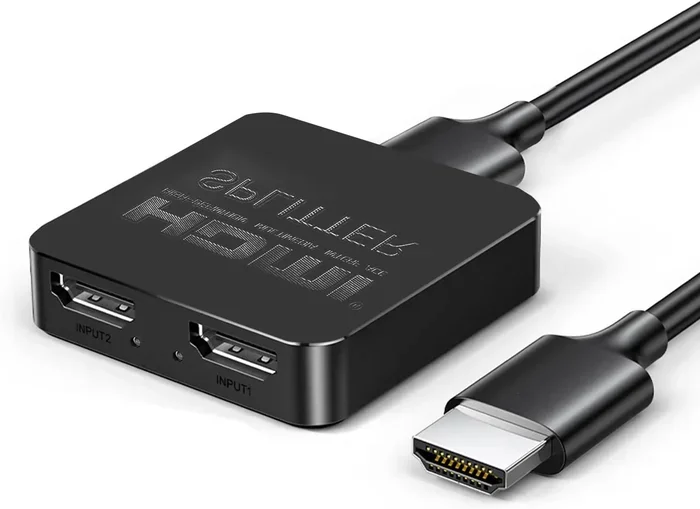
The process relies on a small device called an HDMI splitter. This box has one input port and two or more output ports. You plug your source device into the input, and your displays connect to the outputs. It really is that simple.
How Does an HDMI Splitter Work?
An HDMI splitter receives the video and audio signal from your source device. It then copies that signal and sends identical copies to each connected display. The splitter does not change the content — it just duplicates it.
Most splitters support high-definition resolutions up to 4K or even 8K, depending on the model. They also pass through audio without any loss in quality. Some advanced models come with built-in signal boosters to ensure the signal stays strong over longer cable runs.
Types of HDMI Splitters for Dual Screen Setup
Not all HDMI splitters are the same. Choosing the right one depends on what you want to do and what devices you are using. Here are the most common types you will come across.
Basic HDMI Splitter
A basic HDMI splitter has one input and two outputs. It duplicates the signal exactly on both screens. This is the most popular choice for home use. You can find them for under $20 online, and they work with most devices without any extra setup.
HDMI Splitter with Audio Extraction
Some splitters can pull the audio signal out separately. This is handy when you want to send video to a TV but audio to a separate speaker system. These models usually include an HDMI audio output or a 3.5mm headphone jack.
Powered vs. Unpowered Splitters
Powered splitters need a power source, usually through a USB cable. They offer stronger signal boosting and work better with longer HDMI cable runs. Unpowered splitters draw power from the HDMI connection itself. They are simpler but may struggle with signal loss over long distances.
HDMI Switch vs. HDMI Splitter
People often confuse an HDMI switch with an HDMI splitter. A switch lets you connect multiple source devices to one display. A splitter does the opposite — one source to multiple displays. Make sure you buy the right one for your needs.
| Feature | Basic Splitter | Splitter with Audio | Powered Splitter |
|---|---|---|---|
| Number of Outputs | 2 | 2 | 2 or more |
| Audio Extraction | No | Yes | Sometimes |
| Needs External Power | No | No | Yes |
| Price Range | $10 – $25 | $15 – $35 | $20 – $50 |
| Signal Boosting | No | No | Yes |
Step-by-Step Guide to Splitting HDMI to 2 Screens
Setting up an HDMI splitter is straightforward. Follow these steps, and you will have two screens working in minutes.
Step 1: Gather Your Equipment
Before you start, make sure you have everything you need:
- One HDMI splitter (1 input, 2 outputs)
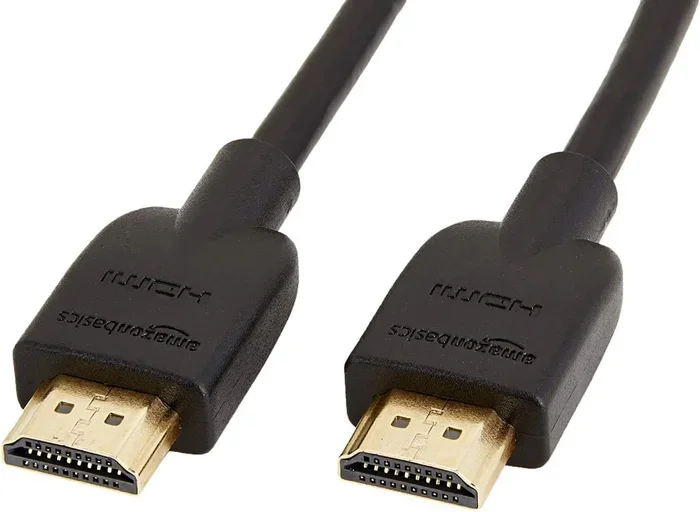
- Two HDMI cables (one for each display)
- Your source device (laptop, PC, gaming console, or streaming stick)
- Two displays (monitors, TVs, or projectors)
Step 2: Connect the Splitter to Your Source Device
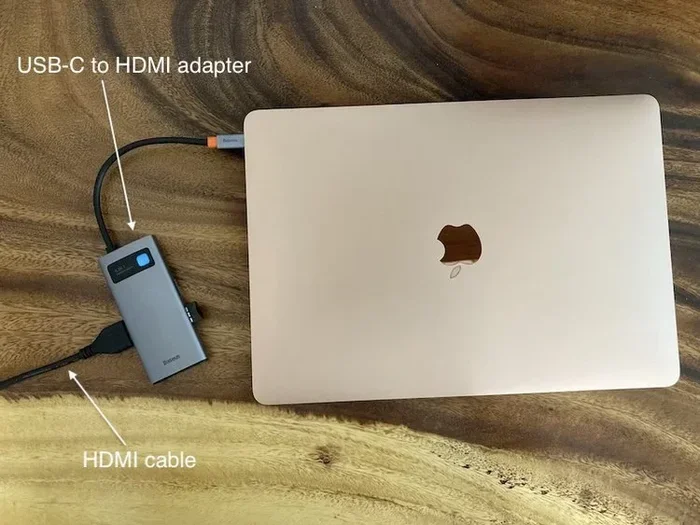
Plug one end of a short HDMI cable into the output port of your source device. Connect the other end into the input port on the HDMI splitter. This is the connection that sends the original signal into the splitter.
Step 3: Connect Your Two Displays
Take two HDMI cables and plug one into each output port on the splitter. Run the other ends to your two displays. Make sure each connection is firm and secure.
Step 4: Power On the Splitter (If Powered)
If you have a powered splitter, plug in the USB cable or power adapter. Wait for the power light to turn on. This confirms the splitter is receiving electricity and is ready to work.
Step 5: Turn On Your Displays and Source Device
Power on your source device first, then turn on both displays. The screens should show the same content almost immediately. If one screen stays dark, check your cable connections and try a different port.
Step 6: Adjust Display Settings
On most devices, you may need to adjust your display settings to get the best result. Go to your system settings and look for the display or screen resolution options. You can choose between mirroring both screens or extending your desktop across two displays.
Quick Tips
- Use short, high-quality HDMI cables for the best picture quality.
- If you experience signal loss, try a powered splitter with a signal booster.
- Label your cables so you always know which goes where.
Mirroring vs. Extending: What Is the Difference?
When you split HDMI to 2 screens, you have two main options: mirroring and extending. Understanding the difference helps you choose the right setup for your needs.
What Is Screen Mirroring?
Screen mirroring shows the exact same image on both screens. If you open a document on your laptop, it appears on both displays identically. This is perfect for presentations, sharing movies with friends, or showing your phone screen on a larger TV.
What Is Screen Extending?
Screen extending treats each display as a separate workspace. Your desktop spans across both screens, giving you more room to work. You can drag windows from one screen to the other. This setup is ideal for multitasking, coding, graphic design, and any workflow that benefits from extra screen space.
Most operating systems make it easy to switch between these modes. On Windows, press the Windows key plus P to open the projection menu. On macOS, go to System Settings and look for Displays. From there, you can choose to mirror or extend your screen.
Common Problems When Splitting HDMI and How to Fix Them
Even with a simple setup, you might run into a few hiccups. Here are the most common issues and how to solve them quickly.
No Signal on One or Both Screens
If one screen shows nothing, start by checking your cable connections. A loose cable is the most common cause. Try unplugging and replugging each HDMI cable firmly. If that does not work, swap the cable with a known working one to rule out a bad cable.
Flickering or Distorted Image
Flickering usually happens when the splitter cannot handle the resolution your device is outputting. Lower the resolution in your display settings and see if the problem goes away. Also, make sure your splitter supports the resolution you are using.
No Audio on One Screen
Some splitters pass audio to both screens, but others only send audio to the primary output. Check your device audio settings and make sure the correct output is selected. If your splitter has audio extraction, use that output for your speakers or sound system.
Splitter Overheating
Powered splitters can sometimes get warm during long use sessions. This is normal, but if the device gets too hot to touch, turn it off and let it cool down. Make sure the splitter is in a well-ventilated area and not covered by other equipment.
Common Mistakes to Avoid
- Buying a cheap, uncertified splitter can lead to poor picture quality and signal drops.
- Using cables that are too long without a powered booster causes signal loss.
- Forgetting to update your display drivers can prevent your system from recognizing the second screen.
Best Uses for HDMI Splitting in Everyday Life
HDMI splitting is not just for tech enthusiasts. Regular people use it in many practical ways every day. Here are some of the best uses that show how versatile this simple tool can be.
Home Entertainment Setup
Want to watch a movie on your TV while keeping the menu on your tablet? An HDMI splitter makes this easy. You can also connect a gaming console to two TVs in different rooms so everyone can play together.
Office Productivity
Many professionals swear by a dual-screen setup. Splitting HDMI lets you connect your desktop computer to two monitors without buying a second graphics card. You can keep your email on one screen and your main work document on the other. This simple change can boost your productivity significantly.
Classroom and Presentation Settings
Teachers and trainers use HDMI splitters to share content with an entire class. The presenter sees their notes on their laptop while the audience watches the same content on a large projector or TV screen.
Digital Signage and Retail Displays
Small businesses use HDMI splitting to run the same promotional video on multiple screens in their store. It is a cost-effective way to grab customer attention without complex software or expensive equipment.
Expert Tips for Getting the Most Out of Your HDMI Splitter
After setting up your dual-screen configuration, a few expert-level tips can take your experience to the next level.
Choose the Right Resolution
Your splitter is only as good as the weakest link in your chain. If one of your displays only supports 1080p, the splitter will downscale the signal for both screens. To get the best picture quality, make sure all your displays support the same resolution.
Keep Your Cables Short and Quality
Longer HDMI cables can degrade the signal, especially at higher resolutions. Keep your cables as short as possible, and invest in high-speed HDMI cables rated for 4K if you plan to use that resolution.
Update Your Graphics Drivers Regularly
Outdated graphics drivers can cause your system to miss the second display entirely. Visit your GPU manufacturer’s website regularly and install the latest drivers. This simple step prevents many common HDMI splitting issues.
Consider a Universal HDMI Splitter
Some splitters work with multiple input types, not just HDMI. If you plan to connect different devices over time, a universal model gives you more flexibility. These splitters often include VGA, DisplayPort, or USB-C inputs alongside standard HDMI ports.
If you are looking for gadgets that simplify everyday tech tasks, check out these 10 Gadgets To Make Moms Life Easier for some great ideas. And if you ever need to manage phone numbers connected to your displays or other devices, you might find our guide on adding prefixes to numbers on iPhone helpful for organizing your contacts.
Frequently Asked Questions
Do I Need a Special HDMI Splitter for 4K Content?
Yes, if you want to split 4K content to two screens, you need a splitter that explicitly supports 4K resolution. Not all splitters handle ultra-high-definition signals. Check the product specifications before buying, and look for splitters labeled “4K compatible” or “4K pass-through.”
Can I Split HDMI to More Than 2 Screens?
Absolutely. HDMI splitters come in 1-to-4, 1-to-8, and even higher configurations. However, keep in mind that splitting to more screens can weaken the signal. For setups with more than two displays, a powered splitter with a strong signal booster works best.
Will Splitting HDMI Reduce Picture Quality?
A good-quality HDMI splitter should not reduce picture quality. The signal is simply duplicated, not compressed. However, low-quality splitters or long cable runs can cause some signal degradation. Stick with reputable brands and use short, high-quality cables for the best results.
Can I Use an HDMI Splitter with a Laptop?
Yes, laptops work great with HDMI splitters. Most modern laptops have an HDMI output port. Simply connect your laptop to the splitter input and your two displays to the outputs. Adjust your display settings to mirror or extend as needed.
Do HDMI Splitters Pass Audio?
Most HDMI splitters pass audio along with video to all connected displays. However, some budget models may have audio limitations. If audio is important to you, choose a splitter that specifically mentions audio support in its specifications.
Can I Use an HDMI Splitter for Gaming?
Yes, you can use an HDMI splitter for gaming. The splitter duplicates the same game画面 on both screens. For the best gaming experience, choose a splitter with high bandwidth support and low input lag. Powered splitters tend to perform better for gaming because they maintain a strong, stable signal.
Conclusion
Splitting HDMI to 2 screens is a practical, affordable solution for anyone who needs more display space or wants to share content with others. With the right splitter, a couple of HDMI cables, and a few minutes of your time, you can set up a dual-screen configuration that works perfectly for work, entertainment, or presentations.
Remember to choose a splitter that matches your resolution needs, use quality cables, and adjust your display settings correctly. If you run into problems, the troubleshooting tips in this guide should help you get back on track quickly. The process is straightforward, and the results are well worth the small investment.
Start experimenting with your setup today. Once you experience the convenience of two screens from one source, you will wonder how you ever managed without it. Happy splitting!