Can Usb C Go Into Usb A Ports And What You Should Know
Yes, you can plug a USB-C cable into a USB-A port using the right adapter or cable. USB-C and USB-A are different connector types, but they work together with a simple adapter. This guide covers everything about USB-C to USB-A compatibility, including speeds, power delivery, common mistakes, and the best ways to connect your devices.
You have a shiny new device with a USB-C connector, and you need to plug it into an older USB-A port. Maybe it is your laptop, your phone, or a fancy external hard drive. The question is simple: can USB C go into USB A? The short answer is yes, but there is more to it than just jamming a cable in and hoping for the best.
In this article, we will walk you through everything you need to know about connecting USB-C devices to USB-A ports. From adapters and cables to data speeds and power delivery, we have got you covered. Whether you are at home, in the office, or on the go, understanding how these two connector types work together will save you time, money, and frustration.
The world of USB connections can feel confusing. There are different shapes, different speeds, and different power levels. But once you understand the basics, it all makes sense. Let us break it down in a way that is easy to follow and full of practical advice you can use right away.
Key Takeaways
- USB-C can connect to USB-A: You need a USB-C to USB-A adapter or cable to make this work.
- Backward compatibility is real: USB-C devices can work with older USB-A ports, but speeds may be limited.
- Data speeds vary: The connection will only be as fast as the slower USB standard between the two devices.
- Power delivery depends on the port: USB-A ports typically deliver less power than USB-C ports.
- Adapters and hubs solve the problem: A good USB hub or adapter makes connecting USB-C devices to USB-A ports easy.
- Not all cables are equal: Using the wrong cable can lead to slow transfers or no connection at all.
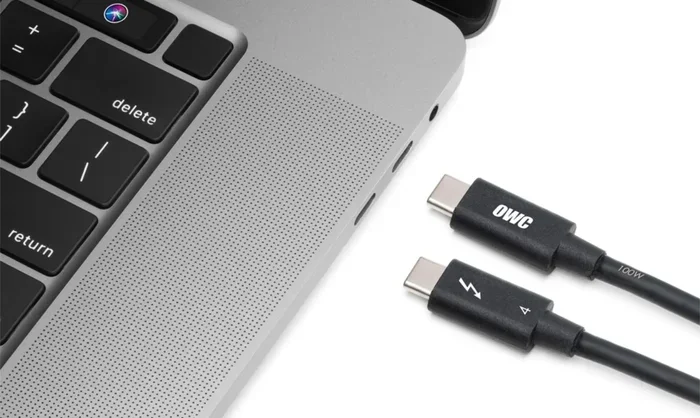
- Thunderbolt 3 adds more options: Thunderbolt 3 uses the USB-C connector and offers faster speeds when paired with compatible ports.
📑 Table of Contents
What Are USB-C and USB-A Connectors?
Before we dive into compatibility, let us talk about what each connector actually is. Understanding the basics helps you make smarter choices when buying cables and adapters.
USB Type-A: The Classic Port
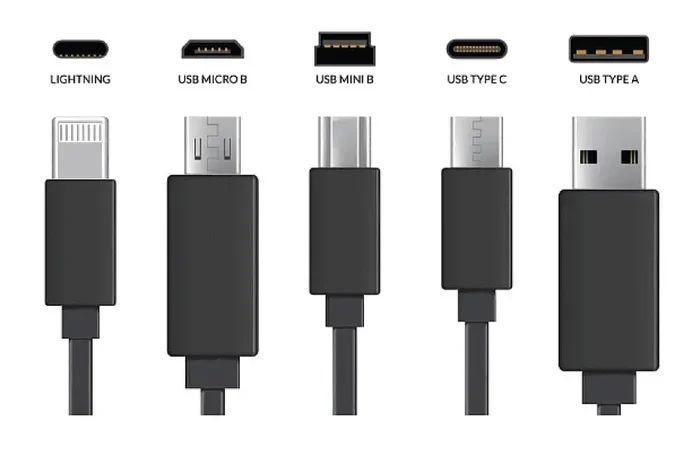
USB-A is the rectangular connector you have seen on computers, TVs, and chargers for decades. It is the traditional USB port that most people recognize instantly. The USB-A port has a specific orientation, which means you have to flip the cable a few times to get it in the right way. We have all been there!
USB-A ports come in different USB standards, including USB 2.0, USB 3.0, USB 3.1, and USB 3.2. Each standard offers faster data transfer speeds than the last. However, the physical shape of the USB-A port has stayed the same for a very long time. This is why people still call it the “classic” USB port.
USB Type-C: The Modern Connector
USB-C is the newer, smaller, and reversible connector that has taken over many modern devices. You will find USB-C ports on laptops, smartphones, tablets, and even some desktop computers. The best part about USB-C is that it is reversible. You can plug it in either way, and it will work. No more flipping the cable three times!
USB-C is not just a connector shape. It also supports newer USB standards like USB 3.1 and USB 3.2, as well as Thunderbolt 3 and Thunderbolt 4. This means USB-C can handle much faster data transfer and more power delivery than older USB-A ports. But here is the catch: USB-C and USB-A are physically different, which brings us to the next question.
Can You Plug USB-C Directly Into a USB-A Port?
The simple answer is no. You cannot plug a USB-C cable directly into a USB-A port. They have completely different shapes and pin configurations. The USB-C connector is oval-shaped and smaller, while the USB-A connector is flat and rectangular.
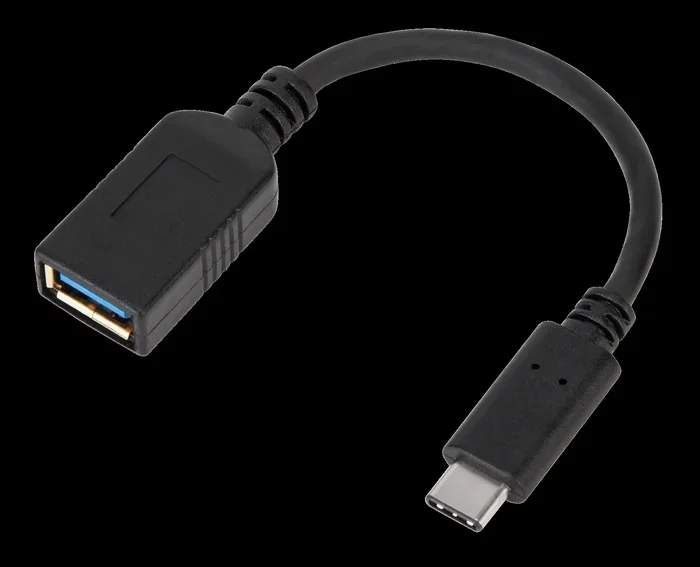
However, you can absolutely make them work together. You just need the right adapter or a cable that has a USB-C connector on one end and a USB-A connector on the other. These cables and adapters bridge the gap between the two connector types, letting your USB-C devices communicate with older USB-A ports.
When you use a USB-C to USB-A cable or adapter, the connection works at the speed of the slower port. For example, if your USB-C device supports USB 3.2 speeds but your USB-A port is only USB 2.0, the connection will default to USB 2.0 speeds. Both devices will still work, but you will not get the full speed potential of your USB-C device.
How to Connect USB-C Devices to USB-A Ports
Now that you know it is possible, let us talk about the best ways to make this connection happen. There are several options depending on what you need and how often you plan to use the setup.
Option 1: USB-C to USB-A Adapter
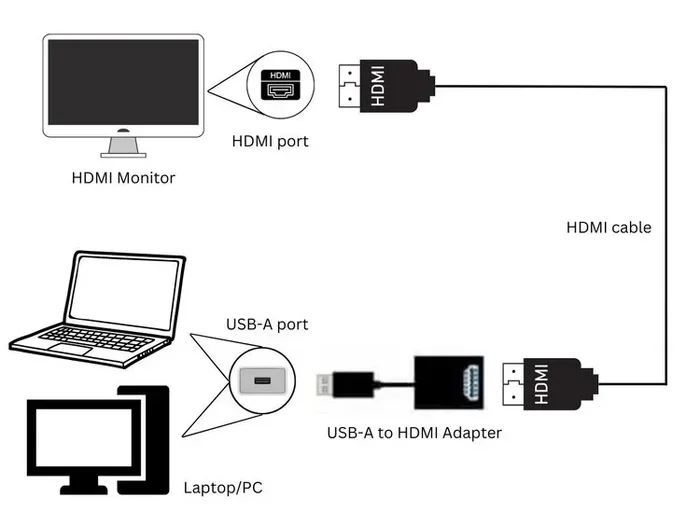
An adapter is the simplest solution. You plug the adapter into the USB-A port, and then you plug your USB-C cable into the adapter. Adapters are small, affordable, and easy to carry around. They are perfect for travel or occasional use.
Look for adapters that are made by reputable brands. Cheap, no-name adapters can cause connection issues or even damage your devices. A quality adapter ensures a stable and safe connection every time.
Option 2: USB-C to USB-A Cable
A USB-C to USB-A cable is a direct solution. One end has the USB-C connector, and the other end has the USB-A connector. You do not need a separate adapter. Just plug one end into your USB-C device and the other end into your USB-A port.
These cables come in different lengths and quality levels. If you need a cable for charging, make sure it supports the right power delivery. For data transfer, look for cables rated for USB 3.0 or higher to get the best speeds.
Option 3: USB Hub with USB-A and USB-C Ports
A USB hub is a great option if you need multiple ports. You plug the hub into a USB-A port, and the hub gives you several USB-A ports and often a USB-C port as well. This is ideal for people who need to connect several devices at once.
USB hubs range from simple 4-port models to advanced docking stations with video output and Ethernet ports. If you use your laptop at a desk all day, a good hub can replace all your dongles and cables.
Quick Tips for Connecting USB-C to USB-A
- Always check the USB standard of both your device and the port you are connecting to.
- Use a high-quality adapter or cable from a trusted brand.
- If you need fast data transfer, make sure the cable supports USB 3.0 or higher.
- For charging, check the power delivery ratings of both the cable and the port.
- Keep your adapters and cables organized so you do not lose them.
Data Transfer Speeds and Power Delivery
One of the most important things to understand about connecting USB-C to USB-A is that the speed of the connection depends on the slowest device in the chain. This is a key concept that many people overlook.
Understanding USB Standards and Speeds
Each USB standard has a maximum data transfer speed. Here is a quick comparison table to help you understand the differences:
| USB Standard | Max Data Speed | Common Port Type |
|---|---|---|
| USB 2.0 | 480 Mbps | USB-A, USB-C |
| USB 3.0 | 5 Gbps | USB-A, USB-C |
| USB 3.1 | 10 Gbps | USB-A, USB-C |
| USB 3.2 Gen 1 | 5 Gbps | USB-A, USB-C |
| USB 3.2 Gen 2 | 10 Gbps | USB-A, USB-C |
| USB 3.2 Gen 2×2 | 20 Gbps | USB-C only |
| Thunderbolt 3 | 40 Gbps | USB-C only |
| Thunderbolt 4 | 40 Gbps | USB-C only |
When you connect a USB-C device to a USB-A port, the connection will run at the speed of the USB-A port. If your USB-A port is USB 2.0, your transfer speeds will be limited to 480 Mbps, no matter how fast your USB-C device is. This is why it is important to know what USB standard your ports support.
Power Delivery Considerations
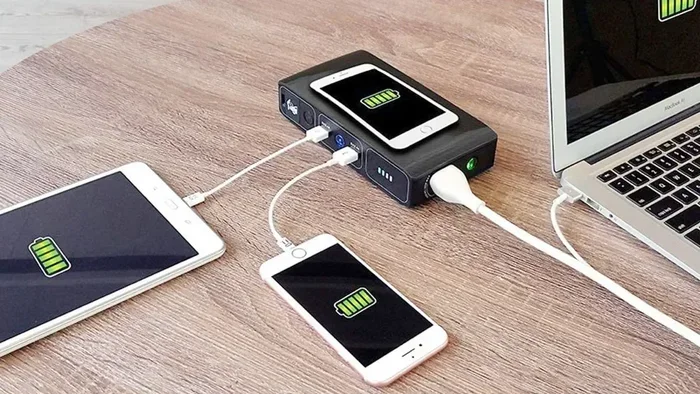
USB-C supports USB Power Delivery, which can deliver up to 100 watts or more. USB-A ports, on the other hand, typically deliver much less power. Standard USB-A ports usually provide 5 watts to 15 watts of power.
This matters if you are charging a device through the connection. If you plug a USB-C laptop into a USB-A port, the charging speed will be much slower. In some cases, the laptop may not charge at all while it is in use. The same applies to fast-charging smartphones. A USB-A port simply cannot deliver the same power as a USB-C port with Power Delivery.
For best results, use the original USB-C charger and cable that came with your device. If you must use a USB-A port, expect slower charging and plan accordingly.
Common Mistakes People Make with USB-C and USB-A
There are a few common mistakes that people make when dealing with USB-C and USB-A connections. Avoiding these can save you a lot of headaches.
Using Cheap or Unverified Cables
This is probably the biggest mistake. Cheap cables from unknown brands may not handle the data speeds or power levels they claim. Some cheap cables can even be dangerous, causing overheating or damaging your devices. Always buy cables from reputable manufacturers and look for certifications like USB-IF certification.
Assuming All USB-C Cables Are the Same
Not all USB-C cables are created equal. Some USB-C cables are only designed for charging and do not support data transfer. Others only support USB 2.0 speeds, even if they look the same as faster cables. Before buying a cable, check what it supports and make sure it matches your needs.
Forcing the Connector
USB-C and USB-A connectors are not interchangeable by design. Do not try to force a USB-C plug into a USB-A port or vice versa. You will damage the port or the connector. Always use the correct adapter or cable for the connection you need.
Ignoring the USB Standard
Many people buy a USB-C device expecting fast speeds, only to plug it into an old USB-A port and get slow performance. Check the USB standard of both your device and the port to set realistic expectations.
Not Checking Power Delivery Requirements
If you are charging a power-hungry device like a laptop, do not rely on a USB-A port. The power delivery will be too low, and your device may drain battery instead of charging. Always check the power requirements of your device before choosing a connection method.
When to Use Adapters and Hubs
Adapters and hubs are essential tools in the modern computing world. They bridge the gap between old and new technology and make your devices work together seamlessly.
Best Uses for USB-C to USB-A Adapters
- Connecting a USB-C flash drive to a computer with only USB-A ports.
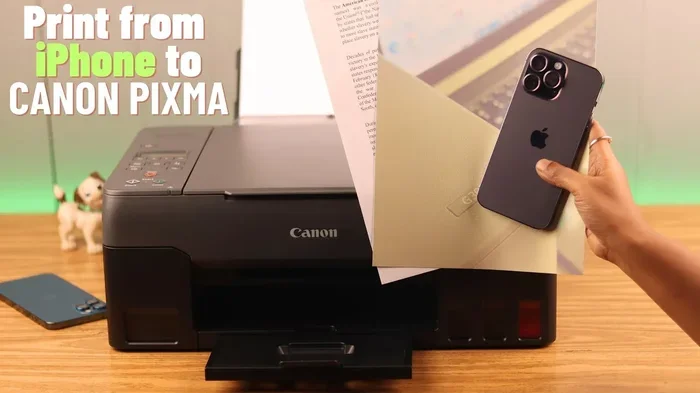
- Plugging a USB-C printer into an older USB-A port on a desktop computer.
- Using a USB-C external hard drive with an older laptop that has USB-A ports.
- Connecting USB-C accessories like mice or keyboards to a USB-A hub.
When a USB Hub Makes More Sense
If you find yourself needing multiple connections, a USB hub is a better investment than buying several individual adapters. A good USB hub gives you extra USB-A ports and often includes a USB-C port for charging or data transfer.
Look for a hub that supports the USB standard you need. If you want fast data transfer, choose a hub with USB 3.0 or higher ports. If you need to charge your laptop, look for a hub that supports USB Power Delivery through its USB-C port.
Expert Insights on USB-C and USB-A Compatibility
According to industry experts, the transition from USB-A to USB-C has been one of the most significant changes in peripheral connectivity. USB-C offers a reversible design, faster speeds, and greater power delivery. However, backward compatibility through adapters means that USB-A is far from obsolete. The key is to use quality adapters and cables that match the capabilities of your devices.
Tech reviewers also emphasize that not all USB-C ports are created equal. Some USB-C ports only support USB 2.0 speeds, while others support Thunderbolt 3 or Thunderbolt 4. When buying adapters or cables, always check the specifications to ensure you are getting the performance you need.
USB-C and USB-A: A Quick Comparison
Here is a side-by-side look at the key differences between USB-C and USB-A:
- Shape: USB-A is rectangular and flat. USB-C is oval-shaped and smaller.
- Reversibility: USB-A has a specific orientation. USB-C is reversible and can be plugged in either way.
- Speed: USB-C supports faster USB standards like USB 3.2 and Thunderbolt. USB-A is typically limited to USB 3.2 at most.
- Power Delivery: USB-C supports USB Power Delivery up to 100W or more. USB-A typically delivers 5W to 15W.
- Future-Proofing: USB-C is the direction the industry is moving. USB-A is still widely used but is gradually being phased out of newer devices.
- Compatibility: USB-C devices can connect to USB-A ports using adapters or cables. USB-A devices can connect to USB-C ports using the same approach.
Understanding these differences helps you make informed decisions about cables, adapters, and devices. It also helps you avoid the frustration of buying the wrong accessory for your setup.
Final Thoughts
So, can USB C go into USB A? Yes, it can, but not directly. You need an adapter, a USB-C to USB-A cable, or a USB hub to make the connection work. Once connected, your devices will communicate and share data, but the speed and power delivery will depend on the capabilities of both the USB-C device and the USB-A port.
The key takeaway is to always check the specifications of your devices and accessories. Know what USB standard your ports support, choose quality cables and adapters, and set realistic expectations for speed and charging. With the right setup, USB-C and USB-A devices can work together perfectly.
Whether you are connecting an external drive, charging your phone, or setting up a workspace, understanding USB-C and USB-A compatibility gives you the confidence to make the right choices. Keep a good adapter or two in your bag, and you will always be prepared for any connection situation you encounter.
The world of USB connections keeps evolving, but the fundamentals stay the same. USB-C and USB-A are here to coexist for now, and with the right knowledge, you can navigate both with ease. Happy connecting!
Frequently Asked Questions
Can I plug a USB-C cable into a USB-A port without an adapter?
No, you cannot plug a USB-C cable directly into a USB-A port. They have different shapes and pin configurations. You need a USB-C to USB-A adapter or a cable that has a USB-C connector on one end and a USB-A connector on the other.
Will my USB-C device work at full speed when connected to a USB-A port?
It depends on the USB standard of the USB-A port. If the USB-A port supports USB 3.0 or higher, you can get decent speeds. But if it is a USB 2.0 port, your data transfer speeds will be limited to USB 2.0 levels, which is much slower than what USB-C devices can support.
Can I charge my USB-C laptop using a USB-A port?
You can, but the charging will be very slow. USB-A ports typically deliver much less power than USB-C ports with Power Delivery. Your laptop may charge slowly or not charge at all while you are using it.
Are all USB-C to USB-A cables the same?
No, they are not. Some cables only support charging, while others support data transfer at different speeds. Always check the specifications of the cable to make sure it supports the data speeds and power delivery you need.
Do I need a special adapter for Thunderbolt 3 devices?
Thunderbolt 3 uses the USB-C connector, so you can use a standard USB-C to USB-A adapter for basic connectivity. However, to get full Thunderbolt speeds, both the port and the adapter must support Thunderbolt 3 or Thunderbolt 4.
How do I know if my USB-A port is USB 3.0 or USB 2.0?
USB 3.0 ports are usually blue inside, while USB 2.0 ports are black or white. You can also check the symbol next to the port. A USB 3.0 port will have the “SS” (SuperSpeed) logo, while USB 2.0 ports will only have the standard USB trident symbol.
=== CONCLUSION ===
Understanding whether USB-C can go into USB-A ports is essential for anyone who uses multiple devices with different connector types. The good news is that with the right adapter or cable, these two connector types work together seamlessly. Just remember to check the USB standards, use quality accessories, and set realistic expectations for speed and power delivery.
USB-C is the future, but USB-A is still very much part of the present. By keeping a few adapters and cables on hand, you can bridge the gap between old and new technology with ease. Apply the tips and insights from this guide, and you will never have to worry about USB compatibility again.