Can You Print To A Thermal Printer From Your Phone Learn How
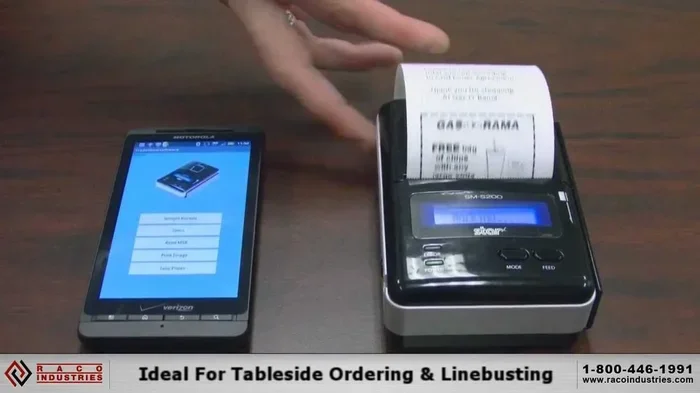
Yes, you can print to a thermal printer from your phone using Bluetooth, Wi-Fi, or USB connections. This guide walks you through every method, the best apps to use, and common troubleshooting tips so you can start mobile printing right away. Whether you need a thermal receipt printer or a label printer for your business, we have you covered.
This is a comprehensive guide about Can You Print To A Thermal Printer From Your Phone.
Key Takeaways
- Thermal printers connect to phones via Bluetooth, Wi-Fi, or USB, making mobile printing simple and convenient.
- Free and paid printing apps are available for both Android and iPhone users to send documents and labels.
- Direct thermal and thermal transfer are the two main types of thermal printing you should know about.
- Setting up a thermal printer takes only a few minutes once you have the right app and connection.
- Common issues like connection drops and paper jams have easy fixes you can try at home.
[FEATURED_IMAGE_PLACEHOLDER]
Can You Print To A Thermal Printer From Your Phone?
The short answer is yes. You absolutely can print to a thermal printer from your phone. Thermal printers have become very popular in recent years. They are used in stores, warehouses, shipping centers, and even at home. The ability to print directly from a mobile device makes them incredibly useful. You do not need a computer or a bulky setup anymore.
Thermal printers work differently from regular inkjet or laser printers. They use heat to create images and text on special thermal paper. This means no ink, no toner, and no messy cartridges. That alone makes them a favorite for many people. Adding phone connectivity takes this convenience to a whole new level.
In this guide, we will show you exactly how to print from your phone to a thermal printer. We will cover every connection method, the best apps, setup steps, and troubleshooting tips. By the end, you will feel confident setting up your own mobile printing system. Let us get started.
What Is a Thermal Printer and How Does It Work?
Before you start printing, it helps to understand what a thermal printer actually is. A thermal printer uses heated elements to produce images on special paper. The paper has a coating that changes color when heated. This is called direct thermal printing. It is the most common type you will find for phone printing.
There is also thermal transfer printing. This method uses a ribbon and ink to transfer onto regular paper. It produces longer-lasting prints. However, direct thermal is more common for everyday phone printing tasks.
Types of Thermal Printers
Not all thermal printers are the same. Here are the main types you might encounter:
- Receipt printers: Small and compact. Used in retail and restaurants.
- Label printers: Great for shipping labels and barcode labels.
- Portable printers: Battery-powered and lightweight. Perfect for on-the-go use.
- Industrial printers: Heavy-duty models for high-volume printing.
Most portable and receipt printers support phone connections. This makes them ideal for personal and small business use. If you want a versatile option, consider looking at useful gadgets that complement your setup, like those listed in our article on gadgets to make life easier. These tools can enhance your overall mobile workflow.
How to Connect Your Phone to a Thermal Printer
Connecting your phone to a thermal printer is straightforward. There are three main ways to do it. Each method has its own benefits. Let us walk through each one.
Bluetooth Connection
Bluetooth is the most popular way to connect a phone to a thermal printer. Most modern thermal printers have built-in Bluetooth. Here is how to set it up:
- Turn on your thermal printer.
- Go to your phone settings and enable Bluetooth.
- Put the printer in pairing mode.
- Select the printer from the list of available devices on your phone.
- Wait for the connection to establish.
Once paired, your phone will remember the printer. You can print anytime without reconnecting. Bluetooth works well within a range of about 30 feet. This gives you plenty of freedom to move around.
Some users also connect other Bluetooth devices like mice and keyboards to their phones for a fuller setup. If you are curious about the advantages and disadvantages of a computer mouse for mobile workflows, you can check out our detailed guide on that topic.
Wi-Fi Connection
Wi-Fi printing is another excellent option. Many thermal printers now support wireless Wi-Fi connections. This means you can print from anywhere in your home or office. Here is what you need to do:
- Connect your thermal printer to your Wi-Fi network.
- Make sure your phone is on the same network.
- Download the printer manufacturer app.
- Select your printer and start printing.
Wi-Fi printing is great for shared environments. Multiple people can print from their phones using the same printer. It is also more stable than Bluetooth over longer distances. However, it does require a working Wi-Fi network.
USB Connection
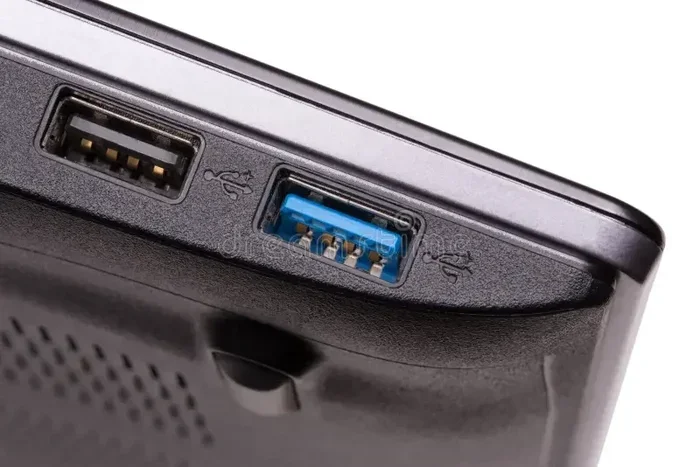
USB is the wired option. Some phones support USB OTG (On-The-Go) connections. This lets you plug a thermal printer directly into your phone. You will need a compatible cable and an OTG adapter. USB connections are very reliable. They do not suffer from signal drops. However, they limit your mobility since you are tethered to the printer.
Best Apps for Printing from Your Phone
The right app makes all the difference when printing from your phone. Most thermal printer brands offer their own free apps. These apps handle the connection and formatting for you. Here are some of the best options:
Manufacturer Apps
Brands like Star Micronics, Epson, and Zebra all have dedicated apps. These apps are designed specifically for their printers. They offer features like:
- Direct printing: Send documents and images instantly.
- Label design: Create custom labels with barcodes and logos.
- Receipt formatting: Adjust text size and layout.
- Print history: Keep track of previous prints.
Third-Party Printing Apps
If you do not want to use the manufacturer app, there are great third-party options too. Apps like Printer Pro and HandyPrint support many thermal printer models. They work with both Android and iPhone devices. These apps often offer more flexibility in file formats and printing options.
One thing to keep in mind: always download apps from official sources. The Google Play Store and Apple App Store are safe places to get these tools. Avoid downloading apps from unfamiliar websites.
For iPhone users, you may need to adjust certain settings to ensure smooth printing. Sometimes phone number formats can interfere with app functionality. Our guide on adding prefixes to numbers on iPhone can help you configure your device properly for seamless connectivity.
Step-by-Step Setup Guide
Now let us put it all together. Here is a complete step-by-step guide to get your thermal printer working with your phone.
Step 1: Unbox and Power On
Take your thermal printer out of the box. Install the paper roll correctly. Make sure the paper is loaded with the coated side facing the print head. Plug in the power adapter and turn the printer on. Most printers have an LED indicator light that shows they are ready.
Step 2: Install the App
Go to your app store and search for your printer brand. Download the official app. Open the app and grant it the necessary permissions. You will usually need permission for Bluetooth, Wi-Fi, and storage access.
Step 3: Pair the Devices
Follow the on-screen instructions in the app to pair your phone with the printer. If using Bluetooth, make sure both devices are discoverable. If using Wi-Fi, enter your network password when prompted. The app should confirm the connection with a success message.
Step 4: Test Your Print
Once connected, try printing a test page. Most apps have a built-in test print option. Check the output for clarity and alignment. If the print looks faded, you may need to adjust the print density settings in the app.
That is it. You are now printing from your phone. It really is that simple once you have everything set up.
Common Thermal Printing Problems and How to Fix Them
Even with a simple setup, you might run into issues now and then. Here are the most common problems and their solutions.
Printer Not Showing Up on Phone
This is the most common issue. Try these fixes:
- Make sure Bluetooth or Wi-Fi is turned on.
- Restart both your phone and the printer.
- Check that the printer is in pairing mode.
- Move closer to the printer if using Bluetooth.
- Forget the printer from your phone and re-pair it.
Faded or Blank Prints
If your prints come out faint or blank, the print head might need cleaning. Use a soft, lint-free cloth to gently wipe the print head. Also check that you are using the correct type of thermal paper. Wrong paper will not react to the heat properly.
Print Cutting Off or Misaligned
Misaligned prints are usually a settings issue. Open your printing app and check the page layout settings. Make sure the paper size matches your actual paper roll. Adjust the margins if needed.
Connection Keeps Dropping
Bluetooth connections can sometimes drop. This is especially true if you are far from the printer. Stay within the recommended range. If you are using Wi-Fi, make sure your router signal is strong in the area where the printer sits.
Thermal Printing vs. Traditional Printing
You might wonder how thermal printing compares to regular inkjet or laser printing. Here is a quick comparison to help you understand the differences.
| Feature | Thermal Printer | Inkjet/Laser Printer |
|---|---|---|
| Ink or Toner Needed | No | Yes |
| Print Quality | Good for text and barcodes | Excellent for photos and documents |
| Cost Per Print | Very low | Moderate to high |
| Phone Connectivity | Built-in on most models | Often requires extra setup |
| Maintenance | Very low | Regular cartridge replacements |
| Print Speed | Fast | Slower for some models |
As you can see, thermal printers have clear advantages for mobile printing. They are low maintenance, cost-effective, and easy to connect to phones. This is why they have become so popular for small businesses and personal use alike.
It is worth noting that thermal printers are not meant to replace your home office printer for everything. They excel at receipts, labels, and short documents. For photo printing or long documents, a traditional printer is still better. But for quick, on-the-go printing, nothing beats a thermal printer paired with your phone.
When comparing peripherals and accessories for your digital workspace, it helps to understand the full picture of what each device offers. Just as we explored the advantages and disadvantages of a computer mouse in a separate article, every device has its place. Thermal printers shine in specific use cases where speed, simplicity, and mobile connectivity matter most.
Tips for Getting the Best Results
Want to get the most out of your thermal printer and phone setup? Here are some expert tips:
- Use high-quality thermal paper: Cheap paper can cause faded prints and clog the print head.
- Clean the print head regularly: A quick wipe every few weeks keeps prints crisp.
- Keep your app updated: Updates often include bug fixes and new features.
- Store paper rolls properly: Keep them in a cool, dry place to prevent premature darkening.
- Use the right paper size: Match your app settings to the actual paper roll width.
- Restart devices when in doubt: A simple restart fixes most connection issues.
These small habits go a long way. They will extend the life of your printer and ensure consistent, high-quality prints every time.
Who Can Benefit from Mobile Thermal Printing?
Mobile thermal printing is not just for tech enthusiasts. Many different people and businesses can benefit from it:
- Small business owners: Print receipts and invoices on the go.
- Delivery drivers: Print shipping labels directly from a phone app.
- Retail workers: Print price tags and receipts at the point of sale.
- Event organizers: Print wristbands or tickets at the entrance.
- Parents: Print labels for school supplies and lunch boxes.
- Home users: Print grocery lists, notes, and reminders.
The versatility of thermal printing makes it useful for almost anyone. All you need is your phone and a compatible thermal printer. The barrier to entry is very low. Most starter models cost under $50 and connect easily to any modern smartphone.
Security Considerations for Mobile Printing
When you print from your phone, you want to make sure your data stays safe. Here are a few quick security tips:
- Use trusted apps: Only download printing apps from official app stores.
- Keep Bluetooth off when not in use: This prevents unauthorized connections.
- Use a secure Wi-Fi network: Avoid printing sensitive documents on public Wi-Fi.
- Update your phone and printer firmware: Updates often include security patches.
While thermal printers are generally safe, good habits protect your personal and business data. Being mindful of your connection and app choices goes a long way in keeping your information secure.
Frequently Asked Questions
Can any phone connect to a thermal printer?
Most modern smartphones can connect to thermal printers. Both Android and iPhone devices support Bluetooth and Wi-Fi printing. You just need a compatible thermal printer and the right app. Older phones may have limited support, so check your phone specifications before purchasing a printer.
Do I need an internet connection to print from my phone?
It depends on the connection method. Bluetooth printing does not need internet. Wi-Fi printing does require a working Wi-Fi network. USB printing also does not need internet. For most everyday tasks, Bluetooth is the simplest option that works without any internet connection at all.
Are thermal printers expensive?
Not at all. Many basic thermal printers are very affordable. Entry-level models start around $30 to $50. More advanced models with extra features can cost more. But compared to inkjet printers, thermal printers are often cheaper upfront and cheaper to maintain since you do not buy ink cartridges.
Can I print photos from my phone on a thermal printer?
Thermal printers can print simple images and graphics, but they are not ideal for photos. The print quality is good for text, barcodes, and simple logos. For high-quality photo printing, a regular inkjet printer is a better choice. Thermal printers excel at receipts, labels, and short documents instead.
How long do thermal printer paper rolls last?
This depends on usage and storage conditions. A standard roll can last anywhere from a few days to several months. Proper storage is key. Keep paper rolls away from heat and direct sunlight. Store them in a cool, dry place to prevent the paper from darkening prematurely.
What is the difference between direct thermal and thermal transfer printing?
Direct thermal uses heat alone to create images on special thermal paper. It does not need ink or ribbons. Thermal transfer uses heat to melt ink from a ribbon onto regular paper. Thermal transfer produces more durable prints, but direct thermal is simpler and more common for phone printing setups.
Final Thoughts
Printing to a thermal printer from your phone is not only possible, it is easy and convenient. With Bluetooth, Wi-Fi, or USB, you can connect almost any thermal printer to your smartphone in minutes. The right app turns your phone into a powerful mobile printing tool. You can print receipts, labels, and short documents wherever you go.
Thermal printers are affordable, low-maintenance, and perfect for mobile use. They eliminate the hassle of ink cartridges and complex setups. Whether you are a small business owner, a delivery driver, or just someone who wants to print labels from your phone, a thermal printer is a smart investment.
Start with the setup steps we covered in this guide. Download the right app, connect your printer, and test your first print. Once you see how simple it is, you will wonder how you ever managed without it. Mobile thermal printing is the future of quick, on-the-go document output. Embrace it today and enjoy the freedom of printing from your phone anytime, anywhere.
Frequently Asked Questions
What is Can You Print To A Thermal Printer From Your Phone?
Can You Print To A Thermal Printer From Your Phone is an important topic with many practical applications.