Can You Get An HDMI To DisplayPort Adapter Made Easy
Yes, you can absolutely get an HDMI to DisplayPort adapter, and it is easier than you might think. These adapters let you connect devices with HDMI outputs to displays that only have DisplayPort inputs. Whether you are setting up a gaming monitor, a home office, or a media center, the right adapter ensures a smooth and reliable connection.
Key Takeaways
- HDMI to DisplayPort adapters exist and work well for most setups, including gaming and office use.
- Active adapters are required when converting from HDMI to DisplayPort because the signals flow in different directions.
- Check compatibility first by confirming your devices support the same resolution and refresh rate.
- USB-C and Thunderbolt adapters offer extra flexibility if your device has those ports.
- Avoid cheap passive adapters that claim to convert HDMI to DisplayPort, as they often fail.
- Setting up the adapter is simple and usually takes just a few minutes.
📑 Table of Contents
What Is an HDMI to DisplayPort Adapter?
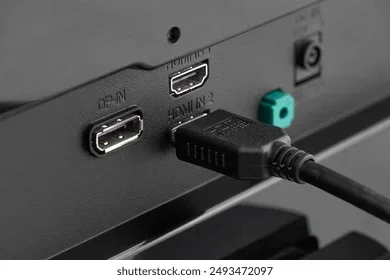
An HDMI to DisplayPort adapter is a small device that lets you send a video and audio signal from an HDMI source to a DisplayPort display. Think of it as a bridge between two different connection types. Your laptop, gaming console, or media player might have an HDMI output. But your monitor or TV might only accept a DisplayPort input. That is where the adapter comes in.
These adapters are small, plug-and-play devices. You do not need to install complicated software or drivers in most cases. You simply plug one end into your HDMI source and the other end into your DisplayPort monitor. The signal converts on the fly, and you are good to go.
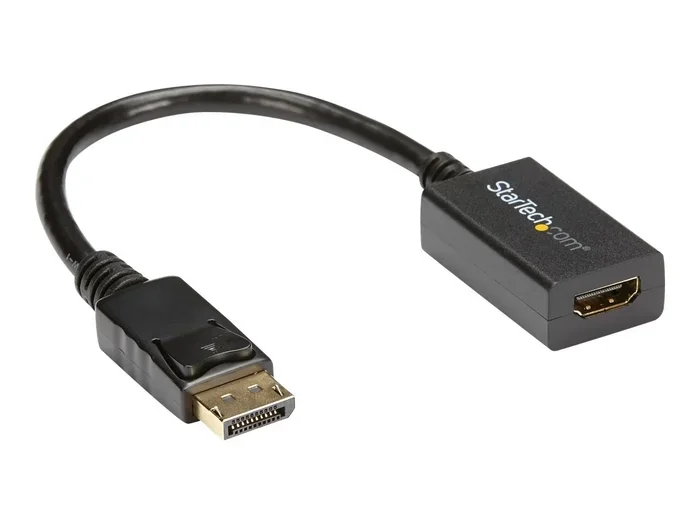
HDMI to DisplayPort adapters come in different shapes and sizes. Some are compact dongles that stick straight out of your port. Others are cable-style adapters that give you more flexibility in positioning. There are also USB-C versions that add extra convenience for modern laptops and tablets.
The reason these adapters matter is simple. Not all devices use the same port. HDMI has been around for a long time and is still very common on TVs, Blu-ray players, and older laptops. DisplayPort, on the other hand, is popular on modern monitors and graphics cards. If your devices do not match, an adapter saves the day.
How HDMI and DisplayPort Differ
Before you buy any adapter, it helps to understand the basic differences between HDMI and DisplayPort. Both are digital display standards, but they were designed with different goals in mind.
HDMI, which stands for High-Definition Multimedia Interface, was created to connect home entertainment devices. It carries both video and audio through a single cable. You will find HDMI ports on TVs, projectors, game consoles, and streaming boxes. HDMI has gone through several versions, with HDMI 2.1 supporting 4K at 120Hz and even 8K resolutions.
DisplayPort was developed by VESA, a group focused on PC display standards. It was designed primarily for computer monitors and graphics cards. DisplayPort offers high bandwidth, which makes it great for high-resolution displays and refresh rates. The latest version, DisplayPort 2.1, supports some very demanding setups.
Here are the key differences at a glance:
- Primary use: HDMI is for entertainment devices. DisplayPort is for PC monitors and workstations.
- Audio: HDMI carries audio natively. DisplayPort can carry audio too, but it is less common in home setups.
- Connector shape: HDMI is a flat, trapezoidal plug. DisplayPort is a rectangular plug with a latch.
- Locking mechanism: DisplayPort has a snap-in latch. HDMI does not, which can make cables loose over time.
- Version support: HDMI 2.1 and DisplayPort 2.1 both support very high resolutions and refresh rates.
Understanding these differences helps you choose the right adapter. If you are connecting a PlayStation or Apple TV to a PC monitor, you need an HDMI to DisplayPort adapter that handles both video and audio properly.
Types of HDMI to DisplayPort Adapters Available
Not all adapters are the same. There are several types on the market, and each serves a slightly different purpose. Let us break them down so you can find the one that fits your needs.
Standard Dongle Adapters
These are the most common type. They are small, box-like devices with an HDMI input on one side and a DisplayPort output on the other. You plug them into your source device and then connect a DisplayPort cable from the adapter to your monitor. These adapters are affordable and work well for most everyday tasks.
Cable-Style Adapters
Cable-style adapters have an HDMI plug on one end and a DisplayPort plug on the other, connected by a short cable. They are convenient because you do not need an extra cable. However, the cable length is usually fixed, which can limit your setup flexibility. They are great for permanent or semi-permanent setups.
USB-C and Thunderbolt Adapters
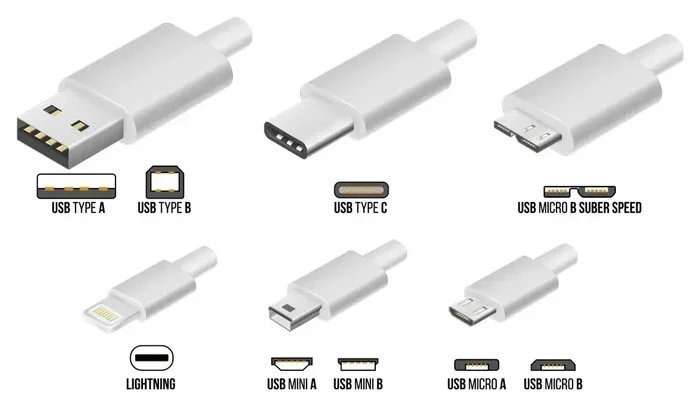
Many modern laptops and tablets use USB-C or Thunderbolt ports. Some of these ports support DisplayPort Alt Mode, which means they can output a DisplayPort signal directly. You can buy a USB-C to DisplayPort adapter or a Thunderbolt dock that includes DisplayPort outputs. These are very versatile and work with a wide range of devices.
If your laptop has USB-C but no HDMI port, you can also find adapters that go from USB-C to HDMI. This gives you even more options for connecting to different displays. For more tech accessory ideas that simplify your setup, check out these 10 Gadgets To Make Moms Life Easier for inspiration on useful tech tools.
Docking Stations with HDMI and DisplayPort
Docking stations are the most feature-rich option. They connect to your laptop through a single cable and offer multiple ports, including HDMI, DisplayPort, USB, and Ethernet. These are ideal for office setups where you need to connect several devices at once. They cost more than simple adapters but offer much more flexibility.
How to Choose the Right Adapter for Your Setup
Choosing the right HDMI to DisplayPort adapter can feel overwhelming with so many options available. Here are the key factors to consider before you buy.
Check Your Resolution and Refresh Rate Needs
Not all adapters support the same resolutions. If you have a 4K monitor, you need an adapter that can handle 4K signal conversion. For 1080p or 1440p setups, most adapters will work fine. If you want high refresh rates for gaming, look for adapters that support at least 144Hz at your target resolution.
Active vs Passive: This Matters a Lot
This is one of the most important things to know. When converting from HDMI to DisplayPort, you almost always need an active adapter. Active adapters have built-in chips that convert the signal properly. Passive adapters simply pass the signal through without conversion, which does not work for HDMI to DisplayPort.
Many cheap adapters on the market claim to be passive but actually include basic conversion chips. They might work for simple tasks but often fail with higher resolutions or refresh rates. Always check the product description to confirm it is an active adapter for HDMI to DisplayPort conversion.
Consider Audio Support
If you need audio along with video, make sure your adapter supports audio pass-through. Most modern HDMI to DisplayPort adapters handle audio without any issues. But it is always worth checking the specs before you buy, especially if you are setting up a home theater or using the adapter for presentations.
Build Quality and Brand Reputation
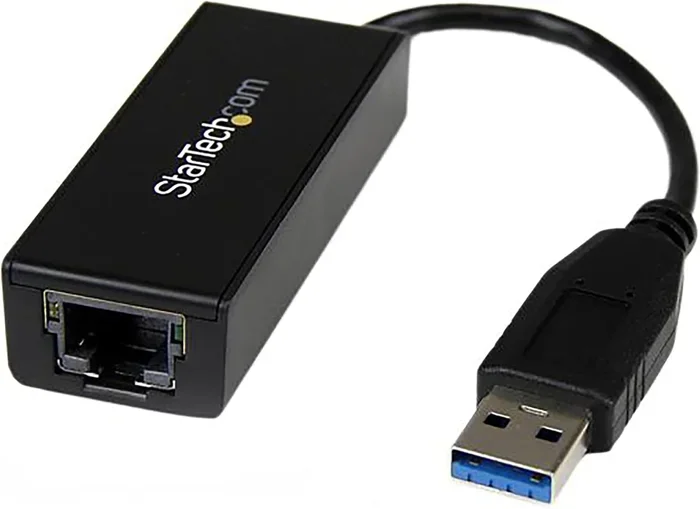
Cheap adapters from unknown brands can cause flickering, signal loss, or no signal at all. Stick with reputable brands like Cable Matters, UGREEN, or StarTech. These brands test their adapters thoroughly and offer warranties. A slightly higher price is worth the reliability.
Quick Tips for Choosing
- Always buy an active adapter for HDMI to DisplayPort conversion.
- Check the maximum supported resolution before purchasing.
- Read customer reviews to learn about real-world performance.
- Look for adapters with warranty coverage from the manufacturer.
- Avoid adapters that seem too cheap to be true, because they usually are.
Setting Up Your HDMI to DisplayPort Adapter
Setting up your adapter is straightforward, but there are a few steps that can make the process smoother. Follow this guide to avoid common pitfalls.
Step-by-Step Setup
- Turn off both devices. Power down your HDMI source and your DisplayPort monitor before connecting anything. This prevents signal conflicts during setup.
- Connect the HDMI end. Plug the HDMI cable into your source device, such as a laptop, console, or media player.
- Connect the adapter. Plug the HDMI cable from your source into the HDMI input on the adapter.
- Connect the DisplayPort end. Use a DisplayPort cable to connect the adapter output to your monitor.
- Power on your devices. Turn on the monitor first, then the source device.
- Select the correct input. Use your monitor’s menu to select the DisplayPort input channel.
- Adjust display settings. On your source device, go to display settings and configure resolution and refresh rate to match your monitor.
For managing your tech setup and keeping cables organized, consider using accessories that make life easier. You might find ideas in these 10 Gadgets To Make Moms Life Easier that work great for any home office or gaming setup.
Common Setup Mistakes to Avoid
- Using a passive adapter for HDMI to DisplayPort conversion. This will not work in most cases. Always use an active adapter.
- Forgetting to update graphics drivers. Outdated drivers can cause display issues even with a working adapter.
- Using a low-quality HDMI cable. A bad cable can cause signal drops, especially at higher resolutions.
- Not checking the adapter’s maximum resolution. If your adapter only supports 1080p and you have a 4K monitor, you will not get the full picture.
- Plugging in devices while they are powered on. This can cause brief signal interruptions and sometimes confuse the display detection.
Expert Insights on Adapter Performance
According to display technology experts, the quality of the HDMI to DisplayPort adapter chip matters more than the cable or housing. The conversion chip handles the real work of translating the signal. Adapters with better chips tend to offer more stable performance, especially at higher resolutions and refresh rates.
One thing many people overlook is the role of EDID communication between devices. EDID is a data format that tells your source device what resolutions and formats the display supports. A good adapter passes EDID information correctly, which ensures your source device outputs the best possible signal. Cheap adapters sometimes fail at this, leading to blurry images or unsupported resolution errors.
If you run into display recognition issues, try unplugging the adapter, waiting a few seconds, and plugging it back in. This forces the devices to re-negotiate the connection. It is a simple trick that solves many problems.
Common Problems and How to Fix Them
Even with the right adapter, you might run into issues from time to time. Here are the most common problems and their solutions.
No Signal or Black Screen
If your monitor shows no signal, first check that all cables are firmly connected. Try unplugging and replugging each connection. If the problem persists, try a different DisplayPort cable or a different HDMI cable. Sometimes the issue is with the cable, not the adapter.
Flickering or Intermittent Signal
Flickering usually points to a loose connection or a low-quality adapter. Make sure the adapter is seated properly in both ports. If flickering continues, the adapter itself may be faulty. Contact the manufacturer for a replacement if it is under warranty.
Resolution Not Matching
If your display looks blurry or does not fill the screen, check your display settings. Make sure the output resolution matches your monitor’s native resolution. You can usually find this in your operating system’s display settings panel.
No Audio Through DisplayPort
Some adapters pass audio and some do not. If you are not getting sound, check your device’s audio output settings and make sure DisplayPort is selected as the audio output device. If the adapter does not support audio pass-through, you will need a separate audio solution.
Adapter Overheating
Active adapters generate heat because they are doing real-time signal conversion. If your adapter feels very hot, give it some space for airflow. Do not place it in a closed cabinet or stack other devices on top of it. If it overheats frequently, consider a model with better heat dissipation or a fan-cooled dock.
Final Thoughts on HDMI to DisplayPort Adapters
The short answer to the question “can you get an HDMI to DisplayPort adapter” is a resounding yes. These adapters are widely available, affordable, and effective for most use cases. Whether you are a gamer chasing high refresh rates, a professional working with multiple monitors, or someone setting up a simple home theater, the right adapter makes it all possible.
The key is to buy an active adapter from a reputable brand, check compatibility with your devices, and follow proper setup steps. Avoid the temptation of the cheapest option on the shelf, because it will likely cause frustration. Invest in a quality adapter and your setup will run smoothly for years.
Remember that technology keeps evolving. Newer versions of HDMI and DisplayPort continue to push the boundaries of resolution and refresh rate. The adapters you buy today should support your needs for the foreseeable future. With the right HDMI to DisplayPort adapter in hand, you can connect any source to any display without hassle.
Take your time, read the specs, and choose the adapter that fits your setup best. You will be enjoying a seamless display connection in no time.
Frequently Asked Questions
Do I need an active or passive HDMI to DisplayPort adapter?
You need an active adapter for HDMI to DisplayPort conversion. Passive adapters do not convert the signal and will not work for this purpose. Always check the product listing to confirm it is active.
Can I use an HDMI to DisplayPort adapter for gaming?
Yes, but make sure the adapter supports your desired resolution and refresh rate. For competitive gaming, look for adapters that handle at least 144Hz at 1080p or 1440p. Higher-end adapters can support 4K gaming as well.
Why is my HDMI to DisplayPort adapter not working?
Common reasons include using a passive adapter instead of an active one, outdated graphics drivers, loose cable connections, or an incompatible resolution setting. Try reseating the cables and updating your display drivers first.
Can I connect a PlayStation or Xbox to a DisplayPort monitor?
Yes, you can use an HDMI to DisplayPort adapter to connect a console to a DisplayPort monitor. Just make sure the adapter supports the resolution and refresh rate your console outputs. Most modern adapters handle this without issues.
Do HDMI to DisplayPort adapters support audio?
Most quality HDMI to DisplayPort adapters support audio pass-through. However, it is always a good idea to check the product specifications before buying. If audio is important to you, confirm this feature is listed.
How much should I expect to pay for a good HDMI to DisplayPort adapter?
Good active adapters typically range from $20 to $60. Very cheap adapters under $15 often lack the necessary conversion chips and may cause problems. Spending a little more on a trusted brand is worth the reliability.