Can You Just Pull Out A Usb And Not Ruin Your Device
You should never just yank a USB device out of your port without ejecting it first. Pulling out a USB abruptly can cause data corruption, file loss, and even permanent damage to your port or device. Safe removal takes only a few seconds and saves you from costly repairs or lost work. This guide explains exactly why safe ejection matters, what happens when you skip it, and how to remove any USB device the right way every single time.
Key Takeaways
- Data Corruption Risk: Pulling out a USB while data is transferring can corrupt files on both the drive and your computer.
- Hardware Damage Is Real: Forcing a USB out can wear down the port, bend the connector, or damage the motherboard.
- Safe Eject Is Quick: The entire process takes just a few seconds and works on Windows, Mac, and Linux.
- Some Devices Allow Hot-Swapping: Certain USB devices are designed for safe removal without ejection, but most are not.
- Recovery Is Possible: If you already pulled out a USB improperly, data recovery tools may still save your files.
- Prevention Beats Cure: Developing the habit of safe ejection protects your devices and data long-term.
📑 Table of Contents
- Can You Just Pull Out A USB Without Consequences?
- How USB Devices Communicate With Your Computer
- The Right Way to Remove a USB Device
- What Happens If You Already Pulled It Out?
- Common Myths About USB Removal
- How to Protect Your USB Devices and Ports Long-Term
- When Is It Actually Safe to Pull Out a USB Without Ejecting?
- Conclusion
Can You Just Pull Out A USB Without Consequences?
Here is the short answer. No, you really should not just pull out a USB and hope for the best. Every time you connect a USB device to your computer, the two start communicating. Files move back and forth. The operating system keeps track of what is happening. When you rip the device out mid-process, you interrupt that communication. The results can range from a minor annoyance to a serious problem.
Most people have done it at least once. You are in a rush, the file transfer looks done, and you just grab the cable and yank it out. Sometimes nothing bad happens. But other times, you lose hours of work or your device stops working altogether. The risk is simply not worth taking.
Can you just pull out a USB and not ruin your device? The honest truth is that it depends on timing, the type of device, and what your computer was doing at that exact moment. But the safe answer is always to eject first. Let us walk through exactly why this matters and how to do it the right way.
Why Safe USB Removal Matters
When you plug a USB flash drive, external hard drive, or any peripheral into your computer, the operating system does not just let data flow freely. It manages the connection. It caches writes. It sets up the communication protocol. All of this happens behind the scenes in milliseconds.
If you pull the USB out while the system is still writing data, that incomplete write can corrupt the file. Worse, it can corrupt the entire file system on the drive. Suddenly, your USB stick becomes unreadable. Your photos, documents, and backups could be gone in an instant.
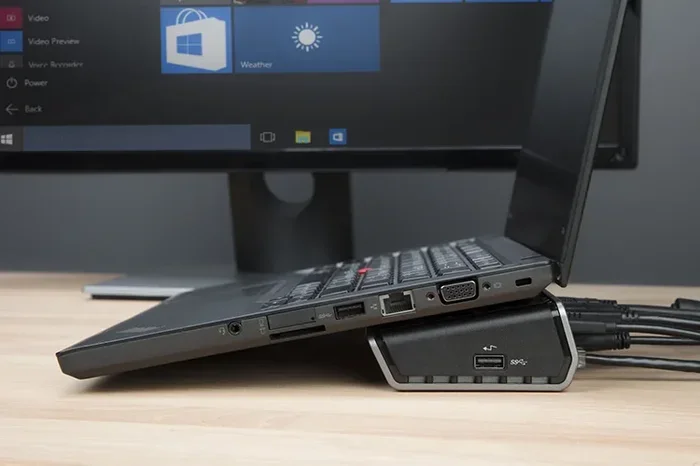
Beyond data loss, there is the physical risk. USB ports and connectors are delicate. Yanking them out puts stress on the pins inside the port. Over time, this wear and tear can loosen the connection or break the port entirely. You might end up needing a repair or replacement. And if you have ever dealt with a broken USB port, you know how frustrating that can be.
How USB Devices Communicate With Your Computer
To understand why you should not just pull out a USB, it helps to know what happens behind the scenes. When you plug in a USB device, your computer recognizes it immediately. It loads the right drivers. It assigns a drive letter or mount point. The device becomes part of the system.
Then data starts flowing. Whether you are copying photos from a USB flash drive or printing a document from a wireless printer connected via USB, the computer is actively managing that transfer. It buffers data in memory before writing it to the drive. This caching process means the transfer might look finished on your screen, but the data is not fully written yet.
Hot swapping is the term for plugging in or removing a USB device while the computer is running. Some devices support hot swapping better than others. For example, many modern USB 3.0 and USB-C devices handle hot swapping fairly well. But even then, there is no guarantee. The safest practice is always to use the eject or remove hardware function first.
The Role of the Operating System
Your operating system, whether it is Windows, macOS, or Linux, plays a big role in USB management. It acts as the middleman between you and the device. When you click “Eject” or “Safely Remove,” the operating system does several things:
- Flushes the cache: It forces all buffered data to write to the USB device.
- Stops active processes: It halts any programs or background tasks using the device.
- Unmounts the drive: It tells the system the device is no longer available for access.
- Signals you: It gives you the green light to physically remove the device.
Skipping this process means the operating system might still be working on the device when you pull it out. That is where the trouble starts.
The Right Way to Remove a USB Device
Good news. Safely removing a USB device is incredibly easy. It takes just a few seconds. Here is how to do it on different platforms.
On Windows
Look for the safely remove hardware icon in your system tray. It sits near the clock in the bottom-right corner of your screen. Click it. You will see a list of connected devices. Select the USB device you want to remove. Wait for the notification that says it is safe to remove. Then you can gently unplug the device.
If you do not see the icon, you can also go to File Explorer. Find the USB drive in the left sidebar. Right-click on it and select “Eject.” Wait for the name to disappear from the sidebar before pulling it out.
On macOS
On a Mac, the process is just as simple. Find the USB device on your desktop or in Finder. Right-click on it and select “Eject.” You can also drag the icon to the Trash bin, which changes to an Eject icon. Wait until the drive disappears from your desktop before unplugging it.
Macs are generally well-known for handling USB devices gracefully. But even macOS benefits from a proper eject. It keeps your system stable and your files safe.
On Linux
Linux users can right-click the USB device in the file manager and select “Unmount” or “Eject.” Once the device is unmounted, you can safely remove it from the port.
Quick Tips for Safe USB Removal
- Always wait for the confirmation: Do not unplug until your system tells you it is safe.
- Close all files on the drive: Make sure no programs are accessing the USB device before ejecting.
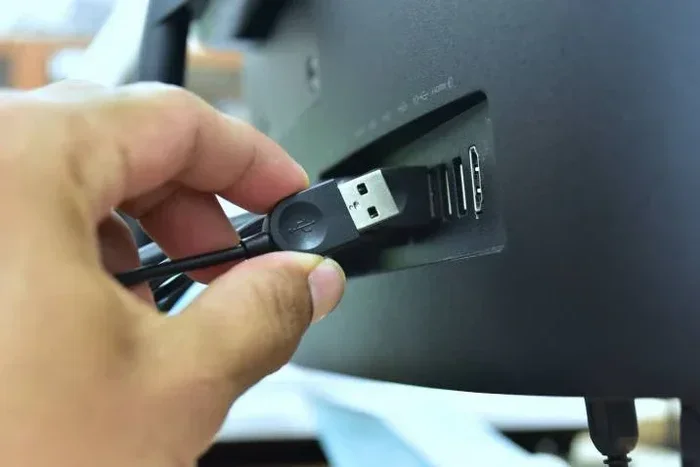
- Pull gently: Wiggle the connector slightly and pull straight out. Do not yank it sideways.
- Check for activity lights: If the USB device has a blinking light, wait until it stops before removing it.
What Happens If You Already Pulled It Out?
So you already pulled it out the wrong way. Maybe you were in a hurry. Maybe you forgot. Now what? First, do not panic. The damage might not be as bad as you think.
Check for Data Corruption
Plug the USB device back in and see if your computer recognizes it. Open the files and check if anything looks off. Missing files, files that will not open, or folders with strange names are all signs of corruption.
If you notice corruption, stop using the device immediately. Every write operation could make the damage worse. Instead, use a data recovery tool to scan the drive and retrieve what you can. Programs like Recuva, Disk Drill, or TestDisk can often recover lost files from a corrupted USB drive.
Physical Damage Signs
Check the USB connector and the port. Look for bent pins, scorch marks, or loose connections. If the port feels loose or the device does not fit snugly anymore, the physical damage might be more significant. In that case, you may need to replace the cable, the device, or get the port repaired.
Sometimes the damage is invisible. A corrupted USB port can cause intermittent connection problems with all your USB devices. If you notice that your USB hub or other peripherals keep disconnecting, the port itself might be damaged from repeated improper removal.
Common Myths About USB Removal
There are a lot of misconceptions floating around about USB removal. Let us clear up some of the most common ones.
Myth 1: “If Nothing Is Transferring, It Is Safe to Pull Out”
This is one of the biggest myths. Just because you are not actively copying files does not mean the computer is not working on the drive. Background processes, antivirus scans, and system indexing can all be accessing the USB device without you knowing. Always eject, even if you think nothing is happening.
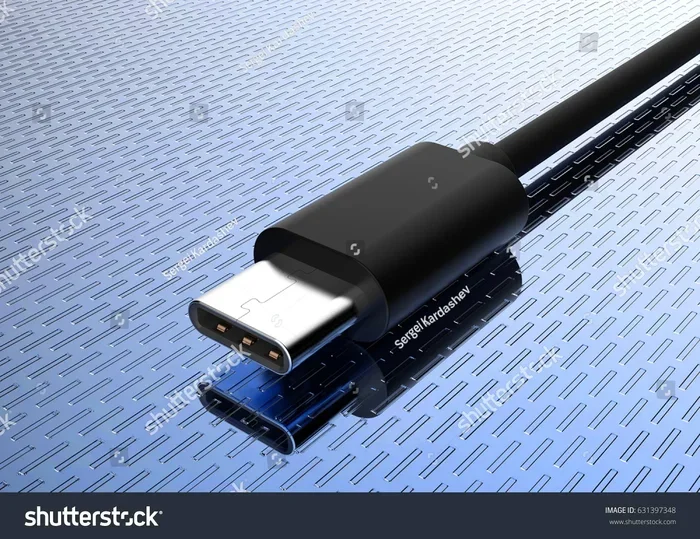
Myth 2: “USB-C Is Different From USB-A”
Some people believe that USB-C devices can handle hot pulling because they are newer and more advanced. While USB-C does support better hot-swapping capabilities, the rule still applies. Always eject first. The connector design does not protect your data from corruption.
Myth 3: “It Only Matters for External Hard Drives”
Any USB device can suffer from improper removal. This includes USB flash drives, webcams, printers, keyboards, and even your computer mouse if it connects via USB. Every device that communicates with your computer through a USB port deserves the same care.
Myth 4: “Windows Will Warn You If Something Goes Wrong”
Unfortunately, Windows does not always warn you. Sometimes the damage happens silently. The file system gets corrupted, and you do not notice until you try to access the files later. By then, it may be too late. Prevention through safe ejection is always better than cure.
How to Protect Your USB Devices and Ports Long-Term
Taking care of your USB devices goes beyond just ejecting properly. A few simple habits can extend the life of your drives and ports significantly.
Use Quality USB Cables and Adapters
Cheap USB cables are a common cause of connection problems. They may not deliver consistent power, and the connectors can wear out quickly. Invest in cables from reputable brands. Look for USB-IF certified cables to ensure they meet safety and performance standards.
Keep Your Ports Clean
Dust and debris can build up inside USB ports over time. This can cause poor connections and data transfer errors. Use compressed air to gently clean your ports every few months. Do not use metal objects to scrape out debris. That can damage the pins inside the port.
Store USB Devices Properly
When you are not using a USB flash drive, store it in a protective case. Avoid leaving it dangling from your keychain where it can get bumped or bent. Proper storage prevents physical damage to the connector and the internal circuitry.
Update Your Drivers and Operating System
Keeping your system updated ensures that your USB drivers work correctly. Outdated drivers can cause recognition issues, slow transfer speeds, and even data corruption. Set your system to update automatically so you always have the latest fixes and improvements.
Use a Surge Protector
Power surges can travel through USB ports and damage connected devices. If you use a desktop computer with multiple USB peripherals, plug your system into a surge protector. This simple step can save you from costly hardware replacements.
When Is It Actually Safe to Pull Out a USB Without Ejecting?
There are a few rare cases where pulling out a USB without ejecting poses little to no risk. But these are exceptions, not the rule.
Some devices are designed for continuous hot-plugging. These include certain USB hubs, keyboards, and mice that use low-power protocols. The risk of data corruption is minimal because these devices do not typically store or write large amounts of data.
However, even in these cases, there is a small risk of software glitches. The operating system might throw an error or a program might freeze momentarily. So even with low-risk devices, making ejection a habit is the safest approach.
Also, if you have ever experienced a line that wont delete in Microsoft Excel after a file transfer, that could be a sign of incomplete data writing from improper USB removal. It is a small but real connection between USB safety and your daily workflow.
Conclusion
The bottom line is simple. You should never just pull out a USB without taking a few extra seconds to eject it safely. The risks of data corruption, file loss, and hardware damage are real and entirely preventable. Safe removal is a tiny habit that protects your valuable data and extends the life of your devices.
Whether you use a USB flash drive, an external hard drive, a webcam, or any other USB peripheral, the process is the same. Click eject, wait for confirmation, and then gently unplug the device. It takes seconds and saves you from hours of frustration.
Make safe USB removal a non-negotiable part of your routine. Your future self will thank you when your files are intact and your devices keep working perfectly. Start today. Your data is worth it.
Frequently Asked Questions
Can you just pull out a USB if no files are open?
Even if no files are open, your operating system may still be accessing the drive in the background. Background processes like antivirus scans or system indexing can write to the USB device without your knowledge. Always eject first to be completely safe.
What happens if you pull out a USB too fast?
Pulling out a USB too fast can interrupt active data transfers. This may corrupt files on the drive, damage the file system, or cause errors when you plug the device back in. In rare cases, it can also physically damage the USB port.
Is it safe to remove a USB during a firmware update?
No. Removing a USB device during a firmware update can permanently damage the device. Firmware updates write critical data to the device’s internal memory. Interrupting this process can render the device completely unusable.
Does safely removing a USB really make a difference?
Yes, it absolutely does. Safe removal ensures all data writes are completed, all processes are closed, and the file system is in a stable state before you unplug the device. Skipping this step is the leading cause of USB data corruption.
Can you recover data after pulling out a USB improperly?
In many cases, yes. Data recovery tools can often retrieve files from a corrupted USB drive. However, the sooner you stop using the device and start recovery efforts, the better your chances of getting your files back.
Why does my USB keep disconnecting when I pull it out?
Frequent improper removal can wear out the USB port and connector over time. Loose connections, bent pins, or corrupted file systems can all cause repeated disconnection issues. Always eject properly and inspect your ports and cables regularly.
=== CONCLUSION ===
Can you just pull out a USB without consequences? The answer is a clear no if you care about your data and your hardware. Safe ejection is a simple, fast, and essential habit for anyone who uses USB devices regularly. It protects your files, preserves your ports, and gives you peace of mind. Share this guide with anyone who has ever grabbed a USB cable in a hurry. A few seconds of caution can save hours of trouble down the road.