Can You Fix An Unresponsive Keyboard Yes Here Is How
Yes, you can fix an unresponsive keyboard in most cases using simple troubleshooting steps. This guide covers everything from quick fixes like checking connections and restarting your device to deeper solutions like updating drivers and cleaning stuck keys. Whether you have a desktop or laptop keyboard, you will find practical advice to restore full functionality.
Key Takeaways
- Check the basics first: A simple restart or cable reseat often solves the problem quickly.
- Software issues are common culprits: Outdated drivers and incorrect keyboard settings can make keys stop working.
- Physical damage needs attention: Spills, debris, and worn-out keys may require cleaning or replacement.
- Both Windows and Mac have built-in tools: Device Manager and System Preferences help diagnose and fix keyboard problems.
- Prevention saves money: Regular cleaning and proper handling extend your keyboard lifespan.
- Know when to replace: If repairs do not work, investing in a new keyboard may be the best option.
📑 Table of Contents
- Can You Fix An Unresponsive Keyboard Yes Here Is How
- Why Does Your Keyboard Become Unresponsive?
- Quick Fixes for an Unresponsive Keyboard
- How to Fix Keyboard Issues on Windows and Mac
- Cleaning and Maintenance Tips
- When to Replace Your Keyboard
- Expert Tips to Prevent Future Keyboard Problems
- Conclusion
Can You Fix An Unresponsive Keyboard Yes Here Is How
You are typing away on your computer when suddenly the keyboard stops responding. Your fingers are moving, but no characters appear on screen. It is a frustrating moment that almost every computer user has experienced at some point. The good news is that can you fix an unresponsive keyboard is a question with a resounding yes in most cases.
Whether the issue is a minor software glitch or a hardware problem, there are practical steps you can take to restore your keyboard. In this guide, you will learn how to diagnose the root cause, apply quick fixes, and even prevent future problems. You do not need to be a tech expert to follow along. Let us get your keyboard working again.
An unresponsive keyboard can happen on any device. Desktop computers, laptops, and even wireless keyboards all face this issue at some point. The causes range from simple connection problems to deeper hardware failures. By understanding why your keyboard stops working, you can choose the right fix. This article walks you through every step of the process.
Why Does Your Keyboard Become Unresponsive?
Before jumping into fixes, it helps to understand what causes the problem. Knowing the reason behind your keyboard not responding makes it easier to choose the correct solution. Several factors can trigger this issue, and they fall into two main categories: software and hardware.
Software Causes
Software problems are the most common reason for an unresponsive keyboard. These issues are usually easier to fix than hardware failures. Here are some typical software culprits:
- Outdated or corrupted drivers prevent your computer from communicating with the keyboard properly.
- Incorrect system settings can disable certain keys or change keyboard behavior.
- Background software conflicts occur when another program hijks keyboard input.
- Operating system updates sometimes reset keyboard configurations or introduce bugs.
- Sticky keys or filter keys features accidentally activate and change how your keyboard responds.
Most of these problems start suddenly. You were typing fine, and then the keys just stopped working. That sudden onset often points to a software issue rather than physical damage. Restarting your computer or checking your keyboard settings often resolves these problems quickly.
Hardware Causes
Hardware issues are trickier but still fixable in many cases. When your keyboard not working problem persists even after software fixes, hardware might be the cause. Common hardware problems include:
- Loose or damaged USB connections that interrupt the signal between the keyboard and computer.
- Spills and liquid damage that short-circuit the internal components.
- Debris trapped under keys that physically prevents key presses from registering.
- Worn-out key switches that lose their responsiveness over time.
- Faulty internal wiring in laptop keyboards that breaks from repeated use.
Hardware problems often show physical signs. Look for visible damage, sticky keys, or uneven key resistance. These clues help you determine whether your keyboard repair needs a software fix or a hands-on approach.
Quick Fixes for an Unresponsive Keyboard
When your fix unresponsive keyboard task begins, start with the simplest solutions first. These quick fixes take less than five minutes and solve the problem in many cases. Do not skip these steps even if you think the cause is obvious. A little patience saves time later.
Restart Your Computer
Restarting your computer is the oldest trick in the book, and it works for good reason. A restart clears temporary software glitches that can interfere with keyboard input. Many users find that their keyboard troubleshooting ends right here. Hold down the power button for a few seconds, wait ten seconds, and turn it back on. Test your keyboard immediately after the restart.
Check the Physical Connection
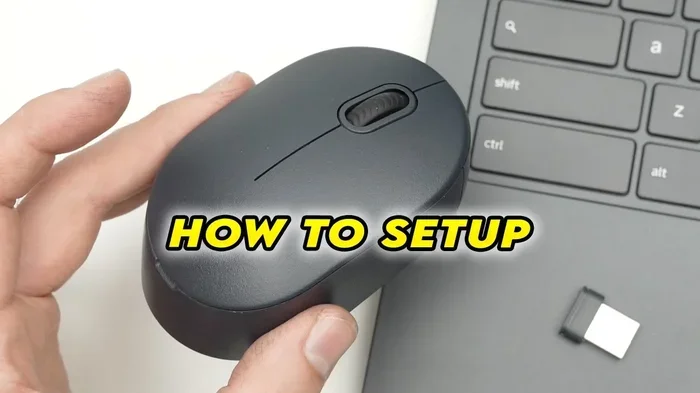
For wired keyboards, a loose cable is a common problem. Unplug the USB connector and plug it back in firmly. Try a different USB port to rule out a faulty port. If you use a wireless keyboard, check the batteries and ensure the USB receiver is properly connected. Sometimes simply moving the receiver closer to the keyboard improves the connection. A weak Bluetooth signal can also cause your computer keyboard issues. Re-pair the keyboard with your device through the Bluetooth settings.
Try a Different Keyboard
If you have access to another keyboard, plug it in and test it. This simple test tells you whether the problem is with the keyboard itself or with your computer. If the second keyboard works fine, you know the issue is specific to your original keyboard. If the second keyboard also fails, the problem lies with your computer. This test is a crucial step in any keyboard troubleshooting process.
How to Fix Keyboard Issues on Windows and Mac
Different operating systems offer different tools for how to fix keyboard problems. Both Windows and Mac computers have built-in settings that can resolve many unresponsive keys issues. Let us explore the specific steps for each platform.
Fixing Keyboard Problems on Windows
Windows provides several powerful tools for resolving keyboard driver issues. Follow these steps in order:
- Check Keyboard Settings: Go to Settings and open the Devices section. Click on Typing and ensure all keyboard options are turned on. Also verify that Sticky Keys and Filter Keys are disabled. These features sometimes activate accidentally and cause keys to stop responding.
- Update Keyboard Drivers: Right-click the Start button and open Device Manager. Expand the Keyboards section, right-click your keyboard device, and select Update Driver. Choose to search automatically for updated driver software. Windows will download and install the latest version.
- Uninstall and Reinstall the Driver: If updating does not work, go back to Device Manager, right-click the keyboard, and select Uninstall Device. Restart your computer. Windows will automatically reinstall the driver during boot-up. This fresh install often resolves persistent keyboard not responding problems.
- Run the Keyboard Troubleshooter: Go to Settings, then System, then Troubleshoot. Find the Keyboard troubleshooter and run it. Windows will scan for problems and offer fixes automatically.
These steps solve the majority of Windows keyboard issues. Most users find success with the driver update or reinstall steps. If you are running Windows 10 or Windows 11, these tools are readily available and easy to use.
Fixing Keyboard Problems on Mac
Mac users also have built-in tools for keyboard repair and troubleshooting. Here is what to try:
- Check System Preferences: Go to System Preferences and click Keyboard. Make sure the settings look correct and that no special input modes are active. Check the Input Sources tab to ensure the correct keyboard layout is selected.
- Reset NVRAM or SMC: These reset procedures clear stored settings that might affect keyboard behavior. For newer Macs, shutting down and restarting usually resets NVRAM. For the SMC, follow Apple specific instructions based on your Mac model. These resets can work wonders for stubborn keyboard issues.
- Update macOS: Go to System Preferences and click Software Update. Install any available updates. Apple frequently releases patches that fix peripheral compatibility issues.
- Safe Mode Boot: Restart your Mac and hold the Shift key during boot to enter Safe Mode. Test your keyboard in Safe Mode. If it works, a background application is likely causing the conflict.
Mac keyboards, especially those built into laptops, sometimes need a reset of the butterfly mechanism settings. Apple has addressed these issues in newer models, but older laptops may still experience problems. If your laptop keyboard fix requires hardware attention, consider visiting an Apple authorized service provider.
Comparing Windows and Mac Fixes
| Aspect | Windows | Mac |
|---|---|---|
| Driver Management | Device Manager with manual update | Automatic with macOS updates |
| Built-in Troubleshooter | Yes, dedicated keyboard tool | Limited, uses diagnostics |
| Reset Options | Restart and driver reinstall | NVRAM, SMC, and Safe Mode |
| Keyboard Settings Access | Settings and Devices menu | System Preferences and Keyboard |
| Complexity Level | Moderate | Moderate to Advanced |
Fixing External and Wireless Keyboards
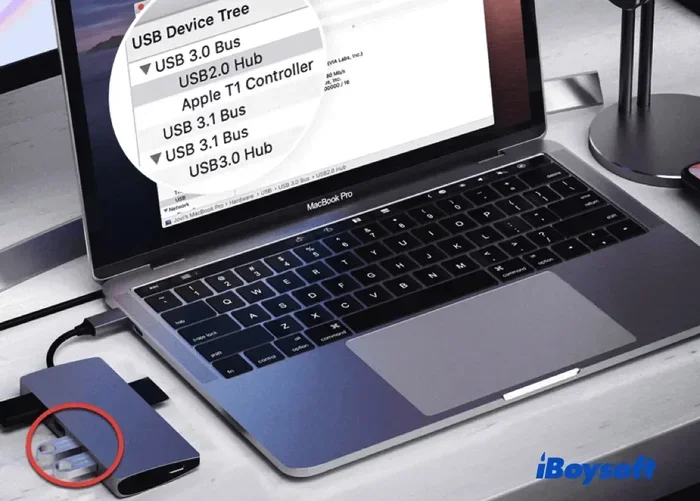
External keyboards face their own set of challenges. External keyboard troubleshooting often involves connection stability. For USB keyboards, try different ports and avoid USB hubs when possible. USB 3.0 ports sometimes interfere with wireless keyboard receivers, so try a USB 2.0 port instead. For Bluetooth keyboards, delete the pairing and set it up again from scratch. This fresh pairing eliminates connection errors that can make your keyboard stop responding mid-use.
Cleaning and Maintenance Tips
Regular cleaning prevents many keyboard troubleshooting issues. Debris, dust, and crumbs are the enemies of any keyboard. They get under keys and interfere with the switches. A consistent cleaning routine keeps your keyboard responsive for years. Here is how to clean your keyboard properly.
Daily Cleaning Habits
You do not need special tools for basic keyboard maintenance. A few simple habits make a big difference:
- Turn off your keyboard and flip it upside down over a trash can. Gently shake it to dislodge loose debris.
- Use a can of compressed air to blow out dust from between the keys. Hold the keyboard at a 45-degree angle for best results.
- Wipe the surface with a soft, slightly damp microfiber cloth. Avoid excess moisture that could drip inside.
Deep Cleaning for Sticky Keys
When keys become physically stuck or unresponsive, a deeper cleaning is needed. Keyboard cleaning requires patience but delivers excellent results. Follow these steps:
- Remove keycaps using a keycap puller or a small flat tool. Be gentle to avoid breaking the clips.
- Clean underneath with compressed air to remove trapped particles.
- Dampen a cotton swab with isopropyl alcohol and clean the exposed switches. This removes grime and sticky residue.
- Let everything dry completely before reattaching the keycaps. Press each key firmly until it clicks into place.
This process works well for mechanical keyboards and desktop keyboards. For laptop keyboards, be more careful since the keys are integrated into the chassis. A gentle approach with compressed air and a lightly dampened cloth is safest. If you need a laptop keyboard fix involving disassembly, consider professional help to avoid damage.
Quick Tips for Ongoing Maintenance
Keep your keyboard in top shape with these simple tips:
- Never eat or drink over your keyboard. Spills are the leading cause of keyboard hardware failure.
- Wash your hands before using the keyboard to reduce oil buildup on keys.
- Use a keyboard cover in dusty environments or during heavy workloads.
- Schedule a deep cleaning session every one to two months.
When to Replace Your Keyboard
Not every keyboard repair is worth attempting. Sometimes the best option is to replace the keyboard entirely. Knowing when to make this decision saves you time and frustration. Here are clear signs that replacement is the way to go.
Signs Your Keyboard Needs Replacement
- Multiple keys remain unresponsive after all software fixes and cleaning attempts. This usually indicates internal damage that cannot be practically repaired.
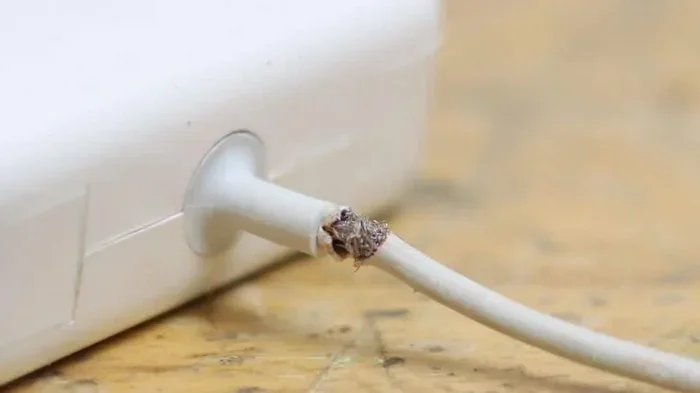
- Visible physical damage such as cracked frames, frayed cables, or exposed wiring. These problems will not improve on their own.
- Liquid damage that caused immediate or delayed key failure. Even if some keys work, corrosion can spread and affect more keys over time.
- Aged keyboards with widespread key wear. Mechanical keyboards lose responsiveness when switches wear out after millions of keystrokes.
- Persistent ghost typing where keys register on their own despite cleaning and driver fixes. This signals deep electrical problems.
Choosing a Replacement Keyboard
If you decide to buy a new keyboard, consider these factors to avoid future computer keyboard issues:
- Compatibility: Ensure the keyboard works with your operating system and device type. Check for USB or Bluetooth compatibility before buying.
- Build Quality: Look for keyboards with solid construction and quality key switches. A well-built keyboard lasts longer and resists dead keyboard keys.
- Ergonomic Design: Choose a keyboard that feels comfortable during long typing sessions. Split and curved designs reduce strain on your hands and wrists.
- Wired vs. Wireless: Wired keyboards offer reliable connections without battery concerns. Wireless keyboards provide flexibility but need regular charging or battery replacement.
- Customer Support: Pick brands known for responsive customer service and warranty coverage. This ensures help is available if problems arise.
For laptop users, replacing a built-in keyboard is more involved. You may need professional service or a compatible replacement part. Laptop keyboards are generally not user-replaceable, but some models allow it with basic tools and care. Search for specific instructions for your laptop model before attempting a laptop keyboard fix on your own.
Expert Tips to Prevent Future Keyboard Problems
The best way to deal with an unresponsive keyboard is to prevent one from happening. These expert tips help you avoid problems before they start. Apply these practices consistently and your keyboard will serve you reliably for years.
Protect Your Keyboard from Physical Damage
Physical protection goes a long way. Keep your workspace clean and free from liquids. Use a desk mat or keyboard pad to cushion the keyboard and absorb minor spills. If you work in a busy environment, consider a keyboard cover during breaks or inactive periods. These small habits significantly reduce the risk of keyboard hardware failure.
Keep Software Updated
Regular software updates keep your keyboard drivers and system running smoothly. Set your computer to install updates automatically when possible. Outdated drivers are a common source of keyboard not working issues. Updates include bug fixes that address peripheral compatibility. Do not ignore update notifications, even if they seem minor.
Use a Surge Protector
Power surges can damage keyboard electronics and your computer. Plug your setup into a quality surge protector to guard against electrical spikes. This is especially important during storm seasons or in areas with unstable power. A surge protector is a small investment that prevents costly keyboard repair or replacement.
Avoid Excessive Force
Type gently and avoid pressing keys harder than necessary. Excessive force damages key switches over time. Mechanical keyboards with switches rated for high actuation force are more resilient, but gentle typing still extends their life. This is especially important for laptop keyboards where the keys have limited travel distance. Treat your keyboard with care and it will reward you with consistent performance.
Monitor for Early Warning Signs
Pay attention to subtle changes in keyboard performance. If certain keys become slightly slower to respond, clean them before the problem worsens. If wireless keyboards start losing connection frequently, replace the batteries or check the receiver position. Early action prevents minor issues from becoming full keyboard troubleshooting situations. Staying proactive keeps your workflow smooth and uninterrupted.
Conclusion
So, can you fix an unresponsive keyboard? Absolutely yes. Whether the problem stems from a loose cable, outdated driver, sticky key, or deeper hardware issue, there is a solution for almost every situation. Starting with simple fixes like restarting your device and checking connections solves many problems instantly. Moving to software fixes like driver updates and troubleshooter tools addresses the remaining cases. For physical issues, careful cleaning and proper maintenance go a long way. When all else fails, replacing the keyboard is a practical and effective option.
The key to success is patience and methodical troubleshooting. Work through each step systematically rather than skipping ahead. This approach prevents further problems and ensures you find the true cause. Apply the prevention tips shared in this guide to keep your keyboard repair needs minimal in the future. With proper care and attention, your keyboard will stay responsive and reliable through all your work and projects.
Frequently Asked Questions
Why is my keyboard suddenly not responding?
A sudden keyboard not responding issue is usually caused by a software glitch, a loose USB connection, or a driver problem. Try restarting your computer and checking the physical connection first. These simple steps resolve most sudden failures quickly.
Can liquid damage be fixed on a keyboard?
Minor spills can sometimes be fixed by immediate drying and cleaning. Turn off the keyboard, remove any visible liquid, and let it dry completely for at least 24 hours. However, severe keyboard hardware failure from liquid damage often requires professional repair or replacement.
How do I update my keyboard driver?
On Windows, open Device Manager, find your keyboard under the Keyboards section, right-click it, and select Update Driver. On Mac, keyboard drivers update automatically through macOS updates. Keeping drivers current prevents most keyboard driver issues and connectivity problems.
Why do some keys work but others do not?
This usually indicates a hardware problem with specific key switches. Debris under individual keys or physical damage to those switches can cause unresponsive keys. Try cleaning the affected keys with compressed air first. If cleaning does not help, the switch may need replacement or the keyboard may need to be swapped out.
Is it worth repairing a laptop keyboard or should I replace it?
It depends on the damage. Simple issues like sticky keys or minor keyboard troubleshooting problems are worth fixing. However, widespread key failure, liquid damage, or physical cracking usually makes replacement more practical. Consult a professional for an assessment before deciding on a laptop keyboard fix.
How can I prevent my keyboard from becoming unresponsive?
Regular keyboard cleaning, avoiding food and drinks near your workspace, keeping software updated, and using a surge protector all help prevent problems. Gentle typing habits and periodic maintenance extend your keyboard lifespan and keep it working reliably for years to come.