Can All Laptops Use a Wireless Mouse Without Any Hassle
Can all laptops use a wireless mouse? Yes, almost any modern laptop can connect to a wireless mouse. Whether your laptop has Bluetooth or a USB port, you can easily pair a wireless mouse for better productivity.
Have you ever wondered, can all laptops use a wireless mouse? The short answer is yes. You can connect almost any laptop to a wireless mouse. It does not matter if you have a Windows PC or a Mac. The process is usually simple and fast. Wireless mice give you freedom from tangled cords. They make your workspace look clean. Plus, moving your cursor feels smooth and easy. You do not have to deal with cable clutter anymore. A good mouse makes working from home so much better. You can relax on your sofa and still get your tasks done. It is a small change that brings a big improvement.
Many people love using a wireless mouse. It helps you work from the couch. You can also use it during presentations. But not every laptop is the same. Some older models might need extra steps. This guide will show you exactly what to do. We will cover Bluetooth and USB options. You will learn about laptop compatibility and setup. By the end, you will know how to connect any wireless mouse. You will also learn how to fix common problems. We will answer all your questions. You will feel confident connecting your new mouse. It is easier than you think.
A wireless mouse is a great peripheral device. It uses wireless technology to talk to your laptop. You do not need a cable to make it work. This brings a lot of convenience. You can move around your desk freely. There are many different wireless mouse models on the market today. Some use Bluetooth. Others use a small USB receiver. Both types work well. The choice depends on your laptop and your needs. You should pick the one that fits your lifestyle. A good mouse makes computing much more enjoyable. You will wonder why you did not switch sooner.
Key Takeaways
- Universal Compatibility: Most laptops support wireless mice through Bluetooth or USB ports.
- Two Connection Types: You can connect via Bluetooth or a USB wireless receiver.
- Easy Setup: The pairing process is usually simple and plug-and-play.
- Check Drivers: Sometimes you need to update Bluetooth drivers or mouse drivers.
- Battery Matters: Keep an eye on battery life for uninterrupted use.
- No Input Lag: Modern wireless technology offers smooth, responsive cursor movement.
📑 Table of Contents
- Can All Laptops Use a Wireless Mouse? How They Connect
- Checking Laptop Compatibility for a Wireless Mouse
- Step-by-Step Guide to Connecting Your Wireless Mouse
- Common Issues and How to Fix Them
- Benefits of Using a Wireless Mouse with Your Laptop
- Expert Tips for Choosing the Right Wireless Mouse
- Conclusion
Can All Laptops Use a Wireless Mouse? How They Connect
Before you buy a mouse, you need to know how it connects. There are two main ways a wireless mouse links to a laptop. Understanding these methods helps you choose the right one. It also helps you troubleshoot if something goes wrong. Let us look at both options in detail. Knowing the difference saves you time and money.
Bluetooth vs USB Receiver
Bluetooth connectivity is one popular method. Most modern laptops have built-in Bluetooth. This means you do not need extra hardware. You just pair the mouse with the laptop. The laptop settings handle the connection. This is great for keeping your laptop ports free. You can still use a USB stick or charger at the same time. Bluetooth is very convenient. You do not have to plug anything in. Just turn on the mouse and connect. It is a clean and simple solution.
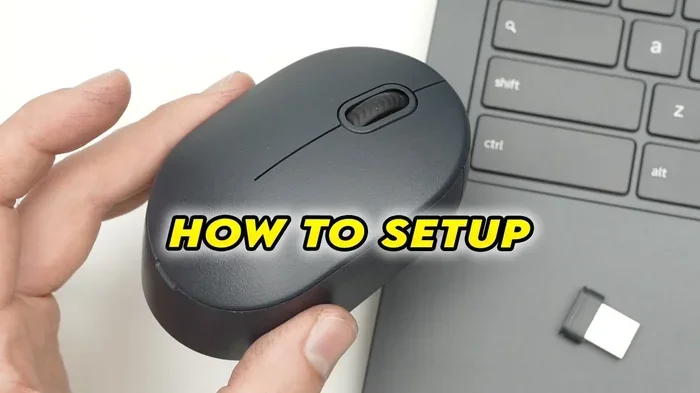
The other method uses a USB receiver. This is a tiny plug-in device. It comes with many wireless mouse models. You plug it into a laptop port. The wireless receiver talks directly to the mouse. This is often called plug-and-play. It is very easy to set up. You do not need to mess with laptop settings. Just plug it in and start using it. However, you lose a USB port. This might matter if your laptop has few ports. You have to be careful about what else you plug in. The receiver stays in the port. You cannot easily remove it if you need the port for something else. The USB receiver usually runs on a small battery too. Some mice have built-in rechargeable batteries. You just plug the mouse into the receiver to charge. This is very convenient.
Checking Laptop Compatibility for a Wireless Mouse
So, can all laptops use a wireless mouse? In most cases, yes. But you should check your laptop first. Not all laptops have the same features. A quick check saves you time and frustration. You need to look at two main things. First, does your laptop have Bluetooth? Second, does it have an open USB port? Let us explore these points. This ensures you buy the right mouse the first time.
Bluetooth Capabilities
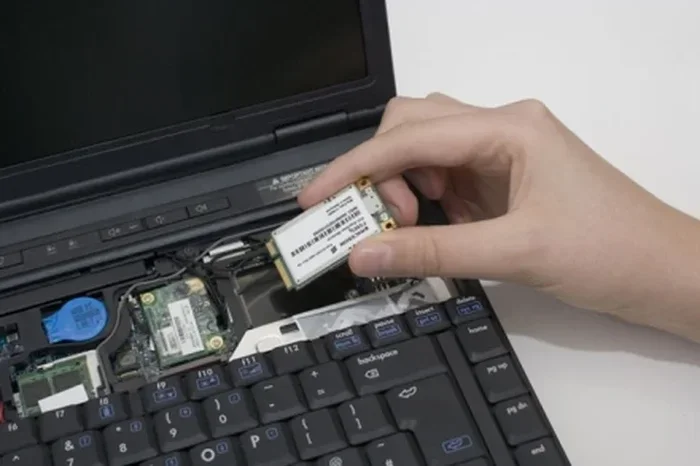
Bluetooth capabilities are standard on most new laptops. If you bought your laptop in the last five years, it likely has Bluetooth. You can check this in your laptop settings. Look for the Bluetooth icon. If you see it, your laptop is ready. Bluetooth uses short-range radio waves. These waves connect your mouse to the laptop securely. If you do not see it, you might need a Bluetooth adapter. An adapter is a small USB stick. It adds Bluetooth to your laptop. This fixes the problem instantly. You plug the adapter in, and suddenly you have Bluetooth connectivity. It is a cheap and easy fix. It costs less than ten dollars most of the time.
Older laptops might not support Bluetooth. In that case, a USB receiver is your best friend. It does not rely on built-in Bluetooth. The wireless receiver handles all the work. This gives you device connectivity no matter how old your laptop is. You can still enjoy a wireless mouse. Do not worry if your laptop is older. There is always a way to connect. You just need the right accessory.
USB Port Availability
Laptop ports are important for a USB receiver. If your laptop has no open ports, you have a problem. You need at least one free laptop port. The USB receiver needs that slot. Some laptops have very few ports. They might only have two USB slots. If both are taken, you cannot use a receiver. You will need a USB hub. A hub adds more ports. You plug the hub into the laptop. Then you plug the receiver and other things into the hub. This keeps everything working smoothly. You do not have to unplug things every time. Just leave the hub attached. It is a great solution for laptops with limited laptop ports. Many new laptops use USB-C ports. You might need a USB-C adapter for the receiver. This is a small cost but very helpful.
Step-by-Step Guide to Connecting Your Wireless Mouse
Now that you know your laptop is ready, let us connect the mouse. The pairing process is usually very simple. You do not need to be a tech expert. Just follow these easy steps. We will cover both Bluetooth and USB methods. You will be ready to go in minutes. You will be surprised how fast it is. Let us get started.
Pairing via Bluetooth
Pairing via Bluetooth takes a few steps. First, turn on your mouse. Find the power button. It is usually on the bottom. Next, go to your laptop settings. Look for the Bluetooth section. Turn Bluetooth on if it is off. Your laptop will start searching for nearby devices. Put your mouse in pairing mode. This is usually done by holding a button. Check your mouse manual for the exact steps. Soon, your laptop will show the mouse name. Click on it to connect. The device connectivity is now established. You can move your cursor right away.
Sometimes the pairing process fails. Do not worry. This happens often. Make sure your mouse battery is good. A low battery stops the pairing. Also, keep the mouse close to the laptop. Bluetooth range is usually about thirty feet. Walls and walls can block the signal. Move closer and try again. This fixes most Bluetooth connection issues. You should also check your laptop settings. Make sure Bluetooth is turned on. Sometimes it turns off by accident. A quick check solves the problem. You will be connected in no time.
Plugging in the USB Receiver
Plugging in the USB receiver is even easier. This is the plug-and-play method. You do not need to search for settings. Just find an open laptop port. Insert the tiny receiver into the slot. Wait a few seconds. Your laptop will recognize the device. It will install the mouse driver automatically. A mouse driver is a small software piece. It tells your laptop how to use the mouse. In most cases, you do nothing. It just works. The operating system handles it all. This is the beauty of plug-and-play technology.
If your laptop asks for a driver, do not panic. Go to the mouse brand website. Download the latest mouse driver. Install it on your laptop. Restart your computer if needed. The input lag should be gone after this. Input lag is a small delay in cursor movement. Good drivers make your mouse feel fast and smooth. You should not notice any lag at all. If you do, try moving the receiver closer to the mouse. The wireless receiver needs a clear line of sight. This helps the signal stay strong.
Common Issues and How to Fix Them
Even with a simple setup, you might run into trouble. Wireless devices are not perfect. But most problems have easy fixes. You do not need to call a repair shop. Let us look at the most common issues. We will show you how to solve them quickly. You will be back to working in no time.
Driver Problems
Driver problems are the top reason mice act weird. A mouse driver helps your laptop talk to the mouse. If the driver is old or missing, things break. You might see a flashing cursor. Or the mouse might stop working. This is a common Bluetooth issue too. Old Bluetooth drivers cause the same trouble. You need to update your drivers. Go to your laptop settings. Find the device manager. Look for your mouse or Bluetooth device. Right-click and choose update driver. Your laptop will find the new software. This often fixes the problem instantly. Your device connectivity will be restored.
You can also use driver update tools. These tools scan your laptop. They find old drivers and fix them. It is a great way to keep your laptop healthy. Always use the latest Bluetooth drivers for the best performance. A smooth driver update makes a huge difference. Your mouse will feel brand new again. Do not ignore driver warnings. They usually mean something needs fixing. Update them right away to keep things running.
Range and Interference
Bluetooth range can be tricky. The signal does not go through walls very well. If your mouse stops working, check the distance. Move closer to your laptop. The Bluetooth range is about thirty feet. But furniture and walls block the signal. Other wireless devices can cause interference too. Wi-Fi routers use the same radio waves. Microwaves can also cause a problem. Move away from these devices. Your wireless technology will work much better. You will notice less input lag. Your cursor will move smoothly again. Keep your mouse and laptop close. This ensures the best connection. You will have a much better experience.
Benefits of Using a Wireless Mouse with Your Laptop
Why should you use a wireless mouse? The benefits are huge. A wired mouse ties you to your desk. A wireless mouse gives you freedom. You can work from anywhere. Your desk looks much better too. There are no cables to manage. Let us look at the top benefits in detail. You will see why so many people make the switch.
Better Mobility and Comfort
Better mobility is the biggest plus. You are not stuck at your desk. You can sit on your sofa. You can work from your bed. You can present slides from across the room. This comfort helps your posture too. You do not have to sit up straight. You can relax while you work. The freedom of a peripheral device is amazing. It changes how you use your laptop. You can work in different rooms. You can take your mouse with you. It is truly portable and convenient.
Cleaner Workspace
A cleaner workspace helps you focus. Cables create clutter. A wireless mouse removes that mess. Your desk looks neat and tidy. You can easily clean the desk too. There are no wires to unplug. You just pick up the mouse and go. Many wireless mouse models look very sleek. They match your laptop style perfectly. They are a great addition to any setup. A clean desk reduces stress. You can find what you need quickly. It makes your work area feel more professional.
Expert Tips for Choosing the Right Wireless Mouse
Not all wireless mice are the same. Some are great for gaming. Others are perfect for office work. Choosing the right one makes a big difference. Here are some expert tips to help you decide. You will find the perfect mouse for your needs. Do not rush the buying process.
Quick Tips for the Best Wireless Mouse Experience
Want to get the most out of your wireless mouse? Follow these quick tips. They will help you avoid common mistakes. You will enjoy a much better experience. These small changes make a big difference.
First, always turn off your mouse when not in use. This saves battery life. A rechargeable battery lasts longer when you do this. Second, keep the receiver close to the mouse. This ensures strong signal strength. Third, clean the optical sensor regularly. Dust can block the sensor. Use a soft cloth to wipe it. Fourth, update your drivers often. This keeps everything running smoothly. Fifth, store your mouse properly. A good case prevents damage. These simple habits extend the life of your mouse. You will not have to buy a new one soon.
Battery Life Matters
Battery life is a key factor. You do not want your mouse to die in the middle of work. Check the battery life before you buy. Some mice last for months. Others need charging every week. A rechargeable battery is a smart choice. You just plug it in at night. You never need to buy new batteries. This saves money and helps the planet. Look for wireless mouse models with long battery life. This ensures you always have device connectivity when you need it. A good battery means less downtime.
Sensor Quality
Sensor quality affects how your mouse feels. The optical sensor tracks your movements. A good sensor is very precise. It works on almost any surface. You do not need a special mouse pad. Cheap sensors might skip or jump. This causes input lag and frustration. Read reviews before you buy. Look for mice with high-quality optical sensors. Your hand will feel the difference. Smooth movement is very important for daily use. A great sensor makes your work faster and more accurate.
Conclusion
So, can all laptops use a wireless mouse? Yes, they can. Almost every laptop today supports wireless mice. You just need to check your laptop compatibility first. Look for Bluetooth or an open USB port. The setup is usually very easy. Whether you use a Bluetooth adapter or a USB receiver, you will be up and running fast. Enjoy the freedom of a wireless peripheral device. Your workspace will look cleaner, and your work will feel smoother. Embrace wireless technology and upgrade your laptop setup today. You will never want to go back to a wired mouse again. Take your time and find the perfect mouse. Your laptop and your hands will thank you. Start enjoying your new mouse right now.
Frequently Asked Questions
Can all laptops use a wireless mouse with Bluetooth?
Yes, most modern laptops support Bluetooth mice. You just need to pair the mouse with your laptop settings. If your laptop lacks Bluetooth, a Bluetooth adapter will solve the problem.
Do I need a driver for a wireless mouse?
Usually, no. Most wireless mice are plug-and-play. Your laptop will automatically install the mouse driver when you connect it. However, you may need to download a driver for advanced features.
What is the difference between a Bluetooth mouse and a USB receiver mouse?
A Bluetooth mouse connects directly to your laptop wirelessly. A USB receiver mouse uses a small plug-in dongle. Both offer great wireless technology and device connectivity.
Why is my wireless mouse lagging?
Lagging is often caused by low battery or interference. Move the mouse closer to your laptop to reduce input lag. Also, check if other wireless devices are causing signal disruption.
Can I use a wireless mouse with any laptop brand?
Absolutely. Wireless mouse models work with Dell, HP, Lenovo, Apple, and more. As long as your laptop has Bluetooth or a USB port, you have laptop compatibility.
How long does a wireless mouse battery last?
Battery life depends on the model and usage. Some wireless mouse models last for months on a single charge. A rechargeable battery is a great choice for long-term savings.