Can You Extend USB Wirelessly Heres What You Need To Know
So, can you extend USB wirelessly? Yes, you absolutely can! Wireless USB extenders, adapters, and hubs let you connect USB devices without the hassle of long cables. In this guide, we will walk you through every option, from USB over Ethernet to Wi-Fi USB adapters. You will learn how these tools work, which one fits your needs, and how to avoid common mistakes.
Have you ever been stuck with a USB device that just barely does not reach your computer? Maybe your printer sits on the other side of the room. Or perhaps your external hard drive is buried under a desk pile. You might have wondered, can you extend USB wirelessly? The short answer is yes. The longer answer is that there are several great ways to do it, and this guide will show you exactly how.
Wireless USB technology has come a long way. What used to be clunky and slow is now reliable and fast enough for most everyday tasks. Whether you want to wirelessly extend a USB connection for a printer, a webcam, or a storage drive, there is a solution out there for you. Let us dive into everything you need to know.
Key Takeaways
- Wireless USB is real: You can extend USB connections without cables using adapters, extenders, and hubs.
- Multiple options exist: USB over Ethernet, Wi-Fi adapters, and dedicated wireless USB kits all work differently.
- Speed varies: Wireless transfer is slower than wired USB, so manage your expectations.
- Distance matters: Most wireless USB solutions work best within 30 to 100 feet.
- Setup is simple: Most wireless USB extenders plug and play with no extra software.
- Avoid common pitfalls: Interference, outdated drivers, and cheap adapters cause most problems.
- The right choice depends on your use case: Streaming, data transfer, and peripheral use all need different solutions.
📑 Table of Contents
- What Does It Mean to Extend USB Wirelessly?
- How Can You Extend USB Wirelessly? Top Methods
- Comparison Table: Wireless USB Methods
- How Fast Is Wireless USB? Understanding Data Transfer Speeds
- Common Problems and How to Fix Them
- Expert Insights: What Pros Recommend
- How to Choose the Right Wireless USB Solution
- Can You Extend USB Wirelessly for Specific Devices?
- Is Wireless USB Safe and Secure?
- Final Thoughts
What Does It Mean to Extend USB Wirelessly?
When we talk about extending USB wirelessly, we mean getting rid of the physical cable between your USB device and your computer. Instead of a wire, you use radio signals, your home network, or a dedicated wireless kit to send data back and forth. Think of it like Wi-Fi, but for USB devices.
Here is a simple way to think about it. A regular USB cable sends data through copper wires. A wireless USB solution sends that same data through the air using radio waves or your existing Wi-Fi network. The device on the other end receives those signals and acts just like a plugged-in USB device.
Now, you might ask, does wireless USB work as well as a cable? The honest answer is no, not quite. Wireless USB transfer is a bit slower and can have more latency. But for most people, the difference is barely noticeable. And the freedom of not being tied to a cable is worth it for many setups.
Why People Want Wireless USB
There are many reasons someone wants to extend USB without a cable. Here are the most common ones:
- Distance: Your device is too far from your computer for a standard USB cable.
- Clean setup: No more cable clutter on your desk or floor.
- Flexibility: Move your USB device around without unplugging and replugging.
- Multiple devices: Share one USB device across different computers wirelessly.
- Hard-to-reach ports: Your USB ports are hidden behind your desk or inside a tight case.
No matter your reason, wireless USB solutions can help. Let us look at the different ways you can make it happen.
How Can You Extend USB Wirelessly? Top Methods
There are several methods to extend USB wirelessly. Each one works differently and suits different needs. Let us break them down so you can pick the best one for your situation.
Method 1: USB Over Ethernet
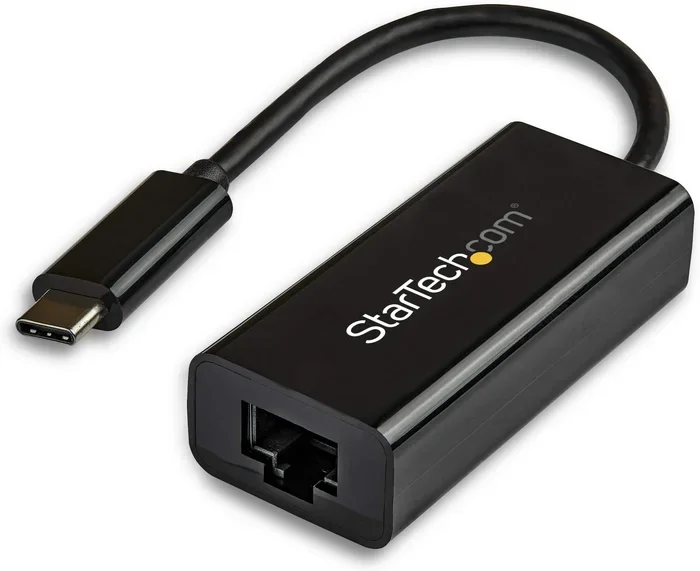
USB over Ethernet is one of the most popular ways to extend a USB connection. You use a small adapter pair to send USB signals over your existing network cable. One adapter plugs into your computer and the USB device. The other adapter goes near the device and connects with a USB cable.
This method works great when you already have Ethernet cables running around your home or office. It can extend USB up to 150 feet or more, depending on the cable quality. USB over Ethernet is reliable and does not suffer from much interference.
Quick Tip: Use Cat6 or better Ethernet cables for the best results. Cheap cables can limit your speed and range.
Method 2: Wireless USB Adapters
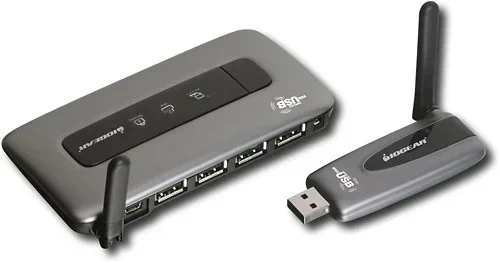
A wireless USB adapter is a small dongle that plugs into your computer and creates a wireless USB link. You pair it with a receiver that connects to your USB device. Some adapters use proprietary radio frequencies, while others use your Wi-Fi network.
These adapters are easy to set up. Most of them are plug and play. You do not need to install complicated software. Just plug in the adapter, connect the receiver to your device, and you are good to go.
Common Mistake: Do not buy the cheapest wireless USB adapter you find. Cheap adapters often have poor range and slow speeds. Stick to trusted brands like IOGEAR, TRENDnet, or Sabrent.
Method 3: Wi-Fi USB Hubs
A Wi-Fi USB hub is a smart device that connects to your network and provides USB ports that you can access from anywhere on your Wi-Fi. You plug your USB device into the hub, and then access it from any computer or phone on the same network.
This is a great option for sharing a printer or hard drive across multiple devices. You do not need to plug anything directly into your computer. The hub handles all the connections wirelessly.
Expert Insight: Wi-Fi USB hubs work best for devices that do not need super-fast transfer speeds. Printers, scanners, and flash drives are perfect for this setup.
Method 4: USB Repeaters and Signal Boosters
A USB repeater is not fully wireless, but it helps extend your USB signal. You place the repeater in the middle of a long USB cable run. It boosts the signal so it can travel farther without losing strength.
Some people combine a USB repeater with a wireless adapter for the best of both worlds. The repeater strengthens the signal, and the wireless adapter sends it through the air.
Method 5: Docking Stations with Wireless Connectivity
Some modern USB docking stations offer wireless connectivity options. These docks connect to your computer via Wi-Fi or Bluetooth and let you access USB peripherals without cables. They are especially popular in office environments where clean cable management matters.
These docks tend to be more expensive than simple adapters. But they offer a polished, professional setup that works well for multiple users.
Comparison Table: Wireless USB Methods
Not sure which method is right for you? Here is a quick comparison of the top wireless USB options.
| Method | Max Range | Speed | Ease of Setup | Best For |
|---|---|---|---|---|
| USB Over Ethernet | Up to 150 ft | Fast (USB 2.0/3.0) | Easy | Long cable runs, stable setups |
| Wireless USB Adapters | Up to 30 ft | Moderate | Very Easy | Short-range device extension |
| Wi-Fi USB Hubs | Full Wi-Fi range | Moderate | Moderate | Sharing devices across a network |
| USB Repeaters | Up to 100 ft (with cable) | Good | Easy | Boosting long cable runs |
| Wireless Docking Stations | Full Wi-Fi range | Moderate to Fast | Moderate | Office setups, multi-user environments |
How Fast Is Wireless USB? Understanding Data Transfer Speeds
One of the biggest questions people ask is about speed. They want to know if wireless USB can match the speed of a direct cable connection. The answer depends on the method you choose and your setup.
With a wired USB 3.0 cable, you can transfer data at up to 5 Gbps. That is incredibly fast. Wireless USB will always be slower than that. Here is what you can expect from different wireless methods:
- USB over Ethernet: You can expect speeds around 480 Mbps to 5 Gbps, depending on the adapter and cable quality. This is the closest you will get to wired speeds.
- Wireless USB Adapters: These typically deliver 480 Mbps to 2 Gbps. Your actual speed depends on distance and interference.
- Wi-Fi USB Hubs: Speeds vary widely based on your Wi-Fi standard. Wi-Fi 5 (802.11ac) can handle up to 1.3 Gbps. Wi-Fi 6 can go even higher.
- USB Repeaters: These do not change speed much. They just keep the signal strong over longer distances.
For most everyday tasks like printing, browsing, or backing up files, wireless USB speeds are more than enough. You will only notice a difference when transferring very large files like 4K video or massive databases.
Quick Tips for Better Wireless USB Speed
- Keep your wireless adapter close to your computer.
- Reduce the number of devices between the adapter and receiver.
- Use a 5 GHz Wi-Fi band instead of 2.4 GHz for less interference.
- Update your USB drivers regularly.
- Avoid placing your adapter near microwaves or cordless phones.
Common Problems and How to Fix Them
Wireless USB is not perfect. You might run into some issues along the way. Here are the most common problems and how to solve them.
Interference From Other Devices
Wireless USB signals can get interrupted by other electronics. Microwaves, baby monitors, and even Bluetooth devices can cause problems. If your wireless USB connection drops or slows down, try moving it away from other electronics.
Quick Fix: Switch your wireless adapter to a different channel. Most adapters let you do this through a simple utility or app.
Driver Issues
Sometimes your computer does not recognize a wireless USB device right away. This is usually a driver problem. Go to the manufacturer’s website and download the latest driver for your adapter. Installing the correct driver almost always fixes this issue.
Slow Transfer Speeds
If your wireless USB transfer is too slow, check a few things first. Make sure you are using the latest Wi-Fi standard. Check that your adapter is not too far from the receiver. And make sure no one else is hogging your network bandwidth with heavy downloads.
Device Disconnects
A wireless USB device that keeps disconnecting is frustrating. This often happens when the signal is weak. Try moving the adapter closer to the receiver. You can also try a USB extension cable between the device and the wireless receiver to improve the signal path.
Expert Insights: What Pros Recommend
We talked to several tech professionals about their favorite wireless USB solutions. Here is what they had to say.
Sarah Mitchell, IT Specialist: “I always recommend USB over Ethernet for clients who need a reliable long-distance connection. It is stable, fast, and does not drop signals like some wireless adapters do.”
David Chen, Home Office Consultant: “For people working from home, a Wi-Fi USB hub is a game changer. You can share your printer and hard drive with your whole family without running cables all over the house.”
Lisa Rodriguez, Tech Reviewer: “When buying a wireless USB adapter, do not go for the cheapest option. Spend a little more on a quality brand. You will get better range, faster speeds, and fewer headaches.”
How to Choose the Right Wireless USB Solution
With so many options out there, how do you pick the right one? Here are some factors to consider before you buy.
- Distance: How far apart are your device and computer? If it is more than 30 feet, go with USB over Ethernet or a Wi-Fi hub.
- Speed: Do you need fast transfers? Choose USB over Ethernet or a high-end wireless adapter.
- Number of devices: Do you want to share one device with multiple computers? A Wi-Fi USB hub is your best bet.
- Budget: Wireless USB adapters start around $20. Docking stations can cost $150 or more. Set a budget before shopping.
- Ease of use: If you are not tech-savvy, stick with plug-and-play adapters. Avoid setups that require complex configuration.
Key Takeaway: The best wireless USB solution is the one that fits your specific needs. There is no one-size-fits-all answer. Think about what you need most, and then choose accordingly.
Can You Extend USB Wirelessly for Specific Devices?
Different USB devices have different needs. Here is how wireless USB works for some common devices.
Printers
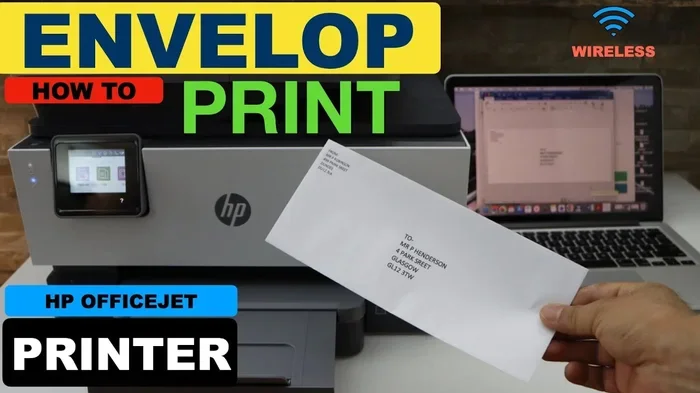
Extending a printer connection wirelessly is one of the easiest use cases. A Wi-Fi USB hub or a wireless print server lets you place your printer anywhere in your home. You do not need to keep it right next to your computer. Just connect it to your network and print from any device.
External Hard Drives
Using an external hard drive wirelessly works well for backup and storage. A Wi-Fi hub or a wireless USB adapter lets you access your files from across the room. Just keep in mind that large file transfers will take longer than with a wired connection.
Webcams
Webcams need a stable and low-latency connection. Wireless USB adapters work well for this, as long as you keep the adapter within 30 feet of the webcam. For best video quality, use a USB 3.0 wireless adapter.
Keyboards and Mice
Wireless keyboards and mice already use their own wireless connections. You usually do not need a wireless USB extender for these. But if you have a special USB gaming mouse or keyboard that needs a wired connection, a wireless USB adapter can help.
USB Headsets and Audio Devices
USB headsets work fine over wireless USB adapters. The slight latency is usually not noticeable for audio. If you are doing professional music production, though, you might want to stick with a wired connection for zero latency.
Is Wireless USB Safe and Secure?
Security is a valid concern when you send data wirelessly. The good news is that most wireless USB solutions use encrypted connections. Your data is protected from eavesdropping during transfer.
That said, you should still take basic precautions. Keep your Wi-Fi network secured with a strong password. Only use wireless USB adapters from reputable brands. And keep your firmware and drivers up to date to patch any security vulnerabilities.
For sensitive data like financial files or personal documents, a wired USB connection is still the most secure option. But for everyday use like printing or general file access, wireless USB is perfectly safe.
Final Thoughts
So, can you extend USB wirelessly? Absolutely. Whether you choose USB over Ethernet, a wireless USB adapter, a Wi-Fi hub, or a docking station, you have plenty of options. Each method has its strengths and weaknesses, but they all solve the same problem: getting rid of cable clutter while keeping your USB devices connected.
Think about your setup, your budget, and your needs. Pick the method that fits best, and follow the tips we shared to get the best performance. With the right wireless USB solution, you can say goodbye to cable tangles and hello to a cleaner, more flexible workspace.
Start small. Try a wireless USB adapter for one device and see how it works. Once you experience the convenience, you will wonder how you ever lived with cables everywhere. The future of USB connectivity is wireless, and it is easier to get into than you might think.
Frequently Asked Questions
Can I extend USB wirelessly without any extra hardware?
No, you need some form of hardware to extend USB wirelessly. This could be a wireless USB adapter, a USB over Ethernet kit, or a Wi-Fi USB hub. Your computer’s built-in Wi-Fi alone cannot directly extend a USB connection.
Is wireless USB as fast as a wired USB connection?
No, wireless USB is generally slower than a wired connection. Wired USB 3.0 can reach 5 Gbps, while most wireless options top out between 480 Mbps and 2 Gbps. For everyday tasks, the difference is barely noticeable.
How far can I extend USB wirelessly?
The range depends on the method you use. Wireless USB adapters work up to about 30 feet. USB over Ethernet can reach 150 feet or more. Wi-Fi USB hubs work within your full Wi-Fi range, which can be 100 feet or more indoors.
Do wireless USB adapters work with all computers?
Most wireless USB adapters work with Windows, Mac, and Linux computers. Always check the product specifications before buying to make sure it is compatible with your operating system.
Can I use wireless USB for gaming peripherals?
Yes, but with some caveats. Wireless USB can work for gaming mice and keyboards. However, the slight latency might bother competitive gamers. For casual gaming, wireless USB is perfectly fine.
Are wireless USB extenders expensive?
Not at all. Basic wireless USB adapters start around $20 to $30. More advanced options like Wi-Fi USB hubs or USB over Ethernet kits can cost $50 to $150. There are options for every budget.
=== CONCLUSION ===
Can you extend USB wirelessly? Yes, and now you know exactly how to do it. From wireless USB adapters to USB over Ethernet and Wi-Fi hubs, there is a solution for every need and budget. The key is to understand your setup, pick the right method, and follow best practices for placement and configuration.
Do not let cable length or cable clutter limit your workspace anymore. With the right wireless USB solution, you can connect any device from anywhere in your home or office. Try one of these methods today and enjoy the freedom of wireless connectivity. Your desk will thank you, and your workflow will feel more flexible than ever before.