Can You Connect Xbox To Bluetooth Speaker With Ease
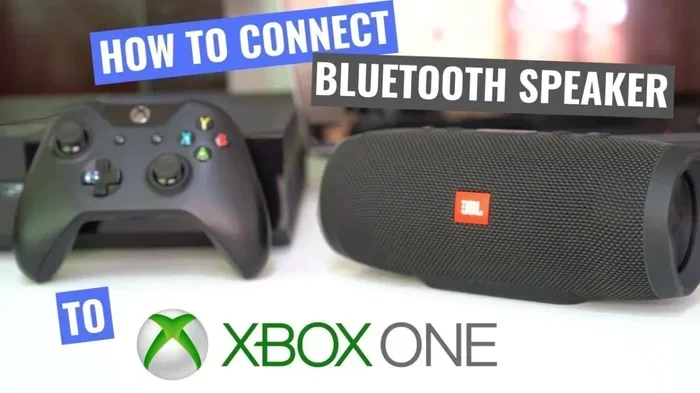
Yes, you can connect Xbox to Bluetooth speaker, but it requires a few extra steps since Xbox consoles do not have built-in Bluetooth support. Whether you own an Xbox One or Xbox Series X, you can stream game audio to a wireless speaker using a Bluetooth adapter or alternative audio methods. This guide walks you through every method, so you can enjoy immersive Xbox wireless audio without the hassle of cables.
Gaming is all about immersion. The last thing you want is to be tied to your TV speakers when you could be blasting your favorite game through a Bluetooth speaker for gaming. But here is the catch. Xbox consoles do not support Bluetooth audio out of the box. If you have been searching for a way to get wireless sound from your Xbox, you are not alone. Many gamers want to know if they can connect Xbox to Bluetooth speaker without buying expensive equipment.
The good news is that you absolutely can. It just takes a little know-how. In this guide, we will walk you through every method, from using a simple Bluetooth adapter to exploring alternative audio setups. Whether you have an Xbox One or the latest Xbox Series X, you will find a solution that works. Let us dive in and get your Xbox audio wireless.
Before we get into the steps, let us quickly talk about why Xbox does not use Bluetooth directly. Microsoft designed Xbox consoles to use proprietary wireless protocols for controllers and accessories. This keeps the connection stable and reduces interference. However, it also means you cannot simply pair your phone or a standard Bluetooth speaker the way you would with a smart TV. You need a bridge device or a workaround. Do not worry. We will cover all of them below.
Key Takeaways
- Xbox consoles lack native Bluetooth: You need a Bluetooth adapter or workaround to connect a wireless speaker.
- A Bluetooth transmitter is the easiest solution: Plug it into your Xbox optical or 3.5mm jack and pair your speaker instantly.
- Not all Bluetooth speakers work well with Xbox: Latency and codec support matter for lag-free gaming audio.
- Alternative methods exist: You can use HDMI audio extractors, wireless headsets, or even a PC as a bridge.
- Troubleshooting is straightforward: Most connection issues come from signal interference or outdated firmware.
📑 Table of Contents
- Can You Connect Xbox To Bluetooth Speaker Directly?
- How to Connect Xbox to a Bluetooth Speaker Step by Step
- Best Bluetooth Speakers for Xbox Gaming
- Troubleshooting Common Xbox Bluetooth Audio Issues
- Alternative Ways to Get Audio from Your Xbox
- Tips for the Best Bluetooth Audio Experience on Xbox
- Final Thoughts
Can You Connect Xbox To Bluetooth Speaker Directly?
The short answer is no. Xbox consoles do not have built-in Bluetooth functionality for audio output. This surprises a lot of people. After all, most modern devices support Bluetooth these days. But Microsoft made a deliberate choice. They wanted to keep the Xbox wireless ecosystem separate and interference-free.
This does not mean you are stuck with wired speakers or your TV audio. There are several reliable workarounds. The most popular one involves using a Bluetooth transmitter. This small device plugs into your Xbox and sends audio wirelessly to your speaker. It is simple, affordable, and works with almost any Bluetooth speaker you already own.
Another option is to use an HDMI audio extractor. This device pulls audio from the HDMI signal and sends it to your speaker via Bluetooth or a wired connection. Both methods are effective. The Bluetooth transmitter route is usually the easiest for most people. Let us look at how to set it up.
Why Xbox Does Not Have Built-In Bluetooth
Microsoft uses a custom wireless protocol for Xbox accessories. This protocol is designed for low latency and high reliability. Bluetooth, while convenient, can introduce audio delay. For gaming, even a small delay between what you see on screen and what you hear can be frustrating. By keeping Bluetooth off the console itself, Microsoft ensures that core gaming experiences remain smooth.
That said, for casual gaming, music, or watching movies on your Xbox, Bluetooth audio is perfectly fine. The slight delay is barely noticeable. So if you want to connect a Bluetooth speaker for listening to music or playing single-player games, you will not have a problem.
How to Connect Xbox to a Bluetooth Speaker Step by Step
Now let us get into the actual setup. There are two main methods to get Xbox Bluetooth audio working. The first uses a Bluetooth transmitter. The second uses an HDMI audio extractor. We will cover both so you can pick the one that suits your setup best.
Method 1: Using a Bluetooth Transmitter
This is the simplest and most affordable method. You will need a Bluetooth transmitter that supports the aptX or aptX Low Latency codec. These codecs reduce audio delay significantly. Here is what you need to do.
- Buy a Bluetooth transmitter that supports optical or 3.5mm audio input.
- Plug the transmitter into your Xbox optical audio port or the 3.5mm jack on your controller.
- Turn on your Bluetooth speaker and put it in pairing mode.
- Pair the transmitter with your speaker through the transmitter’s settings.
- Test the audio by playing a game or a movie on your Xbox.
That is it. In under five minutes, you can have wireless audio streaming from your Xbox to your speaker. The optical connection gives the best audio quality because it carries a digital signal. The 3.5mm jack option works too, but it sends an analog signal, which can be slightly more prone to interference.
One thing to keep in mind. If you plug the transmitter into your Xbox controller’s 3.5mm jack, you will not be able to use a wired headset at the same time. The controller jack is a shared audio output. So if you want both wireless speakers and a wired headset, use the optical port on the console instead.
Method 2: Using an HDMI Audio Extractor
An HDMI audio extractor is a small box that sits between your Xbox and your TV. It splits the HDMI signal. Video goes to your TV, and audio goes to your speaker through Bluetooth or an optical cable. This method is great if you want to keep your setup clean and cable-free.
- Connect the HDMI cable from your Xbox to the input port on the audio extractor.
- Connect another HDMI cable from the extractor to your TV.
- Plug your Bluetooth transmitter or optical cable into the extractor’s audio output.
- Pair your Bluetooth speaker with the transmitter.
- Power on the extractor and test the audio.
The HDMI audio extractor method gives you more flexibility. You can use it with any TV and any Xbox model. It also lets you switch between different audio outputs easily. The downside is that extractors cost more than a simple Bluetooth transmitter. But if you already have one, it is a great way to get wireless gaming audio without buying extra gear.
Best Bluetooth Speakers for Xbox Gaming
Not all Bluetooth speakers are created equal. Some have higher latency, which means the audio lags behind the video. Others have poor sound quality at higher volumes. If you want the best experience, here are some things to look for when choosing a Bluetooth speaker for Xbox.
What to Look For in a Gaming Bluetooth Speaker
- Low latency support: Look for speakers that support aptX Low Latency or aptX Adaptive codecs. These reduce audio delay to nearly imperceptible levels.
- Good battery life: You do not want your speaker dying mid-game. Aim for at least 10 hours of playback.
- Clear dialogue reproduction: For gaming, you need to hear footsteps, gunfire, and voice chat clearly. Speakers with dedicated mid-range drivers excel here.
- Compact size: A smaller speaker fits better on a desk or shelf next to your gaming setup.
- Stable Bluetooth range: Make sure the speaker maintains a strong connection from at least 10 feet away.
Some popular options that work well with Xbox include portable Bluetooth speakers from brands like JBL, Anker, and Sony. These brands offer reliable connections and good sound quality. If you are on a budget, even a mid-range speaker will give you a noticeable upgrade over TV built-in speakers.
If you are looking for a full gaming setup, you might also want to check out 10 Gadgets To Make Moms Life Easier for some creative home tech ideas that can complement your gaming space. And if you are managing multiple devices, you may find Adding Prefixes To Numbers On Iphone helpful for keeping your gaming and personal devices organized.
Top Picks by Budget
| Budget Range | Recommended Speaker | Key Feature |
|---|---|---|
| Under $50 | Anker Soundcore Mini | Compact, long battery life |
| $50 – $100 | JBL GO 3 | Waterproof, clear audio |
| $100 – $200 | Sony SRS-XB100 | Extra bass, stable connection |
| Over $200 | JBL Charge 5 | Premium sound, long battery |
Any of these speakers will work with your Xbox through a Bluetooth transmitter. The key is to choose one that supports low-latency codecs if you are playing competitive games where audio timing matters.
Troubleshooting Common Xbox Bluetooth Audio Issues
Even with the right setup, you might run into some issues. Bluetooth audio connections can be finicky sometimes. Here are the most common problems and how to fix them.
Audio Delay or Lag
If you notice the audio is out of sync with the video, your Bluetooth codec is likely the culprit. Standard Bluetooth SBC codec has higher latency. Switch to aptX Low Latency if your transmitter and speaker both support it. This single change can eliminate most audio sync issues.
Another cause of lag is signal interference. Wi-Fi routers, microwaves, and even USB 3.0 ports can disrupt Bluetooth signals. Move your Bluetooth transmitter away from these devices and see if the problem improves.
Speaker Keeps Disconnecting
A Bluetooth speaker that keeps dropping the connection is frustrating. This usually happens when the speaker is too far from the transmitter. Keep the two devices within 10 feet of each other for a stable connection. Walls and other obstacles also weaken the signal, so try to keep them in the same room.
Low battery on either the transmitter or the speaker can also cause disconnects. Make sure both devices are fully charged before a gaming session. If the problem persists, unpair and re-pair the devices. Sometimes a fresh connection is all it takes.
Poor Audio Quality
If the sound sounds muffled or distorted, check the audio settings on your Xbox. Go to Settings, then General, then Volume & Audio Output. Make sure the audio format is set to the highest quality available. Also, ensure the Bluetooth transmitter is set to its highest quality mode in the transmitter app.
Some speakers sound better with certain types of content. Music might sound great, but dialogue in games could be quiet. Adjust the equalizer settings on your speaker to boost mid-range frequencies. This will make voices and game sounds much clearer.
Alternative Ways to Get Audio from Your Xbox
If a Bluetooth setup does not work for your situation, do not worry. There are several other ways to get audio from your Xbox. Let us explore some alternatives.
Using a Wireless Headset
The official Xbox Wireless Headset connects directly to your Xbox without any extra hardware. It uses the same proprietary protocol as the Xbox controller, so it has virtually no latency. This is the best option if you want high-quality, lag-free audio.
Many third-party headsets also work with Xbox through a 3.5mm connection or the Xbox Wireless protocol. These headsets often include a microphone for party chat, which is a nice bonus if you play multiplayer games.
Using a PC as an Audio Bridge
This is a creative workaround. Connect your Xbox to your PC using an HDMI capture card or just run an HDMI cable from your Xbox to your PC monitor. Then use your PC’s Bluetooth to connect to your speaker. The PC acts as a middleman, receiving Xbox audio and sending it wirelessly to your speaker.
This method works well if you already have a PC with good Bluetooth support. It does add a bit of complexity, but it is a free solution if you already own the equipment. Just make sure your PC has low-latency Bluetooth for the best experience.
Using the Xbox App on Your Phone
Did you know you can use the Xbox app on your phone as a remote? The app lets you stream Xbox audio to your phone, and then you can play that audio through your phone’s Bluetooth speaker. It is not the most elegant solution, but it works in a pinch.
The audio quality depends on your phone’s speaker. It will not match a dedicated Bluetooth speaker. But for quick gaming sessions or when your friends are over, it gets the job done.
Tips for the Best Bluetooth Audio Experience on Xbox
Once you have your Xbox connected to a Bluetooth speaker, you can take a few extra steps to improve the experience. These small tweaks make a big difference.
- Keep your firmware updated: Both your Xbox and your Bluetooth speaker receive firmware updates that improve performance. Check for updates regularly.
- Reduce Bluetooth interference: If you have many wireless devices in your gaming area, turn off the ones you are not using. This frees up the Bluetooth spectrum.
- Use an optical connection when possible: Optical audio is digital and does not degrade over distance. It gives the cleanest signal before it hits the Bluetooth transmitter.
- Position your speaker wisely: Place the speaker at ear level and close to your seating position for the best soundstage.
- Experiment with EQ settings: Every game and genre sounds different. Spend a few minutes tweaking your speaker’s equalizer to find the sweet spot for each type of game.
With these tips, you will get the most out of your Xbox wireless audio setup. Your games will sound richer, your dialogue will be clearer, and you will enjoy the freedom of moving around without cables.
Final Thoughts
So, can you connect Xbox to Bluetooth speaker? Absolutely. While Xbox does not support Bluetooth natively, a Bluetooth transmitter or HDMI audio extractor bridges the gap easily. You have multiple options to choose from, and none of them require expensive equipment. A basic Bluetooth transmitter costs under $20 and gets the job done.
The key is to choose the right method for your setup. If you want the simplest solution, go with a Bluetooth transmitter plugged into your Xbox optical port. If you want more flexibility, use an HDMI audio extractor. And always choose a Bluetooth speaker that supports low-latency codecs for the best gaming experience.
Once you set it up, you will wonder how you ever gamed with TV speakers. Wireless audio adds a whole new level of immersion to your Xbox sessions. Try it out and enjoy the difference. Your ears will thank you.
Frequently Asked Questions
Can I connect any Bluetooth speaker to Xbox?
Yes, you can connect most Bluetooth speakers to Xbox using a Bluetooth transmitter. The Xbox itself does not have built-in Bluetooth, so you need a transmitter to act as a bridge between the console and the speaker. As long as your transmitter and speaker both support standard Bluetooth pairing, they should work together.
Does connecting a Bluetooth speaker cause audio lag on Xbox?
Standard Bluetooth can cause slight audio delay, especially with the basic SBC codec. However, using a transmitter that supports aptX Low Latency significantly reduces this lag. For most casual gaming, the delay is barely noticeable. For competitive or rhythm games, choose a low-latency codec to stay in sync.
Can I use Xbox wireless headphones instead of a Bluetooth speaker?
Yes, Xbox Wireless Headsets connect directly to the console using Microsoft’s proprietary wireless protocol. These headsets offer near-zero latency and are the best option for lag-free audio. They also include a microphone for party chat, making them ideal for multiplayer gaming.
What is the best way to get wireless audio from Xbox Series X?
The best method for Xbox Series X is using a Bluetooth transmitter plugged into the console’s optical audio port. This gives you a clean digital signal before it is transmitted wirelessly to your speaker. It is affordable, easy to set up, and works with virtually any Bluetooth speaker.
Why is my Bluetooth speaker not pairing with my Xbox setup?
This is usually caused by signal interference, low battery, or distance between the devices. Make sure your transmitter and speaker are within 10 feet of each other and fully charged. Also, move away from Wi-Fi routers and USB 3.0 devices, which can interfere with Bluetooth signals. Unpairing and re-pairing the devices often fixes connection issues.
Can I connect multiple Bluetooth speakers to my Xbox at once?
Most Bluetooth transmitters can only pair with one speaker at a time. However, some advanced transmitters support dual pairing, allowing you to connect two speakers simultaneously. Check your transmitter’s specifications to see if this feature is supported. Dual pairing is great for filling a larger room with sound.