Can You Connect Bluetooth To Roku For Wireless Audio
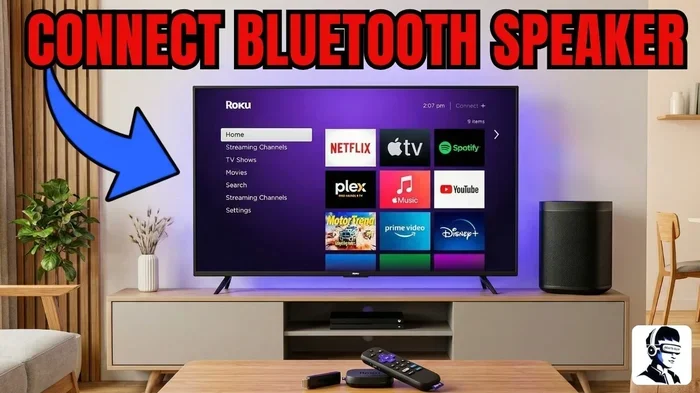
Yes, you can connect Bluetooth to Roku, but it requires a workaround since Roku devices don’t have native Bluetooth support. You can use a Bluetooth transmitter, a Roku-compatible soundbar, or even your phone as a bridge. This guide walks you through every method so you can enjoy wireless audio with your Roku setup hassle-free.
If you have ever wanted to listen to your favorite show on Roku without disturbing anyone, you have probably asked yourself one question: can you connect Bluetooth to Roku? The short answer is yes, but the full story is a bit more interesting. Roku devices are fantastic for streaming movies, TV shows, and music, but they do not come with built-in Bluetooth capability out of the box.
This might seem surprising in a world where everything is going wireless. But Roku has chosen to keep its devices focused on streaming rather than adding every possible connectivity option. The good news is that there are several simple and affordable workarounds. Whether you want to connect Bluetooth headphones, a wireless speaker, or a soundbar, you can make it work with your Roku setup.
In this guide, we will walk you through every method available. We will cover Bluetooth transmitters, soundbar alternatives, phone-based solutions, and troubleshooting tips. By the end, you will know exactly how to set up wireless audio with your Roku device. Let us dive in.
Key Takeaways
- Roku does not have built-in Bluetooth: You need an external adapter or alternative method to go wireless.
- A Bluetooth transmitter is the most popular solution: It plugs into the Roku’s audio output and pairs with any Bluetooth speaker or headphones.
- Roku-compatible soundbars offer a seamless alternative: Many modern soundbars connect to Roku via HDMI ARC and support Bluetooth too.
- Troubleshooting is straightforward: Most Bluetooth issues with Roku come from interference, distance, or outdated firmware.
- Multiple devices work with Roku: From headphones to speakers, you can pair a wide range of Bluetooth audio gear.
- Latency can be an issue: Choose a transmitter with low-latency technology for synced audio and video.
📑 Table of Contents
- Understanding Bluetooth And Roku: The Basics
- Method 1: Using A Bluetooth Transmitter With Roku
- Method 2: Using A Roku-Compatible Soundbar
- Method 3: Using The Roku App As A Wireless Bridge
- Common Bluetooth Issues With Roku And How To Fix Them
- Quick Tips For The Best Bluetooth Audio Experience On Roku
- Expert Insights: Why Roku Does Not Have Built-In Bluetooth
- Comparing Bluetooth Connection Methods For Roku
- Final Thoughts On Connecting Bluetooth To Roku
Understanding Bluetooth And Roku: The Basics
Before we get into the how-to, it helps to understand why Roku works the way it does. Roku is a dedicated streaming device. Its main job is to deliver video and audio content from the internet to your TV. Because of this focus, Roku has kept its hardware simple and affordable.
Most Roku devices come with an HDMI output, an optical audio port, and a 3.5mm headphone jack on the remote. What they do not include is a Bluetooth radio. This means your Roku cannot directly discover and pair with a Bluetooth speaker or headphones the way your phone can.
However, Roku does support wireless audio through its Wi-Fi connection. You can use the Roku app on your phone as a remote, and the app even streams audio to your phone’s speakers. But true Bluetooth connectivity requires a little extra help. Think of it as adding a bridge between your Roku and your wireless audio device.
The great thing about these workarounds is that they are not complicated. You do not need to be a tech expert. Most solutions take less than five minutes to set up. And once they are working, you will wonder how you ever lived without wireless audio on your Roku.
Method 1: Using A Bluetooth Transmitter With Roku
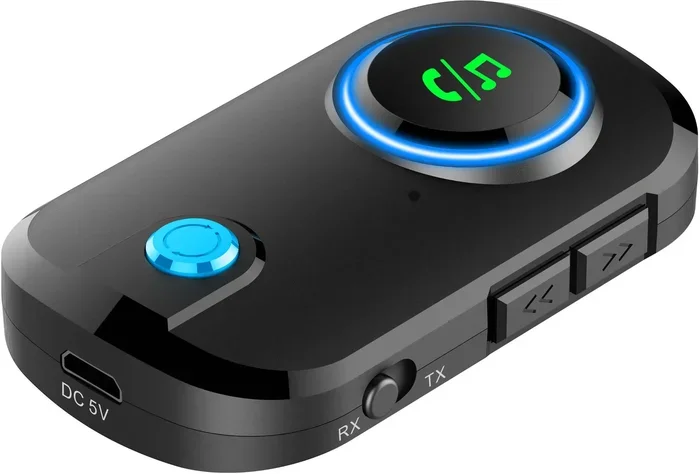
The most popular and reliable way to connect Bluetooth to Roku is by using a Bluetooth transmitter. This small device plugs into your Roku’s audio output and acts as a bridge to your wireless headphones or speakers. It is simple, affordable, and works with almost any Bluetooth audio device.
How A Bluetooth Transmitter Works
A Bluetooth transmitter takes the audio signal from your Roku and sends it wirelessly to a paired Bluetooth device. You plug the transmitter into either the optical audio output or the 3.5mm headphone jack on your Roku. Then you pair your Bluetooth headphones or speakers with the transmitter, just like you would with any other device.
Once paired, all audio from your Roku streams through the Bluetooth device. This means you can watch movies late at night with headphones on, or you can fill a room with music from a wireless speaker. The experience is seamless and wireless.
Best Bluetooth Transmitters For Roku
Not all Bluetooth transmitters are created equal. Here are some of the best options for Roku users:
- 1Mii B06 Bluetooth 5.0 Transmitter: Offers excellent range and low latency. Supports both aptX and aptX Low Latency codecs.
- Avantree Oasis Plus: A premium option with aptX HD support and dual pairing capability.
- TaoTronics TT-BA07: A budget-friendly choice that still delivers solid performance.
- 1Mii B06-C: Features a long battery life and easy one-button pairing.
When choosing a transmitter, look for one that supports aptX Low Latency. This codec reduces the delay between video and audio, which is crucial for watching movies and shows. Standard Bluetooth can have a noticeable lag, making dialogue seem out of sync with the visuals.
Step-By-Step Setup Guide
Setting up a Bluetooth transmitter with your Roku is straightforward. Follow these steps:
- Plug the transmitter into your Roku’s audio output. Use the optical cable if your Roku has an optical port. Otherwise, use the 3.5mm jack.
- Power on the transmitter. Most transmitters need to be plugged into a USB power source or use their own battery.
- Put your Bluetooth headphones or speaker into pairing mode. Refer to your device’s manual for instructions.
- Press the pairing button on the transmitter. The LED light should start blinking, indicating it is ready to pair.
- Wait for the connection to establish. You should hear a confirmation tone or see a solid LED light.
- Test the audio. Play something on your Roku and check if the sound comes through your Bluetooth device.
That is it. In just a few minutes, you have wireless audio streaming from your Roku. It is one of the easiest upgrades you can make to your home entertainment setup.
Method 2: Using A Roku-Compatible Soundbar
If you do not want to deal with a separate Bluetooth transmitter, a Roku-compatible soundbar is an excellent alternative. Many modern soundbars connect to Roku devices through HDMI ARC or optical cables and also have built-in Bluetooth. This gives you the best of both worlds: a direct connection to your Roku and wireless flexibility for other devices.
Why Choose A Soundbar?
A soundbar improves your audio quality significantly compared to your TV’s built-in speakers. It adds depth, clarity, and bass to your viewing experience. And when the soundbar has Bluetooth, you can also use it to stream music from your phone or tablet.
Some popular Roku-compatible soundbars include:
- Roku Streambar: Made by Roku itself, this device combines a streaming player with a soundbar. It connects directly to Roku and delivers great sound.
- Vizio SB362AN-F6: A budget-friendly option with Bluetooth and HDMI ARC support.
- Sonos Beam: A premium choice with excellent sound quality and smart home integration.
- JBL Bar 5.0: Features built-in Bluetooth and Dolby Atmos support for immersive audio.
When you buy a soundbar with Bluetooth, you can pair it with your phone for music nights or use it with your Roku for movies. The soundbar acts as a hub for all your audio needs. This is a great option if you want to upgrade your sound system while keeping things simple.
Method 3: Using The Roku App As A Wireless Bridge
Did you know you can use your phone to stream audio from Roku wirelessly? The Roku app has a feature called “Private Listening” that sends audio to your phone’s speakers or Bluetooth headphones. While this is not the same as true Bluetooth output from Roku, it works well for personal listening.
How Private Listening Works
Private Listening routes the Roku audio stream through your home Wi-Fi network to your phone. From there, you can listen through your phone’s speaker or pair Bluetooth headphones with your phone. This method works well for late-night viewing when you do not want to wake anyone up.
Here is how to set it up:
- Download the Roku app on your phone. It is available for both iOS and Android.
- Connect your phone to the same Wi-Fi network as your Roku.
- Open the Roku app and tap the headphone icon.
- Choose your audio output. You can listen through your phone speaker or pair Bluetooth headphones.
- Adjust the volume using the Roku app.
This method is convenient, but it does have some limitations. The audio quality depends on your Wi-Fi connection, and there can be a slight delay compared to a direct Bluetooth connection. For casual viewing, it works great. For serious movie watching, a Bluetooth transmitter may be a better choice.
Common Bluetooth Issues With Roku And How To Fix Them
Even with the right setup, you might run into some issues when using Bluetooth with your Roku. Most of these problems are easy to fix. Here are the most common ones and their solutions.
Audio Lag Or Latency
Audio lag is the most common complaint when using Bluetooth with Roku. You see the lips move, but the sound comes a split second later. This is especially noticeable during dialogue-heavy scenes.
To fix this, make sure your Bluetooth transmitter supports aptX Low Latency. This codec minimizes the delay significantly. If your transmitter does not support low latency, try moving closer to the Roku device. Distance and walls can worsen latency issues.
Connection Drops
If your Bluetooth connection keeps dropping, the problem is usually interference. Other wireless devices, microwaves, and even Wi-Fi routers can disrupt the Bluetooth signal. Try moving your Roku and Bluetooth device closer together. Also, make sure you are not too close to other wireless electronics.
Another fix is to update your Roku’s firmware. Go to Settings > System > System Update on your Roku. Keeping your device updated ensures the best compatibility with Bluetooth transmitters and soundbars.
Poor Audio Quality
Bluetooth audio quality can sometimes be lower than expected. This is often because of the codec being used. Standard SBC codec is fine for casual listening, but if you want high-quality sound, look for transmitters that support aptX or aptX HD.
Also, check that your Bluetooth device is not low on battery. Many devices reduce audio quality to save power when the battery is low. Charging your headphones or speaker fully can make a noticeable difference.
Device Will Not Pair
If your Bluetooth device will not pair with the transmitter, try resetting both devices. Turn off Bluetooth on both, wait a few seconds, and turn them back on. Also, make sure your Bluetooth device is in pairing mode. Most devices have a blinking LED light when they are ready to pair.
Sometimes the issue is as simple as too many paired devices. Bluetooth transmitters usually remember a limited number of devices. Clear old pairings and try again. This is similar to how you might need to troubleshoot connection issues on your phone when devices fail to communicate properly.
Quick Tips For The Best Bluetooth Audio Experience On Roku
Want to get the most out of your Bluetooth Roku setup? Here are some quick tips that make a big difference:
- Keep your Bluetooth device close: Stay within 30 feet of the transmitter for the best signal strength.
- Use a dedicated transmitter: Phone-based solutions work, but a dedicated transmitter gives better reliability.
- Check for firmware updates: Both your Roku and your Bluetooth device benefit from regular updates.
- Reduce wireless interference: Keep your Roku setup away from other wireless electronics.
- Invest in low-latency codecs: aptX Low Latency makes a huge difference for video watching.
- Charge your devices fully: Low battery can cause audio dropouts and reduced quality.
These tips apply whether you are using a Bluetooth transmitter, a soundbar, or the Roku app. Following them will ensure a smooth and enjoyable wireless audio experience every time you stream.
Expert Insights: Why Roku Does Not Have Built-In Bluetooth
You might wonder why Roku does not simply add Bluetooth to its devices. The answer comes down to design philosophy and cost. Roku targets a wide audience, from budget-conscious shoppers to tech enthusiasts. Adding Bluetooth hardware to every Roku model would increase the cost of each device.
Roku’s focus is on delivering a smooth streaming experience through its intuitive interface and channel store. By keeping the hardware simple, they can offer devices at competitive prices. Most users connect their Roku to a TV with built-in speakers or a wired sound system, which is perfectly adequate for everyday use.
That said, the demand for wireless audio has grown significantly. Many users want to connect Bluetooth headphones for private listening or use wireless speakers for better sound. Roku has acknowledged this need, which is why third-party solutions like Bluetooth transmitters have become so popular.
Some smart home enthusiasts have also found creative workarounds. For example, integrating Roku into a broader home entertainment setup with smart speakers and Bluetooth hubs. If you are curious about other home tech gadgets that simplify life, check out our guide on gadgets that make life easier for more ideas on streamlining your home setup.
Comparing Bluetooth Connection Methods For Roku
Not sure which method is right for you? Here is a quick comparison of the three main ways to get Bluetooth audio from your Roku:
| Method | Setup Difficulty | Audio Quality | Cost | Best For |
|---|---|---|---|---|
| Bluetooth Transmitter | Easy | Excellent (with aptX) | $15-$50 | Headphones and wireless speakers |
| Roku-Compatible Soundbar | Very Easy | Very Good | $50-$300+ | Overall audio upgrade |
| Roku App (Private Listening) | Very Easy | Good | Free | Quick personal listening |
Each method has its strengths. The Bluetooth transmitter offers the best audio quality and flexibility at a low cost. The soundbar is ideal if you want to improve both your TV audio and gain Bluetooth capability. The Roku app is perfect for a quick, no-cost solution when you just need private listening.
Think about how you use your Roku most often. If you watch movies late at night, a Bluetooth transmitter with headphones is your best bet. If you want better sound for everyday viewing, invest in a soundbar. If you just need a quick fix sometimes, the Roku app will do the job.
Final Thoughts On Connecting Bluetooth To Roku
So, can you connect Bluetooth to Roku? Absolutely. While Roku does not have native Bluetooth support, the workarounds are simple, affordable, and effective. Whether you choose a Bluetooth transmitter, a compatible soundbar, or the Roku app for private listening, you can enjoy wireless audio with your Roku in no time.
The key is to choose the method that fits your needs and budget. A Bluetooth transmitter is the most versatile and affordable option for most users. It gives you the freedom to connect any Bluetooth headphones or speakers without replacing your existing setup.
Remember to keep your devices updated, reduce interference, and invest in low-latency codecs for the best experience. With the right setup, you can watch movies, listen to music, and enjoy your favorite shows with crystal-clear wireless audio.
Bluetooth on Roku is not just possible, it is easy. Try one of these methods today and transform your streaming experience. Happy watching.
Frequently Asked Questions
Can I connect Bluetooth headphones directly to Roku?
Roku devices do not have built-in Bluetooth, so you cannot pair headphones directly. However, you can use a Bluetooth transmitter plugged into your Roku’s audio output. This creates a wireless bridge between your Roku and your Bluetooth headphones, giving you a seamless private listening experience.
What is the best Bluetooth transmitter for Roku?
The 1Mii B06 Bluetooth 5.0 transmitter is one of the best options for Roku users. It supports aptX Low Latency, has a long range, and is easy to set up. Other great choices include the Avantree Oasis Plus for premium audio and the TaoTronics TT-BA07 for a budget-friendly option.
Can I use a Bluetooth speaker with my Roku?
Yes, you can. Using a Bluetooth transmitter, you can pair any Bluetooth speaker with your Roku. Simply connect the transmitter to your Roku’s audio output, pair your speaker with the transmitter, and enjoy wireless audio. This works great for casual listening and small gatherings.
Why is there audio lag when using Bluetooth with Roku?
Audio lag happens because standard Bluetooth has inherent latency. The audio signal takes a fraction of a second longer to process and transmit. Using a transmitter with aptX Low Latency technology significantly reduces this delay. Also, keeping your Bluetooth device close to the transmitter helps minimize lag.
Does the Roku app support Bluetooth audio streaming?
The Roku app supports Private Listening, which routes audio through your phone. You can then play this audio through your phone’s speaker or pair Bluetooth headphones with your phone. This is not true Bluetooth output from Roku, but it works well for personal listening situations.
Can I connect multiple Bluetooth devices to my Roku at once?
Roku does not natively support multiple Bluetooth connections. However, a Bluetooth transmitter with dual-pairing capability can connect to two devices simultaneously. This allows you to share audio with a friend or partner. The Roku Streambar and some soundbars also offer multi-device audio support.
=== CONCLUSION ===
Connecting Bluetooth to Roku is entirely possible with the right approach. Whether you use a Bluetooth transmitter, a Roku-compatible soundbar, or the Roku app, you can enjoy wireless audio from your streaming device. Each method has its benefits, and the best choice depends on your needs and budget.
Start with a Bluetooth transmitter if you want the most affordable and flexible solution. Choose a soundbar if you want to upgrade your overall audio setup. Use the Roku app for quick private listening when you need it. No matter which method you pick, you will be able to enjoy your favorite content without the hassle of wires.
Now that you know how to set up wireless audio with Roku, it is time to try it out. Pick the method that works best for you, follow the steps in this guide, and enjoy the freedom of Bluetooth streaming on your Roku. Your ears will thank you.