Can You Connect Multiple Bluetooth Devices To Android Easily
Yes, you can connect multiple Bluetooth devices to Android — and it is simpler than most people think. Android smartphones support Bluetooth 5.0 and higher, which allows several devices to stay connected at the same time. Whether you want to pair wireless earbuds, a Bluetooth speaker, and a smartwatch, your Android phone can handle it. This guide walks you through every step, from basic pairing to advanced management tips. By the end, you will know exactly how to get all your Bluetooth devices working together without any hassle.
Have you ever looked at your Android phone and thought, “I wish I could connect all my Bluetooth gadgets at once”? Maybe you have wireless earbuds for music, a smartwatch for fitness tracking, and a Bluetooth speaker for movie nights. The good news is that connecting multiple Bluetooth devices to Android is absolutely possible. Most people do not realize just how flexible their Android phone really is when it comes to wireless connections.
In this guide, we will walk you through everything you need to know. From the basics of Bluetooth pairing to managing several devices at the same time, we have you covered. You will learn how to connect, troubleshoot problems, and get the most out of your Android phone’s Bluetooth capabilities. Let us dive right in.
Key Takeaways
- Android supports multiple Bluetooth connections: Most modern Android phones can connect to several Bluetooth devices simultaneously.
- Bluetooth version matters: Bluetooth 5.0 and newer offer better range, faster speeds, and support for more connected devices.
- You can manage connections easily: The Android Bluetooth settings menu lets you view, pair, and disconnect devices quickly.
- Common issues are fixable: Most Bluetooth problems can be solved with simple steps like restarting your phone or forgetting a device.
- Battery drain is a real concern: Connecting many Bluetooth devices can reduce your phone’s battery life faster.
- Third-party apps can help: Some apps make managing multiple Bluetooth connections even easier.
📑 Table of Contents
- Understanding Bluetooth on Android
- How to Connect Multiple Bluetooth Devices to Android
- Managing Multiple Bluetooth Connections
- Common Bluetooth Problems and How to Fix Them
- Tips for Getting the Best Bluetooth Experience
- Expert Insights on Bluetooth Connectivity
- Bluetooth Device Compatibility Guide
- Does Connecting Multiple Devices Drain Battery?
- Future of Bluetooth on Android
- Final Thoughts
Understanding Bluetooth on Android
Before you start connecting devices, it helps to understand what Bluetooth actually is and how it works on your Android phone. Bluetooth is a wireless technology that lets devices communicate over short distances. It replaced the need for cables and wires in so many everyday gadgets.
How Bluetooth Works
Bluetooth uses radio waves to send data between devices. Your Android phone acts as a central hub. It can talk to multiple devices at the same time using something called Bluetooth profiles. Each profile handles a specific type of data. For example, the A2DP profile handles high-quality audio streaming. The HID profile handles input devices like keyboards and mice.
Most Android phones today use Bluetooth 5.0 or higher. This version is a big upgrade. It offers longer range, faster data transfer, and the ability to connect to more devices at once. If your phone has Bluetooth 4.2 or older, you might run into limits sooner.
Why Connect Multiple Devices?
There are so many reasons to connect more than one Bluetooth device. Maybe you want to listen to music through wireless earbuds while your smartwatch tracks your workout. Or perhaps you share audio with a friend using a second pair of earbuds. Some people connect a Bluetooth keyboard and mouse for a desktop-like experience on their tablet. The possibilities are really endless.
Fun fact: many gadgets designed to make life easier rely on Bluetooth connectivity. From smart home devices to fitness trackers, wireless connections are the backbone of modern tech. If you are curious about other helpful gadgets, check out this guide on 10 gadgets to make moms life easier — many of them use Bluetooth too.
How to Connect Multiple Bluetooth Devices to Android
Now let us get into the actual steps. Connecting multiple Bluetooth devices to your Android phone is straightforward. You just need to follow a few simple steps for each device.
Step 1: Turn On Bluetooth
First, make sure Bluetooth is turned on. Swipe down from the top of your screen to open the quick settings panel. Tap the Bluetooth icon to enable it. You can also go to Settings, then Connections, and toggle Bluetooth on from there.
Step 2: Put Each Device in Pairing Mode
Each device needs to be in pairing mode before your phone can find it. Here is how you do it for common devices:
- Wireless Earbuds: Open the charging case and hold the button on the back until the LED light flashes.
- Bluetooth Speaker: Press and hold the Bluetooth button until you hear a voice prompt or see a flashing light.
- Smartwatch: Go to the watch settings and select “Pair with Phone.”
- Keyboard or Mouse: Hold the pairing button on the bottom or side of the device.
Step 3: Pair Each Device
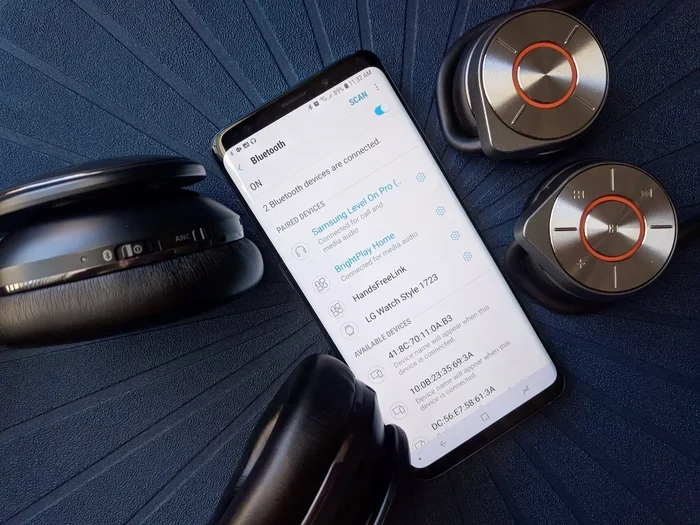
Go to Settings, then Connections, and tap Bluetooth. Your phone will scan for nearby devices. When you see the device you want to connect, tap its name. Wait for the pairing to complete. A confirmation message will appear on your screen.
Repeat this process for every device you want to connect. Android does not limit the number of devices you can pair, though the number of active connections depends on your phone model and Bluetooth version.
Managing Multiple Bluetooth Connections
Once you have several devices connected, you need a way to manage them. Android makes this pretty easy, but there are some things you should know.
Viewing Connected Devices
Go to Settings, then Connections, and tap Bluetooth. You will see a list of all paired devices. Devices that are currently connected will show “Connected” underneath their name. Devices that are paired but not active will show “Paired but not connected.”
This view makes it simple to see what is connected and what is not. You can tap any device to disconnect it or remove it from the list entirely.
Switching Between Audio Devices
One of the most common uses for multiple Bluetooth devices is switching between audio outputs. Maybe you want to listen through your earbuds during a commute and then switch to a speaker at home. Android lets you do this easily.
When you play audio, pull down the notification panel and tap the media output icon. You will see a list of available audio devices. Tap the one you want to switch to. The audio will route to that device instantly.
Using Bluetooth Priority
Some Android phones let you set priority for connected devices. This means your phone will automatically reconnect to your most-used devices first. To check this, go to Bluetooth settings, tap a device, and look for priority or auto-connect options.
If you find yourself juggling many connected devices, you might appreciate how some phones now support dual audio or multi-point connection. These features let you connect to two audio sources at once, which is great for sharing music or switching between a phone and a laptop.
Common Bluetooth Problems and How to Fix Them
Even though Bluetooth technology is reliable, you will sometimes run into issues. Here are the most common problems and how to solve them.
Device Not Showing Up in the List
If a device does not appear when you scan, try these steps:
- Make sure the device is in pairing mode.
- Turn Bluetooth off and back on.
- Restart your Android phone.
- Move closer to the device you are trying to pair.
- Check if the device is already connected to another phone.
Audio Keeps Cutting Out
Interrupted audio is frustrating. It usually happens because of interference or distance. Try moving closer to the connected device. Also, stay away from Wi-Fi routers and microwaves, as they can cause Bluetooth interference on the same 2.4 GHz frequency.
Phone Cannot Connect to a New Device
If your phone refuses to connect to a new device, try “forgetting” an old connection first. Go to Bluetooth settings, tap the old device, and select “Unpair” or “Forget.” Then try pairing the new device again. This frees up connection slots and often fixes stubborn issues.
Bluetooth Keeps Turning Off Automatically
Some Android phones have battery-saving features that turn off Bluetooth when not in use. To prevent this, go to Settings, then Apps, find Bluetooth, and check the battery settings. Set it to “Unrestricted” so the system does not shut it down in the background.
Tips for Getting the Best Bluetooth Experience
Want to get the most out of your Bluetooth connections? Here are some practical tips that make a real difference.
Keep Your Devices Updated
Software updates often include Bluetooth improvements. Check for Android system updates regularly. Also, update the firmware on your Bluetooth devices when updates are available. This ensures the best compatibility and performance.
Limit the Number of Active Connections
While Android can handle many paired devices, having too many active connections at once can cause lag and audio delays. Try to keep the number of simultaneously active devices to a reasonable amount. Disconnect devices you are not currently using.
Check Bluetooth Version Compatibility
Not all Bluetooth devices are created equal. Older devices with Bluetooth 3.0 or lower may not work as smoothly with newer Android phones. If you are buying new devices, look for Bluetooth 5.0 or higher for the best experience.
Clear the Bluetooth Cache
If you notice strange behavior, clearing the Bluetooth cache can help. Go to Settings, then Apps, find Bluetooth, tap Storage, and select “Clear Cache.” This removes temporary files that might be causing problems without deleting your paired devices.
Use Bluetooth in a Clean Environment
Bluetooth works best when there are fewer obstacles between devices. Walls, furniture, and even other people can weaken the signal. Try to keep your connected devices within about 30 feet of each other for the best performance.
Expert Insights on Bluetooth Connectivity
Technology experts agree that Bluetooth connectivity on Android has improved dramatically over the past few years. The shift to Bluetooth 5.0 brought significant upgrades in range and stability. According to industry reports, Bluetooth 5.0 can theoretically support connections up to 800 feet in open space, though real-world performance is usually around 30 to 50 feet.
One thing many people do not realize is that phone number management and Bluetooth settings can sometimes interact in unexpected ways. For instance, if you have trouble with your phone’s calling features, checking your number settings might help. You can learn more about managing phone number settings on another device by reading about adding prefixes to numbers on iPhone — even though this is an iPhone guide, the concepts of number formatting can apply broadly.
Another expert tip: do not leave Bluetooth on when you are not using it. It drains your battery and can make your phone visible to unwanted devices. Turn it off when you do not need it, and your phone will thank you with better battery life.
Bluetooth Device Compatibility Guide
Not every Bluetooth device works perfectly with every Android phone. Here is a quick look at common device types and what to expect.
| Device Type | Bluetooth Profile | Compatibility | Notes |
|---|---|---|---|
| Wireless Earbuds | A2DP, HFP | Excellent | Works with almost all Android phones |
| Bluetooth Speaker | A2DP | Excellent | Great for sharing audio |
| Smartwatch | HID, HFP | Very Good | May need companion app |
| Keyboard/Mouse | HID | Very Good | Plug and play on most phones |
| Fitness Tracker | HID, proprietary | Good | Usually requires a dedicated app |
| Car Audio System | A2DP, HFP | Excellent | Check for Bluetooth version support |
| Printer | OPP, HID | Good | May need manufacturer app |
As you can see, most common Bluetooth devices work very well with Android. The key is to check compatibility before you buy if you have a specific use case in mind.
Does Connecting Multiple Devices Drain Battery?
This is one of the most common questions people ask. The short answer is yes — connecting multiple Bluetooth devices does use more battery. Each active connection requires your phone’s Bluetooth radio to stay powered on and maintain a data link.
However, the battery drain is usually not dramatic. Modern Android phones handle multiple connections efficiently. If you are worried about battery life, here are a few things you can do:
- Disconnect devices you are not actively using.
- Turn off Bluetooth when you do not need it.
- Use Bluetooth Low Energy (BLE) devices when possible.
- Keep your phone charged above 20% when using multiple devices.
- Reduce screen brightness to save overall power.
Some people also carry a portable charger when they know they will be using multiple Bluetooth devices for an extended period. It is a simple trick that keeps everything running smoothly.
Future of Bluetooth on Android
Bluetooth technology keeps getting better. The latest phones are starting to support Bluetooth 5.3 and even 5.4. These newer versions bring improved energy efficiency, better security, and support for even more simultaneous connections.
In the near future, we can expect Android phones to handle even more Bluetooth devices without any lag. The rise of Bluetooth LE Audio is also exciting. It promises better audio quality, lower battery usage, and features like audio sharing, where multiple people can listen to the same audio stream from one source.
As smart homes become more common, Bluetooth will play an even bigger role in connecting all our gadgets. Your Android phone is already at the center of this ecosystem. Making sure you understand how to manage multiple Bluetooth connections gives you a head start.
Final Thoughts
Connecting multiple Bluetooth devices to Android is easy, practical, and incredibly useful. Whether you are a tech enthusiast or just someone who wants a wireless experience, your Android phone can handle it. From wireless earbuds to smartwatches and Bluetooth speakers, the possibilities are wide open.
Remember to keep your devices updated, manage your connections wisely, and troubleshoot problems with the tips we shared. The more you practice, the easier it becomes. Soon, managing multiple Bluetooth devices will feel like second nature.
So go ahead and connect all your favorite gadgets. Your Android phone is ready to handle the load. Enjoy the freedom of a fully wireless setup!
Frequently Asked Questions
How many Bluetooth devices can an Android phone connect to at once?
Most Android phones can connect to 7 or more Bluetooth devices simultaneously. However, the exact number depends on your phone model and Bluetooth version. Bluetooth 5.0 and newer handle multiple connections much better than older versions. Keep in mind that having too many active connections at once may cause slight delays.
Can I connect two pairs of wireless earbuds to my Android phone?
Yes, many Android phones support dual audio or multi-point connections. This lets you stream audio to two pairs of earbuds at the same time. Not all phones have this feature, so check your phone settings under Bluetooth or sound output. Some manufacturers like Samsung and Xiaomi include this as a built-in feature.
Why does my Bluetooth keep disconnecting on Android?
Bluetooth disconnections can happen for several reasons. Distance from the connected device is a common cause. Interference from Wi-Fi networks or other electronics can also trigger disconnects. Try moving closer to your device, clearing the Bluetooth cache, or restarting your phone. If the problem persists, unpair and re-pair the device.
Does connecting multiple Bluetooth devices slow down my phone?
Not significantly. Modern Android phones are designed to handle multiple Bluetooth connections without noticeable slowdowns. You might experience minor audio delays if many devices are streaming data at the same time. Overall performance, including app speed and responsiveness, should remain unaffected.
Can I use a Bluetooth keyboard and mouse with my Android phone?
Absolutely. Android supports the HID (Human Interface Device) Bluetooth profile, which allows keyboards and mice to connect wirelessly. This is great for productivity or for turning your phone into a desktop-like setup. Just put your keyboard and mouse in pairing mode, and your phone will find them in the Bluetooth settings menu.
Is it safe to leave Bluetooth turned on all the time?
Leaving Bluetooth on is generally safe, but it does make your phone visible to nearby devices. This can slightly increase battery drain. For the best security and battery life, turn Bluetooth off when you are not actively using it. Modern Android phones also have security features that protect against unauthorized Bluetooth connections.
=== META DESCRIPTION ===
Learn how to connect multiple Bluetooth devices to your Android phone easily. Step-by-step guide for pairing, managing, and troubleshooting Bluetooth connections.
=== SEO TITLE ===
Can You Connect Multiple Bluetooth Devices To Android Easily
=== META TITLE ===
Connect Multiple Bluetooth Devices To Android Easily
=== URL SLUG ===
/connect-multiple-bluetooth-devices-android
=== META DESCRIPTION ===
Learn how to connect multiple Bluetooth devices to your Android phone easily. Step-by-step guide for pairing, managing, and troubleshooting Bluetooth connections.