Can You Connect A Security Camera To A Phone Today
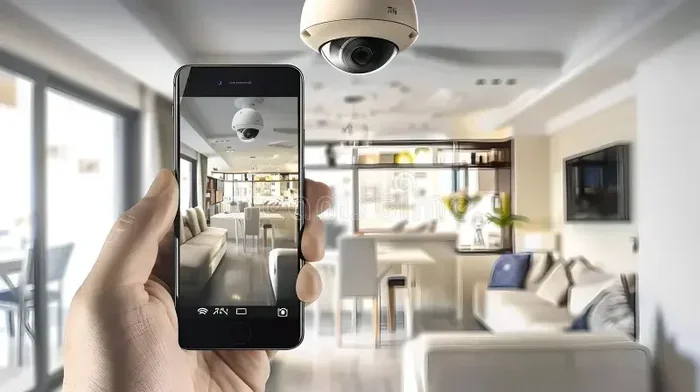
Yes, you can absolutely connect a security camera to your phone. Modern wireless security cameras make it easy to monitor your home from anywhere using a mobile app. Whether you use an IP camera, a WiFi camera, or a doorbell camera, setting up remote monitoring on your smartphone takes just a few minutes.
Have you ever wondered whether you can keep an eye on your home while you are away? The answer is a simple yes. Connecting a security camera to your phone is one of the easiest things you can do to boost your home safety. Today’s cameras are smart, compact, and designed to work right from your pocket.
Whether you are a tech-savvy homeowner or someone who just wants peace of mind, setting up a phone-connected security camera is simpler than you think. You do not need expensive equipment or a computer science degree. A few taps on your screen and you are live.
In this guide, we will walk you through everything you need to know. We will cover the types of cameras available, how to set them up, which apps work best, and common mistakes to avoid. By the end, you will feel confident enough to get your own smart home security system up and running today.
Key Takeaways
- Easy Setup: Most modern security cameras connect to phones in under 10 minutes using a free mobile app.
- Multiple Options: You can choose from WiFi cameras, cellular cameras, and Bluetooth-enabled devices depending on your needs.
- Remote Monitoring: Live streaming, motion alerts, and two-way audio let you watch your home from anywhere in the world.
- Smart Home Integration: Many cameras work with Alexa, Google Home, and Apple HomeKit for seamless automation.
- Battery and Power Choices: Wireless battery-powered cameras offer flexibility, while wired options provide continuous recording.
- Cost Range: You can find great phone-connected cameras from budget-friendly options under $50 to premium models over $200.
📑 Table of Contents
- Why Connect a Security Camera to Your Phone?
- Types of Security Cameras You Can Connect to a Phone
- How to Connect a Security Camera to Your Phone
- Best Apps for Managing Security Cameras on Your Phone
- Tips for Getting the Most Out of Your Phone Security Camera
- Common Mistakes People Make When Connecting Cameras to Phones
- How Phone Security Cameras Fit Into Your Smart Home
- Conclusion
Why Connect a Security Camera to Your Phone?
More and more people are choosing smartphone surveillance as their first line of defense. Here is why this trend is growing so fast.
Instant Access From Anywhere
Imagine you are at work and you suddenly wonder whether you locked the front door. With a phone-connected camera, you just pull out your device and check the live feed. You can see your front porch, your backyard, or even your baby’s room in real time.
This kind of remote monitoring gives you control no matter where you are. You are not stuck waiting until you get home to check on things.
Instant Motion Alerts
Most wireless security cameras send push notifications the moment they detect movement. So if someone approaches your door or your yard, your phone buzzes right away. You can react quickly, whether that means calling the police or just checking the feed.
These motion alerts are a game changer for families, travelers, and anyone who wants extra protection around the clock.
Two-Way Audio Communication
Many modern cameras let you speak and listen through your phone. You can talk to a delivery driver, warn off a stranger, or even comfort a pet. Two-way audio turns your phone into a remote intercom system for your home.
Types of Security Cameras You Can Connect to a Phone
Not all cameras are the same. Before you buy, it helps to understand your options. Each type has its own strengths and ideal use case.
WiFi Security Cameras
WiFi cameras are the most popular choice for phone connection. They connect directly to your home network and stream footage to your phone through the cloud or a local server. You do not need any extra hubs or equipment.
These cameras work best when you have a strong WiFi signal in the area where you plan to install them. If your WiFi is weak in certain spots, you might need a mesh network or a WiFi extender to get a solid connection.
Cellular Security Cameras
Cellular cameras use a SIM card to connect to the internet. They are perfect for locations where WiFi is not available, like a remote cabin, a garage, or a construction site. You just insert a SIM card, activate the plan, and your phone becomes the monitor.
These are slightly more expensive because of the monthly data plan, but they offer unmatched flexibility. If you need remote location monitoring, a cellular camera is your best bet.
Bluetooth Security Cameras
Bluetooth cameras connect directly to your phone without needing WiFi. They have a shorter range, usually about 30 feet, so they work best for close-up monitoring. Think of them as a quick way to check a room or a small area without setting up a full network.
These cameras are simple and affordable, but they lack the range and features of WiFi or cellular options.
Doorbell Cameras
Smart doorbell cameras are a special type of phone-connected security device. They sit at your front door and let you see and speak to visitors from your phone, even when you are not home. Many people pair these with their existing home security system for complete coverage.
Battery-Powered vs. Wired Cameras
Battery-powered cameras offer easy placement anywhere. You do not need to worry about outlets or cables. They typically last between two and six months on a single charge depending on usage.
Wired cameras plug into a power source and provide continuous recording without worrying about battery life. They are more reliable for long-term monitoring but require a bit more setup.
How to Connect a Security Camera to Your Phone
The setup process is straightforward for most cameras. Here is a step-by-step walkthrough that works for the majority of wireless security cameras on the market today.
Step 1: Download the Manufacturer App
Every camera brand has its own app. Popular options include Ring, Arlo, Wyze, Blink, and Reolink. Visit the App Store or Google Play Store, search for your camera brand, and download the app.
If you are setting up an iPhone, you may also need to manage your device settings for smooth connectivity. For example, if you need to add a prefix to phone numbers for your security alerts or contacts, check out our guide on adding prefixes to numbers on iPhone to make sure your notifications display correctly.
Step 2: Create an Account and Log In
Open the app and create an account using your email address. Choose a strong password to keep your camera feed private. Most apps will ask you to verify your email before you can proceed.
Step 3: Power On the Camera
Plug in your camera or insert batteries if it is a wireless model. Wait for the LED light to start blinking, which usually means the camera is in pairing mode.
Step 4: Add the Camera in the App
Tap the plus icon or the “Add Device” button in the app. The app will search for nearby cameras. Select your camera from the list and follow the on-screen prompts to connect it to your WiFi network.
Step 5: Position and Test
Place your camera in the desired location. Open the live feed on your phone to check the angle and image quality. Walk around the frame to make sure the motion detection zone covers the area you want to monitor.
Step 6: Enable Notifications
Go to the app settings and turn on motion alerts. Choose whether you want push notifications, email alerts, or both. Test the system by walking in front of the camera to confirm everything works.
Best Apps for Managing Security Cameras on Your Phone
The right app makes all the difference when managing your smart home security. Here are some of the top options.
| App Name | Best For | Platform | Free Version |
|---|---|---|---|
| Ring | Doorbell cameras and home security | iOS and Android | Yes |
| Arlo | Wire-free cameras with cloud storage | iOS and Android | Yes |
| Wyze | Budget-friendly indoor and outdoor cameras | iOS and Android | Yes |
| Blink | Long battery life and easy setup | iOS and Android | Yes |
| Reolink | Advanced features and local storage | iOS and Android | Yes |
| Google Home | Smart home integration and voice control | iOS and Android | Yes |
Most of these apps let you view live streams, review recorded clips, adjust settings, and share access with family members. Pick the one that matches your camera brand and your personal preferences.
Tips for Getting the Most Out of Your Phone Security Camera
Setting up the camera is only half the battle. Here are some practical tips to make sure you get the best experience.
Place Your Camera Strategically
Position your camera at a height that is hard to reach but easy to see. Front doors, driveways, backyards, and hallways are ideal spots. Avoid pointing cameras directly at bright windows or light sources, as this can cause glare and wash out the image.
Use a Strong WiFi Password
Your security camera feed is private. Protect it with a strong, unique password for your WiFi network. Change default camera passwords immediately after setup. This keeps hackers out and your family safe.
Enable Cloud Storage or Local Recording
Most cameras offer either cloud storage or a microSD card for recording. Cloud storage lets you access clips from anywhere, while local storage keeps your footage on the device. Choose the option that fits your budget and privacy preferences.
Keep Your App Updated
App updates often include security patches and new features. Check for updates regularly to keep your phone-connected security system running smoothly and safely.
Share Access With Trusted Family Members
Most apps let you add multiple users. Share access with your partner, older children, or a trusted neighbor. This way, someone can always check the cameras even if your phone is not available.
Consider Night Vision and Weather Resistance
If you are placing cameras outside, make sure they have good night vision and an IP65 or higher weather rating. This ensures clear footage day and night, rain or shine.
Common Mistakes People Make When Connecting Cameras to Phones
Avoid these common pitfalls to save yourself frustration and keep your system running smoothly.
- Skipping the firmware update: Outdated camera firmware can cause connection drops and security vulnerabilities. Always update before setup.
- Using a weak WiFi signal: A camera too far from the router will lose connection frequently. Use a WiFi extender if needed.
- Ignoring storage limits: Cloud storage plans have limits. Check your plan before you start recording to avoid losing footage.
- Not testing motion zones: If your motion detection zones are too broad, you will get constant false alerts. Narrow them down to the areas that matter.
- Forgetting to secure the app: Always enable two-factor authentication in the camera app. This adds an extra layer of protection to your home security system.
- Placing cameras in plain sight: Thieves know where to look. Hide cameras in discreet locations or use camouflaged models for better coverage.
How Phone Security Cameras Fit Into Your Smart Home
One of the best things about modern wireless security cameras is how well they work with other smart devices. You can create automations that make your home smarter and safer.
For example, you can set a routine where your lights turn on when the camera detects motion at night. You can also connect your camera to smart speakers and ask Alexa or Google Assistant to show you the front door feed on your TV. The possibilities are vast when you build a connected home ecosystem.
Even if you are not a tech expert, most of these integrations are plug-and-play. The apps guide you through every step, and many devices work together right out of the box.
Security cameras that connect to your phone are no longer a luxury. They are a practical, affordable, and powerful tool for protecting what matters most. With the right setup, you get peace of mind whether you are at home, at work, or halfway across the world.
Conclusion
So, can you connect a security camera to a phone? Absolutely. The technology has made it incredibly simple and accessible for everyone. From WiFi cameras to cellular models and smart doorbells, you have plenty of options to choose from based on your lifestyle and budget.
Connecting a security camera to your phone gives you the power to monitor your home in real time, receive instant alerts, and communicate with visitors from anywhere. It is one of the smartest investments you can make for your family’s safety.
Start small if you want. Pick one camera, set it up using the steps we covered, and see how it changes the way you feel about home security. Once you experience the convenience of remote monitoring, you will likely want to expand your system. That is exactly how it should be. Take control of your home security today and enjoy the confidence that comes with knowing you are always connected.
Frequently Asked Questions
Can I connect any security camera to any phone?
Most modern security cameras work with both iPhones and Android phones. You just need to download the manufacturer’s app from the App Store or Google Play Store. Always check compatibility before buying to make sure the camera supports your phone model.
Do I need WiFi to connect a security camera to my phone?
Most cameras require WiFi for live streaming and cloud features. However, some cellular cameras use a SIM card instead of WiFi, and Bluetooth cameras connect directly without any network. Your choice depends on where you plan to install the camera and what features you need.
Is it hard to set up a security camera on my phone?
Not at all. Most cameras take less than 10 minutes to set up. You download the app, create an account, power on the camera, and follow the simple on-screen instructions. Even if you are not very tech-savvy, the process is designed to be beginner-friendly.
Can I view my security camera footage when I am not at home?
Yes. That is one of the biggest advantages of phone-connected cameras. As long as your camera is online and your phone has internet access, you can view the live feed, check recorded clips, and receive motion alerts from anywhere in the world.
Are phone-connected security cameras safe from hacking?
No system is 100% hack-proof, but you can greatly reduce the risk. Use strong passwords, enable two-factor authentication, keep your app updated, and use a secure WiFi network. These simple steps go a long way in protecting your security camera feed and personal data.
How much does a phone-connected security camera cost?
Prices vary widely. Budget options like Wyze and Blink start around $20 to $50 for a single camera. Mid-range models from Arlo and Ring cost between $50 and $150. Premium systems with advanced features and multiple cameras can run $200 or more. You can always start with one camera and expand later.