Can I Use My Laptop To Diagnose My Car Without Help
Yes, you can use your laptop to diagnose your car with the right tools and software. This guide covers everything from OBD-II adapters to diagnostic software, so you can save money and understand your vehicle’s health on your own.
Key Takeaways
- Your laptop can replace expensive scan tools: With a simple OBD-II adapter and free software, you can run full car diagnostics from your desk.
- OBD-II is the standard: Almost every car made after 1996 uses the same onboard diagnostics system, making laptop diagnostics widely compatible.
- Free and paid software options exist: Tools like Torque, ScanTool, and Car Scanner offer everything from basic code reads to advanced real-time data.
- You can fix common issues yourself: Loose gas caps, sensor faults, and minor engine problems are easy to identify and often resolve.
- Know when to see a mechanic: Some complex problems still need professional tools and training, even with a laptop setup.
📑 Table of Contents
- Can I Use My Laptop To Diagnose My Car Without Help?
- How Using Your Laptop to Diagnose Your Car Works
- What You Need: Hardware and Software Essentials
- Step-by-Step Guide to Diagnosing Your Car with a Laptop
- Common Problems You Can Diagnose with Your Laptop
- Limitations and When to See a Mechanic
- Expert Insights and Pro Tips
- Frequently Asked Questions
- Conclusion
Can I Use My Laptop To Diagnose My Car Without Help?
So your car is acting up, and you want answers. You have a laptop sitting on your desk. Can you put it to work? The short answer is yes. You absolutely can use your laptop to diagnose your car without calling a mechanic or buying an expensive scan tool. All you need is the right adapter, the right software, and a little curiosity.
Understanding your car’s problems doesn’t have to cost hundreds of dollars. With a basic laptop car diagnostic setup, you can read engine codes, monitor sensor data, and even clear warning lights. Whether your check engine light just came on or you simply want to keep tabs on your vehicle’s health, this guide walks you through everything step by step.
Let’s break down how this works, what you need, and how to get the most out of your DIY car diagnostics setup.
How Using Your Laptop to Diagnose Your Car Works
Modern vehicles are essentially computers on wheels. Since the mid-1990s, almost every car sold in the United States has included an onboard diagnostics system. This system constantly monitors your engine, transmission, emissions, and dozens of sensors. When something goes wrong, the system stores a fault code to tell you what’s off.
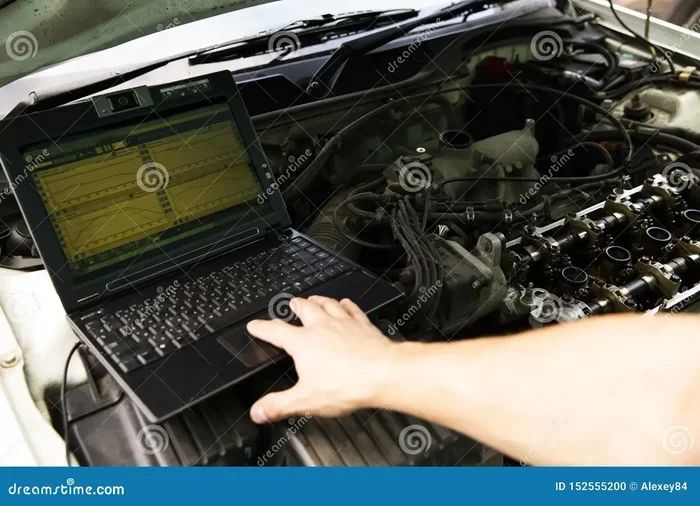
Your laptop can tap into this system. The process is straightforward. Your car has a diagnostic port, usually located under the dashboard near the steering column. You connect a small adapter to this port, then link the adapter to your laptop through a USB cable or Bluetooth. Diagnostic software on your laptop communicates with your car’s computer and pulls up the data you need.
The Role of the OBD-II Port
The OBD-II port is your car’s gateway to the brain. OBD stands for On-Board Diagnostics, and the II means it is the second generation of this system. Every car manufactured after January 1, 1996, has one. This port gives you access to engine codes, emission data, and real-time sensor readings.
Finding the port is usually easy. Look under your dashboard on the driver’s side. It is often near the steering column or close to the fuse box. Some vehicles hide it behind a small plastic cover. If you cannot find yours, your owner’s manual will point you right to it.
How the Connection Flows
Here is how the data travels from your car to your screen:
- You plug an OBD-II adapter into your car’s diagnostic port.
- The adapter connects to your laptop via USB, Bluetooth, or Wi-Fi.
- Your car diagnostic software sends a signal to the car’s computer.
- The car’s computer returns data, including stored fault codes and live sensor readings.
- The software translates that data into plain-English information on your laptop screen.
That is it. No complicated wiring. No confusing setups. Just a simple connection and a flood of useful information.
What You Need: Hardware and Software Essentials
Before you start, you need a few things. The good news is that most of this equipment is affordable and easy to find. You do not need a fancy garage or years of experience. Here is what you need to diagnose your car with a laptop.
Hardware You Will Need
- OBD-II adapter or scan cable: This is the bridge between your car and your laptop. Popular options include the ELM327 adapter, which is one of the most trusted names in PC-based diagnostics. You can find USB versions or Bluetooth versions depending on your preference.
- A laptop: Any laptop works. You do not need a high-end machine. Even an older computer handles diagnostic software without any issues.
- A USB cable or Bluetooth connection: Depending on your adapter, you will need a cable or a working Bluetooth connection. Most modern adapters support both.
The ELM327 adapter deserves a special mention. It is a tiny, inexpensive device that does the heavy lifting. Prices range from about $15 to $30. Many car enthusiasts consider it the go-to tool for anyone learning how to scan car codes at home.
Software Options
Now for the software side. You have several solid choices, and many are completely free.
- Torque Pro (Android-based, works through some laptop setups): Known for its clean interface and real-time data display. Works great with ELM327 adapters.
- ScanTool.net: A lightweight, free option for basic code reading and clearing. Great for beginners.
- Car Scanner ELM OBD2: Supports multiple languages and offers detailed sensor readouts. Works well on Windows laptops.
- OpenDiag: A free, open-source option that works with many vehicle brands. It is popular among hobbyists who want deep automotive diagnostics.
- HP Tuners (paid): A more advanced tool for those who want to tune and modify their vehicle’s computer settings. Best for experienced users.
Pick a tool that matches your comfort level. Start simple. You can always move to more advanced software later as you learn more about your vehicle’s systems.
Step-by-Step Guide to Diagnosing Your Car with a Laptop
Ready to try this yourself? Here is a simple walkthrough for your first laptop car diagnostic session.
Step 1: Prepare Your Vehicle
Turn off your engine but keep the ignition in the “on” position. This activates your car’s computer systems without starting the engine. Some software works best while the engine idles, so have that ready if needed.
Step 2: Connect the Adapter
Plug your OBD-II adapter firmly into the diagnostic port under your dashboard. Make sure it clicks in securely. If you are using a Bluetooth adapter, pair it with your laptop through your Bluetooth settings.
Step 3: Launch Your Software
Open your chosen diagnostic program. Most software will automatically detect the adapter and establish a connection with your car. Wait a few seconds for the software to initialize.
Step 4: Read Your Codes
Select the option to read stored codes or fault codes. The software will pull up a list of engine codes and trouble codes. Each code starts with a letter, such as P0301. The letter tells you which system is affected:
- P codes relate to the powertrain (engine and transmission).
- B codes relate to the body (comfort and safety features).
- C codes relate to the chassis (suspension and braking).
- U codes relate to network communication issues.
Step 5: Research the Codes
Write down or screenshot the codes your software finds. Then search for each code online or check your software’s built-in library. Most programs explain what each code means in plain language. For example, a P0301 code means cylinder 1 is misfiring. Now you know where to look.
Step 6: Clear the Codes (If Appropriate)
If you have fixed the issue or want to reset your check engine light, use the software’s “clear codes” feature. Keep in mind that clearing codes does not fix the underlying problem. The light will come back if the issue is still present.
Quick Tips for Beginners
- Always write down codes before clearing them. This helps you track recurring problems.
- Start with free software before investing in paid options.
- Test your setup on a known issue first, like a loose gas cap that triggers a light.
- Keep your adapter in your glove box. You never know when you might need it.
- Update your software regularly for the best compatibility with newer vehicle models.
Common Problems You Can Diagnose with Your Laptop
So what can you actually find out with your laptop to diagnose a car? More than you might think. Here are some of the most common issues people catch early with DIY diagnostics.
Check Engine Light Causes
The check engine light is the number one reason people turn to diagnostics. Common triggers include:
- A loose or damaged gas cap (surprisingly common).
- Faulty oxygen sensors that affect fuel economy.
- Worn spark plugs or ignition coils.
- Emission control system issues.
- Mass airflow sensor problems.
Most of these issues are relatively inexpensive to fix if caught early. A car trouble code reader on your laptop can flag them before they turn into costly repairs.
Engine Performance Issues
If your car feels sluggish, rough, or sounds different, your laptop can help pinpoint the cause. Through real-time data, you can monitor:
- Engine RPM and throttle position.
- Fuel trim values (short-term and long-term).
- Coolant temperature readings.
- Oxygen sensor output.
- Ignition timing.
These readings help you spot problems like lean fuel mixtures, failing sensors, or timing issues. You can literally watch your engine’s health in real time on your laptop screen.
Transmission Troubles
Transmission problems often show up as fault codes in the P0700 range. Your laptop can read these codes and help you understand whether the issue is mechanical, electrical, or related to fluid levels. Early detection can save you from a full transmission replacement.
Emissions and Sensor Failures
Your car has sensors everywhere. Oxygen sensors, catalytic converters, and evaporative emission systems all feed data to the onboard computer. When a sensor fails, your laptop will catch the code. This is especially useful during emissions testing or when you want to improve your car’s vehicle health over time.
Limitations and When to See a Mechanic
Using a laptop for automotive diagnostics is powerful, but it has limits. Understanding these boundaries keeps you safe and saves you from frustration.
What Your Laptop Cannot Do
- Physically inspect parts: Your laptop reads data, but it cannot tell you that your brake pads are worn or your belt is cracking. You still need your eyes and hands for that.
- Diagnose complex wiring issues: Some electrical problems require specialized multimeters and wiring diagrams that go beyond what a basic OBD-II connection provides.
- Reprogram vehicle modules: Certain advanced calibrations and software updates need dealer-level tools or professional training.
- Read manufacturer-specific codes fully: While your laptop reads standard OBD-II codes, some brands (like BMW, Toyota, or Ford) store extra codes that need brand-specific software to interpret completely.
When to Call a Professional
Even the most dedicated DIYer should call a mechanic when:
- Your car diagnostic tool shows codes related to safety systems like airbags or anti-lock brakes.
- The problem involves major engine or transmission disassembly.
- You get conflicting codes or no codes at all despite obvious symptoms.
- You need advanced sensor readings that require oscilloscope-level analysis.
- The repair requires specialized parts or training that you do not have.
A good rule of thumb: if the problem affects your safety or you feel unsure, call a professional. A laptop helps you understand what is going on, but it does not replace hands-on expertise.
Expert Insights and Pro Tips
Here are a few tips from experienced car enthusiasts who use PC-based diagnostics regularly:
- Invest in a Bluetooth adapter with a good range. Some cheap adapters lose connection after a few feet. Spend a little more for reliability.
- Log your data over time. Use your software to record sensor readings during normal drives. Comparing logs over weeks can reveal slow-developing problems before they become serious.
- Join online forums. Communities like Reddit’s r/MechanicAdvice or dedicated OBD forums are full of people who love sharing car maintenance tips and helping others decode confusing fault codes.
- Keep a digital record. Save every code and reading in a folder. When you visit a mechanic, having this history can speed up the repair process and prevent duplicate work.
- Do not ignore minor codes. A small code today can become a big problem tomorrow. Address issues early, even if the car seems fine.
Frequently Asked Questions
Can I use my laptop to diagnose any car?
Almost any car made after 1996 can be diagnosed with a laptop and an OBD-II adapter. Newer vehicles are fully compatible. Some pre-1996 cars may work with older OBD-I adapters, but compatibility varies. Always check your vehicle’s manual to confirm.
Do I need internet access to run diagnostics on my laptop?
No, you do not need the internet to read codes or view live data. However, you will need internet access to research fault codes online or download software updates. Some advanced software options offer cloud-based features, but basic diagnostics work offline.
Is it safe to use my laptop while connected to my car?
Yes, it is completely safe. The OBD-II system is designed for external connections. Your laptop and the adapter communicate through a low-voltage connection that does not affect your car’s systems. Just make sure your laptop is stable and not at risk of falling while you work.
How much does a laptop car diagnostic setup cost?
You can get started for under $30. An ELM327 adapter costs between $15 and $30, and many diagnostic software options are free. If you want advanced features, paid software packages range from $20 to $100. Overall, this is far cheaper than a single trip to a mechanic for a diagnostic check.
Can I clear my check engine light with my laptop?
Yes, most diagnostic software includes a “clear codes” function that will turn off your check engine light. However, if the underlying issue is not fixed, the light will return. Use this feature only after you have addressed the root cause of the problem.
What is the difference between a laptop diagnostic and a professional scan tool?
Professional scan tools offer deeper access to manufacturer-specific systems, live data streaming, and advanced calibration features. A laptop setup with an OBD-II adapter covers about 90 percent of common diagnostic needs. For everyday maintenance and code reading, your laptop works great. For heavy-duty repairs, a mechanic’s equipment is still the better choice.
Conclusion
So, can I use my laptop to diagnose my car without help? Absolutely. With a simple adapter, some free software, and a few minutes of your time, you can unlock a wealth of information about your vehicle. You can read fault codes, monitor engine performance, and even catch problems before they spiral into expensive repairs.
Laptop car diagnostics put the power of professional-grade tools into your hands at a fraction of the cost. You do not need a garage, a degree, or years of experience. Start simple, learn as you go, and build your confidence over time. Remember, the best time to diagnose a problem is early, and your laptop makes that easier than ever.
Take charge of your vehicle’s health today. Grab your adapter, open your software, and see what your car is trying to tell you. You might be surprised at how capable you are when you have the right tools and a little curiosity on your side.