Can You Use Any USB Controller on Your Nintendo Switch
Not every USB controller works seamlessly with the Nintendo Switch. While the Switch supports many USB controllers, compatibility depends on the controller type, brand, and how you connect it. In this guide, we walk you through everything you need to know about USB controller compatibility, the best options available, and step-by-step setup instructions.
The Nintendo Switch has become one of the most popular gaming consoles in the world. Millions of players enjoy both handheld and docked gaming. But here is a question many gamers ask: can you use any USB controller on your Nintendo Switch?
The short answer is no. Not every USB controller works with the Switch right out of the box. Some controllers connect easily, while others need extra steps or simply will not work at all. This guide breaks down everything you need to know about USB controller compatibility with the Nintendo Switch.
If you have ever tried plugging in a controller and been met with a blank screen, you are not alone. Many gamers run into this problem. The good news is that most compatible USB controllers work great once you know what to look for.
## Understanding USB Controllers and the Nintendo Switch
Before you buy any controller, it helps to understand how the Switch handles USB input devices. The console has specific requirements that not all controllers meet.
### How the Switch Detects USB Controllers
The Nintendo Switch uses a built-in controller recognition system. When you plug in a USB device, the console checks for a specific handshake signal. Licensed controllers send this signal right away. Third-party controllers sometimes do not.
This means the Switch needs to “recognize” the device before it will accept input. Some controllers send the right signal. Others do not. This is the main reason not all USB controllers work with the Switch.
### Wired vs Wireless USB Controllers
You have two main options when connecting a USB gamepad to the Switch.
- Wired USB controllers: These plug directly into the Switch dock or a USB-C port on the console. They tend to work the most reliably because they use a direct connection.
- Wireless USB controllers: These connect through a USB dongle or Bluetooth. The Switch has limited support for wireless gamepad connections through USB adapters.
Wired controllers are almost always the better choice for Switch gaming. They avoid pairing issues and connection drops. If you want a simple setup, go wired.
### The Role of USB Ports on the Switch
The Nintendo Switch has two USB ports. One is on the dock. The other is on the bottom of the console itself. Both ports support USB input devices.
However, the port on the console is a USB-C port. It is primarily used for charging. You can use it for some USB controllers, but compatibility varies. The dock’s USB port is more reliable for wired controller connections.
If you are using a USB hub, make sure it is powered. The Switch’s USB ports do not provide a lot of power. A weak hub can cause connection problems.
## Can You Use Any USB Controller on Your Nintendo Switch
This is the big question. The answer is more nuanced than you might think.
### Officially Licensed Controllers
Nintendo sells its own Switch Pro Controller. This is the official wireless controller for the console. It works perfectly every time. You do not need any extra steps to set it up.
Nintendo also supports licensed third-party controllers. Companies like PowerA and 8BitDo make Switch-compatible controllers that work right out of the box. These controllers pass the handshake test easily.
If you buy a licensed controller, you can expect a smooth experience. USB controller compatibility is guaranteed for these devices.
### Third-Party USB Controllers
Third-party controllers are a different story. Many cheap USB gamepads claim to work with multiple platforms. But the Switch is picky. Some third-party controllers simply will not connect.
Here is what you need to know about third-party USB controllers:
- XInput controllers: These are designed for PC and often do not work with the Switch. The Switch does not use the XInput protocol.
- DirectInput controllers: Older controllers that use this protocol have limited Switch support.
- Generic USB gamepads: These are hit or miss. Some work, many do not.
If you want to use a non-licensed USB controller, check online reviews first. Look for Switch-specific compatibility before you spend money.
### Controllers That Need Adapters
Some controllers need a USB adapter to work with the Switch. For example, controllers that use proprietary wireless protocols often come with a USB dongle.
You can also use adapter cables to convert connections. A USB-to-USB-C adapter can help if your controller has a USB-A plug but your Switch needs USB-C. Just make sure the adapter is quality. Cheap adapters can cause input lag.
If you are interested in using controllers across devices, check out our guide on can I use a wireless controller on my phone for more cross-platform tips.
## Best USB Controllers for the Nintendo Switch
Not all controllers are created equal. Here are some of the best options for Nintendo Switch USB gaming.
### Nintendo Switch Pro Controller
This is the gold standard. It is officially licensed, wireless, and works flawlessly. The Pro Controller has a comfortable design and long battery life.
Pros:
- Perfect Switch compatibility
- Comfortable grip for long sessions
- Built-in amiibo support
- Rechargeable battery lasts up to 40 hours
Cons:
- Pricey compared to third-party options
- No USB wired mode
### 8BitDo Ultimate Controller
The 8BitDo Ultimate is a fan favorite. It works with the Switch, PC, and other platforms. It supports both wired USB and wireless connections.
Pros:
- Great build quality
- Multiple platform support
- Customizable buttons
- Works via USB cable or 2.4 GHz dongle
Cons:
- Slightly bulky for some hands
- Dongle required for wireless use
### PowerA Enhanced Wired Controller
If you want a simple wired USB controller, the PowerA Enhanced is a solid choice. It plugs right into the Switch dock and works immediately.
Pros:
- Affordable price
- Plug-and-play setup
- Officially licensed
- No batteries needed
Cons:
- Wired only
- Cable length is fixed
### Generic USB Controllers: What to Avoid
Not all cheap controllers are bad. But many budget USB gamepads do not work with the Switch. Here are some red flags:
- No Switch mention on the packaging: If it does not say Switch-compatible, be careful.
- XInput-only support: These controllers are PC-only.
- No brand name: Unbranded controllers from unknown sellers are risky.
- Extremely low prices: If it seems too cheap to be true, it probably will not work.
Always read the product description carefully. Look for explicit Switch compatibility before purchasing.
## How to Connect a USB Controller to the Nintendo Switch
Setting up a USB controller on the Switch is straightforward for most compatible devices. Here is how to do it.
### Step-by-Step Setup Guide
Follow these steps to connect your USB gamepad:
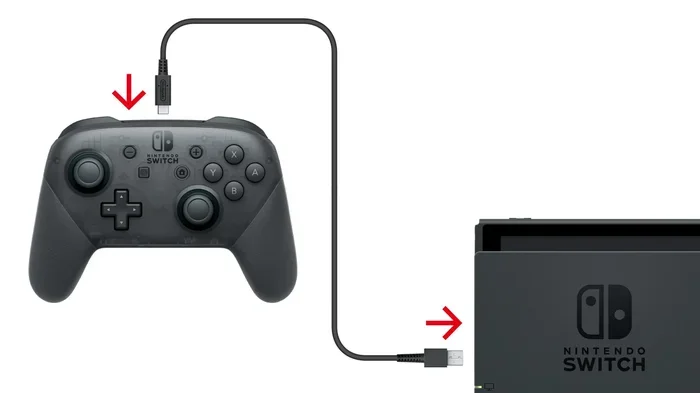
- Turn off the Nintendo Switch or put it in Sleep Mode.
- Plug the USB cable into the controller.
- Insert the other end into the USB port on the Switch dock.
- Turn on the Switch. The console should detect the controller automatically.
- Press any button on the controller to confirm the connection.
- Go to Controller Settings in the Switch menu to verify the input.
If the controller does not appear, try a different USB port. You can also unplug and replug the cable. Sometimes a simple reset fixes the issue.
### Using a USB Hub with the Switch
A USB hub can expand your ports. This is useful if you want to connect multiple controllers or accessories at once.
Use a powered USB hub. The Switch cannot supply enough power for multiple devices through a single port. A powered hub keeps everything stable.
For more on USB connectivity, check out our article on can I connect a USB C hub to a monitor for useful hub tips that apply across devices.
### Pairing Wireless Controllers with a USB Adapter
Some wireless controllers come with a USB dongle. To use these with the Switch:
- Plug the dongle into the Switch dock’s USB port.
- Turn on the controller. It should pair automatically.
- Check the input in the Switch controller settings.
Not all wireless adapters work with the Switch. Make sure the adapter is Switch-compatible before buying.
## Common Problems and How to Fix Them
Even with a compatible controller, you might run into issues. Here are the most common problems and their solutions.
### Controller Not Detected
This is the most common issue. If the Switch does not recognize your USB controller, try these fixes:
- Try a different USB cable. Faulty cables are a common culprit.
- Use the dock’s USB port instead of the console’s port.
- Restart the Switch completely and try again.
- Check for controller compatibility online before assuming it is broken.
### Input Lag
Input lag can ruin your gaming experience. If your controller feels slow, try these steps:
- Use a shorter USB cable. Longer cables can introduce lag.
- Avoid USB hubs unless they are powered.
- Check for firmware updates on your controller.
- Try a different USB port on the dock.
### Controller Works on PC but Not Switch
Many controllers are PC-compatible but not Switch-compatible. The Switch uses a different input protocol. If your controller works on PC but not the Switch, it likely uses an incompatible protocol.
In these cases, you may need a controller adapter or a different controller altogether. The Switch is more restrictive than PC when it comes to USB input device support.
### Drifting or Unresponsive Buttons
If your controller buttons stick or drift, the problem might be hardware. Try these steps:
- Clean the controller buttons with compressed air.
- Check the USB connection for loose pins.
- Test the controller on another device to isolate the problem.
- Contact the manufacturer if the controller is under warranty.
## Expert Tips for the Best USB Controller Experience
Getting the most out of your USB controller on the Switch takes a little know-how. Here are some expert tips.
Tip 1: Stick with licensed controllers. They cost a bit more, but they save you from compatibility headaches.
Tip 2: Keep your cables organized. A messy setup can lead to loose connections and input drops.
Tip 3: Update your controller firmware. Some manufacturers release updates that improve Switch compatibility.
Tip 4: Test before a big gaming session. Plug in your controller and test all buttons before you start playing.
Tip 5: Consider a controller stand. If you use a wired controller, a stand keeps the cable from pulling on the Switch.
For more gaming peripheral tips, read our guide on can I use Bluetooth headphones for gaming to learn about audio and input device compatibility.
## Final Verdict
So, can you use any USB controller on your Nintendo Switch? The honest answer is no, not any controller. But many controllers do work, especially if you choose wisely.
Licensed controllers like the Nintendo Switch Pro Controller and 8BitDo Ultimate offer the best experience. Wired controllers from brands like PowerA also work great with no extra setup.
If you are buying a third-party USB controller, always check for Switch compatibility first. Read reviews, check the product description, and look for explicit Switch support.
The right controller makes a big difference in your gaming experience. Take your time, choose a compatible option, and enjoy your Switch games with a controller that feels just right.
## Frequently Asked Questions
Can I use a PC USB controller on the Nintendo Switch?
Most PC USB controllers will not work on the Switch. The Switch does not support the XInput protocol that most PC controllers use. You need a controller that explicitly lists Switch compatibility. Some adapters can bridge the gap, but they add complexity and may introduce lag.
Do I need a special USB cable for the Switch controller?
Not necessarily. Most USB controllers come with a standard USB cable. However, if your controller uses USB-C and your cable is USB-A, you will need a USB-A to USB-C cable. Always use a quality cable to avoid connection issues and input lag during gameplay.
Can I connect multiple USB controllers to the Switch at once?
Yes, you can connect multiple USB controllers using the Switch dock’s USB ports. If you need more ports, use a powered USB hub. Keep in mind that the Switch supports up to eight controllers wirelessly, but the number of wired connections depends on available USB ports and hub capacity.
Why does my USB controller work on PC but not on the Switch?
The Switch uses a different input protocol than PCs. Many controllers that work on PC use XInput, which the Switch does not recognize. The Switch requires controllers that send a specific handshake signal. Always check for Switch compatibility before buying a controller for console use.
Can I use a wireless USB controller without a dock?
It depends on the controller. Some wireless controllers connect through a USB dongle that plugs into the Switch’s USB-C port. Others connect via Bluetooth, but the Switch has limited Bluetooth support for controllers. Wired connections through a USB cable are the most reliable method when playing in handheld mode without the dock.
Are cheap USB controllers worth buying for the Switch?
Usually not. Cheap, unbranded USB controllers often do not work with the Switch. They may claim multi-platform support, but the Switch is more selective about input devices. Spending a little more on a licensed or well-reviewed controller saves you from frustration and returns. Look for controllers from reputable brands with confirmed Switch support.
Key Takeaways
- The Nintendo Switch supports USB controllers: but not every controller works without extra setup or adapters.
- Licensed controllers offer the easiest experience: they plug in and work immediately with no drivers needed.
- Third-party USB controllers may need adapters: especially if they use USB-C or wireless connections.
- You can use a wired USB controller on PC and Switch: but some controllers are platform-specific.
- Bluetooth controllers need a Bluetooth adapter: the Switch does not support all Bluetooth input devices natively.
- Always check compatibility before buying: not all USB gamepads are Switch-friendly.
Frequently Asked Questions
What is Can You Use Any Usb Controller On Switch?
Can You Use Any Usb Controller On Switch is an important topic with many practical applications.