Can I Use My Ipad As A Cash Register For Small Business
Yes, you can absolutely use your iPad as a cash register for your small business. With the right POS app and a card reader, your iPad becomes a powerful mobile payment station. This guide covers everything from setup and costs to the best apps you can use today.
If you run a small business, you have probably wondered whether you can ditch the bulky traditional cash register. The good news is that using your iPad as a cash register is not only possible but also one of the smartest moves you can make today. Whether you sell products at a market booth or run a small cafe, your iPad can handle payments, track sales, and even manage inventory. Let us walk through exactly how this works and why so many small business owners are making the switch.
The idea of turning an iPad into a point of sale system might sound like something from a tech magazine. But the truth is, it is simple, affordable, and backed by some of the biggest names in payment processing. Thousands of small businesses have already made the change, and the results speak for themselves. Faster checkout times, happier customers, and better sales data are just the beginning. If you are curious about how to get started, you are in the right place.
Key Takeaways
- iPad POS systems are affordable and easy to set up: Most apps cost under $50 per month and can be running in minutes.
- You need three things to get started: An iPad, a card reader, and a POS app like Square or Shopify POS.
- Mobile checkout saves time and impresses customers: You can process payments anywhere in your store or at events.
- iPad cash registers offer built-in inventory and sales tracking: You get real-time data without extra software.
- Payment processing fees vary by app: Knowing the costs helps you pick the right provider for your business.
- Security is built in: iPad POS systems use encryption and tokenization to protect customer data.
📑 Table of Contents
- What Does It Mean to Use an iPad as a Cash Register?
- Why Small Businesses Love Using iPads for Payments
- The Best Apps to Turn Your iPad Into a Cash Register
- What You Need to Set Up Your iPad as a Cash Register
- How Much Does It Cost to Use an iPad as a Cash Register?
- Security and Reliability of iPad POS Systems
- Common Mistakes to Avoid When Using an iPad as a Cash Register
- Expert Insights on Going Cashless with an iPad POS
- Key Takeaways
- Conclusion
What Does It Mean to Use an iPad as a Cash Register?
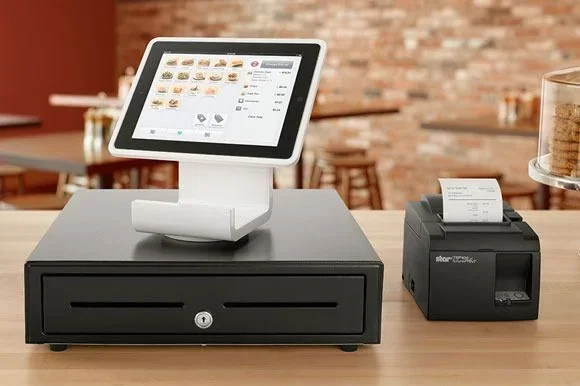
Using an iPad as a cash register means replacing your traditional register with a tablet-based point of sale system. Instead of a heavy metal box with a cash drawer and a receipt printer, you use an app on your iPad to process sales. You still accept cash, but you also accept credit cards, debit cards, and even contactless payments like Apple Pay and Google Pay.
Think of it this way. Your iPad becomes the brain of your sales operation. The app handles the math, keeps track of every transaction, and can even send receipts to your customers by email or text. All you need on the side is a small card reader that plugs into your iPad. That is it. No complicated wiring, no training sessions that take hours, and no expensive hardware contracts.
How Is It Different from a Traditional Cash Register?
A traditional cash register simply counts money. It opens a drawer and maybe prints a receipt. An iPad POS system does so much more. It tracks every sale in real time, tells you which products are selling best, and even helps you manage stock levels. You can view your daily sales from your phone while you are at home. You can apply discounts with a tap. You can split checks and process refunds in seconds.
The difference is night and day. A traditional register gives you numbers. An iPad-based system gives you insights that help you grow your business.
Why Small Businesses Love Using iPads for Payments
The shift toward mobile payment processing has been one of the biggest changes for small businesses in recent years. Here is why so many owners are making the switch to an iPad cash register.
Portability and Flexibility
One of the biggest advantages of using an iPad POS system is portability. You are not tied to one spot behind a counter. If you sell at a farmers market, a trade show, or a pop-up shop, you can take your entire checkout system with you in a bag. The iPad is light, the card reader is small, and everything runs on battery power.
Even in a fixed store location, mobility matters. You can bring the iPad to a customer who needs help, process the sale right there, and keep the line moving. That kind of flexible checkout experience builds customer loyalty and reduces wait times.
Lower Startup Costs
Traditional POS systems can cost thousands of dollars upfront. You need the terminal, the software license, the receipt printer, and sometimes expensive monthly service contracts. An iPad-based cash register costs a fraction of that. Most POS apps charge a monthly subscription of $0 to $50. Card readers start at around $10 to $50. That is it. You probably already own the iPad.
This low barrier to entry makes it possible for new businesses to get up and running fast without a huge capital investment. You can start processing payments on day one without breaking the bank.
Built-In Business Tools
Most modern retail POS and restaurant POS apps come packed with tools that would cost extra with a traditional system. You get inventory management, sales reporting, employee tracking, and even customer loyalty programs built into the app. Instead of juggling five different tools, everything lives in one place on your iPad.
The Best Apps to Turn Your iPad Into a Cash Register
Not all POS apps are created equal. The right choice depends on what kind of business you run, how many transactions you process, and what features matter most to you. Here are some of the top options for using your iPad as a cash register.
Square POS
Square is one of the most popular cash register apps for small businesses. It offers a free plan with no monthly fee. You pay a small percentage per transaction, usually around 2.6% plus 10 cents for in-person payments. Square works with a free app and a range of card readers that connect through Bluetooth or the headphone jack.
Square is great for beginners. The interface is clean and simple. You can start accepting payments in minutes. It also offers online store building, invoices, and appointment scheduling, making it a solid all-in-one choice for many small businesses.
Shopify POS
If you already sell online with Shopify, Shopify POS is a natural choice. It unifies your online and in-person sales into one dashboard. The app is free to download, but you need a Shopify plan to access full features. Pricing starts at $39 per month for the Basic plan.
Shopify POS shines for businesses that sell both online and in person. You get real-time inventory sync, detailed analytics, and the ability to accept all major payment methods. It also supports contactless payments and Apple Pay seamlessly.
Lightspeed POS
Lightspeed is a more advanced retail POS and restaurant POS solution. It is designed for businesses that need deeper features like detailed reporting, multi-location management, and advanced inventory tracking. Pricing starts around $89 per month, which is higher than Square but comes with more powerful tools.
Lightspeed is ideal for growing businesses that need a cloud-based POS system that can scale. The interface is polished, and the app handles complex inventory and sales scenarios with ease.
Toast POS
Toast is built specifically for restaurants and food service businesses. It offers features like order management, kitchen display systems, tip customization, and menu management. Toast pricing starts at $0 per month with a pay-as-you-go transaction fee model. The app is designed to handle the fast-paced needs of a restaurant environment.
If you run a cafe, a food truck, or a full-service restaurant, Toast is worth a serious look. It integrates with kitchen printers and can handle split checks and modifiers with ease.
QuickBooks POS
For businesses that already use QuickBooks for accounting, QuickBooks POS offers tight integration between sales and bookkeeping. The app syncs transactions directly to your accounting records, saving you time on bookkeeping. Pricing starts at around $1,200 for the basic version, which is higher upfront but includes the software permanently.
QuickBooks POS is best for businesses that want a desktop and mobile hybrid solution with strong accounting ties. It is less flexible than cloud-based options but offers reliability and deep financial tracking.
What You Need to Set Up Your iPad as a Cash Register
Setting up your iPad as a cash register is simpler than you might think. Here is exactly what you need and how to get started.
Step 1: Choose Your POS App
Pick a POS app that fits your business type and budget. Download it from the App Store and create your account. Most apps let you start processing test transactions before you buy any hardware. Take your time exploring the dashboard and settings before you go live.
Step 2: Get a Card Reader
To accept credit and debit cards, you need a card reader for iPad. Most POS providers sell their own readers. Square offers the Square Reader for contactless and chip cards for around $49. Shopify has the Shopify Card Reader. These small devices plug into your iPad’s charging port or connect via Bluetooth.
Some businesses also use a stand or mount for their iPad. This keeps the tablet upright at the checkout counter and makes it easy for customers to see the screen and sign or tap to pay.
Step 3: Set Up Your Products and Prices
Once your app is installed and your reader is connected, you need to add your products. Most POS systems let you create product categories, add descriptions, set prices, and upload photos. This step takes a bit of time upfront, but it pays off fast when you can ring up sales with just a few taps.
Step 4: Test Everything
Before your first real customer, run through a few test transactions. Process a card payment, print a test receipt, and check that the sale appears in your dashboard. Make sure your digital receipt settings are working and that your payment processing fees are correctly configured.
Quick Tips for a Smooth Setup
- Use a sturdy iPad stand to keep your tablet secure at the counter.
- Keep a backup charger nearby so you never run out of battery during busy hours.
- Set up employee logins so you can track who made each sale.
- Enable automatic syncing so your data is always backed up to the cloud.
- Print a quick-start guide for any staff members who will use the system.
How Much Does It Cost to Use an iPad as a Cash Register?
Cost is one of the biggest advantages of using an iPad as a cash register. Let us break down the typical expenses so you know what to expect.
| Expense | Cost Range | Details |
|---|---|---|
| POS App (Monthly) | $0 – $130 | Many apps like Square are free; advanced systems cost more |
| Card Reader | $0 – $50 | Some providers include a free reader with sign-up |
| iPad Hardware | $329 – $1,099 | Only if you do not already own an iPad |
| Transaction Fees | 1.5% – 3.5% | Varies by app and payment method |
| Receipt Printer (Optional) | $50 – $200 | Bluetooth or Wi-Fi printers you can add if needed |
| Barcode Scanner (Optional) | $20 – $100 | Bluetooth scanners that connect to your iPad |
Compare this to a traditional POS system that can cost $1,000 to $5,000 upfront plus monthly service fees. The savings are significant, especially for new and small businesses. And remember, many of the optional items like printers and scanners can be added later as your business grows.
Understanding Payment Processing Fees
Every time you process a card payment, your POS provider takes a small fee. This is called a transaction fee or payment processing fee. For Square, the standard in-person rate is 2.6% plus 10 cents per transaction. Shopify POS charges 2.5% to 2.9% depending on your plan. Lightspeed and Toast have similar ranges.
These fees are transparent and predictable. You do not need to sign long-term contracts or worry about hidden charges. The fee comes right out of each sale, so you always know exactly what you earned.
Security and Reliability of iPad POS Systems
One concern business owners often have is whether an iPad-based cash register is secure enough for handling customer payments. The short answer is yes. These systems are built with strong security features.
Encryption and Tokenization
Most mobile payment processing providers use end-to-end encryption and tokenization. This means your customers’ card data is scrambled the moment it is swiped, tapped, or inserted. The actual card numbers are never stored on your iPad. Instead, a token is used for processing, which adds an extra layer of protection.
Compliance with Industry Standards
Reputable POS apps are PCI DSS compliant, which means they meet the security standards set by the payment card industry. You do not need to be a security expert to stay compliant. The app and card reader handle the technical requirements for you.
What Happens If Your iPad Breaks?
Since most cloud-based POS systems sync your data automatically, losing or breaking your iPad is not a disaster. Simply log into the app on a replacement device, and all your sales data, inventory, and settings are right there. This is a huge advantage over traditional registers where data lives only on the local machine.
Common Mistakes to Avoid When Using an iPad as a Cash Register
Making the switch to an iPad cash register is exciting, but there are a few pitfalls to watch out for.
Skipping the Setup and Training
Even though POS apps are user-friendly, you should still take time to learn the system properly. Skipping setup means you might miss important features like sales tracking, discount rules, or inventory alerts. Walk through the app with your team before you open for business.
Not Having a Backup Plan
What happens if your iPad runs out of battery or the app crashes? Always have a backup plan. Keep a portable battery pack charged and ready. Have a manual payment method available, like a backup card reader or even a simple invoice system. Being prepared for the unexpected keeps your business running smoothly.
Ignoring Transaction Fees
It is easy to overlook payment processing fees when you are just getting started. But these fees add up over time. Understand your fee structure and factor it into your pricing. Some businesses build a small surcharge into their prices to offset card processing costs.
Forgetting to Update Your Software
POS app updates often include security patches and new features. Keep your iPad software and POS app up to date. Ignoring updates can leave you vulnerable to security issues and you may miss out on improvements that make your workflow faster.
Expert Insights on Going Cashless with an iPad POS
“The biggest shift we have seen in small business is the move from fixed registers to mobile POS,” says Sarah Chen, a small business consultant with over ten years of experience in retail technology. “An iPad POS system gives small businesses the same tools that big retailers use, but at a fraction of the cost. The key is to start simple and scale as your business grows.”
“Do not underestimate the power of data,” adds Marcus Rivera, a restaurant owner who switched to Toast POS two years ago. “I can see which menu items sell best on which days, adjust my inventory in real time, and even track staff performance. My iPad has become the most important tool in my business.”
These insights highlight a common theme: an iPad-based cash register is not just about accepting payments. It is about gaining control over your business data and using it to make smarter decisions every day.
Key Takeaways
- iPad POS systems are affordable and easy to set up: Most apps cost under $50 per month and can be running in minutes.
- You need three things to get started: An iPad, a card reader, and a POS app like Square or Shopify POS.
- Mobile checkout saves time and impresses customers: You can process payments anywhere in your store or at events.
- iPad cash registers offer built-in inventory and sales tracking: You get real-time data without extra software.
- Payment processing fees vary by app: Knowing the costs helps you pick the right provider for your business.
- Security is built in: iPad POS systems use encryption and tokenization to protect customer data.
Conclusion
The answer to the question Can I use my iPad as a cash register for small business? is a resounding yes. With the right POS app, a simple card reader, and your existing iPad, you can turn any space into a fully functional point of sale. The setup is fast, the costs are low, and the benefits are real. You get faster checkout, better sales data, and a flexible payment processing system that grows with your business.
Whether you are a first-time business owner or looking to upgrade from an outdated register, an iPad cash register offers a modern, powerful solution. Start with a free app like Square, test it with a few transactions, and see how it transforms the way you run your business. The technology is ready, the tools are affordable, and the opportunity is right at your fingertips.
Do not let the old way of doing things hold you back. Embrace mobile payment processing, simplify your workflow, and give your customers the fast, seamless checkout experience they expect. Your iPad is more than a tablet. It is your new cash register.
Frequently Asked Questions
Do I need an internet connection to use my iPad as a cash register?
Most POS apps require an internet connection to process card payments and sync data in real time. However, some apps like Square offer offline mode, which lets you process transactions even without Wi-Fi. The sales are stored locally and synced once the connection is restored.
Can I still accept cash payments with an iPad POS system?
Yes, absolutely. An iPad cash register can handle cash just like a traditional register. You enter the cash amount manually, the app calculates the change, and you can open a separate cash drawer if you have one. Many businesses use iPads for card payments and keep a small cash drawer for change.
Is it hard to switch from a traditional cash register to an iPad POS?
Not at all. Most POS apps are designed to be intuitive and easy to learn. The setup process takes less than an hour for most businesses. You simply download the app, add your products, connect your card reader, and you are ready to go. Staff members usually adapt within a day or two.
What kind of card reader do I need for my iPad?
You need a Bluetooth card reader or a reader that connects through your iPad’s charging port. Square, Shopify, and Lightspeed all offer their own readers that work seamlessly with their apps. Look for readers that support chip cards, contactless payments, and Apple Pay for the best customer experience.
Are there any monthly fees for iPad POS apps?
It depends on the app. Square offers a free plan with no monthly fee, charging only per transaction. Shopify POS requires a Shopify subscription starting at $39 per month. Lightspeed and Toast have their own pricing structures. Always check the fee details before committing to a platform.
Can I use my iPad as a cash register for a restaurant?
Yes, many restaurant POS systems are designed specifically for food service. Apps like Toast and Square for Restaurants offer features like order management, table tracking, menu customization, and kitchen ticket printing. An iPad works perfectly as a restaurant cash register, especially for cafes, food trucks, and quick-service spots.