Can I Use Isopropyl Alcohol To Clean My Laptop Keyboard
Yes, you can safely use isopropyl alcohol to clean your laptop keyboard — it is one of the most effective and widely recommended methods for removing dirt, grime, and buildup. This guide covers everything you need to know about cleaning laptop keyboard with isopropyl alcohol, including the right concentration, tools, and step-by-step process. You will learn the best keyboard cleaning tips, common mistakes to avoid, and how to keep your laptop keyboard looking and working like new.
Your laptop keyboard is one of the most used parts of your entire device. Every day, your fingers press hundreds of keys, and with each press, tiny bits of dust, crumbs, oils, and bacteria build up between the keys. Over time, this buildup can lead to sticky keys, reduced performance, and even hygiene issues. Many people wonder whether isopropyl alcohol is a safe and effective option for cleaning laptop keyboard surfaces. The short answer is yes — but there are important steps and precautions you need to follow.
Can I use isopropyl alcohol to clean my laptop keyboard? Absolutely. Isopropyl alcohol is a trusted cleaning solution for electronics because it evaporates quickly, leaves no residue, and kills germs effectively. In this guide, we will walk you through everything you need to know about laptop keyboard cleaning with isopropyl alcohol. You will learn the right concentration to use, the tools you need, step-by-step instructions, and common mistakes to avoid. Whether you are dealing with dust removal or sticky keys, this article has you covered.
Keeping your laptop keyboard clean is a simple part of laptop maintenance that can extend the life of your device. Many people overlook keyboard disinfection until problems arise. By the end of this guide, you will feel confident about using isopropyl alcohol safely and effectively. Let us dive into the details of cleaning laptop keyboard with this powerful yet gentle solution.
Key Takeaways
- Isopropyl alcohol is safe for laptop keyboards when used correctly at the right concentration (70% or higher).
- Always power off your laptop and unplug it before cleaning to avoid damage and static electricity.
- Use a microfiber cloth or cotton swab dampened with alcohol — never pour liquid directly onto the keyboard.
- Avoid excessive moisture and let the keyboard dry completely before turning your laptop back on.
- Clean your laptop keyboard regularly (every 1-2 weeks) to prevent buildup and maintain hygiene.
- Compressed air and lint-free cloths are great companions to isopropyl alcohol for thorough cleaning.
- Never use household cleaners or bleach on your laptop keyboard — they can cause permanent damage.
📑 Table of Contents
- Why Cleaning Your Laptop Keyboard Matters
- Is Isopropyl Alcohol Safe For Laptop Keyboards?
- How To Properly Clean Your Laptop Keyboard With Isopropyl Alcohol
- What Not To Do When Cleaning Your Laptop Keyboard
- Comparing Cleaning Methods For Laptop Keyboards
- How Often Should You Clean Your Laptop Keyboard?
- Final Thoughts
Why Cleaning Your Laptop Keyboard Matters
The Hidden Dirt on Your Keyboard
Think about where your laptop keyboard sits throughout the day. It is on your desk, your lap, your coffee table, and sometimes even on the couch. Every surface it touches collects dust, pet hair, skin cells, and food particles. Studies show that the average keyboard harbors more bacteria than a toilet seat. That is a startling fact, but it makes laptop hygiene a real priority.
When you type, your fingers transfer natural oils onto the keycaps. These oils attract dust and create a sticky film over time. Small crumbs from snacks can fall between keys and get trapped. If left unchecked, this buildup can cause keys to stick or become unresponsive. Keyboard troubleshooting often starts with something as simple as a dirty surface. Regular dust removal and cleaning can prevent many common issues before they become expensive repairs.
Health Benefits of a Clean Keyboard
Beyond performance, a clean keyboard supports your health. Bacteria and germs thrive on the warm, slightly moist surfaces between keys. If you share your laptop with others or eat at your desk, the risk of spreading germs increases. Using isopropyl alcohol for keyboard disinfection is one of the easiest ways to keep your workspace hygienic. It kills up to 99.9% of common bacteria and viruses on surfaces.
Good laptop care habits also reduce allergens. Dust mites and pet dander can accumulate in keyboard crevices, triggering sneezing and discomfort. A quick cleaning session with isopropyl alcohol and a microfiber cloth can make a noticeable difference in air quality around your workspace. This is especially important for people with allergies or respiratory sensitivities.
Is Isopropyl Alcohol Safe For Laptop Keyboards?
Understanding Isopropyl Alcohol Concentrations
Isopropyl alcohol (also known as rubbing alcohol) comes in different concentrations, typically ranging from 70% to 99%. The concentration matters a lot when you are cleaning electronics. 70% isopropyl alcohol is widely considered the best choice for cleaning laptop keyboard surfaces. It contains enough water to help dissolve grime and oils, but it still evaporates quickly enough to minimize the risk of moisture damage.
99% isopropyl alcohol is excellent for electronics cleaning because it evaporates almost instantly. However, the lack of water makes it less effective at cutting through sticky residues. For most laptop keyboard cleaning tasks, 70% offers the best balance between cleaning power and safety. If you want stronger evaporation, you can use 99%, but you may need to apply more effort to remove stubborn grime.
Why 70% vs 99% Matters
Here is a simple comparison of the two most common concentrations:
| Factor | 70% Isopropyl Alcohol | 99% Isopropyl Alcohol |
|---|---|---|
| Cleaning Power | Good — dissolves oils and grime effectively | Moderate — evaporates before fully dissolving sticky residue |
| Evaporation Speed | Fast — safe for electronics | Very fast — minimal moisture exposure |
| Residue Risk | Very low | Very low |
| Best For | General laptop keyboard cleaning | Precision electronics and quick spot cleaning |
| Availability | Widely available and affordable | Commonly available in stores |
| Germ-Killing Ability | Excellent — the water content helps | Good but slightly less effective |
For most users, 70% isopropyl alcohol is the go-to choice. It is gentle enough for daily use and strong enough to handle the grime that builds up on a laptop keyboard. You can find it at any pharmacy, grocery store, or online retailer. Just make sure you are buying pure isopropyl alcohol and not a scented or colored variant that may contain additives.
How To Properly Clean Your Laptop Keyboard With Isopropyl Alcohol
Step-by-Step Cleaning Process
Follow these steps to safely and effectively clean your laptop keyboard with isopropyl alcohol:
- Power off your laptop completely and unplug it from the charger. This is the most important safety step. Never clean a powered-on or plugged-in laptop.
- Flip the laptop upside down and gently shake it to dislodge loose crumbs and debris. You can also tap the back of the laptop lightly.
- Use compressed air to blow out dust from between the keys. Hold the can upright and use short bursts. This is a great electronics cleaning technique that prevents particles from getting pushed deeper.
- Dampen a microfiber cloth with a small amount of 70% isopropyl alcohol. Do not soak the cloth — it should be damp, not dripping wet.
- Wipe each keycap gently in a circular motion. Focus on areas with visible grime or sticky spots. Use light pressure to avoid damaging the keys.
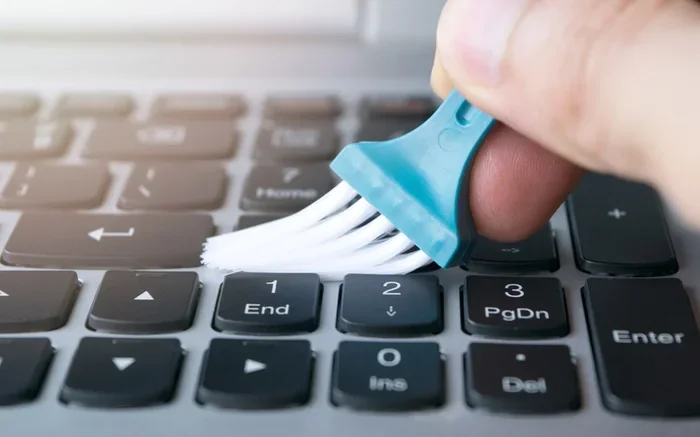
- Use a cotton swab dipped in isopropyl alcohol for tight spaces between keys. This is perfect for keycap cleaning in hard-to-reach areas.
- Let the keyboard air dry completely for at least 10-15 minutes. Make sure no moisture remains before you turn your laptop back on.
- Plug in and power on your laptop. Test the keys to make sure everything is working properly.
Quick Tips For Best Results
- Never pour isopropyl alcohol directly onto the keyboard. Always apply it to the cloth or swab first.
- Use a lint-free cloth to avoid leaving fibers behind on your laptop keyboard.
- Work in a well-ventilated area — isopropyl alcohol fumes can be strong in enclosed spaces.
- Avoid using paper towels as they can leave small particles that scratch keycap surfaces.
- Clean your hands before typing to reduce the amount of oil and dirt that builds up on the keyboard.
Expert Insight: The Right Way To Apply Alcohol
Professional tech cleaners often recommend a two-pass method. First, use a dry microfiber cloth to remove loose dust and surface debris. Then, apply the isopropyl alcohol to a second cloth and do a thorough wipe-down of all keycaps. This two-step approach ensures that you are not grinding dirt into the keyboard during the cleaning process. It also gives you a more even and satisfying result. This simple technique is one of the most effective keyboard cleaning tips you can follow.
What Not To Do When Cleaning Your Laptop Keyboard
Common Mistakes That Can Damage Your Device
Even with the best intentions, some cleaning habits can harm your laptop keyboard. Here are the most common mistakes to avoid:
- Using too much liquid. Excess moisture can seep beneath the keys and reach the internal circuitry. Always use minimal isopropyl alcohol and a lightly dampened cloth.
- Skipping the power-off step. Cleaning a live laptop risks short-circuiting the motherboard or damaging sensitive components. Always disconnect power first.
- Using harsh household cleaners. Bleach, ammonia, and abrasive sprays can corrode keycap lettering and damage the plastic surface. Stick to isopropyl alcohol as your primary cleaning solution.
- Using excessive force. Pressing too hard on keys can loosen them or damage the underlying switch mechanisms. Gentle wiping is all you need.
- Cleaning while the laptop is on a soft surface. A bed or couch can block ventilation and trap moisture. Always clean on a hard, flat surface.
When To Avoid Using Alcohol
There are a few situations where you should skip isopropyl alcohol and try a different approach. If your laptop keyboard has a special coating or finish (like a matte or anti-glare surface), test a small hidden area first. Some coatings can react with alcohol over time. Also, if your keyboard has visible cracks or damage, moisture from any cleaning solution could enter the internal components. In these cases, use a dry microfiber cloth and compressed air only. For laptop keyboard repair needs, consult a professional technician.
Comparing Cleaning Methods For Laptop Keyboards
Isopropyl Alcohol vs Other Cleaning Solutions
There are several methods for cleaning laptop keyboard surfaces. Here is how isopropyl alcohol compares to other popular options:
| Method | Effectiveness | Safety for Electronics | Ease of Use | Cost |
|---|---|---|---|---|
| Isopropyl Alcohol | Excellent — removes oils, grime, and germs | Very safe when used correctly | Easy — just dampen a cloth | Low — affordable and widely available |
| Water Only | Fair — removes loose dust only | Risky — moisture can damage electronics | Easy but slow to dry | Free |
| Alcohol Wipes (pre-made) | Good — convenient and pre-moistened | Safe — designed for electronics | Very easy — wipe and go | Moderate — cost adds up over time |
| Compressed Air Only | Fair — removes loose debris only | Very safe — no liquid involved | Easy — quick burst between keys | Low — can of air costs a few dollars |
| Household Cleaners (Windex, etc.) | Moderate — may remove surface grime | Not recommended — chemicals can damage surfaces | Easy — spray and wipe | Low — but risky for electronics |
| UV Sanitizers | Good for disinfection only | Very safe — no liquid at all | Moderate — requires device to sit under light | High — UV sanitizer devices cost $20+ |
As you can see, isopropyl alcohol offers the best overall balance of effectiveness, safety, and affordability. It is the top choice for most tech professionals and laptop care experts. Alcohol wipes are a convenient alternative for quick touch-ups, but they can be more expensive over time. For a thorough cleaning laptop keyboard session, nothing beats the versatility and power of isopropyl alcohol.
How Often Should You Clean Your Laptop Keyboard?
Cleaning Schedule Based On Usage
The frequency of laptop keyboard cleaning depends on how and where you use your device. Here is a general guide:
- Daily use at a desk: Clean every 1-2 weeks with isopropyl alcohol and a microfiber cloth.
- Frequent snacking at the desk: Clean once a week to prevent crumbs and sticky buildup.
- Shared laptop (multiple users): Clean before and after each sharing session for keyboard disinfection.
- Pet owners: Clean every 3-4 days to manage pet hair and dander accumulation.
- Occasional use (travel laptop): Clean once a month or before each trip.
Signs Your Keyboard Needs Cleaning
Your laptop keyboard will tell you when it needs attention. Watch for these warning signs:
- Sticky or unresponsive keys — this is often caused by oil and grime buildup between the keys.
- Visible dirt or discoloration on keycaps — a clear sign that dust removal is overdue.
- Unusual clicking or crunching sounds when typing — these usually mean food particles are trapped underneath.
- Increased allergies or sneezing near your workspace — your laptop hygiene may be contributing to the problem.
- Keys feel greasy or oily to the touch — your fingers have transferred enough oils to create a noticeable film.
Addressing these signs early with a quick isopropyl alcohol cleaning session can save you from more serious keyboard troubleshooting later. A few minutes of maintenance every couple of weeks goes a long way in keeping your device in top shape.
Final Thoughts
Can I use isopropyl alcohol to clean my laptop keyboard? Yes, and now you know exactly how to do it safely and effectively. Isopropyl alcohol is one of the best tools you can use for cleaning laptop keyboard surfaces. It is affordable, widely available, and highly effective at removing grime, oils, and germs. By following the steps outlined in this guide, you can keep your laptop keyboard fresh, hygienic, and fully functional.
Remember the key principles: always power off your laptop first, use the right concentration, apply the alcohol to a cloth rather than directly to the keyboard, and let everything dry completely before turning your device back on. Pair your isopropyl alcohol cleaning routine with compressed air and a quality microfiber cloth for the best results. These simple laptop maintenance habits will protect your investment and keep your workspace clean and healthy.
Start incorporating keyboard cleaning tips into your regular laptop care routine today. Your keyboard — and your health — will thank you. A clean laptop keyboard is not just about appearance; it is about performance, longevity, and the overall experience of using your device every single day.
Frequently Asked Questions
Can I use 91% isopropyl alcohol on my laptop keyboard?
Yes, 91% isopropyl alcohol is safe for laptop keyboard cleaning. It evaporates very quickly and leaves no residue. However, 70% is generally more effective at dissolving grime and oils because it contains a bit more water. Both concentrations work well for electronics cleaning and keyboard disinfection.
Will isopropyl alcohol damage my laptop keys or lettering?
When used correctly, isopropyl alcohol will not damage keycaps or their lettering. It is gentle on most plastics and finishes used in laptop keyboards. The key is to use a damp cloth, not a soaking wet one, and to avoid letting liquid seep beneath the keys. Always test on a small hidden area first if you have concerns about a special keyboard finish.
Can I use alcohol wipes instead of liquid isopropyl alcohol?
Absolutely. Alcohol wipes pre-moistened with isopropyl alcohol are a convenient alternative for laptop keyboard cleaning. They are especially useful for quick touch-ups between deeper cleaning sessions. Just make sure the wipes are designed for electronics and do not contain added moisturizers or fragrances that could leave residue on your laptop keyboard.
How do I remove sticky residue from my laptop keyboard?
For residue removal, apply a small amount of 70% isopropyl alcohol to a cotton swab and gently rub the affected keycap. The alcohol dissolves the sticky film without damaging the key. For stubborn residue, let the alcohol sit for 30 seconds before wiping. Always power off your laptop first and avoid using excessive pressure on the keys during keycap cleaning.
Is it safe to use isopropyl alcohol on a MacBook or other branded laptop?
Yes, isopropyl alcohol is safe for all major laptop brands including MacBooks, Dell, HP, Lenovo, and ASUS. Apple itself recommends using 70% isopropyl alcohol wipes or a lightly dampened microfiber cloth for cleaning MacBook keyboards. Just avoid getting any liquid near openings like ports or speakers, and always power off the device before cleaning.
Can I use isopropyl alcohol to clean under my laptop keys?
You can use isopropyl alcohol for cleaning under keys, but it requires care. Use a cotton swab dampened with alcohol to reach tight spaces. Do not pry up keys unless you are experienced with disassembly. For most users, compressed air combined with surface wiping using isopropyl alcohol is the safest and most effective approach for laptop keyboard cleaning without disassembly.