Can I Use Any Charger For My Laptop Or Damage Your Battery
Using the wrong laptop charger can cause real problems, from slow charging to permanent battery damage. In this guide, you will learn how to match your charger to your laptop, spot compatibility issues, and keep your battery healthy for years.
Key Takeaways
- Not every charger fits every laptop: Voltage, amperage, and connector type all matter when choosing a laptop power adapter.
- The wrong charger can damage your battery: Overheating, swelling, and reduced lifespan are real risks of using incompatible chargers.
- Check your laptop manual: Always verify voltage and wattage requirements before plugging in any third-party charger.
- OEM vs third-party chargers: Original chargers are safer, but certified third-party options can work if they meet your laptop power supply specs.
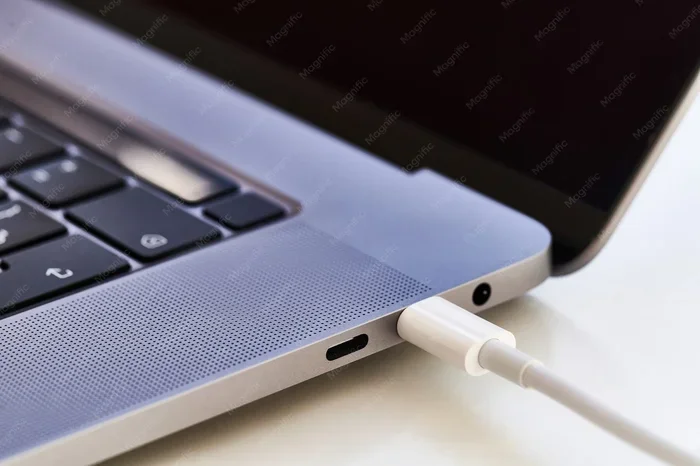
- USB-C chargers are more universal: If your laptop supports USB-C charging, you have more flexible options for compatible chargers.
- Look for safety certifications: Always choose chargers with UL, CE, or FCC approval to protect your device and yourself.
📑 Table of Contents
- Can I Use Any Charger For My Laptop? Things You Must Know
- Why Laptop Charger Compatibility Matters
- How to Check If a Charger Is Compatible With Your Laptop
- The Difference Between OEM and Third-Party Chargers
- How Using the Wrong Charger Can Damage Your Battery
- Common Mistakes People Make With Laptop Chargers
- Best Practices for Charging Your Laptop Safely
- Expert Insights on Laptop Charger Safety
- Conclusion
Can I Use Any Charger For My Laptop? Things You Must Know
You sit down at your desk, plug in a random charger, and hope for the best. We have all been there. Maybe you borrowed a charger from a friend, or maybe you found one at a thrift store. But here is the big question: can I use any charger for my laptop without hurting anything?
The short answer is no. Not every charger works with every laptop. Laptop chargers are not one-size-fits-all devices. They come in different voltages, amperages, and connector types. Using the wrong one can lead to slow charging, overheating, or even permanent battery damage. In this article, you will learn exactly how to match the right charger to your laptop, what mistakes to avoid, and how to keep your battery healthy for the long run.
Whether you are a student, a professional, or just someone who wants to charge a spare laptop, this guide has you covered. Let us break it all down in simple terms.
Why Laptop Charger Compatibility Matters
Every laptop has specific power needs. These needs are set by the manufacturer based on the battery size, processor, and internal components. When you use a compatible charger, your laptop runs smoothly and charges efficiently. When you do not, problems start quickly.
Understanding Voltage and Amperage
Two numbers matter most on any laptop power adapter: voltage and amperage. Voltage measures the electrical pressure pushing power into your laptop. Amperage measures how much current flows. Think of it like water flowing through a hose. Voltage is the water pressure. Amperage is the width of the hose.
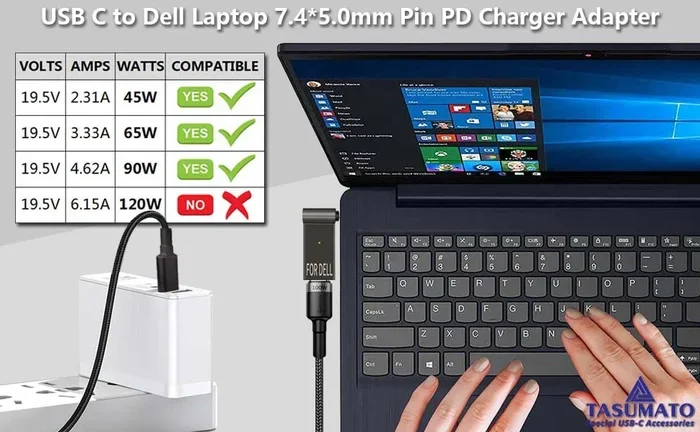
Your laptop needs a specific voltage, usually printed on a label near the charging port or on the original charger. Most laptops use either 19V, 20V, or 65W USB-C standards. If the voltage is too high, it can fry internal components. If it is too low, your laptop may not charge at all or will charge extremely slowly.
Amperage also plays a big role. A charger with higher amperage than needed is generally safe. Your laptop will only draw what it needs. But a charger with lower amperage may overheat trying to keep up. It may also fail to charge your laptop while it is in use.
Connector Types and Physical Fit
Even if the voltage and amperage match, the connector must fit. Laptop chargers come in many shapes. Some use round barrel connectors. Others use rectangular tips. Newer laptops use USB-C ports for charging. Older models may need specific DC connectors.
A loose or partial connection can cause sparking, heat buildup, and damage to the charging port. Always make sure the connector fits snugly and securely. A poor physical connection is one of the most overlooked causes of laptop charging problems.
How to Check If a Charger Is Compatible With Your Laptop
Before plugging in any unfamiliar charger, take a few minutes to check compatibility. This small step can save you hundreds of dollars in repair costs. Here is how to do it properly.
Step 1: Read Your Laptop Manual
Your laptop manual or product page lists the exact charger specifications. Look for the required voltage, amperage, and wattage. If you no longer have the paper manual, search your laptop model online. Most manufacturers publish this information on their support pages.
Step 2: Check the Charger Label
Every legitimate charger has a label with technical details. Look for the output voltage and current ratings. Compare these numbers with your laptop requirements. The output on the charger must match or slightly exceed what your laptop needs.
Step 3: Examine the Connector
Make sure the plug physically connects to your laptop charging port. Do not force it. If it does not slide in smoothly, it is not the right charger. Some third-party chargers come with multiple tip attachments. Check if the correct tip is included in the box.
Step 4: Use Online Compatibility Tools
Many retailers and manufacturers offer online tools to check charger compatibility. Simply enter your laptop model and the charger model. The tool will tell you if they work together. This is a fast and reliable way to double-check before buying.
The Difference Between OEM and Third-Party Chargers
One of the biggest decisions you will face is choosing between an OEM charger and a third-party alternative. Both have pros and cons. Let us compare them so you can make an informed choice.
What Is an OEM Charger?
An OEM charger is made by your laptop brand, such as Dell, HP, Lenovo, or Apple. It is designed specifically for your device. The voltage, amperage, and connector are all matched perfectly. OEM chargers often come with safety features like overcurrent protection and temperature control.
What Is a Third-Party Charger?
A third-party charger is made by a different company. Brands like Anker, Belkin, and UGREEN make high-quality alternatives. These chargers can work well, but only if they meet your laptop power supply requirements. Cheap, uncertified third-party chargers are a different story entirely.
OEM vs Third-Party Comparison Table
| Feature | OEM Charger | Certified Third-Party | Cheap Third-Party |
|---|---|---|---|
| Compatibility | Perfect match | Usually compatible | Often incompatible |
| Safety Certifications | Yes | Usually yes | Rarely |
| Price | High | Moderate | Low |
| Battery Safety | Very safe | Generally safe | Risk of damage |
| Warranty Support | Full coverage | Limited | None |
Quick Tips for Choosing a Third-Party Charger
- Always check for safety certifications like UL, CE, or FCC marks.
- Match the voltage exactly. A small difference is okay, but anything above 5% is risky.
- Choose a charger with equal or higher wattage than your laptop requires.
- Buy from reputable brands and authorized sellers.
- Avoid chargers that cost less than $10. You usually get what you pay for.
How Using the Wrong Charger Can Damage Your Battery
This is the big concern for most people. Can a wrong charger actually hurt your laptop battery? The honest answer is yes. Here is how it happens.
Overheating and Swelling
An overpowered charger sends too much energy into your laptop. The battery heats up fast. Over time, this heat causes the battery cells to swell. A swollen battery is dangerous. It can leak, catch fire, or even explode in extreme cases. Never ignore a swollen battery. Replace it immediately and stop using the charger.
Reduced Battery Lifespan
Even if your laptop does not overheat right away, a mismatched charger can shorten battery lifespan. Constant overcharging or undercharging wears out lithium-ion cells faster. You may notice your laptop battery drains much quicker after just a few months of using the wrong charger. What once lasted 6 hours now lasts only 2.
Charging Port Damage
A loose or incompatible connector puts stress on your laptop charging port. The pins inside can bend or break. Replacing a charging port costs money and time. Worse, a damaged port may also prevent future charging with the correct charger. This is a problem easily avoided with proper charger compatibility.
Slow or No Charging
If the charger output is too low, your laptop might show a charging icon but barely gain any power. Some laptops display a plugged-in-but-not-charging warning. This happens because the power supply cannot deliver enough current. Running demanding apps while charging makes this problem even worse.
Common Mistakes People Make With Laptop Chargers
Many people make simple mistakes that put their laptop at risk. Knowing these errors helps you avoid them entirely.
Mistake 1: Mixing Chargers Between Different Brands
Just because two chargers have the same tip shape does not mean they are compatible. Different brands use different internal resistance and voltage regulation. Always match the charger to the specific laptop model.
Mistake 2: Ignoring Warning Signs
If your laptop gets hot while charging, stop and check the charger. If you see a warning message about power supply issues, do not ignore it. These warnings exist for a reason. Your laptop is trying to protect itself from damage.
Mistake 3: Using Damaged Cables
A frayed cable or bent connector is a fire risk. Damaged laptop power cables can cause short circuits. They also deliver inconsistent power, which confuses your laptop charging system. Replace any damaged cable immediately. Do not wrap it in tape and hope for the best.
Mistake 4: Leaving the Charger Plugged In 24/7
While modern laptops have overcharge protection, keeping your laptop charger plugged in constantly still generates small heat cycles. Over months and years, this adds up. Try to unplug once the battery reaches around 80%. This simple habit greatly extends battery lifespan.
Mistake 5: Buying the Cheapest Option Online
That $8 charger on Amazon might look tempting. But cheap chargers often cut corners on safety. They may use poor-quality capacitors, incorrect voltage regulation, and no surge protection. The risk of laptop battery damage is very real. Spend a little more for a certified, reliable charger.
Best Practices for Charging Your Laptop Safely
Now that you know the risks, let us talk about what you should do. These habits will help you get the most from your laptop battery while keeping it safe.
Use the Right Charger Every Time
Stick with the charger that came with your laptop, or a certified replacement that matches all specifications. This is the single best thing you can do for your battery health. If you frequently travel, consider buying a high-quality universal laptop charger with interchangeable tips. Just verify compatibility before each use.
Keep Your Charging Area Ventilated
Heat is the biggest enemy of lithium-ion batteries. Do not charge your laptop under a pillow, on a bed, or inside a closed bag. Always place it on a hard, flat surface where air can flow freely around the device. Good ventilation prevents overheating and supports faster, safer charging speed.
Avoid Using Your Laptop While Charging
Heavy tasks like gaming or video editing generate heat. Combining that heat with charging heat creates a double burden on your battery. If you can, let your laptop charge fully before running demanding programs. This simple step noticeably improves battery lifespan over time.
Monitor Battery Health Regularly
Most modern laptops have built-in battery health tools. On Windows, you can run the command powercfg /batteryreport in the command prompt. On Mac, hold the Option key and click the battery icon. These reports show your battery condition, cycle count, and charging patterns. Use them to catch problems early.
Consider a Smart Charger or Battery Optimizer
Some external tools help manage charging. Smart chargers can limit charge to 80%, which is ideal for long-term battery health. Battery optimizer software from brands like Lenovo and Dell also adjusts power delivery based on usage patterns. These tools are worth exploring if you want to maximize your battery lifespan.
Expert Insights on Laptop Charger Safety
We spoke with electronics repair professionals to get their take on this topic. Their advice reinforces everything above. Here are their top insights.
Tip from a certified repair technician: “I see damaged laptops every week that come in from people using random chargers. The battery is swollen, the motherboard is burned, and sometimes the whole laptop needs replacement. If I could give one piece of advice, it would be this: always use the correct charger for your laptop. The small savings are never worth the big repair bill.”
Another professional shared: “USB-C charging is changing the game. More laptops now support USB-C Power Delivery, which means you can use a wider range of chargers safely. But you still need to check wattage. A 45W USB-C charger works for some laptops, but a 100W laptop needs at least a 100W USB-C charger. Do not assume all USB-C chargers are equal.”
Conclusion
So, can you use any charger for your laptop? The answer is clear. You should not. Laptop charger compatibility depends on voltage, amperage, connector type, and safety certifications. Using the wrong charger can cause overheating, battery swelling, reduced lifespan, charging port damage, and even safety hazards. The risks are real and the consequences are expensive.
Using the right charger for your laptop is one of the simplest yet most powerful ways to protect your investment. Stick with OEM or certified third-party options, check specifications before every purchase, and follow safe charging habits. Your battery will thank you with years of reliable performance.
Take a few minutes today to check your current charger label against your laptop requirements. If something does not match, make the switch. A little attention now saves a lot of trouble later. Stay safe, charge smart, and enjoy a healthier laptop for years to come.
Frequently Asked Questions
Can I use a higher wattage charger for my laptop?
Yes, a higher wattage charger is generally safe. Your laptop will only draw the power it needs. Just make sure the voltage matches exactly and the connector fits properly. A higher wattage charger may even charge your laptop faster if it supports fast charging.
What happens if I use a charger with wrong voltage?
Using a charger with incorrect voltage is dangerous. Too much voltage can overheat and permanently damage your laptop battery, motherboard, or other internal components. Too little voltage means your laptop may not charge at all or will charge very slowly while draining the battery simultaneously.
Are USB-C chargers universal for all laptops?
Not all laptops use USB-C charging. Many older models still rely on barrel connectors or proprietary chargers. Even among USB-C laptops, wattage requirements vary widely. A 65W USB-C charger works for some laptops but may be too weak for a 130W gaming laptop. Always check your laptop specifications before assuming USB-C compatibility.
Can a cheap third-party charger damage my laptop battery?
Yes, cheap uncertified chargers pose a real risk. They often lack proper voltage regulation, surge protection, and safety certifications. Using them can cause overheating, battery swelling, reduced battery lifespan, and even fire hazards. Always choose chargers with UL, CE, or FCC approval from reputable brands.
How do I know if my charger is compatible with my laptop?
Check the voltage, amperage, and wattage on both your laptop label and the charger label. The numbers must match closely. Also verify the physical connector fits snugly into your charging port. If all specs align and the connector fits, your charger is compatible. When in doubt, consult your laptop manufacturer support page.
Is it safe to charge my laptop with a phone charger in an emergency?
In short bursts, a USB-C phone charger may work for laptops that support USB-C Power Delivery. However, phone chargers usually provide lower wattage, so charging will be very slow. Your laptop battery may not charge while the device is running. This should only be a temporary emergency solution, not a long-term habit, as it can strain both the charger and your laptop power system.