Can I Use An External Monitor With My Laptop For Better Work
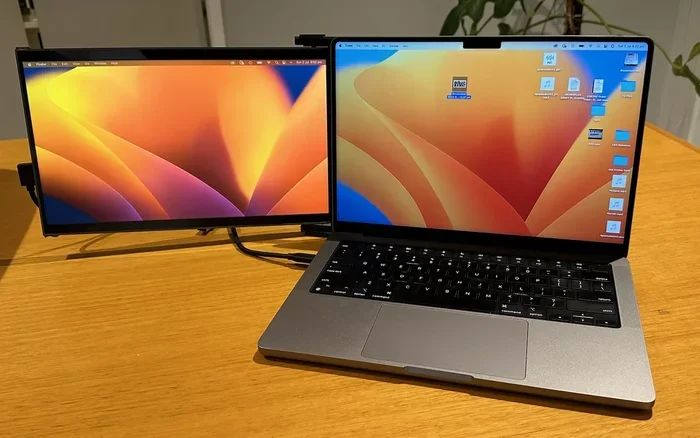
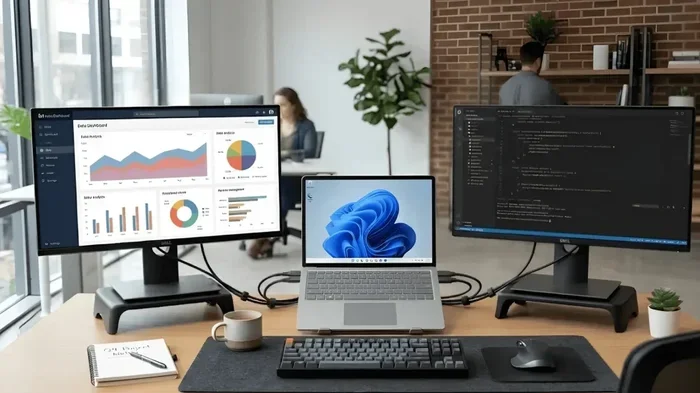
Yes, you can absolutely use an external monitor with your laptop. Connecting a second screen to your laptop is one of the easiest ways to boost productivity and create a proper workstation. Whether you work from home, edit videos, or just want more screen space, an external monitor setup transforms how you work. This guide covers every step from cables to display settings so you can get started today.
Have you ever stared at that tiny laptop screen and wished you had more space? You are not alone. Millions of people ask themselves this every single day. The good news is that the answer is a simple yes. You can use an external monitor with your laptop, and it is easier than you might think.
Adding a second screen to your workflow changes everything. Suddenly you can have your email open on one side and your project on the other. No more alt-tabbing constantly. No more squinting at small text. Whether you are a student, a freelancer, or a full-time office worker, an external display can seriously level up your setup. Let us walk through exactly how this works and what you need to know.
In this article, we will cover everything from connection types to display settings. We will also look at common mistakes people make and how to avoid them. By the end, you will feel confident setting up your own dual screen laptop configuration. So grab your laptop, and let us dive in.
Key Takeaways
- Easy Setup: Most modern laptops support external displays through HDMI, USB-C, or Thunderbolt ports.
- Big Productivity Boost: A dual screen setup lets you multitask without constantly switching windows.
- Multiple Connection Options: You can use direct cables or a docking station depending on your laptop model.
- Affordable Options: Portable monitors and budget-friendly displays make this upgrade accessible to everyone.
- Simple Configuration: Windows and Mac both offer built-in display settings to extend or mirror your screen in seconds.
- Right Monitor Matters: Choosing the correct size, resolution, and refresh rate makes a big difference in daily comfort.
📑 Table of Contents
Why Use An External Monitor With Your Laptop?
The benefits of adding an external monitor go way beyond just having a bigger screen. Let us look at the real reasons people make this switch.
Boost Your Productivity Significantly
Research shows that a dual monitor setup can increase productivity by up to 30 percent. When you have two screens, you keep reference materials visible while working on your main task. You can compare documents side by side. You can watch a video tutorial while taking notes. The workflow improvement is real and measurable.
Think about your typical workday. How many times do you switch between windows? Every switch costs you time and focus. An extended display eliminates most of that switching. You keep your email visible, your code editor open, and your browser ready, all at the same time.
Reduce Eye Strain and Fatigue
Staring at a 13 or 15 inch screen for hours takes a toll on your eyes. An external monitor lets you increase the screen size and adjust the viewing angle. This means less squinting and less neck pain. Many modern monitors also come with blue light filters that help protect your eyes during long work sessions.
Create a Proper Workstation
Working on a laptop alone often means hunching over a small keyboard. Adding a monitor encourages you to set up an ergonomic workstation. You position the monitor at eye level, use an external keyboard, and maintain a healthy posture. This is especially important for people who work from home full time.
How to Connect An External Monitor to Your Laptop
Connecting a monitor to your laptop is simpler than most people expect. The method depends on the ports available on your laptop. Let us break down each option.
HDMI Connection
HDMI is the most common connection type. Most laptops have at least one HDMI port, and nearly all monitors support HDMI. You simply plug one end into your laptop and the other into the monitor. That is it. Your computer should detect the new display almost immediately.
If your laptop does not have an HDMI port, you can use an HDMI adapter. These are inexpensive and widely available. Just make sure you get the right adapter for your laptop model.
USB-C and Thunderbolt Connections
Many modern laptops use USB-C or Thunderbolt ports. These single cables can carry video, data, and power all at once. This makes them incredibly convenient. You plug one cable into your laptop and connect it to a compatible monitor.
Thunderbolt 3 and Thunderbolt 4 offer even better performance. They support higher resolutions and refresh rates. If you have a Thunderbolt port, you can also use a USB-C docking station to connect multiple devices through one hub.
Using a Docking Station
A docking station is a great option if you use your laptop in multiple locations. You connect all your peripherals to the dock once. Then you simply plug one cable into your laptop to get everything running. This is a game changer for people who move between a home office and a desk at work.
Docking stations also let you connect multiple monitors. Some docks support two or even three external displays at once. This is perfect for users who need a real multi-monitor configuration for their workflow.
Wireless Display Options
Not every setup needs a cable. Wireless display technology lets you mirror or extend your laptop screen without any physical connection. Windows has built-in support for wireless displays through Miracast. Apple users can use AirPlay to connect to compatible smart TVs or monitors.
Wireless options are convenient, but they can have slight lag. For tasks like video editing or gaming, a wired connection is always better. For general office work and browsing, wireless works perfectly fine.
Setting Up Your Display: Step by Step
Once your monitor is connected, you need to configure the display settings. Both Windows and macOS make this process straightforward.
Windows Display Settings
On Windows, right-click your desktop and select Display Settings. You will see options for your laptop screen resolution and the external monitor. Here are the key choices you will encounter:
- Extend these displays: This creates a separate workspace on each screen. It is the most common setup for productivity.
- Duplicate these displays: This mirrors the same image on both screens. Useful for presentations.
- Show only on 1 or Show only on 2: This sends the display to just one screen.
You can also adjust the scale and layout to make text and icons larger on the bigger monitor. This is especially helpful if you use a 27 inch or 32 inch display.
Mac Display Settings
Mac users can access display settings through System Settings. Click Displays and choose whether to extend or mirror your screen. macOS also supports display arrangement, where you can drag and drop screens to match their physical position on your desk. This ensures your cursor moves naturally between monitors.
Adjusting Resolution and Refresh Rate
For the best experience, set your monitor resolution to the native resolution of the display. This gives you the sharpest image. You can also adjust the refresh rate if your monitor supports higher rates like 120Hz or 144Hz. Higher refresh rates make everything feel smoother, especially when scrolling through web pages.
Choosing the Right Monitor for Your Laptop
Not all monitors are created equal. Choosing the right one depends on your needs, budget, and laptop capabilities. Let us look at what matters most.
Screen Size
The most popular sizes for laptop external monitors are 24 inches and 27 inches. A 24 inch monitor is great for everyday work and fits well on smaller desks. A 27 inch monitor gives you more space and feels more immersive. If you do creative work like photo editing or video production, consider going even bigger with a 32 inch display.
Resolution Matters
Resolution determines how sharp and clear the image looks. Here are the common options:
- Full HD (1080p): Budget-friendly and perfectly fine for most office tasks.
- Quad HD (1440p): A sweet spot between sharpness and affordability.
- 4K Ultra HD: Stunning detail, ideal for creative professionals.
Match the resolution to your laptop’s capabilities. A powerful laptop can drive a 4K monitor smoothly. A basic laptop might work better with a 1080p display.
Panel Type and Color Accuracy
Different panel types offer different advantages. IPS panels provide wide viewing angles and accurate colors. VA panels offer deeper blacks and better contrast. TN panels are fast but have narrower viewing angles. For most work purposes, an IPS monitor is the best all-around choice.
Portable Monitors for On-the-Go Work
If you travel frequently, a portable monitor is a fantastic option. These lightweight displays connect through USB-C and weigh just a few pounds. They are perfect for business trips, coffee shop work, or students who move between classes. Brands like ASUS, AOC, and Lepow make excellent portable options at reasonable prices.
Common Mistakes to Avoid
Setting up an external monitor sounds simple, but small mistakes can cause frustration. Here are the most common ones and how to avoid them.
Using the Wrong Cable
Not all cables support the same resolution or refresh rate. An old HDMI 1.4 cable might limit you to 1080p at 60Hz. If you want 4K at 60Hz, you need an HDMI 2.0 or higher cable. Always check the specifications before buying cables.
Ignoring Display Settings After Connection
Many people plug in a monitor and assume it will just work perfectly. But without adjusting the display settings, you might end up with a blurry image or an awkward screen layout. Always go into your display settings and configure the monitor properly after connecting it.
Overlooking Power Delivery
If you use a USB-C connection, check whether your monitor supports power delivery. Some monitors can charge your laptop through the same cable. This reduces cable clutter and keeps your laptop battery topped up. It is a small detail that makes a big difference in desk organization.
Choosing a Monitor Without Considering Ergonomics
Size and resolution matter, but so does adjustability. A monitor that cannot tilt, swivel, or adjust in height will cause neck strain over time. Look for monitors with VESA mount compatibility or built-in stands that offer flexibility.
Expert Tips for the Best External Monitor Experience
Here are some practical tips that experienced users swear by for getting the most out of their laptop monitor setup.
Use Keyboard Shortcuts to Switch Displays
Learn the keyboard shortcuts for your operating system. On Windows, press Windows key plus P to quickly switch between display modes. On Mac, use the Display preferences or the function keys on your keyboard. These shortcuts save you time every single day.
Invest in a Monitor Arm
A monitor arm frees up desk space and lets you position your screen at the perfect height. You can adjust the monitor throughout the day to find the most comfortable viewing angle. This small upgrade dramatically improves your workspace comfort.
Calibrate Your Monitor Colors
If you do any design work or photo editing, color accuracy is critical. Both Windows and Mac offer built-in color calibration tools. Take ten minutes to calibrate your monitor, and your work will look noticeably better and more consistent.
Keep Your Drivers Updated
Graphics drivers affect how well your laptop communicates with an external display. Keep your drivers updated through your laptop manufacturer’s website or through Windows Update. Updated drivers fix display issues and improve performance.
Frequently Asked Questions
Can I connect two external monitors to my laptop?
Yes, most laptops support multiple external monitors. The exact number depends on your laptop’s graphics card and available ports. You can use a combination of direct connections and a docking station to set up a triple display arrangement with your laptop screen included.
Do I need a special laptop to use an external monitor?
No, virtually all laptops made in the last decade support external monitors. Even older laptops with VGA ports can connect to a modern display using an adapter. The only requirement is that your laptop has a video output port of some kind.
Will using an external monitor drain my laptop battery faster?
Yes, driving an external display uses extra power. However, if you keep your laptop plugged in while using the monitor, battery drain is not a concern. Some modern monitors even charge your laptop through USB-C, which helps offset the power usage.
Can I use a TV as an external monitor for my laptop?
Absolutely. Most smart TVs have HDMI inputs that work perfectly with laptops. Just make sure the TV supports the resolution you need. A 40 inch or 55 inch TV can serve as an excellent large external display for work or entertainment.
What is the difference between extending and mirroring my display?
Extending your display creates a separate workspace on the second screen, giving you more total space. Mirroring shows the exact same image on both screens. Extending is best for productivity, while mirroring is ideal for presentations and sharing your screen with others.
Can I use a portable monitor with my laptop for travel?
Yes, portable monitors are designed specifically for travel and on-the-go work. They connect through USB-C, are lightweight, and often come with their own stand or case. They are a great way to add a second screen without carrying a full-sized monitor.
Conclusion
Using an external monitor with your laptop is one of the simplest upgrades you can make. It boosts your productivity, improves your comfort, and creates a workspace that actually feels professional. The setup process is straightforward, the options are plentiful, and the benefits are immediate.
Whether you choose a budget-friendly 24 inch display or invest in a high-end 4K monitor, the difference in your daily workflow will be noticeable. You will wonder how you ever managed with just your laptop screen. Start with the basics, follow the steps in this guide, and build your setup from there.
Your laptop is powerful, but it was never meant to do everything alone. Give it the external display it deserves, and you will see the difference in your work every single day. So go ahead, plug in that monitor, and take your productivity to the next level.