Can I Replace My Comcast Modem And Router With My Own Device
Yes, you can replace your Comcast modem and router with your own device. Doing so can help you save on monthly rental fees, gain better control over your network, and enjoy faster internet speeds. This guide covers everything you need to know about choosing compatible equipment, setting it up, and avoiding common pitfalls.
Are you tired of paying Comcast every month just to rent their modem and router? You are not alone. Thousands of customers ask the same question every year: can I replace my Comcast modem and router with my own device? The short answer is yes. But there are a few things you need to know before you make the switch.
Replacing your Comcast equipment with your own hardware can save you a lot of money over time. It also gives you more control over your home network. You get to choose the brand, the model, and the features that work best for your household. In this guide, we will walk you through everything step by step. You will learn what equipment to buy, how to set it up, and what mistakes to avoid.
Whether you are a tech beginner or a seasoned user, this article has you covered. We will break down the process in simple terms. No jargon. No confusing steps. Just clear, practical advice you can use right away.
Key Takeaways
- Save Money Monthly: Replacing your rented Comcast gear eliminates the $14-$25 monthly rental fee.
- Better Performance: Own your hardware and get faster speeds, stronger signals, and more features.
- Check Compatibility First: Not every modem or router works with Comcast Xfinity. Always verify the approved list.
- Self-Installation Is Easy: Most users can swap out their equipment in under 30 minutes.
- Return Old Gear: Avoid extra charges by returning your Comcast equipment properly.
- Warranty Matters: Owning your device means you control warranty and support, not Comcast.
📑 Table of Contents
- Why Replace Your Comcast Modem and Router?
- Can You Replace Your Comcast Modem and Router With Your Own Device?
- Understanding Modem vs Router: What You Need
- Best Modems Compatible With Comcast
- Best Routers to Pair With Your New Modem
- How to Replace Your Comcast Equipment: Step-by-Step
- Common Mistakes to Avoid When Replacing Comcast Equipment
- What Happens After You Switch? Xfinity Support and Warranty
- How Much Can You Really Save?
- Final Thoughts: Should You Replace Your Comcast Equipment?
Why Replace Your Comcast Modem and Router?
Before you dive into the how-to, let us talk about why this is even worth considering. Most people do not realize how much money they spend renting equipment from their internet provider. Over a few years, those rental fees add up fast.
Save Money on Monthly Rental Fees
Comcast charges between $14 and $25 per month to rent their modem and router. That is $168 to $300 every year. If you keep your own equipment for just three years, you could save anywhere from $500 to $900. That is a lot of money you can put toward something else.
Get Better Internet Performance
Comcast rental equipment is basic. It works, but it is not always the best. Your own modem and router can offer faster speeds, better range, and stronger signals. If you live in a larger home or have many devices connected, upgrading your hardware makes a big difference.
More Features and Control
When you own your equipment, you control the settings. You can set up guest networks, adjust parental controls, and prioritize bandwidth for specific devices. Comcast gateways often limit these options. Owning your own gear means more freedom.
Firmware Updates and Security
Your own router often gets faster firmware updates than Comcast-provided equipment. This means better security patches and new features over time. Keeping your network secure is more important than ever today.
Can You Replace Your Comcast Modem and Router With Your Own Device?
The answer is a firm yes. Comcast allows customers to use their own modem and router. However, you must follow a few rules. Not every device on the market is compatible with the Comcast Xfinity network. You need to make sure your equipment is on their approved list.
Here is what you need to do before you buy anything:
- Check the Comcast Approved Modem List: Comcast maintains a list of compatible modems on their website. Visit xfinity.com/support/modems to find it.
- Verify Your Internet Speed Tier: Your modem must support your current internet plan speed. If you have a 400 Mbps plan, your modem needs to handle that speed.
- Choose a Compatible Router: Your router does not need to be on an approved list, but it should match your modem and support your internet speed.
- Decide: Modem and Router Combo or Separate Devices? A gateway is a combo unit. Separate devices give you more flexibility and often better performance.
Once you confirm compatibility, you can purchase your own equipment and move forward with confidence.
Understanding Modem vs Router: What You Need
Before buying anything, it helps to understand the difference between a modem and a router. Many people confuse the two, but they do very different jobs.
What Does a Modem Do?
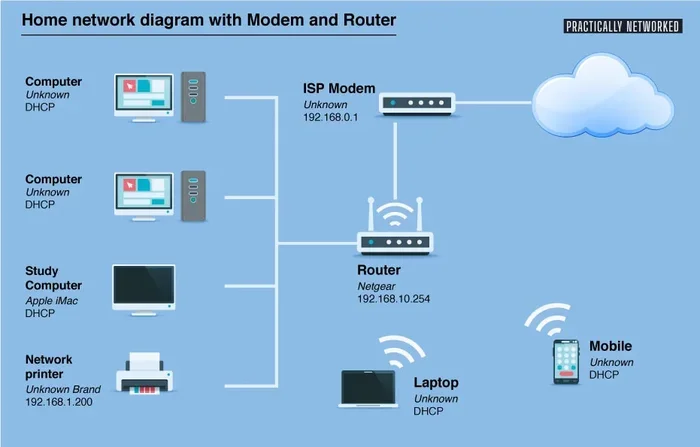
A modem connects your home to the internet. It talks to the Comcast network through your cable line. Without a modem, you cannot access the internet at all. Think of it as the bridge between your home and the wider web.
What Does a Router Do?
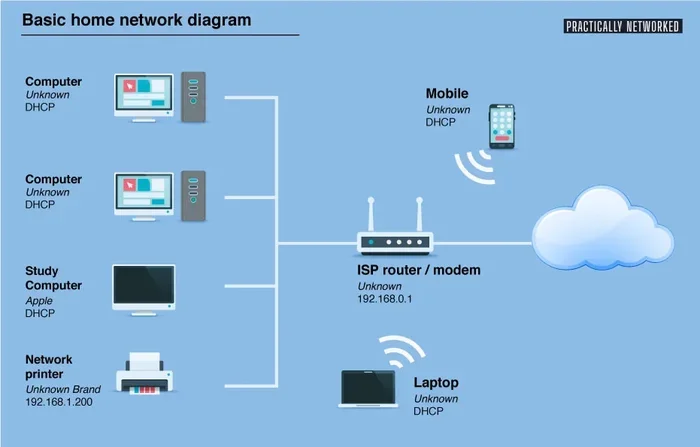
A router takes the internet signal from the modem and shares it with your devices. It creates your WiFi network. It also manages traffic between devices on your local network. Without a router, you can only connect one device directly to the internet.
Modem and Router Combo vs Separate Devices
A modem and router combo, also called a gateway, does both jobs in one box. It is convenient and takes up less space. But it can limit your options. Separate devices give you more control, better performance, and the ability to upgrade one without replacing the other.
For most users who want the best experience, separate devices are the way to go. You can pick a high-quality modem and pair it with a powerful WiFi 6 router. The difference in speed and range is noticeable.
Best Modems Compatible With Comcast
Not all modems work with Comcast. You need to pick one from their approved list. Here are some of the most popular and reliable options.
Motorola MB8600
The Motorola MB8600 is a top choice for Comcast users. It is a DOCSIS 3.1 modem that supports speeds up to 1 Gbps. It works well with most Xfinity internet plans. Many users report stable connections and easy setup.
Netgear CM1000
The Netgear CM1000 is another excellent option. It also supports DOCSIS 3.1 and gigabit speeds. It handles heavy internet use with ease. This modem is a great pick for families with many connected devices.
Arris Surfboard SB8200
The Arris Surfboard SB8200 is widely loved by home users. It offers fast DOCSIS 3.1 performance and works seamlessly with Comcast. It is affordable and reliable, making it a solid choice for most households.
How to Choose the Right Modem
When picking a modem, consider your internet speed tier. Here is a quick guide:
- Up to 400 Mbps: A DOCSIS 3.0 modem with at least 16 channels will work fine.
- 400 Mbps to 1 Gbps: Go with a DOCSIS 3.1 modem for the best performance.
- 1 Gbps and Above: You need a DOCSIS 3.1 modem with multi-gigabit ports.
Always double-check the Comcast approved modem list before making a purchase. Buying the wrong modem means you will waste time and money.
Best Routers to Pair With Your New Modem
If you go with separate devices, you will need a router that matches your modem and supports your internet speed. Here are some great options.
TP-Link Archer AX90
The TP-Link Archer AX90 is a WiFi 6 router that delivers fast speeds and wide coverage. It handles multiple devices without breaking a sweat. It is a great value for the price.
ASUS RT-AX86U
The ASUS RT-AX86U is a powerful router with excellent range and speed. It is perfect for gaming and streaming. The setup process is straightforward, and the interface is user-friendly.
Netgear Nighthawk RAXE500
The Netgear Nighthawk RAXE500 is a premium WiFi 6E router. It offers the latest WiFi technology and blazing fast speeds. If you want top-of-the-line performance, this is a great pick.
What to Look for in a Router
When shopping for a router, keep these factors in mind:
- WiFi Standard: Look for WiFi 6 or WiFi 6E for the fastest speeds.
- Number of Bands: Dual-band or tri-band routers offer better performance in busy households.
- Range: If you have a large home, look for routers with strong antennas or mesh support.
- Device Capacity: Consider how many devices you need to connect at once.
How to Replace Your Comcast Equipment: Step-by-Step
Now for the part you have been waiting for. Here is how you actually swap out your Comcast modem and router with your own device. The process is simpler than most people think.
Step 1: Contact Comcast and Request a Service Disconnect
Before you do anything, call Comcast and let them know you are returning your rented equipment. They will schedule a service disconnect for the rented modem and router. This step is important. Skipping it can lead to billing issues.
Step 2: Purchase Your Compatible Modem and Router
Go online or visit a store and buy your chosen modem and router. Make sure both devices are compatible with Comcast. Check the approved modem list one more time before you click purchase.
Step 3: Set Up Your New Modem
Connect your new modem to the cable outlet in your wall using a coaxial cable. Plug in the power adapter and wait for the lights to stabilize. The online light should turn solid. This means your modem has connected to the Comcast network.
Step 4: Connect Your Router to the Modem
Use an Ethernet cable to connect your modem to your router. Plug one end into the modem’s Ethernet port and the other into your router’s WAN or Internet port. Power on your router and wait for it to boot up.
Step 5: Configure Your WiFi Network
Open a web browser and go to your router’s admin page. This is usually something like 192.168.1.1 or 192.168.0.1. Follow the on-screen instructions to set up your WiFi name and password. Take your time with this step. A strong password and a clear network name make a big difference.
Step 6: Test Your Connection
Once everything is set up, test your internet connection. Open a browser and visit a website. Run a speed test at speedtest.net to make sure you are getting the speeds you pay for. If everything looks good, you are all set.
Quick Tips for a Smooth Setup
- Restart Your Devices: Power cycle your modem and router after connecting them. This helps them communicate properly.
- Place Your Router Centrally: A central location gives you the best WiFi coverage throughout your home.
- Keep Firmware Updated: Check for router firmware updates right after setup. This improves security and performance.
- Save Your Comcast Account Info: Keep your account number handy in case you need to contact support.
Common Mistakes to Avoid When Replacing Comcast Equipment
Replacing your Comcast gear is straightforward, but people do make mistakes. Here are some common ones to watch out for.
Buying an Incompatible Modem
This is the biggest mistake. Not every modem works with Comcast. Always check the approved list first. Buying the wrong modem means you will not get internet service.
Skipping the Return Process
If you do not return your Comcast equipment properly, you will be charged a replacement fee. This can be $100 or more. Always follow the return process to avoid extra charges.
Not Updating Your Account
After you switch to your own equipment, update your Comcast account. Tell them you are using your own modem and router. This prevents billing confusion and service issues.
Ignoring the DOCSIS Version
DOCSIS 3.0 is older and slower. DOCSIS 3.1 is faster and supports higher speeds. If you have a fast internet plan, make sure your modem supports DOCSIS 3.1.
Placing the Router in a Bad Spot
Putting your router in a closet or behind a wall kills your WiFi signal. Place it in an open, central area for the best coverage.
What Happens After You Switch? Xfinity Support and Warranty
One question people often ask is: will I still get support from Comcast? The answer depends on the situation.
When you use your own modem and router, Comcast still provides internet service. If you have an outage or connection issue, you can still call Xfinity support. They can troubleshoot the line and the connection from their end. However, they will not support your personal equipment. If your modem or router has a problem, you are on your own or you rely on the manufacturer’s warranty.
This is actually a plus for many users. Your own equipment usually comes with a better warranty than Comcast rental gear. Most quality modems and routers come with a one- to three-year warranty. Some even offer longer coverage. You control the support experience.
Keep your receipts and registration documents for your equipment. These are your proof of purchase if you ever need to file a warranty claim.
How Much Can You Really Save?
Let us do the math. Comcast charges about $14 to $25 per month for their modem and router combo. Let us use $15 as a middle estimate.
- Monthly Rental Fee: $15
- Annual Rental Fee: $180
- Three-Year Total: $540
- Cost of a Good Modem: $100 to $200
- Cost of a Good Router: $80 to $200
- Total Equipment Cost: $180 to $400
Even in the worst case, you break even within two years. After that, you are saving $180 per year. Over five years, that is $900 in savings. And your network will likely perform better than it did with Comcast rental gear.
That is a strong argument for making the switch.
Final Thoughts: Should You Replace Your Comcast Equipment?
Replacing your Comcast modem and router with your own device is a smart move for most households. You save money, get better performance, and enjoy more control over your network. The process is simple and well worth the effort.
Make sure you check compatibility before buying anything. Follow the steps carefully during setup. And always return your rented equipment properly to avoid extra fees. Once you make the switch, you will wonder why you did not do it sooner.
The internet is an important part of daily life. Your home network should work as hard as you do. Investing in your own equipment is one of the best ways to make that happen.
Take the time today to research your options. You will be glad you did.
Frequently Asked Questions
Can I use any modem with Comcast Xfinity?
No, you cannot use just any modem. Comcast requires you to use a modem from their approved device list. Visit xfinity.com/support/modems to find compatible models. Buying an incompatible modem will result in no internet connection.
Will I lose my WiFi speed if I use my own router?
No, you will likely gain WiFi speed. Comcast rental routers are basic and often limit performance. A quality third-party router can deliver faster speeds and better range. Just make sure your router supports your internet plan speed.
Do I need to call Comcast after I install my own equipment?
Yes, you should call Comcast to let them know you are using your own modem and router. They may need to activate your device on their network. They will also update your account to stop charging the rental fee.
What happens if my own modem breaks?
You are responsible for repairs or replacement of your own equipment. Most modems come with a one- to three-year warranty from the manufacturer. Keep your receipt and register your product to take advantage of the warranty.
Can I return my Comcast equipment at any time?
You can return your Comcast equipment once you have your own setup working. Call Comcast to schedule a return or visit a local Xfinity store. Make sure you get a return receipt to avoid being charged for lost equipment.
Is it hard to set up a modem and router myself?
No, it is not hard at all. Most users can set up their own modem and router in under 30 minutes. The process involves connecting cables, powering on the devices, and following a simple setup wizard. If you can plug in a cable and follow on-screen instructions, you can do it.