Can I Plug A USB C Device Into A Thunderbolt 2 Port
Yes, you can physically plug a USB-C device into a Thunderbolt 2 port, but it requires an adapter or hybrid cable because the two connectors are completely different shapes. Thunderbolt 2 uses a Mini DisplayPort-style connector, while USB-C is a small, reversible oval plug. You will get some functionality, but not full Thunderbolt speeds or all features. Understanding the differences helps you avoid frustration and wasted money on incompatible cables.
Key Takeaways
- Physical Connection: USB-C and Thunderbolt 2 use different connector types, so a direct plug is not possible without an adapter.
- Speed Limitations: Even with an adapter, you will not get full Thunderbolt 2 speeds of 20 Gbps when using a standard USB-C cable.
- Adapters Work: A Thunderbolt 2 to USB-C adapter or hybrid cable lets you connect USB-C devices to a Thunderbolt 2 port successfully.
- Display Support: Thunderbolt 2 can carry display signals, but USB-C devices may not output video through a Thunderbolt 2 port without the right adapter.
- Power Delivery: USB-C power delivery does not work through a Thunderbolt 2 port, so your device may not charge while connected.
- Data Transfer: Basic data transfer is possible, but it will be limited to USB 3.0 speeds at best when using an adapter.
- Know Your Setup: Always check your device specifications before buying adapters or cables to ensure full compatibility.
📑 Table of Contents
- Can You Plug A USB C Device Into A Thunderbolt 2 Port?
- Understanding Thunderbolt 2 Technology
- Understanding USB-C Technology
- What Happens When You Connect USB-C to Thunderbolt 2
- When You Might Need an Adapter
- Thunderbolt 2 vs USB-C: Key Differences
- Common Mistakes to Avoid
- Expert Tips for Getting the Best Results
- Frequently Asked Questions
- Final Thoughts
Can You Plug A USB C Device Into A Thunderbolt 2 Port?
The short answer is yes, but not directly. Thunderbolt 2 and USB-C look nothing alike. Thunderbolt 2 uses a connector shaped like a small rectangle, very similar to Mini DisplayPort. USB-C is a tiny, oval-shaped, reversible plug. You cannot shove one into the other without an adapter or a hybrid cable that bridges the gap.
Many people run into this problem when they have a newer USB-C device and an older Thunderbolt 2 port on their computer or dock. The confusion is totally understandable. Both technologies carry data, video, and power, but they do it in very different ways. Let us break down exactly what happens when you try to connect them.
When you use the right adapter, a USB-C device can work through a Thunderbolt 2 port. But the experience will not be the same as plugging into a native USB-C or Thunderbolt 3 port. You will get basic functionality, but you will miss out on the fastest speeds and the smartest features. Understanding these limits saves you time and money.
Why the Connectors Look So Different
Thunderbolt 2 launched back in 2013. It uses the same physical connector as Mini DisplayPort. This was a smart move at the time because it let one cable handle data and video. USB-C came along in 2014 and was designed to be a universal connector for everything.
The USB-C connector is much smaller and reversible. You can flip it either way, which is a huge convenience. Thunderbolt 2 connectors are bigger and have a specific orientation. They are not reversible. So right off the bat, you know these two are not plug-and-play compatible without extra hardware.
Understanding Thunderbolt 2 Technology
Thunderbolt 2 is an Intel-developed connectivity standard. It combines PCI Express and DisplayPort into one connection. This lets you daisy-chain multiple devices and push high-resolution video through a single cable.
Thunderbolt 2 offers a maximum data transfer speed of 20 Gbps. That is twice as fast as the original Thunderbolt. It also supports DisplayPort 1.2, which means you can drive a 4K display at 60Hz. For its time, Thunderbolt 2 was a powerful and versatile port.
What Thunderbolt 2 Can Do
Thunderbolt 2 supports several key functions:
- High-speed data transfer at up to 20 Gbps
- Video output for external monitors up to 4K
- Daisy chaining up to six devices on one port
- Power delivery through the connected cable (up to 10W)
- Ethernet networking through compatible docks
Despite these capabilities, Thunderbolt 2 is now considered a legacy port. Most modern devices use USB-C or Thunderbolt 3 and 4. If you have an older Mac or workstation, you might still rely on Thunderbolt 2 for certain tasks.
Understanding USB-C Technology
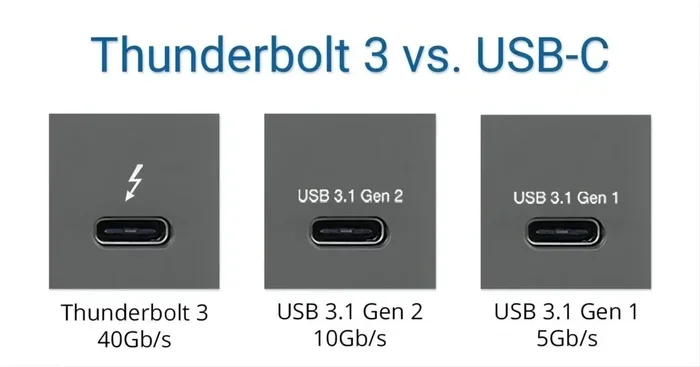
USB-C is a connector type, not a protocol. This is a key distinction. USB-C describes the shape and design of the plug. It does not define the speed or capabilities underneath. A USB-C port can support USB 2.0, USB 3.0, USB 3.1, USB 3.2, or even Thunderbolt 3 and 4 protocols.
USB-C connectors are small, measuring about 8.4 by 2.6 millimeters. They are reversible, meaning you never have to flip the plug to get it in. This design has made USB-C the standard for laptops, phones, tablets, and many accessories.
What USB-C Can Do
USB-C supports a wide range of features depending on the protocol it uses:
- Data transfer speeds from 480 Mbps (USB 2.0) up to 40 Gbps (USB4)
- Video output through DisplayPort Alt Mode or HDMI Alt Mode
- Power delivery up to 100W with USB Power Delivery
- Audio transmission through compatible devices
- Universal compatibility with a huge range of peripherals
The versatility of USB-C is what makes it so popular. One cable can charge your laptop, connect to a monitor, and transfer files at blazing speeds. But that versatility only works when both sides of the connection support the same protocol.
What Happens When You Connect USB-C to Thunderbolt 2
Now let us get to the real question. What actually happens when you plug a USB-C device into a Thunderbolt 2 port using an adapter? The answer depends on the type of adapter and the device you are connecting.
With a proper Thunderbolt 2 to USB-C adapter, you can establish a basic connection. Your computer should recognize the USB-C device. You will be able to transfer files and use peripherals like keyboards, mice, and external drives. But the performance will be limited.
The Thunderbolt 2 port will negotiate the connection down to USB 3.0 speeds at best. That means a maximum of 5 Gbps, which is much slower than the 20 Gbps Thunderbolt 2 can theoretically deliver. You will also lose access to Thunderbolt-specific features like daisy chaining and Thunderbolt networking.
Display Output Limitations
If you are hoping to connect a USB-C monitor to a Thunderbolt 2 port, you will likely run into problems. Thunderbolt 2 supports DisplayPort 1.2, but USB-C devices use DisplayPort Alt Mode or other protocols. An adapter may not translate these signals correctly.
In most cases, you will not get video output from a USB-C device through a Thunderbolt 2 port. Some specialized adapters claim to support this, but results vary widely. If video output is important to your setup, consider using a DisplayPort or HDMI connection instead.
Power Delivery Issues
One major drawback is the lack of USB-C power delivery through a Thunderbolt 2 connection. Thunderbolt 2 ports supply up to 10W of power. USB-C devices that support USB Power Delivery expect much more, often 60W or even 100W. Your device may charge very slowly or not at all when connected through a Thunderbolt 2 adapter.
This is a common frustration for users with modern laptops. If your USB-C device relies on the port for charging, a Thunderbolt 2 connection will probably not meet its power needs. Keep a separate power supply handy when using this kind of setup.
When You Might Need an Adapter
There are several real-world situations where you might need to connect a USB-C device to a Thunderbolt 2 port. Understanding these scenarios helps you choose the right adapter and set realistic expectations.
Using Older Docks and Hubs
Many professional docks and hubs from the Thunderbolt 2 era do not have USB-C ports. If you have a USB-C peripheral like an external hard drive or a flash drive, you need an adapter to connect it to the dock. A Thunderbolt 2 to USB-C adapter fills this gap.
These adapters are widely available and relatively affordable. Look for adapters from reputable brands that support the full Thunderbolt 2 specification. Cheap knockoff adapters may not work reliably and can cause connection drops.
Working with Legacy Equipment
Some studios, offices, and creative environments still rely on Thunderbolt 2 equipment. Audio interfaces, video capture cards, and high-end storage devices often use Thunderbolt 2 for its stable bandwidth. If you need to connect a modern USB-C device to this kind of legacy equipment, an adapter is your best option.
Keep in mind that file transfers with legacy equipment may be slower than expected. If you are moving large project files, plan for extra transfer time. For users working with large datasets or video projects, this speed difference can be significant.
Troubleshooting Connection Issues
If you are having trouble getting your USB-C device to work through a Thunderbolt 2 port, try these steps:
- Check that your adapter supports both Thunderbolt 2 and USB-C
- Try a different USB-C cable to rule out cable issues
- Restart your computer and reconnect the adapter
- Update your Thunderbolt drivers if you are on a Windows machine
- Test the USB-C device on a different port to confirm it works
Sometimes the issue is not the adapter at all. It could be a software conflict or a driver problem. If you are transferring files and running into issues with data management, you might also encounter situations where, for instance, a line won’t delete in Microsoft Excel after a file transfer, which could point to a deeper file integrity issue rather than a port problem.
If basic troubleshooting does not solve the issue, try the connection on a different computer. This helps you isolate whether the problem is with the Thunderbolt 2 port, the adapter, or the USB-C device itself.
Thunderbolt 2 vs USB-C: Key Differences
To fully understand why direct compatibility is not possible, it helps to compare Thunderbolt 2 and USB-C side by side. The table below highlights the major differences.
| Feature | Thunderbolt 2 | USB-C |
|---|---|---|
| Connector Shape | Mini DisplayPort style | Small oval, reversible |
| Max Data Speed | 20 Gbps | Up to 40 Gbps (USB4) |
| Video Support | DisplayPort 1.2, 4K at 60Hz | DisplayPort Alt Mode, HDMI Alt Mode |
| Power Delivery | Up to 10W | Up to 100W (USB PD) |
| Daisy Chaining | Yes, up to 6 devices | No (native USB-C) |
| Year Introduced | 2013 | 2014 |
| Reversible Plug | No | Yes |
| Protocol Support | Thunderbolt, DisplayPort, PCIe | USB, DisplayPort, Thunderbolt 3/4 |
As you can see, USB-C is a more modern and versatile connector format. Thunderbolt 2 was ahead of its time but has been surpassed by newer standards. The connector incompatibility is the biggest barrier between these two technologies.
Common Mistakes to Avoid
When trying to connect USB-C devices to Thunderbolt 2 ports, people make several common mistakes. Avoiding these will save you headaches and protect your equipment.
Mistake 1: Forcing the connector. Never try to jam a USB-C plug into a Thunderbolt 2 port or vice versa. The shapes are completely different and forcing them can damage both the port and the device.
Mistake 2: Buying the wrong adapter. Not all adapters are created equal. Some cheap adapters only support USB 2.0 speeds, which are painfully slow for data transfer. Always check the specifications before purchasing. Look for adapters that explicitly support Thunderbolt 2 and USB 3.0 or higher.
Mistake 3: Expecting full Thunderbolt speeds. Even with a good adapter, you will not get the full 20 Gbps Thunderbolt 2 speed when connecting a USB-C device. The connection will be limited to USB protocol speeds, which max out at 5 Gbps for USB 3.0.
Mistake 4: Ignoring power requirements. If your USB-C device needs a lot of power, the Thunderbolt 2 port will not be able to supply it. Always use the device’s own power supply when working through a Thunderbolt 2 adapter.
Mistake 5: Assuming video will work. Do not assume that a USB-C monitor will display through a Thunderbolt 2 adapter. Video signal translation between these two protocols is unreliable. Use a dedicated video connection whenever possible.
Expert Tips for Getting the Best Results
If you must connect USB-C devices to Thunderbolt 2 ports regularly, these tips will help you get the best experience possible.
Tip 1: Invest in a quality hybrid cable. Some cables are built with a Thunderbolt 2 connector on one end and a USB-C connector on the other. These hybrid cables eliminate the need for a separate adapter box. They are more convenient and often provide a more stable connection.
Tip 2: Keep your drivers updated. Thunderbolt drivers on Windows and macOS receive regular updates that improve compatibility. Outdated drivers are a common cause of connection failures and slow transfer speeds.
Tip 3: Use the shortest cable possible. Longer cables mean more signal loss, especially at high speeds. If you are using an adapter, keep the total cable length under 2 meters for the best performance.
Tip 4: Test with multiple devices. Not all USB-C devices behave the same way through a Thunderbolt 2 adapter. Test with your specific device before relying on the setup for important work. Some external drives work perfectly, while others disconnect frequently.
Tip 5: Consider upgrading your hardware. If you find yourself constantly adapting connections, it might be time to upgrade. Thunderbolt 3 and USB-C are fully compatible with each other and offer much better speeds, power delivery, and versatility. A new dock or computer with Thunderbolt 4 and USB-C support eliminates the need for adapters entirely.
Frequently Asked Questions
Can I use a USB-C hub with a Thunderbolt 2 port?
Yes, you can use a USB-C hub with a Thunderbolt 2 port, but you will need a Thunderbolt 2 to USB-C adapter first. The hub will work for basic USB peripherals like keyboards, mice, and flash drives. However, the hub’s full capabilities, such as high-speed data transfer and video output, may be limited by the Thunderbolt 2 connection.
Will my USB-C external SSD work through Thunderbolt 2?
It will work, but at reduced speeds. Thunderbolt 2 limits the connection to USB 3.0 speeds at best, which tops out at 5 Gbps. A USB-C SSD that supports USB 3.1 or USB 3.2 will not reach its full speed potential through a Thunderbolt 2 adapter. You will still get decent transfer speeds for most tasks.
Can I charge my laptop through a Thunderbolt 2 port using a USB-C cable?
No, Thunderbolt 2 ports do not support USB-C Power Delivery. They supply up to 10W of power, which is far too little to charge most modern laptops. You should use your laptop’s original power adapter for charging and reserve the Thunderbolt 2 connection for data and peripherals.
Is there a difference between Thunderbolt 2 and USB-C cables?
Yes, there is a big difference. Thunderbolt 2 cables use a Mini DisplayPort connector and support up to 20 Gbps. USB-C cables use a small oval connector and support varying speeds depending on the cable quality and protocol. They are not interchangeable without an adapter.
Can I connect a USB-C display to a Thunderbolt 2 port?
Connecting a USB-C display directly to a Thunderbolt 2 port is unreliable. Thunderbolt 2 uses DisplayPort 1.2, while USB-C displays typically use DisplayPort Alt Mode or USB-C Power Delivery. A dedicated adapter may work in some cases, but there is no guarantee of video output. A DisplayPort or HDMI connection is a more dependable option.
Should I upgrade from Thunderbolt 2 to USB-C or Thunderbolt 3?
If you regularly need to connect modern USB-C devices, upgrading is a smart move. Thunderbolt 3 and USB-C are fully compatible with each other and offer speeds up to 40 Gbps, power delivery up to 100W, and video output support. The investment pays off quickly if you work with external drives, monitors, or docks on a daily basis.
Final Thoughts
So, can you plug a USB-C device into a Thunderbolt 2 port? The answer is yes, with the right adapter. You can get basic data transfer and peripheral connectivity, but you will sacrifice speed, power delivery, and advanced features. It is a workable solution for temporary or occasional use, but not ideal for everyday workflows.
The key takeaway is to know your setup. If you are stuck with a Thunderbolt 2 port, buy a quality adapter and set realistic expectations. If you have the flexibility, consider upgrading to Thunderbolt 3 or 4 and USB-C hardware. The difference in speed, convenience, and compatibility is enormous.
Technology evolves fast, and legacy ports like Thunderbolt 2 are becoming rarer. But for now, millions of devices still use them. Understanding how to bridge the gap between old and new technology keeps your workflow running smoothly. Always check your adapter specifications, keep your drivers updated, and never force a connector that does not fit.
With the right knowledge and the right adapter, you can make USB-C and Thunderbolt 2 work together. Just remember that this is a compromise, not a perfect solution. Plan your setup accordingly and you will be just fine.