Can I Delete Old Dell Updates And Reclaim Storage Space
Yes, you can delete old Dell updates to reclaim valuable storage space on your computer. Old Dell update files, driver packages, and cached installation data can pile up over time and eat gigabytes of your hard drive. This guide walks you through every safe method to identify and remove old Dell updates without harming your system.
Key Takeaways
- Old Dell updates can be safely deleted: Removing outdated update files frees up significant storage space without affecting system stability.
- Multiple methods exist: You can use Disk Cleanup, File Explorer, Dell SupportAssist, or manual folder deletion to remove old updates.
- Dell SupportAssist manages updates: This built-in tool keeps track of your Dell update history and can help you manage stored update files.
- Back up before deleting: Always create a system restore point before removing any update files, just in case you need to roll back.
- Windows Update cache also grows: Old Dell and Windows update packages share storage space, so cleaning both helps maximize reclaimed space.
- Regular maintenance prevents buildup: Scheduling periodic cleanup sessions keeps your Dell system running smoothly and prevents storage bloat.
- Deleted updates can be re-downloaded: If you ever need an old update again, Dell and Windows will simply re-download it when required.
📑 Table of Contents
- What Are Old Dell Updates and Why Do They Matter?
- Can You Safely Delete Old Dell Updates?
- How to Find Old Dell Updates on Your PC
- Step-by-Step Guide to Deleting Old Dell Updates
- What Happens When You Delete Old Dell Updates?
- Tips to Keep Your Dell System Clean and Efficient
- Common Mistakes to Avoid When Deleting Dell Updates
- Expert Insights on Managing Dell Update Storage
- Frequently Asked Questions
- Conclusion
What Are Old Dell Updates and Why Do They Matter?
Every time your Dell computer checks for updates, it downloads files to your hard drive. These files include driver packages, firmware patches, BIOS updates, and software installers. After installation, many of these files stay on your system. Over weeks and months, they add up fast.
So what exactly are old Dell updates? They are the leftover installation files from previous updates. Think of them like empty boxes after you assemble furniture. The furniture works fine, but the boxes take up space in your garage. Your computer works the same way.
These files typically live in hidden folders on your system drive. Common locations include the DellUpdate folder, the Windows SoftwareDistribution directory, and the Dell Support Framework cache. Most users never see these files because they hide deep within the operating system.
Why should you care? Because every gigabyte counts. Modern Dell laptops often come with 256GB or 512GB SSDs. When old update files consume 5 to 15GB or more, that is real storage you cannot use. Photos, videos, documents, and applications all compete for the same limited space.
Understanding what these files are gives you the confidence to manage them. You are not deleting something mysterious or dangerous. You are simply clearing out leftover installation data that your system no longer needs.
Types of Dell Update Files You May Find
Dell pushes several categories of updates through Windows and Dell tools. Each type leaves behind files after installation. Here are the most common ones you will encounter.
- Driver updates: These improve how your hardware communicates with Windows. Graphics cards, audio chips, and network adapters all receive driver updates.
- BIOS and firmware updates: These low-level updates improve system stability and fix hardware compatibility issues.
- Dell software updates: Dell SupportAssist, Dell Backup and Recovery, and other bundled applications receive regular updates.
- Windows Feature Updates: Major Windows version upgrades also download large packages that linger after installation.
- Security patches: Monthly Windows security updates leave cached installation files behind.
All of these update types contribute to the growing collection of old update files on your Dell computer. Knowing what they are helps you feel confident when cleaning them up.
Can You Safely Delete Old Dell Updates?
The short answer is yes. You can safely delete old Dell updates in most situations. The update files your system already installed are no longer needed for daily operation. They served their purpose during the installation process, and now they simply sit on your drive taking up room.
However, there is one important caveat. If a specific update fixed a critical bug or security vulnerability, deleting its installation file does not undo the fix. The update has already been applied to your system. The leftover file is just a backup copy that Windows and Dell rarely reference again.
That said, there are a few scenarios where caution matters:
- If you plan to roll back a recent update: Windows uses cached update files to uninstall recent updates. If you delete these files first, you may lose the ability to easily reverse the update.
- If you have limited internet access: Re-downloading large Dell driver packages requires a stable connection. If your internet is unreliable, keeping the cached files might make sense.
- If your system is in a production environment: Business computers benefit from keeping update caches for quick recovery and re-deployment.
For the average home user, none of these scenarios apply. You can delete old Dell updates without worry. The system will simply re-download anything it needs in the future.
When You Should Keep Old Dell Updates
There are a few specific situations where keeping old update files makes sense. If you are running a Dell system in a business or enterprise setting, IT departments often prefer to maintain update caches. This allows quick reinstallation of drivers or patches without depending on internet downloads.
Similarly, if you have a metered or slow internet connection, the cached files serve as a local backup. Re-downloading a 2GB driver package over a slow connection can be frustrating. In these cases, the trade-off between storage and convenience favors keeping the files.
For most personal users though, the storage savings far outweigh any minor convenience of keeping old files. A few gigabytes freed up on your SSD translates to faster system performance and more room for things that actually matter to you.
How to Find Old Dell Updates on Your PC
Before you can delete anything, you need to locate the old update files. Dell stores these files in several places across your system. Knowing where to look saves time and prevents accidental deletion of important system files.
Checking the DellUpdate Folder
The DellUpdate folder is the primary storage location for Dell update packages. To find it, open File Explorer and navigate to your C: drive. Look for a folder named DellUpdate. If your system uses a different drive for the operating system, check that drive instead.
This folder often contains subfolders for different update types. You might see folders for drivers, BIOS updates, and application packages. The files inside can be several gigabytes in total, especially if you have not cleaned them in a long time.
Here is how to quickly check the size of this folder:
- Open File Explorer and go to This PC.
- Navigate to your system drive, usually C:.
- Locate the DellUpdate folder.
- Right-click the folder and select Properties.
- Check the size listed at the top of the Properties window.
If the folder size surprises you, you are not alone. Many Dell users discover 5 to 20GB of accumulated update files hiding in this single location.
Exploring the Windows SoftwareDistribution Folder
Windows also stores update files in a hidden folder called SoftwareDistribution. This folder lives deep within the Windows directory and handles both Windows Update and Dell update packages delivered through Windows Update.
To access this folder, you need to take ownership or use an elevated command prompt. The path is typically C:\Windows\SoftwareDistribution. Inside, the Download subfolder contains all cached update packages.
Because this folder is protected by Windows, avoid deleting individual files manually. Instead, use the built-in Disk Cleanup tool or the Command Prompt method described later in this article. These safe methods handle the cleanup process automatically.
Using Dell SupportAssist to View Update History
Dell SupportAssist is a free application pre-installed on most Dell computers. It manages all update checks and installations for your system. You can use it to view your update history and understand which updates have been applied.
Open Dell SupportAssist from your Start menu. Navigate to the Updates section. Here you will see a list of all updates Dell has installed on your system. While SupportAssist does not directly show you the file sizes of cached updates, it helps you understand what has been installed and when.
This information is valuable because it helps you identify which cached files are safe to remove. Updates from months or years ago are far less likely to be needed for rollback purposes.
Step-by-Step Guide to Deleting Old Dell Updates
Now that you know where old Dell updates live and that they are safe to remove, let us walk through the actual deletion process. There are several methods available, and each has its own advantages.
Method 1: Using Disk Cleanup
Disk Cleanup is a built-in Windows tool that safely removes temporary files, cached updates, and other unnecessary data. It is the easiest and safest method for most users.
Here is how to use Disk Cleanup to remove old Dell updates:
- Click the Start button and type Disk Cleanup in the search bar.
- Open the Disk Cleanup application.
- Select your system drive, usually C:.
- Wait for Disk Cleanup to calculate the space you can free.
- Check the box next to Windows Update Cleanup.
- Also check Temporary Files and Delivery Optimization Files if available.
- Click OK and then confirm the deletion.
This method safely removes cached update packages without touching your installed system files. It is the recommended first step for anyone wanting to reclaim space from old Dell updates.
Method 2: Using Command Prompt for Deep Cleanup
If Disk Cleanup does not remove everything, you can use Command Prompt for a deeper clean. This method clears the Windows Update cache completely, which also removes Dell update packages stored in that cache.
Follow these steps carefully:
- Click the Start button and type cmd.
- Right-click Command Prompt and select Run as Administrator.
- Type net stop wuauserv and press Enter.
- Type net stop bits and press Enter.
- Navigate to C:\Windows\SoftwareDistribution and delete all contents.
- Type net start wuauserv and press Enter.
- Type net start bits and press Enter.
After restarting your computer, Windows will rebuild the update cache from scratch. This process removes all old cached packages, including any stored Dell update files.
Method 3: Manually Deleting the DellUpdate Folder
For users who want direct control, manually deleting the DellUpdate folder works well. However, this method requires more caution because you are deleting files directly.
Before you proceed, create a system restore point. This gives you a safety net if anything goes wrong. Here is how to do it:
- Search for Create a restore point in the Start menu.
- Click the Create button on the System Protection tab.
- Enter a description like Before Deleting Dell Updates.
- Click Create and wait for the process to finish.
Now you can safely navigate to the DellUpdate folder and delete its contents. If you ever need to restore those files, the system restore point gives you a rollback option.
Keep in mind that Dell SupportAssist will simply re-download any needed files the next time it checks for updates. The installation files are not permanently tied to your system.
Method 4: Using Dell SupportAssist Cleanup
Dell SupportAssist includes built-in maintenance tools that can help manage update files. Open SupportAssist and look for the PC Health Check or Maintenance section. Some versions of SupportAssist offer options to clear cached update data directly within the application.
While SupportAssist does not always provide a one-click cleanup for old files, keeping the application updated ensures it manages your update cache efficiently. Regularly running SupportAssist checks helps prevent excessive file accumulation.
Comparison Table: Deletion Methods
| Method | Difficulty Level | Safe for Beginners | Reclaims Space | Risk Level |
|---|---|---|---|---|
| Disk Cleanup | Easy | Yes | Moderate | Very Low |
| Command Prompt | Intermediate | With guidance | High | Low |
| Manual Deletion | Advanced | With restore point | High | Moderate |
| Dell SupportAssist | Easy | Yes | Moderate | Very Low |
Choose the method that matches your comfort level. Disk Cleanup is the best starting point for most users. If you need deeper cleanup, move to the Command Prompt method. Always create a restore point before attempting manual deletion.
What Happens When You Delete Old Dell Updates?
Understanding what happens after deletion helps ease any concerns. When you remove old Dell update files, several things occur on your system.
First, your computer immediately gains back the storage space those files occupied. If you had 10GB of old update files, your available disk space increases by approximately 10GB. This improvement can be dramatic, especially on systems with smaller SSDs.
Second, your system continues to operate normally. The updates themselves remain installed. Deleting the cached installation files does not uninstall the updates. Your drivers stay updated, your BIOS remains patched, and your security fixes stay in place.
Third, if you ever need a previously installed update again, your system will simply re-download it. Dell SupportAssist and Windows Update both maintain records of installed updates. They can fetch the necessary files from Dell or Microsoft servers whenever needed.
Some users worry about Dell SupportAssist behaving strangely after cleanup. In practice, SupportAssist continues to function normally. It may take slightly longer to re-apply an update if the cached file is gone, but the overall experience remains smooth.
One thing to note: after deleting old update files, your next update check may take a bit longer. This is because the system needs to verify what is already installed and what needs to be downloaded again. This delay is temporary and usually lasts only a few minutes.
Does Deleting Updates Affect System Stability?
No, deleting old update files does not affect system stability. The installed updates remain fully functional. The only files removed are the installation packages that your system no longer references.
Think of it this way: when you finish building a piece of furniture, you do not need to keep the instruction manual and extra screws in the living room. You can store them in the garage or throw them away. The furniture still works perfectly.
Your Dell computer operates the same way. The updates are the furniture. The cached files are the instruction manuals. Removing the manuals does not change how the furniture performs.
Tips to Keep Your Dell System Clean and Efficient
Deleting old Dell updates is one part of a broader storage management strategy. Here are practical tips to keep your Dell system running smoothly and free of unnecessary clutter.
Schedule Regular Cleanup Sessions
Set a monthly reminder to run Disk Cleanup on your Dell computer. Consistent cleanup prevents update files from accumulating to problematic levels. A monthly session takes about 10 minutes and can reclaim several gigabytes each time.
You can also enable Storage Sense in Windows 10 and Windows 11. This built-in feature automatically cleans temporary files and manages update cache on a schedule. Go to Settings, then System, then Storage, and toggle Storage Sense on.
Monitor Your Storage Usage Regularly
Windows provides a clear breakdown of how storage is used. Go to Settings, then System, then Storage. This view shows you exactly what is consuming space on your drive. You can identify large folders and files quickly.
Make it a habit to check this screen every few weeks. Early detection of storage bloat makes cleanup easier and prevents surprises when you run low on disk space.
Use an External Drive for Large Files
If you frequently run low on storage, consider using an external hard drive or USB flash drive for large files like photos, videos, and documents. Moving these files off your main drive instantly frees up space.
External drives are affordable and widely available. A 1TB external drive costs less than $50 and provides ample space for backing up and storing files you do not access daily.
Keep Dell SupportAssist Updated
Dell SupportAssist receives regular updates that improve its performance and cleanup capabilities. Keeping it updated ensures it manages your update files efficiently. Open SupportAssist, go to Settings, and check for application updates regularly.
An up-to-date SupportAssist also provides better security scanning and driver management. These benefits extend beyond storage cleanup and contribute to overall system health.
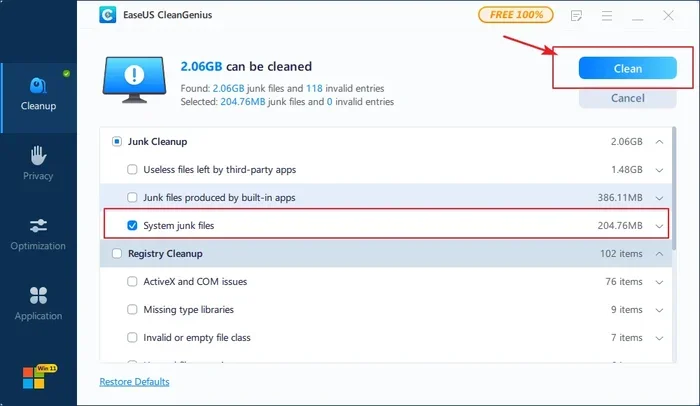
Avoid Third-Party Cleanup Tools
Many third-party cleanup tools promise to free up space but can cause problems. Some delete files that are actually needed by your system. Others install unwanted software or display aggressive advertisements.
Stick with built-in Windows tools like Disk Cleanup and Storage Sense. These tools are designed specifically for your system and pose minimal risk. If you need additional cleaning power, use Dell SupportAssist’s built-in maintenance features.
Clear Your Browser Cache Too
While you are focused on Dell updates, remember that your web browser also stores significant temporary data. Browser caches can consume several gigabytes over time. Clearing your browser cache regularly complements your Dell update cleanup efforts.
Most browsers include a clear browsing data option in their settings. You can configure browsers to automatically clear cache on exit for hands-off maintenance.
Common Mistakes to Avoid When Deleting Dell Updates
While deleting old Dell updates is generally safe, some common mistakes can cause problems. Being aware of these pitfalls helps you avoid unnecessary headaches.
Do not delete files from the Windows folder without understanding what they are. The Windows folder contains critical system files. Deleting random files from this location can break your operating system. Stick to the DellUpdate folder and SoftwareDistribution cache instead.
Do not skip creating a restore point. Even though the risk is low, a restore point provides peace of mind. If something unexpected happens after cleanup, you can roll back your system to its previous state in seconds.
Do not delete files while updates are installing. Interrupting an active update can corrupt your system. Always wait for updates to finish completely before running any cleanup tools.
Do not assume all large files are safe to delete. Use the Storage settings to identify what each large file or folder contains before deleting it. Some large files are important documents or application data you need.
Do not neglect regular maintenance. One-time cleanup helps, but regular maintenance prevents buildup from returning. Make cleanup a habit, not a one-time event.
Expert Insights on Managing Dell Update Storage
IT professionals who manage Dell systems daily recommend a balanced approach to update file management. The goal is not to hoard every cached file forever, nor is it to delete everything indiscriminately.
Experts suggest keeping recent update files for at least 30 days after installation. This window provides enough time to roll back if a new update causes problems. After 30 days, the risk of needing to roll back drops significantly, and the cached files can be safely removed.
Another expert recommendation is to use Windows built-in tools as your primary cleanup method. These tools are specifically designed to handle update cache safely. Third-party tools may not understand the nuances of Dell and Windows update file structures.
Finally, experts emphasize that storage management is an ongoing process. Setting up automated tools like Storage Sense and scheduling monthly manual cleanups creates a sustainable system maintenance routine. This approach keeps your Dell computer performing at its best without requiring deep technical knowledge.
Frequently Asked Questions
Can I delete old Dell updates without affecting my warranty?
Yes, deleting old Dell updates does not void your warranty. Dell warranties cover hardware defects and manufacturing issues, not software file management. Removing cached update files is a normal maintenance activity that Dell itself recommends for optimal system performance.
How often should I clean up old Dell update files?
Monthly cleanup sessions are ideal for most users. If you frequently install updates or have limited storage, consider cleaning up every two weeks. Regular maintenance prevents excessive file accumulation and keeps your system running smoothly.
Will deleting old Dell updates slow down my computer?
No, deleting old Dell updates will not slow down your computer. In fact, freeing up storage space often improves performance, especially on SSDs. Solid-state drives perform better when they have adequate free space for wear leveling and temporary operations.
Can I recover deleted Dell update files if I need them later?
Yes, you can recover deleted Dell update files by simply re-downloading them. Dell SupportAssist and Windows Update maintain records of installed updates. When your system needs a previously removed file, it will download a fresh copy automatically.
Is it safe to delete the DellUpdate folder entirely?
Yes, it is safe to delete the DellUpdate folder entirely. Dell will recreate this folder the next time it downloads updates. The folder and its contents are purely temporary installation files, not critical system components.
What is the difference between deleting Dell updates and uninstalling Dell updates?
Deleting Dell updates removes the cached installation files, while uninstalling Dell updates removes the installed software or drivers from your system. Deleting cached files frees storage without affecting installed functionality. Uninstalling removes the actual update and may revert your system to a previous state.
Conclusion
Deleting old Dell updates is one of the simplest and most effective ways to reclaim storage space on your Dell computer. The process is safe, straightforward, and does not compromise system stability or update functionality. Whether you use Disk Cleanup, Command Prompt, or manual deletion, each method offers a reliable path to freeing up valuable gigabytes.
Old Dell updates accumulate quietly over time, consuming storage that could be used for the files and applications you actually need. By following the methods outlined in this guide, you take control of your storage and keep your Dell system running efficiently.
Make cleanup a regular habit. Schedule monthly sessions, monitor your storage usage, and use the built-in tools Windows and Dell provide. Your computer will thank you with better performance, more available space, and a smoother overall experience.
Start today. Pick the method that feels most comfortable, create a restore point, and begin reclaiming your storage space. You will be surprised how much room you free up by simply removing files your system no longer needs.