Can I Close My Laptop When Using A Docking Station
Ever wondered if you can close your laptop when using a docking station? The short answer is yes, and it is called clamshell mode. This setup turns your portable computer into a powerful desktop replacement while saving desk space. You will learn exactly how to safely close your laptop, avoid common pitfalls, and enjoy a cleaner workspace.
Many people love the idea of a tidy desk. A docking station helps you connect all your peripherals with just one cable. But a common question pops up every single day. Can I close my laptop when using a docking station? Some users worry that closing the lid will turn off their machine or harm the internal hardware. Others wonder if they will lose their connection to the big external monitor. Understanding how your laptop behaves in this setup is key to a smooth and happy experience. Keep reading to find out the truth about your laptop dock and how it works.
This question comes up because so many people use docking stations now. A laptop dock changes how you interact with your computer. It turns a small portable machine into a big workstation. You can connect an external monitor, a keyboard, and a mouse all at once. The dock provides the power supply you need to keep everything running. But what happens when you shut the lid? Does the computer turn off? Does the external monitor stay on? These are very common questions. This guide will answer them all. You will learn exactly what to do and what to expect.
Key Takeaways
- You can close your laptop: Using a docking station allows you to shut the lid and still work on an external monitor.
- Clamshell mode is the key: This feature keeps your computer awake and sends the display out through the dock.
- Adjust your power settings: You must change your settings so the laptop does not sleep when the lid closes.
- Always keep it plugged in: A closed laptop needs constant power to function properly without draining the battery.
- It protects your screen: Closing the lid keeps the display safe from dust, scratches, and accidental spills.
- Check your dock compatibility: Ensure your docking station supports video output and power delivery for the best experience.
📑 Table of Contents
- Can I Close My Laptop When Using A Docking Station?
- How Docking Stations Work with Closed Lids
- The Benefits of Closing Your Laptop While Docked
- Laptop Battery Health and Charging
- Mac and Windows: Different Approaches
- Potential Risks and How to Avoid Them
- Expert Tips for the Best Docking Experience
- Conclusion
Can I Close My Laptop When Using A Docking Station?
The simple answer is yes. You can close your laptop when using a docking station. This setup is very popular among office workers and creative professionals. When you close the lid, the laptop enters a special state. The screen turns off, but the computer stays awake. It continues to run your programs and keep the big external monitor active. This works because the docking station takes over the display role. Your laptop relies on the dock for power and data. You do not need the laptop screen to work anymore. The dock acts as the main hub for your entire workstation setup. It sends video signals to your big monitor. It also keeps your keyboard and mouse connected. This setup turns your portable computer into a powerful desktop replacement. Many people love this because it saves space and looks clean.
Understanding Clamshell Mode
Clamshell mode is a handy feature built into most modern laptops. It lets you use your laptop like a desktop replacement without the screen. When the lid is shut, the laptop sends the video signal out through the dock. You see everything on your big external monitor. The laptop keyboard and trackpad usually turn off automatically. But you can plug in an external keyboard and mouse. This gives you a full desk setup without the clutter. It is perfect for people who want a clean office. You get the power and performance of a laptop in a tidy form. The laptop hinge stays safe because you are not opening and closing it constantly. You can focus entirely on the big screen in front of you.
Power and Display Behavior
Your laptop power settings control what happens when you close the lid. By default, most laptops are set to sleep when you shut the lid. This is a big problem for docking station users. You do not want your computer to sleep when you just close the lid. You want it to stay on and use the external display. Changing this setting is very easy. It just takes a few clicks in your system preferences. Once you change it, your laptop will stay awake. It will use the dock as its main output. This makes your laptop dock truly useful for daily work. You can run presentations, write documents, and browse the web with the lid shut. The peripheral devices stay connected and ready to use.
Quick Tips: How to Set Up Clamshell Mode
Setting up clamshell mode is quick and easy. Follow these simple steps to get started today.
- Step 1: Plug your laptop into the docking station.
- Step 2: Connect your external monitor to the dock.
- Step 3: Make sure your laptop is plugged into power. A laptop needs power to work in this mode.
- Step 4: Go to your power settings. Look for the option when you close the lid.
- Step 5: Change the setting from sleep to do nothing.
- Step 6: Save your changes. Now close your laptop lid gently.
Your external monitor should light up right away. You are ready to work with a closed laptop and a clear screen.
Common Mistakes to Avoid
Many people make small mistakes when using a dock. One common error is forgetting to plug in the charger. A laptop cannot run in clamshell mode without power. It will eventually drain the battery and shut down. Another mistake is using a weak power supply. The dock must provide enough power to keep the laptop running. Some users also forget to update their display drivers. Old drivers can cause flickering screens or no signal at all. Always check your display settings before you start working. Avoid these simple errors for a smooth and frustration-free experience.
How Docking Stations Work with Closed Lids
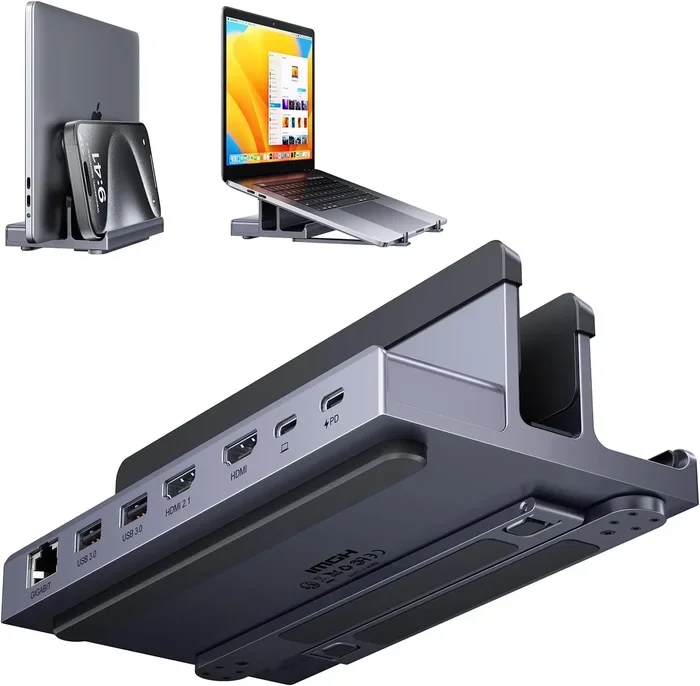
A docking station is a clever piece of technology. It connects to your laptop through a single cable. This cable carries power, data, and video signals all at once. When you close the lid, the dock takes over. It becomes the main brain for your display. The laptop sends its video signal out through the USB-C hub. The dock then shows that signal on your external monitor. This process works very smoothly on most modern computers. You do not need any extra software in most cases. Just plug and play. The laptop hinge stays closed, and the screen stays safe. Meanwhile, you get to use a big external display. It is a great way to work without carrying your laptop everywhere. Thunderbolt docking stations are especially good at this. They offer fast data transfer and reliable video output.
The Benefits of Closing Your Laptop While Docked
There are many great reasons to close your laptop. Using a closed laptop with a dock is very popular today. It changes the way you work and think about your desk. Here are the top benefits you will enjoy when you close your laptop.
Saving Space and Reducing Clutter
A closed laptop takes up very little room on your desk. It frees up precious desk space for other things. You can use that space for a notebook or a cup of coffee. The docking station keeps all your cables hidden. You only have one or two cables going to the laptop. This creates a much cleaner and nicer look. A clean desk helps you focus better on your work. It reduces stress and makes your workspace feel bigger. You do not need to see the laptop screen anymore. The external monitor becomes the clear focus of your desk. Good cable management makes this setup even better.
Protecting Your Laptop Screen
Laptop screens are delicate and can get damaged easily. They can get scratched or cracked if you are not careful. When you close the lid, you protect the display from dust. Dust and debris cannot reach the screen as easily. You also avoid accidental spills on the keyboard. A docking station setup keeps the laptop safe and stable. It sits behind the monitor where it is not in the way. You do not have to worry about bumps or knocks during the day. This extends the life of your laptop. It is a very smart way to care for your expensive device. Your laptop stand can hold the closed laptop safely behind the monitor.
Better Cooling with an External Stand
Laptops can get very hot when the screen is open. The heat builds up under the keyboard area. When you close the laptop, it rests flat on the desk. This can actually help with cooling in many cases. However, you must ensure the vents are not blocked. Many laptop docks come with stands. These stands lift the laptop to a better angle. Good airflow keeps the laptop running cool. A cool laptop runs faster and lasts longer. Heat is the enemy of computer parts. You want to keep your device as cool as possible. A proper workstation setup will keep the temperature down.
Improving Your Focus and Workflow
Closing your laptop can improve your focus at work. When the laptop screen is open, you might be tempted to check other tabs. A closed lid removes that distraction. You only have the big external monitor to look at. This creates a single task workflow. You can focus on one thing at a time. It is great for deep work and creative projects. Your peripheral devices like the mouse and keyboard stay connected. You can still type and click without opening the lid. This streamlined workflow helps you get more done in less time. It feels like using a traditional desktop computer.
Laptop Battery Health and Charging
You might wonder about your laptop battery when you close the lid. Does closing the lid hurt the battery? No, it does not. In fact, keeping it plugged in can be good. The docking station provides a steady power supply. This keeps the battery at 100 percent. However, some experts say you should not always keep it at 100 percent. Letting it drain a little bit can help battery health. Check your laptop settings for battery charging limits. Many modern laptops have a feature to stop charging at 80 percent. This helps the battery last longer over time. You can use this feature with your dock. It keeps your laptop charging safely while staying cool. Battery drain is not a concern when the laptop is plugged in and closed.
Mac and Windows: Different Approaches
Mac and Windows computers handle closed lids a bit differently. On a Windows laptop, you go to the control panel. You find the power options and change the lid close action. On a Mac, you go to the system settings. You look for the energy or battery section. Macs do not have a true clamshell mode built in for all docks. You might need a special app or setting. Some Mac docks use DisplayLink technology. This helps the Mac show the picture on the external monitor. Always check your specific laptop model. The steps might be a little different. But the goal is the same. You want the screen to stay on when the lid is shut. Both systems support external monitors very well when docked.
Potential Risks and How to Avoid Them
While closing your laptop is generally safe, there are a few risks to know about. Understanding these risks helps you prevent problems before they happen. You can enjoy your setup without any worries or stress.
Overheating Concerns and Ventilation
The biggest risk is overheating when the laptop is closed. Laptops need air to cool down properly. When the lid is closed, the vents might be blocked by the desk. This is especially true on soft surfaces like beds or soft couches. Always place your laptop on a hard, flat surface. A wooden desk is the best place for a closed laptop. If you notice your laptop getting very hot, open the lid for a bit. Let the heat escape into the room air. You can also use a cooling pad under the dock. This adds extra airflow and keeps the temperature down. Good cooling is essential for laptop charging and overall performance.
Accidental Sleep Mode and Battery Drain
Sometimes your laptop might go to sleep even when you do not want it to. This happens if the power settings are wrong or not saved. It can also happen if the battery gets too low during the day. To avoid this, always keep your laptop plugged into the dock. Check your power settings regularly to make sure they are correct. If your laptop sleeps when you close the lid, change the setting again. Do not let this ruin your workflow or interrupt your important work. A simple fix brings you right back to your task. Keep an eye on your battery indicator if you are not plugged in.
Hardware Wear and Tear on the Hinge
Closing and opening the laptop many times can wear the hinge over time. The laptop hinge is a moving part that holds the screen. It can loosen or get worn out after years of use. However, closing the lid gently helps a lot. Do not slam the laptop shut. Be careful when moving the docked setup around the room. Try to avoid bumping the desk too hard. Taking care of the hinge ensures your laptop lasts for many years. A little care goes a long way in protecting your device.
Expert Tips for the Best Docking Experience
Want to get the most out of your laptop and dock setup? Follow these expert tips. They will help you use your dock like a true professional. A great setup makes your work more enjoyable and productive.
Choosing the Right Docking Station for Your Laptop
Not all docks are the same, and you need the right one. You need a dock that matches the ports on your laptop. Check the ports on your laptop first. Do you have USB-C or Thunderbolt ports? Buy a dock that supports those exact connections. A USB-C hub is very versatile and works with many laptops. It can connect to many different devices at once. Also, check the power delivery rating on the dock. The dock should support laptop charging through the cable. A good power supply keeps your battery healthy and full. Spend time choosing the right dock for your specific needs. Look for docks that support your laptop model.
Cable Management Tricks for a Clean Desk
Cable management makes a big difference in how your desk looks. Loose cables look messy and can cause tripping accidents. Use cable ties to bundle your wires together neatly. Route the cables behind your desk so they are hidden. This hides them from view and makes the room look clean. A clean cable setup looks very professional and tidy. It also prevents cables from getting pulled out by accident. A secure dock setup means fewer disconnections during the day. You will not have to restart your computer or dock very often. Keep your workspace neat for the best experience.
Updating Your Drivers for Better Compatibility
Your laptop needs the right drivers to work with any dock properly. Old drivers can cause display problems and connection issues. They can also stop your peripheral devices from working right. Check for driver updates regularly on your computer. You can usually find these in your system settings or update menu. Visit the laptop or dock manufacturer website for the latest files. Download the latest drivers for your specific laptop model. Updated drivers fix bugs and improve overall performance. A simple update can solve many connection and display issues fast. Always keep your software up to date.
Conclusion
So, can I close my laptop when using a docking station? Absolutely yes. Closing your laptop when using a docking station is safe and very useful for many people. It turns your portable computer into a powerful desktop replacement. You save space, protect your screen, and enjoy a much cleaner desk. Just remember to adjust your power settings before you start. Always keep your laptop plugged into the dock with its power supply. Use a good dock that supports your laptop model. With the right setup, you can work without ever opening the lid. Try this setup today and enjoy a better, cleaner workspace.
Frequently Asked Questions
Will closing my laptop damage the screen?
No, closing your laptop will not damage the screen. In fact, closing the lid protects the display from dust and accidental spills. You should still close the lid gently. Avoid slamming it shut to keep the hinge and screen safe.
Do I need a specific type of docking station?
You need a dock that supports video output and power delivery. Most modern USB-C hubs or Thunderbolt docking stations work perfectly. Check that your dock matches the ports on your laptop for the best results.
Can I still update my laptop when it is closed?
Yes, you can still update your laptop when it is closed. The computer stays awake in clamshell mode. It will download and install updates just like it would with the lid open. You might need to adjust your power settings to prevent it from sleeping during updates.
Why does my laptop turn off when I close the lid?
Your laptop turns off because the default power setting is usually set to sleep. You need to change this setting in your system preferences. Set the action to do nothing when the lid closes. This keeps the computer awake for your docking station setup.
Is it safe to leave my laptop closed and docked overnight?
Yes, it is generally safe to leave your laptop closed and docked overnight. The laptop will stay charged and ready for you in the morning. Just make sure your power supply is working correctly. Also, ensure your laptop is on a hard, flat surface to avoid overheating.
Can I use my laptop keyboard when it is closed?
No, you cannot use the laptop keyboard when it is closed. The keyboard and trackpad turn off in clamshell mode. You will need to use an external keyboard and mouse connected to the dock. This is part of the desktop replacement experience.