Can a Cooling Pad Actually Replace Your Laptop Fan
Many laptop users wonder if a cooling pad can replace a broken or weak laptop fan. The truth is, a cooling pad helps, but it cannot fully take over the job of your internal fan. A cooling pad improves airflow and lowers temperatures, but it does not fix the root cause of a failing fan. Knowing when to use each solution saves money and keeps your laptop running safely.
You are sitting at your desk. Your laptop is running hot. The fans are screaming. You start to wonder, can a cooling pad actually replace your laptop fan?
This is a question many laptop users ask, especially when their machine gets loud or runs warm during everyday tasks. A cooling pad looks like a simple fix. You place your laptop on it, and the extra fans blow cool air upward. It feels like it should do the job of the internal fan, right?
Well, not exactly. While a cooling pad can help lower temperatures, it cannot fully replace what your laptop’s internal fan does. In this article, we will break down exactly how both systems work, when each one matters, and what you should do to keep your laptop cool and performing its best.
Key Takeaways
- A cooling pad supplements cooling: It helps lower laptop temperatures but cannot fully replace an internal fan.
- Internal fans are essential: They pull heat directly from the CPU and GPU, which external pads cannot do.
- Cooling pads work best as a supplement: They are great for extra airflow during heavy tasks like gaming or video editing.
- A failing fan needs immediate attention: Ignoring it can lead to thermal throttling, slowdowns, and permanent damage.
- Regular maintenance helps: Cleaning dust and reapplying thermal paste can extend fan life and improve cooling.
- Choose the right cooling pad: Look for size, fan speed, and airflow alignment with your laptop model.
- Both solutions have a role: Use a cooling pad for daily boost and fan replacement for serious hardware issues.
📑 Table of Contents
- Understanding How Your Laptop Fan Works
- What Does a Cooling Pad Actually Do?
- Can a Cooling Pad Replace Your Laptop Fan?
- When Should You Use a Cooling Pad vs. Replace the Fan?
- Pros and Cons of Cooling Pads vs. Fan Replacement
- Expert Tips for Keeping Your Laptop Cool
- Common Mistakes People Make with Laptop Cooling
- Final Thoughts
Understanding How Your Laptop Fan Works
Before we can answer whether a cooling pad can replace your laptop fan, we need to understand what the internal fan actually does. Your laptop is a compact machine packed with powerful components. The CPU and GPU generate a lot of heat, especially when you are gaming, editing video, or running heavy software.
The Role of Your Internal Fan
The internal fan sits right next to the heat-generating parts. It pulls hot air away from the CPU and GPU and pushes it out of the laptop. This process is called heat dissipation. Without it, your laptop would overheat within minutes.
Your laptop also uses heat pipes and a heat sink to move heat away from the processor. The fan then blows that heat out through vents. This is a closed system designed specifically for your laptop’s hardware.
How Heat Builds Up Inside Your Laptop
Several factors cause heat to build up inside your laptop:
- Dust accumulation: Over time, dust clogs the vents and blocks airflow.
- Aging thermal paste: The paste between the CPU and heat sink dries out, reducing heat transfer.
- Heavy workloads: Gaming, rendering, and multitasking push the CPU and GPU to their limits.
- Soft surfaces: Using your laptop on a bed or couch blocks the bottom vents.
- Fan wear and tear: After years of use, the fan bearings wear down and spin slower.
When any of these issues happen, your laptop struggles to cool itself. This is where people start looking for external solutions like a cooling pad.
What Does a Cooling Pad Actually Do?
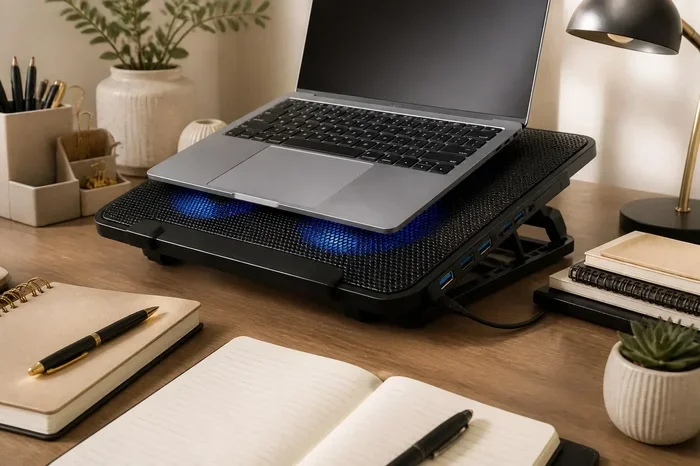
A laptop cooling pad is an external stand with built-in fans. You place your laptop on it, and the fans blow additional air onto the bottom of your laptop. Some pads also elevate the laptop to improve natural airflow from the vents.
How Cooling Pads Work
Most cooling pads use USB-powered fans. These fans push extra air into the bottom vents of your laptop. The idea is simple, more air in means more heat out. Some pads have a single large fan, while others have multiple smaller fans arranged to match common laptop vent positions.
Cooling pads can also raise the angle of your laptop. This opens up the bottom vents and allows hot air to escape more easily. For many users, this small change makes a noticeable difference.
Types of Cooling Pads
Not all cooling pads are the same. Here are the most common types:
- Standard fan pads: These have two to six built-in fans. They are affordable and work well for general use.
- Adjustable fan pads: These let you control fan speed based on how hot your laptop gets.
- Active cooling stands: These use larger fans and are designed for gaming laptops that generate more heat.
- Passive cooling pads: These have no fans at all. They use metal or mesh surfaces to passively dissipate heat.
- Hybrid pads: These combine active fans with passive cooling features for maximum effect.
Each type has its strengths. But none of them can reach inside your laptop and cool the CPU or GPU directly.
Can a Cooling Pad Replace Your Laptop Fan?
This is the big question, and the honest answer is no. A cooling pad cannot fully replace your laptop fan. Here is why.
The Short Answer
Your internal fan is built into the laptop’s cooling system. It sits directly on top of the CPU and GPU heat pipes. It moves heat at the source. A cooling pad, on the other hand, only blows air on the outside of your laptop. It cannot reach the heat where it is generated.
Think of it this way. If your house is hot inside, a fan blowing on the front door helps a little. But it does not cool the rooms. You need the air conditioning system working inside the house. That is what your internal fan does.
What Cooling Pads Can and Cannot Do
Let us look at what a cooling pad can realistically do:
- Can: Lower surface temperatures by 3 to 10 degrees Celsius.
- Can: Improve airflow around the laptop vents.
- Can: Reduce fan noise by helping the internal fan work less hard.
- Can: Provide extra cooling during light to moderate tasks.
- Cannot: Cool the CPU or GPU directly.
- Cannot: Fix a broken or failing internal fan.
- Cannot: Replace the heat pipe and heat sink system inside your laptop.
So a cooling pad is a great helper, but it is not a replacement. It works best when used alongside a healthy internal fan system.
When Should You Use a Cooling Pad vs. Replace the Fan?
Knowing when to use a cooling pad and when to replace your laptop fan is crucial. Using the wrong solution can lead to wasted money or even permanent laptop damage.
Signs Your Laptop Fan Is Failing
How do you know if your internal fan is the real problem? Watch for these warning signs:
- Loud grinding or rattling noises: This means the fan bearings are worn out.
- Inconsistent fan speeds: The fan spins too fast or too slow without reason.
- Sudden overheating: Your laptop gets very hot even during light tasks.
- Thermal throttling: Your laptop slows down to protect itself from heat.
- Random shutdowns: The laptop shuts off suddenly to prevent hardware damage.
- Dusty or blocked vents: Visible dust buildup around the exhaust vents.
If you notice any of these signs, a cooling pad will not fix the problem. You need to address the internal fan directly.
When a Cooling Pad Is Enough
A cooling pad is a great solution in these situations:
- Your internal fan is working fine, but you want extra cooling during heavy use.
- You use your laptop on soft surfaces that block the vents.
- You experience mild temperature rises during gaming or video calls.
- You want to reduce fan noise during everyday tasks.
- You are using a laptop that runs warm by design but is still within safe limits.
In these cases, a good cooling pad can make a real difference. It takes the load off your internal fan and keeps temperatures in a safe range.
Pros and Cons of Cooling Pads vs. Fan Replacement
Let us compare both solutions side by side so you can make the best decision for your situation.
| Feature | Cooling Pad | Fan Replacement |
|---|---|---|
| Cost | $15 to $50 | $30 to $150 (plus labor) |
| Ease of Use | Plug and play, no tools needed | Requires opening the laptop |
| Cooling Effectiveness | Moderate, surface-level cooling | Direct, internal cooling at the source |
| Fixes Root Cause | No | Yes |
| Risk of Damage | None | Low if done carefully |
| Best For | Prevention and mild overheating | Broken or failing fans |
| Lifespan | 3 to 5 years | Matches laptop lifespan |
| Portability | Bulky, not travel-friendly | Built into the laptop |
As you can see, each solution has its place. A cooling pad is a great tool for everyday use. But when the internal fan is broken, nothing external can truly take its place.
Expert Tips for Keeping Your Laptop Cool
Whether you use a cooling pad or replace your fan, there are simple habits that keep your laptop running cool. These tips work for every laptop user.
Keep Your Vents Clear
Never block your laptop vents. Do not use your laptop on a bed, couch, or pillow. These soft surfaces block the bottom vents and trap heat inside. Use a hard, flat surface whenever possible.
Clean Your Laptop Regularly
Dust is the enemy of airflow. Use compressed air to blow dust out of the vents every few months. If you are comfortable opening your laptop, you can also clean the internal fans and heat sinks. Just make sure to power off the laptop first.
Use a Laptop Stand
Even without a cooling pad, a simple laptop stand can improve airflow. It elevates the back of the laptop and opens up the bottom vents. This is a low-cost way to help your laptop stay cooler.
Monitor Your Temperatures
Use free software like HWMonitor or Core Temp to check your CPU and GPU temperatures. If your CPU regularly hits above 90 degrees Celsius during normal use, something is wrong. A cooling pad might help temporarily, but you should investigate the root cause.
Replace Thermal Paste
After a few years, the thermal paste between your CPU and heat sink dries out. Replacing it can dramatically improve heat transfer. This is a simple fix that many people overlook. You can buy a tube of thermal paste for under $10.
Adjust Power Settings
Your laptop’s power plan affects how much heat it generates. Switching to a balanced or power-saving mode can reduce temperatures. This is especially helpful if you are not doing heavy tasks.
Common Mistakes People Make with Laptop Cooling
There are a few mistakes that many laptop users make when trying to keep their machine cool. Avoiding these can save you time and money.
- Buying the wrong size cooling pad: Make sure the pad matches your laptop size. A 15-inch pad will not cool a 17-inch laptop properly.
- Placing the pad on a soft surface: Even a cooling pad needs clear airflow underneath it.
- Ignoring the problem: Using a cooling pad to mask a failing fan can lead to permanent hardware damage.
- Overloading the USB ports: Some cooling pads draw a lot of power. Check that your USB ports can handle it.
- Expecting miracles: A cooling pad will not turn a hot laptop into a cold one. It reduces temperatures, but it has limits.
Final Thoughts
So, can a cooling pad replace your laptop fan? The answer is clear. A cooling pad is a helpful tool that improves airflow and lowers surface temperatures. It is a great addition to your setup, especially during heavy use. But it cannot replace the internal fan that cools your CPU and GPU at the source.
If your laptop fan is broken or failing, you need to fix or replace it. A cooling pad will not solve that problem. On the other hand, if your fan is working fine and you just want a little extra cooling, a good cooling pad can make a big difference.
Take care of your laptop. Keep it clean, use it on hard surfaces, and monitor its temperatures. These simple habits, combined with the right cooling solution, will keep your laptop running smoothly for years to come.
The best approach is to use both solutions together when needed. A healthy internal fan handles the heavy lifting. A cooling pad adds an extra layer of protection. Together, they keep your laptop cool, quiet, and performing at its best.
Frequently Asked Questions
Can a cooling pad fix an overheating laptop?
A cooling pad can help reduce temperatures and prevent mild overheating. However, if the internal fan is broken or the thermal paste is dried out, a cooling pad alone will not fix the root cause. You need to address the internal hardware issue first.
How long does a cooling pad last?
Most cooling pads last between 3 and 5 years with regular use. The fans may slow down over time, but the build quality is generally solid. Choose a pad with a good warranty for peace of mind.
Is it safe to use a cooling pad every day?
Yes, it is completely safe to use a cooling pad every day. In fact, it can extend the life of your laptop by reducing heat stress on internal components. Just make sure the pad is on a hard, flat surface for proper airflow.
Do cooling pads work for gaming laptops?
Cooling pads help gaming laptops, but they cannot replace the internal cooling system. Gaming laptops generate a lot of heat, so a high-quality cooling pad with multiple fast-spinning fans works best as a supplement to the built-in fan.
Can I use a cooling pad with a fanless laptop?
Yes, cooling pads can help fanless laptops by providing external airflow. However, fanless laptops are designed to handle heat differently. A cooling pad will help, but it cannot fix thermal issues caused by heavy workloads on a fanless design.
Should I replace my laptop fan myself or take it to a professional?
If you are comfortable with basic hardware tasks, you can replace a laptop fan yourself using online tutorials. However, if you are not sure, it is safer to take it to a professional. Improper handling can damage other components inside the laptop.
=== CONCLUSION ===
A cooling pad is a valuable tool for any laptop user. It provides extra airflow, lowers surface temperatures, and can reduce fan noise. But it cannot replace your internal laptop fan. The internal fan cools your CPU and GPU directly, and no external pad can do that job.
Use a cooling pad to boost your laptop’s cooling during heavy tasks. But if your fan is failing, replace it. Your laptop will run cooler, quieter, and last much longer. Take the time to understand your laptop’s cooling system, and you will make smarter choices about how to keep it running at its best.