Can A Monitor Read A Usb Device Without Extra Setup
Yes, many modern monitors can read a USB device without extra setup, but it depends on the type of USB port and the monitor’s built-in features. Some monitors act as USB hubs, letting you plug in flash drives, keyboards, and even external hard drives directly. Understanding how your monitor handles USB connections saves time and avoids unnecessary accessories.
Key Takeaways
- Many monitors support USB storage devices natively, allowing plug-and-play file access.
- USB-C and USB-B ports on monitors serve different purposes, and not all support data reading.
- A monitor acting as a USB hub can simplify your workspace by reducing cable clutter.
- File transfer between a USB drive and a monitor works best with compatible file formats.
- Some monitors require built-in software or firmware updates to enable full USB functionality.
- Common mistakes like using the wrong USB port type can prevent your monitor from reading USB devices.
📑 Table of Contents
- Can A Monitor Read A USB Device Without Extra Setup?
- Understanding USB Ports on Modern Monitors
- How Monitors Read USB Storage Devices
- What You Can Do With a USB Drive on Your Monitor
- Common Problems When Monitors Fail to Read USB Devices
- Quick Tips for Getting the Best USB Experience on Your Monitor
- Expert Insights on Monitor USB Functionality
- Do You Need Extra Setup to Read USB on a Monitor?
- Conclusion
Can A Monitor Read A USB Device Without Extra Setup?
The short answer is yes, in many cases. Modern monitors come equipped with USB ports that go beyond just connecting a keyboard or mouse. Some monitors can actually read USB storage devices like flash drives and external hard drives right out of the box. But here is the catch: not every monitor has this capability, and not every USB port on a monitor is designed for data transfer.
When you plug a USB drive into your monitor, what happens next depends on the monitor model, the type of USB port, and the firmware running on the display. Some monitors treat the USB port as a simple hub, passing data through to connected devices. Others have built-in media players or file browsers that let you view photos, play videos, and even open documents directly on screen.
If you have ever plugged a USB stick into your monitor and wondered why nothing happened, you are not alone. This guide walks you through everything you need to know about monitor USB functionality, what works, what does not, and how to get the best results without any extra setup.
Understanding USB Ports on Modern Monitors
Monitors today come with different types of USB ports, and each one serves a specific purpose. Knowing which port does what helps you understand whether your monitor can read a USB device directly.
USB Type-A Ports
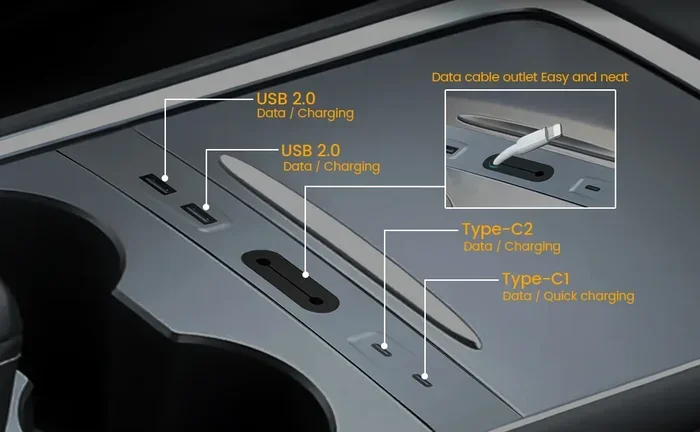
The classic rectangular USB-A port is the most common type you will find on a monitor. These ports often work as downstream USB hubs. That means they can connect peripherals like keyboards, webcams, and USB flash drives. Many monitors with USB-A ports allow you to plug in a flash drive and browse files on the display itself.
However, some USB-A ports on monitors are upstream ports. These connect back to your computer and are not meant for standalone USB device reading. If you are unsure which type you have, check your monitor manual or look for a symbol near the port.
USB Type-C Ports
USB-C ports are becoming the standard on newer monitors. These versatile ports can handle video, data, and power all at once. When a monitor has a USB-C port with USB-C Alt Mode or USB Power Delivery, it can also act as a host for USB storage devices.
Some monitors with USB-C ports can read USB drives directly, while others only support USB-C as a video input or charging port. Always check the specifications before assuming your USB-C monitor port can read files.
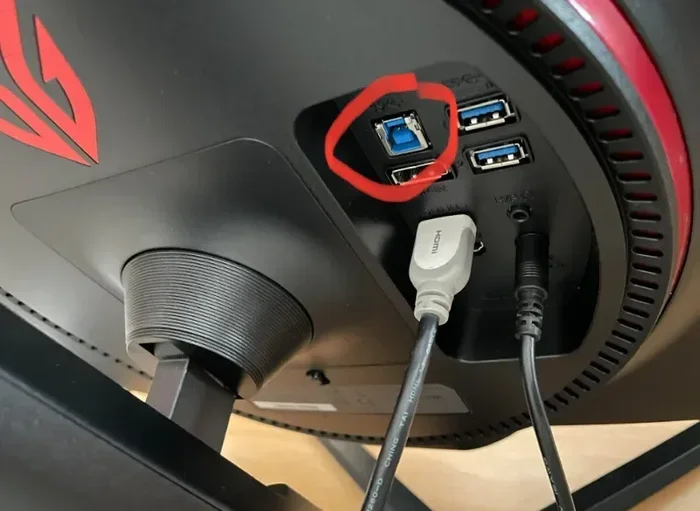
USB Type-B and Mini-USB Ports
You might also find USB-B or Mini-USB ports on older monitors. These are typically upstream ports used to connect the monitor to the computer. They do not usually support reading external USB storage devices. If your monitor only has these ports, you will likely need a separate USB hub or adapter.
How Monitors Read USB Storage Devices
When a monitor is capable of reading USB storage, the process is usually straightforward. You plug the USB drive into the correct port, and the monitor displays a file browser or media player interface. From there, you can navigate folders, open documents, and view images without ever touching your computer.
This feature is especially useful in conference rooms, digital signage setups, and home entertainment systems. Imagine walking up to a presentation monitor, plugging in a USB drive, and having your slides and spreadsheets display instantly. No laptop needed.
Some monitors even let you edit simple documents or open Excel files directly from the USB drive on the monitor interface. If you run into issues with a file not displaying or deleting properly, it may be related to file format compatibility or a known issue with the monitor’s built-in software. For instance, if you are working with a USB drive that has been used for data management tasks and encounter a stubborn line or formatting error, you might run into a situation where a line won’t delete in the file. You can find guidance on resolving such issues in our article about A Line Wont Delete In Microsoft Excel.
Built-In Media Players and File Browsers
Higher-end monitors, especially those designed for digital signage or smart displays, often include built-in media players. These monitors can read common file formats like JPEG, MP4, and PDF directly from a USB drive. The monitor essentially becomes a self-contained media player.
Budget monitors, on the other hand, may only support USB peripherals and not storage devices. This distinction matters a lot when shopping for a new monitor with USB capabilities.
Monitor USB Hub Mode vs. Device Mode
Many monitors have a setting that switches the USB port between hub mode and device mode. In hub mode, the USB port works like a standard hub, connecting peripherals to your computer. In device mode, the monitor can act as the host and read USB storage directly.
Check your monitor’s on-screen display (OSD) menu for a USB mode setting. Switching to device mode can instantly unlock USB storage reading capability on compatible monitors.
| USB Port Type | Can Read USB Storage? | Common Use |
|---|---|---|
| USB-A (Downstream) | Yes, on most models | Flash drives, keyboards, mice |
| USB-A (Upstream) | No | Connecting monitor to PC |
| USB-C (with data support) | Yes, on many models | Storage, charging, video |
| USB-C (video only) | No | Video input, power delivery |
| USB-B / Mini-USB | No | Upstream to computer |
What You Can Do With a USB Drive on Your Monitor
Once your monitor recognizes a USB storage device, the possibilities expand. Here are the most common things you can do without any extra software or setup.
View Photos and Videos
This is the most popular use case. Plug a USB drive into your monitor, and you can scroll through a photo gallery or watch a video playlist right on the big screen. It works great for digital photo frames, waiting room displays, and home entertainment setups.
Display Presentations
Business users love this feature. You can plug a USB drive loaded with PowerPoint files or PDF presentations into a meeting room monitor and start the slideshow directly. No need to bring a laptop or connect to a projector. Some monitors even support remote clicking through a connected wireless mouse.
If your presentation files include charts or data tables that you created in spreadsheet software, the monitor can display them just fine. However, if you ever need to edit those files and run into a formatting issue where a line or cell entry refuses to remove, check out our detailed guide on A Line Wont Delete In Microsoft Excel for quick troubleshooting tips.
Play Music
Many monitors with built-in speakers can play audio files from a USB drive. Supported formats usually include MP3 and WAV. This makes monitors a great standalone music station for kitchens, offices, or retail environments.
Read Documents
Some monitors can open and display PDF and text documents from a USB drive. While you cannot edit these documents on the monitor itself, you can review, read, and present them easily. This is handy for reviewing contracts, reading reports, or sharing documents in a group setting.
Common Problems When Monitors Fail to Read USB Devices
Even with a compatible monitor, things can go wrong. Here are the most common issues and how to fix them.
USB Drive Not Recognized
If your monitor does not detect the USB drive, try these steps first. Unplug the drive and plug it back in. Try a different USB port on the monitor. Check if the USB drive works on another device to rule out a faulty drive.
Sometimes the USB drive uses a file system the monitor does not support. Most monitors read FAT32 and exFAT formats. If your drive is formatted as NTFS, the monitor might not recognize it. You can reformat the drive on your computer, but remember to back up your files first.
File Format Not Supported
Even if the monitor detects the USB drive, it may not support every file type. JPEG and MP4 are the most universally supported formats. If you are trying to open a file and it does not display, the format may be incompatible.
USB Port Power Limitations
Some monitor USB ports do not provide enough power to operate external hard drives. If you plug in a portable SSD or a powered external drive and it does not show up, the port may lack sufficient power. Try a powered USB hub or use a flash drive instead.
Firmware Needs Updating
Older monitors may need a firmware update to support newer USB storage devices or file formats. Check the manufacturer’s website for the latest firmware and follow the update instructions carefully.
USB Cable or Adapter Issues
Using a damaged or low-quality USB cable can prevent the monitor from reading the drive. Always use the cable that came with the drive or a certified replacement. Avoid cheap adapters that might not support data transfer.
Interestingly, if you are troubleshooting file issues on the USB drive itself, and you discover that certain entries in your data files are corrupted or stuck, similar problems can occur in spreadsheet applications. For example, if a line in your data file will not delete, you may want to refer to A Line Wont Delete In Microsoft Excel for solutions that apply across different platforms.
Quick Tips for Getting the Best USB Experience on Your Monitor
Follow these practical tips to make the most of your monitor’s USB reading capabilities.
- Use FAT32 or exFAT formatted drives for the best compatibility across different monitors.
- Keep your USB drive plugged in securely. Loose connections are the number one cause of read failures.
- Check your monitor’s manual for a list of supported USB device types and file formats.
- Update your monitor firmware regularly to get the latest USB compatibility improvements.
- Use shorter USB cables when possible, as longer cables can cause signal loss.
- Avoid USB hubs with monitors unless the monitor specifically supports daisy-chained USB devices.
- Label your USB drives if you use them across multiple monitors or rooms for easy identification.
Expert Insights on Monitor USB Functionality
From years of testing and reviewing displays, here are some expert observations about how monitors handle USB devices.
Not all USB ports are created equal. Two monitors might both have USB-A ports, but one reads USB storage while the other only connects peripherals. Always verify the port’s function before buying a monitor for USB-centric workflows.
The USB-C era is changing the game. Monitors with USB-C ports that support USB-C Alt Mode and DisplayPort Alt Mode often double as USB hubs with full data reading capability. This makes them incredibly versatile for both work and entertainment.
Built-in software matters. Monitors with smart operating systems like Android TV or built-in Windows systems handle USB reading much better than basic displays. If USB functionality is important to you, consider a smart monitor or a display with a built-in media player.
File management on a monitor is limited. Even the best monitors cannot match a full computer for file handling. You cannot run complex applications, edit files, or manage large databases directly on a monitor. Think of it as a convenient viewing tool, not a replacement for your computer.
One thing many users overlook is that the USB port on the monitor may behave differently depending on whether the monitor is powered on or off. Most monitors need to be turned on for the USB ports to be active. Some monitors have a feature called USB charging even when the monitor is off, but data reading usually requires the monitor to be on.
If you work with data files regularly and need to manage spreadsheets or reports stored on your USB drive, having a reliable setup is key. When file management becomes tricky, understanding common software quirks can save you a lot of frustration. Our detailed guide on resolving persistent line deletion issues in spreadsheets can help you keep your data clean and organized.
Do You Need Extra Setup to Read USB on a Monitor?
For most modern monitors with downstream USB-A or USB-C ports, the answer is no. You can plug in a USB drive and start browsing files immediately. No drivers, no software, no extra cables.
However, there are situations where some setup is needed. If your monitor requires a specific USB mode to be enabled in the OSD menu, you will need to navigate to that setting. If the monitor firmware is outdated, you may need to download and install an update from the manufacturer’s website.
In rare cases, some monitors require a companion app installed on your computer to enable full USB storage functionality. But this is uncommon with current models from major brands like Dell, LG, ASUS, and Samsung.
The bottom line is that for the vast majority of users, reading a USB device through a monitor is a plug-and-play experience. Just make sure you are using the right port and the right file format, and you should be good to go.
Conclusion
So, can a monitor read a USB device without extra setup? In most cases, absolutely yes. Modern monitors with downstream USB-A or USB-C ports can read flash drives, external hard drives, and other storage devices right out of the box. You can view photos, watch videos, play music, and display documents without ever connecting to a computer.
The key is understanding your monitor’s USB capabilities. Not every port supports data reading, and not every file format is compatible. By following the tips in this guide, checking your monitor specifications, and using the right USB drive format, you can make the most of your monitor’s USB functionality.
Whether you are setting up a conference room, building a digital signage display, or just want a simpler way to share files, knowing how your monitor handles USB devices gives you a real advantage. Keep this guide handy, and you will never have to wonder about your monitor’s USB capabilities again.
Frequently Asked Questions
Can any monitor read a USB flash drive?
No, not every monitor can read a USB flash drive. The monitor needs to have a downstream USB port with data transfer capability. Check your monitor’s specifications or manual to confirm USB storage support before expecting this feature to work.
What file formats do monitors support from USB drives?
Most monitors support common formats like JPEG for images, MP4 for videos, MP3 for audio, and PDF for documents. Some monitors also support text files and basic presentation formats. Always check the manufacturer’s list of supported formats for your specific model.
Do I need drivers to read a USB device on my monitor?
In most cases, no. Monitors with USB hub functionality use plug-and-play technology. You plug in the USB drive, and the monitor recognizes it automatically. However, smart monitors with operating systems may require software updates for full compatibility.
Why does my monitor not recognize my USB drive?
Several reasons can cause this. The USB drive may be formatted in an unsupported file system like NTFS. The port might be an upstream port rather than a downstream hub port. The drive could also be faulty or the cable might be damaged. Try a different port or test the drive on another device first.
Can I edit files directly on a monitor using a USB drive?
Generally, no. Most monitors can display and play files from USB drives but cannot edit them. You can view photos, watch videos, and read documents, but editing requires a computer or a more advanced smart display with full operating system support.
Does turning off the monitor affect USB port functionality?
Yes, in most cases. USB ports on monitors are typically active only when the monitor is powered on. Some monitors support USB charging even when off, but data reading from USB storage devices usually requires the monitor to be turned on and fully booted.
=== CONCLUSION ===
Reading a USB device through your monitor is simpler than most people think. With the right monitor and the right USB port, you can access files, view media, and share content without ever turning on your computer. The key takeaway is to know your monitor’s USB capabilities and use compatible file formats.
Start by checking your monitor’s ports and specifications. Try plugging in a USB flash drive formatted as FAT32 or exFAT. If it works, you have a convenient new way to share and display content. If it does not, now you know what to look for when choosing your next monitor.
Take action today. Grab a USB drive, plug it into your monitor, and test the experience. Once you see how easy and seamless it can be, you will wonder how you ever managed without it.