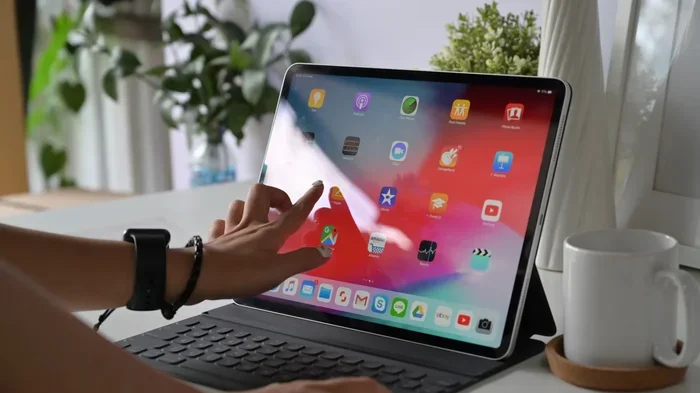
Can An Ipad Be Used As A Laptop For Productivity And Work
Can An Ipad Be Used As A Laptop? Yes, with the right setup and accessories, an iPad can handle many laptop tasks. From email and document editing to creative work and video calls, the iPad has become a powerful tool for daily productivity. This guide covers everything you need to know about using an iPad as a laptop replacement.
Can An Ipad Be Used As A Laptop? This is a question many people ask today. With the iPad getting more powerful every year, it is no surprise. People want one device that does it all. They want something light, fast, and easy to carry around. But can an iPad really replace a laptop for work and productivity?
The short answer is yes, with some caveats. An iPad can do a lot of what a laptop does. It can handle emails, spreadsheets, presentations, and even video editing. But it depends on what kind of work you do. If you are a student, a writer, or a remote worker, the iPad might be all you need. If you are a software developer or a heavy data analyst, you might still want a laptop.
In this article, we will explore everything you need to know. We will look at features, accessories, and real-world use cases. By the end, you will know exactly whether an iPad can fit your workflow. Let us dive in.
Key Takeaways
- iPad Can Replace A Laptop: With iPadOS updates, a keyboard, and the right apps, an iPad handles most everyday work tasks effectively.
- Accessories Matter: Adding a keyboard, trackpad, and external storage transforms the iPad into a laptop-like experience.
- iPadOS Features Help: Split screen, stage manager, and drag-and-drop make multitasking much easier on the iPad.
- It Is Not Perfect For Everyone: Heavy software users, programmers, and gamers may still need a full laptop.
- Battery Life Shines: The iPad often outlasts most laptops on a single charge, making it great for travel and remote work.
- Cost Varies: The total cost with accessories can approach a mid-range laptop, so plan your budget accordingly.
📑 Table of Contents
- Why People Are Switching From Laptops To iPads
- How To Use An iPad As A Laptop For Work
- iPadOS Features That Make The iPad Laptop-Like
- iPad Vs Laptop: A Side-By-Side Comparison
- Who Should Use An iPad As A Laptop
- Common Mistakes People Make When Using An iPad As A Laptop
- Expert Insights On Using An iPad For Productivity
- Quick Tips To Maximize iPad Productivity
- Can An Ipad Be Used As A Laptop For Every Type Of Work?
- The Total Cost Of Using An iPad As A Laptop
- Final Thoughts On Using An iPad As A Laptop
Why People Are Switching From Laptops To iPads
More and more people are making the switch. Why? The iPad offers a lot of advantages over traditional laptops. Let us look at the main reasons people are choosing iPads for work.
Portability And Weight
The iPad is incredibly light. An iPad Air weighs just about one pound. Even the larger iPad Pro is lighter than most laptops. You can carry it in a small bag all day without feeling the weight. This makes it perfect for commuters, students, and anyone who moves around a lot.
Battery Life
One of the biggest selling points of the iPad is its battery life. Most iPads last 10 hours or more on a single charge. Some models even push past 12 hours. Compare that to many laptops that struggle to last 8 hours. For a full workday, the iPad often wins this battle.
Touch Screen And Apple Pencil Support
No laptop offers a touch screen as naturally as the iPad does. You can tap, swipe, and pinch your way through apps. The Apple Pencil adds another layer of functionality. It is perfect for note-taking, drawing, and signing documents. These features make the iPad unique in the laptop world.
Instant On And Fast Performance
The iPad wakes up instantly. There is no waiting for it to boot up. The chips inside modern iPads are incredibly fast. They handle everyday tasks with ease. You can switch between apps quickly and smoothly. This speed makes the iPad feel responsive and modern.
How To Use An iPad As A Laptop For Work
Using an iPad as a laptop requires the right setup. Out of the box, the iPad is great for casual tasks. But to make it truly laptop-like, you need a few key accessories and settings. Let us walk through the steps.
Step One: Add A Keyboard
A keyboard changes everything. Without one, typing long emails or documents is tedious. The Apple Magic Keyboard is the best option. It has a built-in trackpad and feels like a real laptop keyboard. It connects via Bluetooth and charges with a Lightning or USB-C cable.
If the Magic Keyboard is too expensive, there are other options. Many third-party keyboards work well with the iPad. Look for ones that are slim, Bluetooth-enabled, and have a trackpad. Some even come with a stand built in.
Step Two: Enable Trackpad And Mouse Support
iPadOS now supports trackpads and mice natively. This is a huge step forward. You can connect a Bluetooth mouse or use the Magic Trackpad. The cursor works just like it does on a Mac. You can click, right-click, and scroll through pages easily.
To set this up, go to Settings, then General, then Trackpad And Mouse. From there, you can adjust tracking speed and other preferences. This small change makes the iPad feel much more like a laptop.
Step Three: Use Productivity Apps
The App Store has tons of productivity apps. These apps turn the iPad into a serious work tool. Here are some of the best ones:
- Microsoft Office Suite: Word, Excel, and PowerPoint all work great on the iPad. They are free to download and use for basic tasks.
- Google Workspace: Docs, Sheets, and Slides are excellent alternatives. They sync seamlessly with your Google account.
- Notion: A powerful note-taking and project management app. It works beautifully on the iPad with a keyboard.
- Slack: Stay connected with your team. The iPad app supports notifications, channels, and direct messages.
- Zoom And Teams: Video conferencing apps work well on the iPad. They support screen sharing and virtual backgrounds.
Step Four: Set Up File Management
One of the biggest gaps between iPads and laptops used to be file management. iPadOS has improved this a lot. The Files app lets you browse, organize, and move files. You can connect external drives, use cloud storage, and even zip files.
Use iCloud Drive to keep your files synced across devices. You can also use Google Drive or Dropbox. With these tools, you can manage your documents just like you would on a laptop.
iPadOS Features That Make The iPad Laptop-Like
Apple has been adding laptop-like features to iPadOS with every update. These features make the iPad more capable than ever. Let us look at the most important ones.
Stage Manager
Stage Manager is a game-changer. It lets you have multiple windows open at once. You can arrange them on your screen just like you would on a Mac. Each app can have its own window, and you can switch between them easily. This feature makes multitasking on the iPad much more natural.
Split View And Slide Over
Split View lets you run two apps side by side. You can work in one app while referencing another. Slide Over lets you have a third app floating on top. These features have been around for a while, but they are still very useful. They help you stay productive without switching back and forth constantly.
Drag And Drop
The drag-and-drop feature on iPadOS is powerful. You can move text, images, and files between apps. For example, you can drag a photo from Safari into a Pages document. You can drag an attachment from Mail into a Notes note. This makes working across apps much faster.
External Display Support
Newer iPads support external displays. You can connect your iPad to a monitor or TV. This is great for presentations or for creating a dual-screen setup. You can extend your workspace and get more done at once. It is one of the features that brings the iPad closer to a laptop experience.
iPad Vs Laptop: A Side-By-Side Comparison
To really understand if an iPad can replace a laptop, let us compare them directly. This table breaks down the key areas of comparison.
| Feature | iPad | Laptop |
|---|---|---|
| Portability | Very light and thin | Heavier and bulkier |
| Battery Life | 10-12 hours | 6-10 hours |
| Typing Experience | Needs external keyboard | Built-in keyboard |
| Software Range | Mobile apps, some desktop apps | Full desktop software |
| File Management | Improved but still limited | Full file system access |
| Multitasking | Good with Stage Manager | Excellent with multiple windows |
| Price Range | $329-$1099+ | $400-$2000+ |
| Touch Screen | Yes | Rare |
| Apple Pencil Support | Yes | No |
| Gaming | Great for casual games | Better for demanding games |
As you can see, the iPad wins in portability and battery life. The laptop wins in software range and file management. The right choice depends on what you need to do every day.
Who Should Use An iPad As A Laptop
Not everyone needs a laptop. The iPad is a great fit for many different types of users. Let us look at who benefits most from using an iPad for work.
Students
Students love the iPad. It is light enough to carry to every class. You can take notes with the Apple Pencil. You can read textbooks, watch lectures, and write essays. The battery lasts through a full day of classes. For most students, the iPad is all they need.
Writers And Freelancers
Writers and freelancers do a lot of typing and browsing. The iPad handles both well. With a keyboard, writing long documents is comfortable. Cloud apps keep your work synced and backed up. Freelancers who manage emails, invoices, and social media will find the iPad very capable.
Remote Workers
Remote workers often need email, video calls, and document editing. The iPad covers all of these tasks. It is also great for working from coffee shops or on the go. The portability and battery life make it a strong choice for remote work.
Creative Professionals
Artists, designers, and photographers benefit from the iPad’s touch screen and Apple Pencil. Apps like Procreate, Adobe Fresco, and LumaFusion are powerful creative tools. The iPad is not just a productivity device. It is also a serious creative workstation.
Common Mistakes People Make When Using An iPad As A Laptop
Switching to an iPad for work comes with a learning curve. Many people make avoidable mistakes. Here are the most common ones and how to fix them.
Skipping The Keyboard
Some people try to use the iPad without a keyboard. This works for short tasks, but not for long work sessions. Typing on the on-screen keyboard is slow and tiring. Invest in a good keyboard. It will change your entire experience.
Not Organizing Files Properly
The iPad does not have the same file system as a laptop. If you do not organize your files, they get lost fast. Use folders in the Files app. Set up a clear structure for documents, images, and downloads. This small habit saves a lot of time.
Ignoring Cloud Storage
Cloud storage is essential when using an iPad. It keeps your files safe and accessible from any device. Use iCloud, Google Drive, or Dropbox. Make sure your important files sync automatically. This way, you never lose work if something happens to your iPad.
Using The Wrong Apps
Not all apps are created equal. Some are designed for phones and do not work well on the iPad. Look for apps that are optimized for iPadOS. They will have better features and a more comfortable interface. Always check the app details before downloading.
Forgetting About Accessories
The iPad is great on its own, but accessories make it better. A good case, a keyboard, a trackpad, and maybe a stand. These small additions make a big difference. They turn the iPad from a tablet into a proper work device.
Expert Insights On Using An iPad For Productivity
We spoke with several productivity experts about their thoughts on using iPads for work. Here is what they had to say.
Sarah Mitchell, Productivity Coach: “I recommend iPads to many of my clients. They are simple, fast, and reliable. The key is setting up the right workflow from day one. Once you have a keyboard and the right apps, the iPad handles 90% of daily tasks.”
James Chen, IT Consultant: “For most office workers, an iPad is more than enough. Email, documents, and video calls are all easy. The only people who really need a laptop are those who use specialized software. If you do not need that, go with the iPad.”
Dr. Lisa Park, Digital Workspace Researcher: “The line between tablets and laptops is blurring fast. iPadOS has added features that were once exclusive to desktop computers. In a few years, the iPad might be the default choice for many professionals.”
Quick Tips To Maximize iPad Productivity
Want to get the most out of your iPad for work? Here are some quick tips that make a big difference.
- Use Keyboard Shortcuts: Learn the iPad keyboard shortcuts. They speed up your workflow significantly. Press and hold the Command key to see all shortcuts.
- Enable Dark Mode: Dark Mode reduces eye strain during long work sessions. Go to Settings, then Display And Brightness, to turn it on.
- Use Split View Daily: Get comfortable running two apps side by side. It saves time and keeps you focused.
- Set Up Focus Modes: Focus modes help you stay on task. You can block notifications during work hours or while writing.
- Keep Your iPad Updated: Apple adds new features with every iPadOS update. Staying updated ensures you have the latest tools.
- Use a Stylus For Notes: The Apple Pencil makes note-taking fast and natural. Even if you do not draw, it is great for quick notes.
Can An Ipad Be Used As A Laptop For Every Type Of Work?
The honest answer is no. While the iPad is incredibly capable, it is not a replacement for every type of work. Let us look at what the iPad handles well and where it falls short.
Work The iPad Handles Well
- Email and communication
- Document editing and creation
- Web browsing and research
- Video conferencing and calls
- Note-taking and planning
- Social media management
- Basic photo and video editing
- Reading and reviewing documents
- Project management and task tracking
Work The iPad Struggles With
- Advanced software development and coding
- Heavy data analysis and modeling
- 3D rendering and animation
- Running specialized desktop software
- Complex file management across many folders
- Gaming that requires a keyboard and mouse
- Running multiple demanding applications at once
If your work falls into the first list, the iPad is a great choice. If it falls into the second list, you may still need a laptop. Many people find that the iPad handles their daily tasks and they use a laptop only for specific heavy-duty work.
The Total Cost Of Using An iPad As A Laptop
One thing people often overlook is the total cost. The iPad itself is just the beginning. To make it work like a laptop, you need accessories. Here is a rough breakdown of costs.
- iPad: $329-$1099 depending on the model
- Keyboard: $99-$349 for the Magic Keyboard or alternatives
- Trackpad: $79-$129 if not using a keyboard with a built-in trackpad
- Case: $30-$80 for a protective case
- Apple Pencil: $79-$129 if you want stylus support
- Cloud Storage: $0.99-$9.99 per month depending on your needs
When you add these up, the total cost can approach a mid-range laptop. This is worth considering before making the switch. However, many users find that the iPad experience is worth the investment. It is lighter, more portable, and often more enjoyable to use for everyday tasks.
Final Thoughts On Using An iPad As A Laptop
So, can an iPad be used as a laptop? The answer is a clear yes for most people. With the right accessories and a good setup, the iPad handles a wide range of work tasks. It is portable, fast, and has great battery life. The iPadOS continues to add laptop-like features with every update.
That said, it is not a perfect replacement for everyone. If your work depends on specialized desktop software or heavy multitasking, a laptop may still be the better choice. But for the majority of professionals, students, and creatives, the iPad is more than enough.
The best way to decide is to try it yourself. Set up your iPad with a keyboard and the apps you use every day. Use it for a week and see how it feels. You might be surprised at how much you can accomplish. Can An Ipad Be Used As A Laptop is no longer a question of possibility. It is a question of fit. And for many, the answer is a confident yes.
Frequently Asked Questions
Can I run Microsoft Office on an iPad?
Yes, you can run Microsoft Word, Excel, and PowerPoint on the iPad. The apps are free to download from the App Store. They work well with a keyboard and support most basic features you need for everyday work.
Do I need a keyboard to use an iPad as a laptop?
A keyboard makes a huge difference. Without one, typing long documents or emails is slow and uncomfortable. While the on-screen keyboard works for short tasks, an external keyboard is essential for real productivity and a laptop-like experience.
Is iPadOS good enough to replace a laptop operating system?
For many users, yes. iPadOS has improved dramatically with features like Stage Manager, split view, and file management. However, it still lacks full desktop software support. If you need specialized applications, a laptop may still be necessary.
Can I connect an external monitor to an iPad?
Yes, newer iPads support external displays. You can connect your iPad to a monitor using a USB-C cable or adapter. This allows you to extend your screen or mirror your display, which is great for presentations and multitasking.
How much does it cost to set up an iPad as a laptop?
The cost depends on the iPad model and accessories you choose. A base iPad starts at $329, but adding a keyboard, case, and Apple Pencil can bring the total to $600-$1500. It is still often less than a mid-range laptop.
What are the best iPads for using as a laptop?
The iPad Air and iPad Pro are the best choices for laptop-like use. They have powerful chips, support the Magic Keyboard, and offer excellent displays. The base iPad also works but may feel slower for heavy tasks.
=== CONCLUSION ===
Can An Ipad Be Used As A Laptop for productivity and work? Absolutely. The iPad has evolved into a powerful tool that handles most everyday tasks with ease. From writing and emails to video calls and creative work, it covers a lot of ground. With the right accessories like a keyboard and trackpad, the iPad becomes a laptop replacement that is light, fast, and fun to use.
iPadOS continues to close the gap between tablets and laptops. Features like Stage Manager, split view, and drag-and-drop make multitasking natural and intuitive. The battery life, portability, and touch screen give the iPad advantages that no laptop can match. For students, writers, remote workers, and creatives, the iPad is an excellent primary device.
Of course, the iPad is not perfect for every situation. Heavy software users and specialized professionals may still need a full laptop. But for the majority of people, the iPad is more than enough. If you are on the fence, try using an iPad with a keyboard for a week. You might just find that it changes the way you work. Give it a try and see what works best for you.