Can I Use Teamviewer On My Laptop Without Any Issues
Yes, you can absolutely use TeamViewer on your laptop for free personal use, whether it runs Windows, macOS, or Linux. TeamViewer works as a reliable remote desktop software that lets you control, share your screen, and transfer files between devices. This guide walks you through everything you need to know about TeamViewer laptop setup, system requirements, and tips for a smooth experience.
So you just got a new laptop, or maybe you are thinking about installing TeamViewer for the first time. Either way, you landed in the right place. The short answer is yes. You can use TeamViewer on your laptop without any major headaches. But let us dig deeper into how it works, what you need, and how to avoid the little bumps along the way.
TeamViewer is one of the most popular remote desktop software tools in the world. Millions of people use it every day for IT support, remote assistance, and even working from home. Whether you need to access your office laptop from home or help a friend fix their computer, TeamViewer makes it happen. In this article, we will cover everything about using TeamViewer on a laptop. You will learn about compatibility, setup, features, and common troubleshooting tips.
Key Takeaways
- TeamViewer runs on most laptops: Windows, macOS, and Linux laptops all support TeamViewer without major issues.
- Free personal use is available: You can use TeamViewer at no cost for non-commercial remote access.
- System requirements are modest: Most modern laptops meet the minimum specs needed for TeamViewer.
- Setup is simple and fast: Download, install, and connect within minutes using your TeamViewer ID and password.
- Security features are built-in: Two-factor authentication and encryption keep your remote sessions safe.
- Common issues are easy to fix: Firewall settings, outdated versions, and slow internet cause most problems.
- Alternatives exist if needed: Tools like AnyDesk, Chrome Remote Desktop, and Windows Remote Desktop are worth considering.
📑 Table of Contents
- What Is TeamViewer and How Does It Work?
- Can I Use Teamviewer On My Laptop? Compatibility Explained
- System Requirements for TeamViewer on a Laptop
- How to Install TeamViewer on Your Laptop
- TeamViewer Free vs. Paid: What You Need to Know
- Common Issues and How to Fix Them
- Security Tips for Using TeamViewer on Your Laptop
- Alternatives to TeamViewer for Laptop Remote Access
- Final Thoughts
What Is TeamViewer and How Does It Work?
TeamViewer is a remote access tool that lets you control another computer from a distance. It works over the internet or a local network. You do not need a VPN or complicated network setup. All you need is the TeamViewer ID and password of the target computer. Once you enter those details, you are connected.
The software uses a peer-to-peer connection. This means the data goes directly between the two devices. No middle servers store your sensitive information. TeamViewer also uses 256-bit AES encryption to keep your sessions secure. This is the same level of encryption used by banks and financial institutions.
Key Features of TeamViewer
- Remote control: Take full control of another laptop as if you were sitting in front of it.
- Screen sharing: Share your screen with others for presentations or video conferencing.
- File transfer: Send and receive files between devices quickly and easily.
- Unattended access: Connect to a laptop even when nobody is sitting in front of it.
- Multi-platform support: Works across Windows, macOS, Linux, iOS, and Android.
- Session recording: Record your remote sessions for documentation or training purposes.
Can I Use Teamviewer On My Laptop? Compatibility Explained
This is the big question, and the answer is a resounding yes. TeamViewer laptop compatibility is excellent across the board. The software supports all major operating systems that run on laptops. Whether your laptop is brand new or a few years old, there is a good chance TeamViewer will work just fine.
Windows Laptops
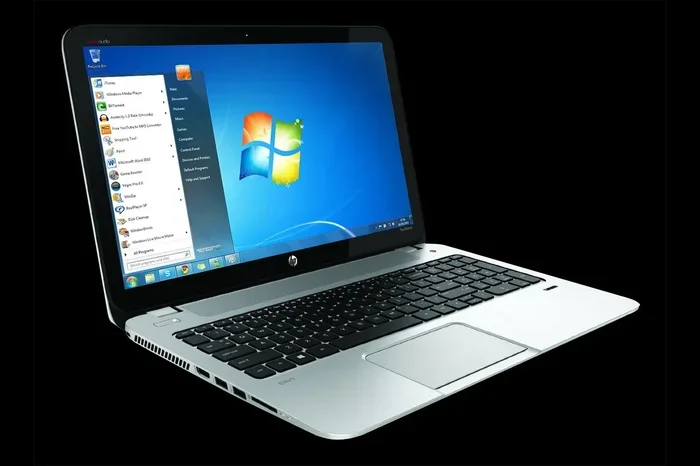
If your laptop runs Windows 10 or Windows 11, you are in great shape. TeamViewer supports both platforms fully. Even older versions like Windows 8.1 and Windows 7 are supported, though Microsoft has ended support for Windows 7. For the best experience, stick with Windows 10 or 11.
TeamViewer also works on Windows laptops with different hardware configurations. You do not need a gaming-grade machine. Even budget laptops with 4 GB of RAM can run TeamViewer smoothly for basic tasks like remote control and file transfer.
Mac Laptops
Apple MacBook users will be happy to know that TeamViewer for Mac is fully supported. The software works on macOS 10.13 (High Sierra) and later. If you have a newer MacBook with Apple Silicon (M1 or M2 chip), TeamViewer runs natively without any issues. The interface looks and feels the same as the Windows version.
Linux Laptops
Linux users are not left out either. TeamViewer offers a Linux version that supports popular distributions like Ubuntu, Fedora, and Debian. The setup process is slightly different on Linux, but it is still straightforward. You can download the .deb or .rpm package from the TeamViewer website and install it through your package manager.
Chrome OS Laptops
Chromebooks have limited support for TeamViewer. You can access the web version of TeamViewer through the Chrome browser. However, full remote control features may not work as smoothly as on Windows or macOS. If you primarily use a Chromebook, you might want to explore alternatives like Chrome Remote Desktop.
System Requirements for TeamViewer on a Laptop
Before you install TeamViewer, it helps to know what your laptop needs to run it. The good news is that the requirements are not demanding. Most laptops made in the last decade will handle TeamViewer with ease.
| Component | Minimum Requirement | Recommended |
|---|---|---|
| Operating System | Windows 7 / macOS 10.13 / Ubuntu 18.04 | Windows 10/11 / macOS 12+ / Ubuntu 20.04+ |
| Processor | 1 GHz | 2 GHz or faster |
| RAM | 2 GB | 4 GB or more |
| Storage | 100 MB free space | 200 MB free space |
| Internet Connection | Broadband (1 Mbps) | Broadband (5 Mbps or faster) |
| Graphics | Any standard display adapter | Any modern integrated graphics |
As you can see, the TeamViewer system requirements are quite low. You do not need a powerful laptop to use this software. Even older machines can handle remote sessions without lag, as long as your internet connection is decent.
How to Install TeamViewer on Your Laptop
Setting up TeamViewer on your laptop is quick and painless. Follow these steps and you will be connected in no time.
Step 1: Download TeamViewer
Go to the official TeamViewer website at teamviewer.com. Click the “Free Download” button. Make sure you are downloading from the official site to avoid any malware or fake versions of the software. The installer is safe and trusted by millions of users worldwide.
Step 2: Install the Software
Run the installer file you just downloaded. Follow the on-screen prompts. Accept the terms and conditions. Choose your preferred installation settings. The default settings work perfectly for most users. The installation usually takes less than two minutes.
Step 3: Launch and Connect
Once installed, open TeamViewer. You will see your TeamViewer ID and password displayed on the main screen. To connect to another laptop, enter that laptop’s ID in the “Partner ID” field, type the password, and click “Connect.” That is it. You are now remotely controlling the other machine.
Step 4: Set Up Unattended Access (Optional)
If you want to connect to your laptop without someone being present, you can set up unattended access. Go to “Extras” and then “Options.” Under the “Security” tab, set a personal password. This password stays with your laptop, so you can reconnect anytime without needing someone to type it in manually.
TeamViewer Free vs. Paid: What You Need to Know
One of the most common questions people ask is whether TeamViewer is really free. The answer depends on how you plan to use it.
TeamViewer Free Version
The TeamViewer free version is available for personal use. You can use it to connect to friends and family, help with tech support for non-business purposes, or access your own devices remotely. The free version includes all the core features: remote control, file transfer, screen sharing, and session recording.
TeamViewer Paid Plans
If you use TeamViewer for business purposes, you will need a license. TeamViewer offers several paid plans:
- TeamViewer Basic: Starts at around $49 per month. Includes commercial use rights.
- TeamViewer Premium: Starts at around $79 per month. Adds features like unattended access and multiple concurrent sessions.
- TeamViewer Corporate: Custom pricing for large teams and enterprises. Includes advanced management tools and priority support.
The free version will flag you as a commercial user if it detects business-like activity. This is how TeamViewer enforces its licensing model. If you are using it purely for personal reasons, you should have no issues at all.
Common Issues and How to Fix Them
While TeamViewer works well on most laptops, you might run into a few hiccups. Here are the most common problems and their solutions.
Connection Failures
If you cannot connect to another laptop, check a few things first. Make sure both devices are online. Confirm the TeamViewer ID and password are correct. Sometimes the target laptop might be set to “offline” mode. Ask the other person to check their TeamViewer status.
Slow Performance
A laggy connection is frustrating but common. Slow connection speed is usually the culprit. Try these fixes:
- Close unnecessary applications on both laptops.
- Switch to a wired internet connection if possible.
- Lower the screen resolution in TeamViewer settings.
- Disable “Quality” enhancements under Connection settings.
Firewall Blocking the Connection
Your laptop’s firewall might block TeamViewer from making connections. To fix this, add TeamViewer as an exception in your firewall settings. On Windows, go to Control Panel > Windows Defender Firewall > Allow an app through firewall. On macOS, go to System Preferences > Security & Privacy > Firewall.
TeamViewer Detected as Commercial Use
If TeamViewer keeps asking you to buy a license, it has flagged your usage as commercial. To resolve this, you can either purchase a license or use the software strictly for personal purposes. If you genuinely use it for personal reasons, you can appeal the flag through TeamViewer’s support team.
Security Tips for Using TeamViewer on Your Laptop
Security is important when you are allowing remote access to your laptop. Here are some tips to keep your device safe.
- Use a strong password: Do not use the default TeamViewer password. Set a unique, complex password for your unattended access.
- Enable two-factor authentication: This adds an extra layer of protection to your TeamViewer account.
- Only share your ID with trusted people: Never give your TeamViewer ID and password to strangers or suspicious contacts.
- Keep TeamViewer updated: Regular updates patch security vulnerabilities and improve performance.
- Log out after sessions: Always end your remote sessions when you are done. Do not leave unattended access enabled if you do not need it.
Alternatives to TeamViewer for Laptop Remote Access
TeamViewer is great, but it is not the only option. If you are looking for something different, here are some alternatives worth considering.
- AnyDesk: A lightweight remote desktop software similar to TeamViewer. Free for personal use with decent performance.
- Chrome Remote Desktop: A browser-based tool from Google. Works well on Chromebooks and any device with Chrome installed.
- Windows Remote Desktop: Built into Windows Pro editions. No third-party software needed, but limited to local networks without a VPN.
- Splashtop: Offers strong performance and low latency. Popular among businesses and remote workers.
- RustDesk: An open-source alternative to TeamViewer. Free to use and self-hostable for privacy-conscious users.
Each alternative has its strengths. TeamViewer remains the most popular choice thanks to its ease of use and feature set. But exploring alternatives can help you find the perfect fit for your specific needs.
Final Thoughts
So, can I use TeamViewer on my laptop? Absolutely. TeamViewer is a powerful, reliable, and easy-to-use remote desktop software that works on virtually any laptop. Whether you have a Windows, macOS, or Linux machine, TeamViewer has you covered. The installation process is simple, the features are rich, and the free version is more than enough for personal use.
Just remember to keep your software updated, use strong passwords, and be mindful of the licensing terms if you plan to use it for business. With the right setup and a stable internet connection, TeamViewer remote access on your laptop will be smooth and hassle-free.
Give it a try today. Download TeamViewer, connect your devices, and experience the convenience of remote access from your laptop. You will wonder how you ever managed without it.
Frequently Asked Questions
Is TeamViewer really free for personal use?
Yes, TeamViewer offers a free version for personal use. You can use it to connect to your own devices or help friends and family remotely. However, using it for business purposes requires a paid license.
Does TeamViewer work on older laptops?
TeamViewer works on older laptops as long as they meet the minimum system requirements. Most laptops from the last decade will run TeamViewer without problems. The software is lightweight and does not demand high-end hardware.
Can I use TeamViewer on a laptop with a slow internet connection?
Yes, but performance may be affected. TeamViewer works with slow connections, but you might experience lag or lower image quality. A minimum of 1 Mbps is required, but 5 Mbps or faster is recommended for a smooth experience.
Is TeamViewer safe to use on my laptop?
TeamViewer uses 256-bit AES encryption and offers two-factor authentication for security. As long as you use strong passwords and only share your ID with trusted people, TeamViewer is safe to use on your laptop.
Can I use TeamViewer on multiple laptops with one account?
Yes, you can install TeamViewer on as many laptops as you want with a single free account. The free version is limited to personal use, but there is no limit on the number of devices you can connect.
What should I do if TeamViewer is not connecting on my laptop?
First, check your internet connection on both devices. Make sure TeamViewer is up to date. Check your firewall settings and ensure TeamViewer is allowed through. Restarting both laptops often resolves connection issues quickly.
=== CONCLUSION ===
Can I use TeamViewer on my laptop? Without a doubt, yes. TeamViewer is one of the best remote access tools available today, and it works seamlessly on laptops running Windows, macOS, or Linux. The setup is simple, the features are powerful, and the free version covers most personal needs. Whether you need IT support, want to work remotely, or just need to help a friend fix their computer, TeamViewer delivers every time. Keep the tips from this guide in mind, stay secure, and enjoy the freedom of remote access right from your laptop.