Can I Run Linux On Windows Everything You Need To Know
Can I Run Linux On Windows? Absolutely yes. You have several powerful options to run Linux alongside or inside Windows, from the built-in WSL tool to virtual machines and full dual boot setups. Whether you are a developer, a hobbyist, or just curious, this guide walks you through every method so you can pick the best approach for your needs.
Have you ever wondered whether you can run Linux on Windows? Maybe you want to try a Linux distribution but do not want to give up Windows. Or perhaps you are a developer who needs Linux tools but works on a Windows machine. Whatever your reason is, the answer is a clear yes.
Running Linux on Windows has become easier than ever before. You can use built-in tools, free software, or even install Linux side by side with Windows. Each method has its own strengths. Some are quick and simple. Others give you the full Linux experience.
In this guide, we will walk through every way you can run Linux on Windows. We will cover WSL, virtual machines, dual boot setups, and more. By the end, you will know exactly which method fits your needs. You will also get practical tips and warnings about common mistakes to avoid.
So let us dive in and explore how you can bring Linux to your Windows PC. No matter your skill level, you will find something useful here.
Key Takeaways
- WSL is the easiest way to run Linux on Windows: It lets you use a Linux terminal without leaving Windows.
- Virtual machines offer full isolation: Tools like VirtualBox let you run a complete Linux desktop inside Windows.
- Dual boot gives you the full Linux experience: You can run Linux as your main operating system when needed.
- WSL2 is faster and more compatible: It uses a real Linux kernel and runs Linux apps much better than WSL1.
- You do not need a powerful PC: Most modern Windows computers can handle Linux just fine.
- Each method has trade-offs: Your choice depends on what you want to do with Linux.
📑 Table of Contents
- Why Would You Want to Run Linux on Windows?
- Method 1: WSL (Windows Subsystem for Linux)
- Method 2: Virtual Machines
- Method 3: Dual Boot Setup
- Method 4: Linux on Windows via Cloud or Remote Access
- Comparing Your Options
- Which Linux Distribution Should You Choose?
- Common Mistakes to Avoid
- Expert Insights on Running Linux on Windows
- Final Thoughts
Why Would You Want to Run Linux on Windows?
Before we get into the how, let us talk about the why. Many Windows users have good reasons to run Linux. Understanding these reasons can help you pick the right method.
Developers Love Linux Tools
A lot of software development happens on Linux. Server environments, cloud platforms, and open-source tools often run best on Linux. If you are a developer, you might need access to Linux commands, package managers, and scripting tools. Running Linux on Windows lets you use these tools without switching computers.
You Want to Try Linux Without Switching
Maybe you are curious about Linux but do not want to replace Windows. Running Linux alongside Windows lets you explore a new operating system at your own pace. You can test different Linux distributions and see if you like the Linux environment before making a big change.
Linux Apps and Utilities
Some Linux applications do not have Windows versions. Certain programming tools, servers, and utilities work best on Linux. By running Linux on Windows, you can access these apps without buying a separate computer or partitioning your hard drive.
Learning and Experimentation
Students and hobbyists benefit a lot from running Linux on Windows. It is a safe way to learn Linux commands, file systems, and shell scripting. You can experiment freely without worrying about breaking your main Windows setup.
Method 1: WSL (Windows Subsystem for Linux)
The easiest and most popular way to run Linux on Windows is through WSL. This built-in feature lets you run a Linux environment directly inside Windows. It is fast, lightweight, and officially supported by Microsoft.
What Is WSL?
WSL stands for Windows Subsystem for Linux. It is a compatibility layer that lets you run Linux programs on Windows. You get access to a Linux terminal, command line tools, and even a full Linux shell. The best part is that you do not need to set up a virtual machine or create a separate partition.
WSL has two versions. WSL1 translates Linux system calls to Windows ones. WSL2 runs a real Linux kernel inside a lightweight virtual machine. WSL2 is much faster and more compatible with Linux software.
How to Set Up WSL on Windows
Setting up WSL is straightforward. Follow these steps to get started:
- Open PowerShell as an administrator.
- Type
wsl --installand press Enter. - Restart your computer when prompted.
- Open the Start menu and find your Linux distribution.
- Create a username and password for your Linux user.
That is it. You now have a working Linux terminal inside Windows. You can install Linux packages using apt, run scripts, and even use graphical Linux apps with WSLg.
WSL vs Virtual Machines: Which Is Better?
WSL is lighter and faster than a virtual machine. It uses fewer resources and starts up almost instantly. However, WSL does not give you a full Linux desktop experience by default. If you need a Linux desktop with a graphical interface, a virtual machine might be a better choice.
Quick Tips for WSL Users
- Always update WSL by running
wsl --updatein PowerShell. - Use WSL2 for better performance and compatibility.
- You can access Windows files from Linux at
/mnt/c/. - Install multiple Linux distributions from the Microsoft Store.
- Use VS Code with the WSL extension for seamless coding.
Method 2: Virtual Machines
A virtual machine (VM) lets you run a complete operating system inside Windows. Think of it as a computer within your computer. You get a full Linux desktop, full isolation, and the ability to run any Linux software.
How Virtual Machines Work
A virtual machine software creates a virtual computer inside your Windows PC. It allocates a portion of your RAM, CPU, and disk space to this virtual machine. Inside the VM, you install a Linux distribution just like you would on a real computer.
The VM runs in a window on your Windows desktop. You can switch between Windows and Linux whenever you want. Everything inside the VM is isolated from your main Windows system.
Popular Virtual Machine Software
Several free and paid tools make it easy to run a Linux VM on Windows:
- VirtualBox: Free and open source. Great for beginners. Supports many Linux distributions.
- VMware Workstation Player: Free for personal use. Offers good performance and features.
- Hyper-V: Built into Windows Pro and Enterprise editions. Fast and efficient.
Setting Up a Linux VM in VirtualBox
Here is a simple walkthrough to run Linux on Windows using VirtualBox:
- Download and install VirtualBox from the official website.
- Download an ISO file for your preferred Linux distribution (such as Ubuntu).
- Open VirtualBox and click “New.”
- Name your VM and select Linux as the type.
- Allocate at least 4 GB of RAM and 20 GB of disk space.
- Mount the ISO file and start the VM.
- Follow the Linux installation wizard.
Within minutes, you will have a full Linux desktop running inside Windows. You can browse the web, use Linux apps, and even connect to remote servers.
When to Use a Virtual Machine
Virtual machines are ideal when you need a complete Linux environment. They are perfect for testing software, running servers, or using Linux desktop applications. VMs also provide strong isolation, so Linux software cannot affect your Windows system.
Common Mistakes with Virtual Machines
- Allocating too little RAM or disk space. Give your VM enough resources.
- Forgetting to enable virtualization in your BIOS. Check your BIOS settings first.
- Using an outdated version of VirtualBox. Always keep it updated.
- Running resource-heavy Linux apps on a VM with low specs. Match resources to your needs.
Method 3: Dual Boot Setup
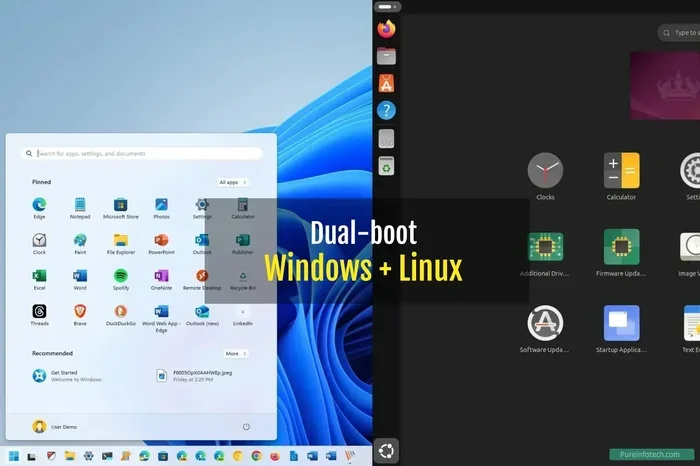
A dual boot setup lets you install Linux alongside Windows on the same computer. When you start your PC, you choose which operating system to boot into. This gives you the full Linux experience without relying on compatibility layers.
How Dual Booting Works
Dual booting involves partitioning your hard drive. You dedicate a portion of your disk to Linux and another portion to Windows. Each operating system lives in its own space. When you turn on your computer, a boot menu lets you pick which OS to use.
When you boot into Linux, you get the complete Linux experience. Full performance, full compatibility, and no Windows overhead. When you boot into Windows, Linux does not slow anything down.
Steps to Set Up a Dual Boot
- Back up all your important files. Always be safe before partitioning.
- Shrink your Windows partition using Disk Management.
- Create a bootable Linux USB drive with a tool like Rufus.
- Restart your PC and boot from the USB drive.
- Follow the Linux installer and choose the free space for installation.
- Set up your boot loader (usually GRUB).
- Reboot and select your operating system from the boot menu.
Who Should Use Dual Boot?
Dual boot is great for power users who want the full Linux experience. It is also useful for people who need Linux for specific tasks but still rely on Windows for everyday work. Gamers sometimes use dual boot to access Linux gaming tools or Steam Deck-like setups.
Things to Keep in Mind
Dual booting requires some technical knowledge. You need to understand partitioning, boot loaders, and BIOS settings. Mistakes during setup can cause boot issues. Always follow reliable guides and back up your data.
Method 4: Linux on Windows via Cloud or Remote Access
Not everyone wants to install Linux directly on their PC. If you only need Linux occasionally, cloud-based or remote access methods can work well.
Cloud Linux Environments
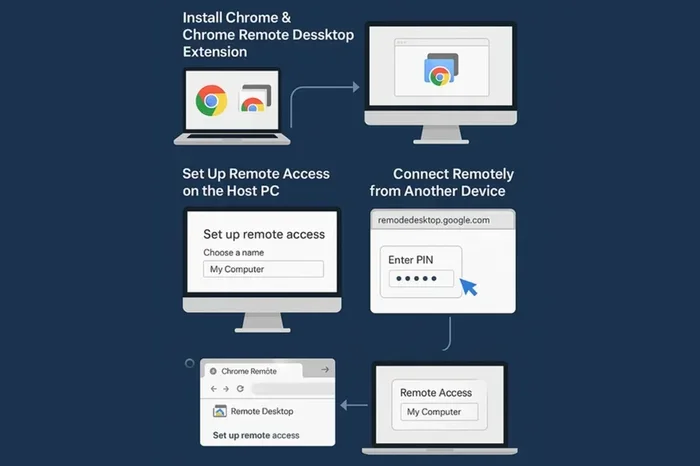
Several cloud services offer Linux environments you can access from your browser. Services like Google Colab, AWS, or Azure let you run Linux in the cloud. You access these environments from your Windows browser, so no local installation is needed.
Remote Desktop to a Linux Machine
If you have a Linux server or another Linux computer on your network, you can connect to it from Windows using remote desktop tools. This lets you use Linux applications on a remote machine while working from your Windows desktop.
When Cloud Linux Makes Sense
Cloud methods work well for occasional Linux use, learning, or running server applications. They are not ideal for tasks that need low latency or offline access. But for quick Linux experiments, they are a zero-commitment option.
Comparing Your Options
With so many ways to run Linux on Windows, how do you choose? Here is a comparison of the main methods.
| Method | Ease of Setup | Linux Desktop | Performance | Isolation |
|---|---|---|---|---|
| WSL | Very Easy | Limited (WSLg) | Excellent | Shared with Windows |
| Virtual Machine | Moderate | Full | Good | Complete |
| Dual Boot | Advanced | Full | Native | Complete |
| Cloud/Remote | Easy | Depends on service | Depends on connection | Complete (remote) |
Your choice depends on what you need. If you want a quick Linux terminal, WSL is the way to go. If you need a full Linux desktop, a virtual machine works well. If you want the best performance and full control, dual boot is the answer.
Which Linux Distribution Should You Choose?
When running Linux on Windows, your choice of distribution matters. Some distros are beginner-friendly. Others are geared toward advanced users. Here are a few popular options:
- Ubuntu: The most popular Linux distribution. Great for beginners and developers. Huge community support.
- Fedora: Cutting-edge software and strong developer focus. A great choice for WSL.
- Debian: Stable and reliable. A solid choice for virtual machines and servers.
- Arch Linux: For advanced users who want full control. Not recommended for beginners.
- Linux Mint: A beginner-friendly desktop Linux experience. Great for dual boot setups.
For WSL, Ubuntu is the most commonly used and best-supported distribution. For virtual machines and dual boot, you can pick any distro that suits your preferences.
Common Mistakes to Avoid
Running Linux on Windows is generally smooth, but some common mistakes can cause problems. Here are pitfalls to watch out for.
- Skipping BIOS virtualization settings: WSL2 and VMs need virtualization enabled in your BIOS. Check this before you start.
- Not backing up your data: Partitioning and dual booting carry risks. Always back up first.
- Using WSL1 when WSL2 is available: WSL2 is faster and more compatible. Always prefer WSL2 for new setups.
- Allocating too few resources to a VM: Give your VM enough RAM and disk space for smooth performance.
- Ignoring updates: Keep your Linux distribution, WSL, and VM software updated for security and performance.
- Mixing Windows and Linux file systems carelessly: Be careful when moving files between Windows and Linux to avoid permission issues.
Expert Insights on Running Linux on Windows
Many developers and system administrators run Linux on Windows daily. The trend has grown significantly with the rise of WSL and cross-platform development. According to surveys, a large percentage of developers use some form of Linux environment on their Windows machines.
The introduction of WSL2 was a game changer. It brought near-native Linux performance to Windows and made Linux compatibility on Windows a reality for millions of users. Microsoft continues to invest heavily in WSL, adding support for GUI Linux apps, systemd, and more.
Experts recommend starting with WSL for most users. It is the fastest path to a working Linux environment on Windows. Once you are comfortable, you can explore virtual machines or dual boot for more advanced use cases.
Final Thoughts
Can I run Linux on Windows? The answer is a resounding yes. You have multiple paths to choose from, and each one opens up a world of possibilities. Whether you use WSL for quick Linux access, a virtual machine for full desktop isolation, or dual boot for native performance, there is a method that fits your needs.
Start simple with WSL if you are new to Linux. Explore different distributions and get comfortable with the Linux command line. Once you are ready, try a virtual machine or dual boot for deeper experiences.
The beauty of these options is that they all work on modern Windows PCs, including Windows 10 and Windows 11. You do not need expensive hardware or advanced technical skills. With a little curiosity and willingness to learn, you can run Linux on Windows today.
So go ahead. Pick a method, follow the steps, and start your Linux journey. The world of Linux is waiting for you, right inside your Windows desktop.
Frequently Asked Questions
Can I run Linux on Windows 10?
Yes, you can run Linux on Windows 10 using WSL, virtual machines, or dual boot. WSL is the easiest method and works well on Windows 10 version 2004 and later. Make sure your Windows is updated to get the best Linux compatibility.
Is it safe to run Linux alongside Windows?
Running Linux on Windows is completely safe. WSL and virtual machines keep Linux isolated from your Windows system. Even dual boot setups do not harm Windows if you follow the steps carefully. Always back up your data before making any changes to your disk.
Do I need a powerful PC to run Linux on Windows?
No, you do not need a powerful PC. Most modern Windows computers can run Linux without issues. WSL is very lightweight and works on modest hardware. Virtual machines need more RAM and CPU, but even mid-range PCs handle them well.
Can I run Linux graphical apps on Windows?
Yes, you can run Linux GUI apps on Windows. WSLg (available in WSL2) supports graphical Linux applications. Virtual machines also provide a full Linux desktop experience with GUI support. This makes Linux on Windows practical for everyday desktop use.
Which Linux distribution is best for WSL?
Ubuntu is the most popular and best-supported Linux distribution for WSL. It works seamlessly with WSL2 and has the largest community. Fedora and Debian are also excellent choices for WSL. Pick the one that matches your needs and preferences.
Can I run Linux games on Windows?
Yes, you can run Linux games on Windows through WSL or virtual machines. However, gaming performance depends on your hardware and the method you use. WSL has limited gaming support, but tools like Proton and Steam work better in full Linux environments like virtual machines or dual boot setups.
=== CONCLUSION ===
Can I Run Linux On Windows? Yes, and now you know exactly how. WSL gives you the fastest and simplest path into the Linux world. Virtual machines offer full isolation and a complete desktop experience. Dual boot delivers native performance for power users. Cloud and remote methods work for occasional Linux needs.
Each method has its place, and the best choice depends on your goals. Start with what feels right for you and explore from there. The beauty of running Linux on Windows is that you can always switch methods or combine them. You are in control of your Linux journey.
Take the first step today. Open PowerShell, type that install command, or download VirtualBox. Your Linux experience on Windows is just a few clicks away. Embrace the flexibility, learn new skills, and enjoy everything Linux has to offer right from your Windows desktop.