How Do I Activate Xfinity Wifi And Start Browsing Now
Wondering how do I activate Xfinity Wifi? This guide walks you through every step, from unboxing your gateway to getting online in minutes. You will also find quick fixes for common activation issues, app-based setup tips, and expert advice to boost your Xfinity wifi performance.
Setting up a new internet connection can feel overwhelming. But how do I activate Xfinity Wifi? The truth is, it is much simpler than most people think. Whether you just moved into a new place or you are replacing old equipment, getting your Xfinity wifi up and running takes just a few minutes. This guide covers everything from unboxing your gateway to fixing common activation hiccups. By the end, you will feel confident and ready to browse, stream, and game without a single worry.
Activating Xfinity Wifi is the first step to enjoying reliable internet at home. Xfinity, owned by Comcast, is one of the largest internet providers in the United States. Their wifi gateways combine a modem and router into one sleek device. This means fewer cables and less clutter. But before you can start streaming your favorite shows, you need to complete the activation process. This article breaks it down into easy, bite-sized steps anyone can follow.
Key Takeaways
- Activation is simple: You can activate Xfinity Wifi online, through the Xfinity app, or by calling customer support.
- You need the right gear: A working Xfinity gateway, a device to set up with, and your account credentials are all you need.
- Troubleshooting is straightforward: Most activation problems come from loose cables, outdated firmware, or incorrect login details.
- The Xfinity app makes it easy: Using the app lets you manage your network, set passwords, and activate wifi in just a few taps.
- Performance matters: Placement, firmware updates, and mesh add-ons can significantly improve your Xfinity wifi speed and coverage.
📑 Table of Contents
- What Is Xfinity Wifi And Why Do You Need To Activate It?
- What Do You Need Before Activating Xfinity Wifi?
- Step-by-Step Guide To Activate Xfinity Wifi
- How To Activate Xfinity Wifi Using The Xfinity App
- Common Activation Problems And How To Fix Them
- Tips For Getting The Best Xfinity Wifi Performance After Activation
- When Should You Call Xfinity Support For Help?
- Frequently Asked Questions
- Final Thoughts
What Is Xfinity Wifi And Why Do You Need To Activate It?
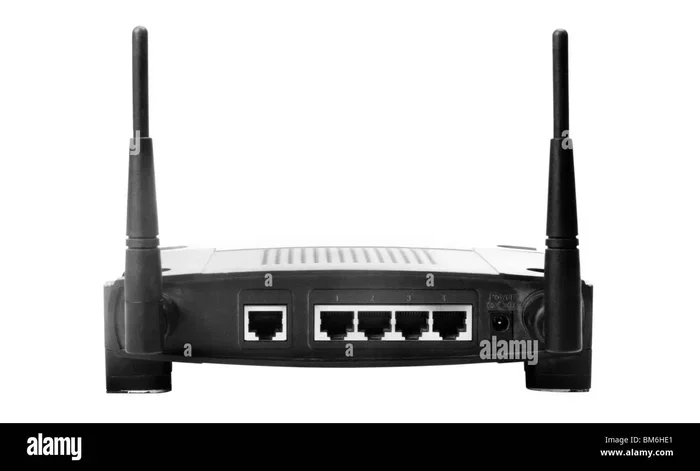
Xfinity Wifi refers to the wireless network created by your Xfinity gateway device. When you sign up for Xfinity internet, they send you a gateway. This gateway connects to the Xfinity network and broadcasts a wireless signal. That signal is your Xfinity wifi. But it does not work right out of the box. You must activate it first.
Activation is like introducing your gateway to the Xfinity system. During activation, your device registers with Xfinity servers. It receives the correct settings, network name, and password. Without activation, your gateway will not provide internet access. Think of it like turning on a new phone. You have to go through a setup process before you can make calls or send texts. Activating Xfinity wifi works the same way.
Here are a few reasons why activation matters:
- Security: Activation ensures your network gets a unique password and proper encryption settings.
- Performance: Registered devices receive the best firmware and network optimization from Xfinity.
- Support: An activated gateway is easier to troubleshoot if something goes wrong.
- Account Linking: Activation ties your gateway to your Xfinity account, so billing and usage tracking work correctly.
What Do You Need Before Activating Xfinity Wifi?
Before you start the activation process, gather a few things. Having everything ready saves time and prevents frustration. Here is a simple checklist:
- Your Xfinity gateway (the modem-router combo unit)
- A power cable and coaxial cable (usually included in the box)
- A device to set up with (laptop, phone, or tablet)
- Your Xfinity account credentials (username and password)
- A stable power outlet near where you plan to place the gateway
If you recently purchased your own equipment, make sure it is compatible with Xfinity. You can check the Xfinity website for approved devices. Using a non-approved personal wifi router with Xfinity service can cause activation problems. If you are unsure, check our guide on Can I Have My Own Personal Wifi Router for helpful details.
Where Should You Place Your Gateway?
Placement matters a lot for wifi performance. Put your gateway in a central location in your home. Avoid hiding it in closets or behind furniture. Walls and metal objects can block the wireless signal. The higher up you place it, the better the coverage. A good rule of thumb is to set it on a shelf at about waist height. This gives the signal room to spread in all directions.
Step-by-Step Guide To Activate Xfinity Wifi
Now let us get into the actual activation steps. Follow these in order, and you will be online in no time.
Step 1: Connect Your Gateway
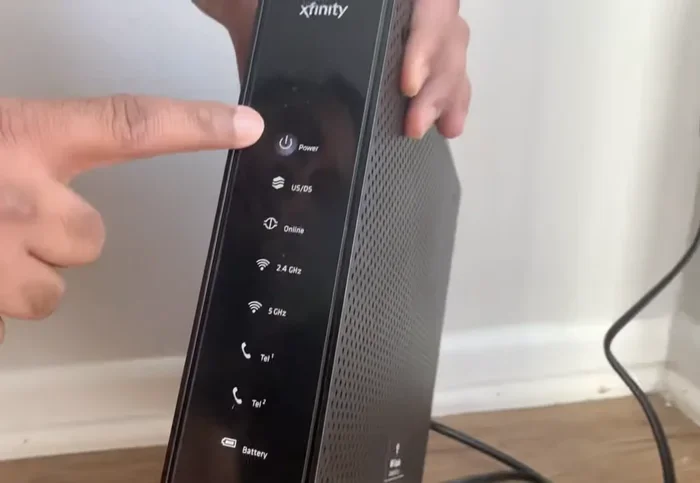
First, plug the coaxial cable into the wall outlet and the other end into your gateway. Then connect the power cable to the gateway and plug it into the wall outlet. Wait for the lights on the front of the device to stabilize. This can take two to five minutes. You are looking for a solid green or white light, which means the device is ready.
Step 2: Connect Your Device To The Gateway
On your phone, laptop, or tablet, open the wifi settings. Look for a network name that starts with “Xfinity” or “xfinitywifi.” If this is your first time, the default network name and password are usually printed on a sticker on the bottom of your gateway. Connect to that network using the password shown.
Step 3: Open The Activation Page
Once connected, open a web browser. Type 10.0.0.1 into the address bar and press Enter. This takes you to the Xfinity gateway activation page. You can also try www.xfinity.com/activate if the first address does not work.
Step 4: Sign In And Follow The Prompts
Enter your Xfinity username and password. This is the same account you use to manage your Xfinity services. Follow the on-screen instructions. The system will register your gateway and apply the correct network settings. This process usually takes about three to five minutes.
Step 5: Set Your Wifi Name And Password
After activation, you will be prompted to create your own wifi network name (SSID) and password. Choose something easy to remember but hard for others to guess. Use a mix of letters, numbers, and symbols. This is your personal Xfinity wifi password, so make it strong.
How To Activate Xfinity Wifi Using The Xfinity App
If you prefer using your phone, the Xfinity app is a great option. It makes the whole process feel like a breeze. Here is how to do it:
- Download the Xfinity app from the App Store (iPhone) or Google Play Store (Android).
- Sign in with your Xfinity account credentials.
- Tap on “Connect” or “Internet” from the main menu.
- Follow the on-screen prompts to activate your gateway.
- Set your wifi name and password when prompted.
The app also lets you manage your network after activation. You can view connected devices, set parental controls, and run speed tests right from your phone. If you want to add mesh wifi to your existing router for better coverage, the Xfinity app can help with that too. Check out our article on Can I Add Mesh Wifi To Existing Router for more details on expanding your home network.
Common Activation Problems And How To Fix Them
Sometimes activation does not go smoothly. Do not worry. Most problems have simple fixes. Here are the most common issues and what you can do about them.
Gateway Lights Are Not Showing Green
If your gateway lights are blinking red or not changing at all, check your cable connections. Make sure the coaxial cable is tight. Check the power cable too. Unplug the gateway, wait 30 seconds, and plug it back in. Wait a few minutes for the lights to stabilize. If they still do not turn solid, there may be an outage in your area.
Activation Page Will Not Load
Try clearing your browser cache or using a different browser. You can also try typing the activation URL directly instead of clicking a link. Make sure you are connected to the gateway’s network and not your old wifi network. If nothing works, restart your device and try again.
Wrong Password Or Username
This is one of the most common reasons activation fails. Double-check your Xfinity account login. If you forgot your password, you can reset it on the Xfinity login page. Make sure Caps Lock is off. If you still cannot log in, call Xfinity support for help resetting your credentials.
Device Not Detecting The Wifi Network
If your device cannot find the Xfinity wifi network, move closer to the gateway. Make sure the gateway is powered on and the wifi light is on. Try restarting your device. If you still cannot see the network, the gateway may need a full reset. Press and hold the reset button on the back of the gateway for about 30 seconds.
For more help managing connected devices on your network, see our article on Can I Block A Device From Using My Wifi Xfinity. It covers how to control which devices access your network.
Tips For Getting The Best Xfinity Wifi Performance After Activation
Once your Xfinity wifi is activated, you want it to work as well as possible. Here are some practical tips to get the most out of your connection.
Keep Your Firmware Updated
Xfinity regularly releases firmware updates for their gateways. These updates fix bugs, improve security, and boost performance. You can check for updates in the Xfinity app or by visiting the gateway admin page at 10.0.0.1. Keeping your firmware current is one of the easiest ways to maintain a strong connection.
Use The 5GHz Band When Possible
Most Xfinity gateways broadcast two wifi bands: 2.4GHz and 5GHz. The 5GHz band is faster but has a shorter range. The 2.4GHz band is slower but reaches farther. For activities like streaming and gaming, connect to the 5GHz band. For devices far from the gateway, the 2.4GHz band may work better.
Restart Your Gateway Regularly
Just like any electronic device, your gateway benefits from a fresh start. Restarting it once a week clears temporary glitches and keeps things running smoothly. Simply unplug the power cable, wait 30 seconds, and plug it back in.
Consider Adding A Second Router
If you have a large home or thick walls, your Xfinity wifi signal might not reach every room. You can add a second router to extend coverage. If you are on Fios internet and want to use two routers, check our guide on Can I Have 2 Routers With Fios for relevant setup advice that also applies to Xfinity setups.
Use Xfinity xFi For Advanced Management
Xfinity offers xFi, a premium wifi management tool. It gives you detailed insights into your home network. You can see which devices are using the most bandwidth, set wifi schedules, and even pause internet access for specific devices. It is a great way to take control of your home network after activation.
When Should You Call Xfinity Support For Help?
Most activation issues can be fixed at home. But sometimes you need professional help. Call Xfinity support if:
- Your gateway lights show a red or amber error after 10 minutes
- You cannot access the activation page after multiple attempts
- Your internet speed is extremely slow even after activation
- You suspect your account has not been properly set up
- You need help with advanced network settings
You can reach Xfinity support by phone, chat, or through the Xfinity app. Having your account number and gateway serial number ready will speed up the process. The serial number is printed on the bottom of your gateway device.
Frequently Asked Questions
How long does it take to activate Xfinity Wifi?
The actual activation process usually takes about five to ten minutes. However, if your gateway needs to be shipped to you first, the total wait time may be longer. Make sure your gateway is fully plugged in and powered on before starting the activation process.
Can I activate Xfinity Wifi without a computer?
Yes, you can. You only need a smartphone or tablet connected to the gateway’s default wifi network. The Xfinity app works great for activation on mobile devices. You can also use the activation web page through any mobile browser.
What should I do if I forgot my Xfinity account password?
Go to the Xfinity login page and click “Forgot Password.” Follow the prompts to reset your password using your email or phone number. Once you regain access, you can log in and complete the activation process without any issues.
Do I need to activate Xfinity Wifi every time I move?
Yes, if you move your gateway to a new location, you should reactivate it. This ensures the device registers with the correct Xfinity network node. The activation process is quick and straightforward, so it should not take more than a few minutes.
Is it safe to activate Xfinity Wifi on my own?
Absolutely. Xfinity designed the activation process to be simple and safe for users. You do not need any technical expertise. Just follow the on-screen instructions, and your network will be properly configured with security settings in place.
Can I use someone else’s Xfinity account to activate my gateway?
No, each gateway must be activated under the account holder’s name. Using another person’s account can cause billing and service issues. If you are a new Xfinity customer, create your own account and activate your gateway under your name.
Final Thoughts
How do I activate Xfinity Wifi? Now you know the answer. The process is straightforward, fast, and something you can do entirely on your own. From connecting your gateway to setting your wifi name and password, every step is designed to be simple and user-friendly. If you run into any issues, the troubleshooting tips in this guide should help you get back on track quickly.
Remember to keep your firmware updated, place your gateway in a central location, and use the Xfinity app for easy network management. A little maintenance goes a long way in keeping your Xfinity wifi fast and reliable. Now that you have your network activated, it is time to sit back, relax, and enjoy everything the internet has to offer. Happy browsing!