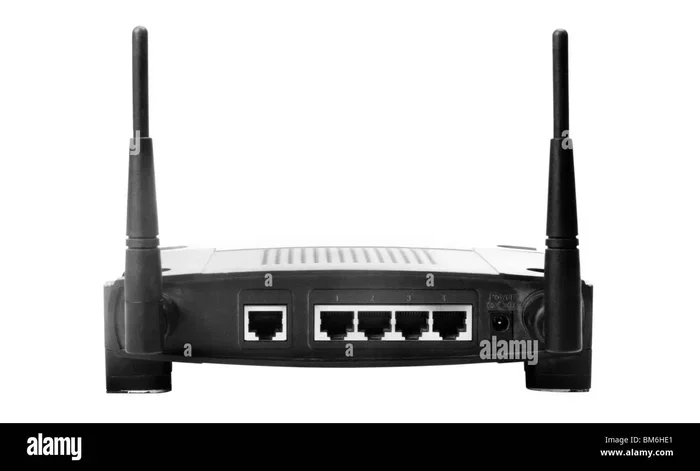
How Do I Access My Wireless Modem for Faster Internet
Accessing your wireless modem is the first step to unlocking faster internet speeds at home. This guide walks you through finding your modem’s IP address, logging in, and adjusting settings to boost performance. You will learn simple tips that anyone can follow to get the most from their broadband connection.
Your wireless modem is the gateway to everything you do online. Whether you are streaming movies, working from home, or just browsing the web, the speed and stability of your connection depend on how well your modem is set up. Many people plug it in, connect to the default network, and never think about it again. But that is a missed opportunity.
Think of your modem as the brain of your home network. It takes the signal from your internet provider and distributes it to all your devices. When you learn how to access and tweak its settings, you gain control over speed, security, and performance. This guide will show you exactly how to do it, step by step, in plain language that makes sense.
You do not need to be a tech expert to follow along. We will cover everything from finding your modem’s IP address to optimizing your Wi-Fi channel for the best speeds. By the end, you will feel confident making changes that can genuinely improve your internet experience. Let us get started.
Key Takeaways
- Find your modem IP address easily: Your default gateway is the key to logging in and managing settings.
- Log in with default credentials: Check the label on your modem for the admin username and password.
- Optimize channel and bandwidth settings: Small changes in your modem configuration can significantly improve speed.
- Update firmware regularly: Keeping your modem software current ensures security and peak performance.
- Secure your network: Set a strong Wi-Fi password and block unauthorized devices to maintain fast speeds.
- Reset when needed: A simple modem reset can resolve many connection and speed issues.
📑 Table of Contents
- What Is a Wireless Modem and Why Should You Access It?
- How to Find Your Wireless Modem IP Address
- Logging Into Your Wireless Modem
- Optimizing Your Modem Settings for Faster Internet
- Securing Your Wireless Modem and Network
- Troubleshooting Common Modem Access Issues
- Simple Habits for Long-Term Modem Performance
- When to Contact Your Internet Provider
What Is a Wireless Modem and Why Should You Access It?
A wireless modem is a device that connects your home to the internet and sends out a Wi-Fi signal. Your internet provider gives you this device, and it works by receiving data from the wider network and turning it into a signal your phones, laptops, and smart TVs can use. Most people plug it in, connect to the default network, and never think about it again. But that is a missed opportunity.
When you access your wireless modem, you open up a control panel full of settings that affect how fast and how reliably your internet works. You can change your network name, set a stronger password, choose the best Wi-Fi channel, and even prioritize certain devices for faster speeds. These adjustments can make a real difference, especially if you live in a busy household with many devices competing for bandwidth.
Here are some key reasons to access your modem settings:
- Faster internet speeds: Tweaking channel and bandwidth settings can reduce interference and boost performance.
- Better security: You can update your Wi-Fi password and enable stronger encryption to keep strangers out.
- Device management: See what devices are connected and block anyone you do not recognize.
- Improved coverage: Adjusting settings can help extend your Wi-Fi signal to every corner of your home.
- Troubleshooting: Accessing the modem helps you diagnose slow speeds, dropouts, and connection errors.
If you have ever wondered why your internet feels slow at certain times of the day, the answer might be hiding in your modem settings. Taking a few minutes to access your modem can save you hours of frustration. And the good news is, it is much easier than most people think.
How to Find Your Wireless Modem IP Address
Before you can log in and change any settings, you need to know your modem’s IP address. This is the web address you type into your browser to reach the modem’s control panel. Every modem has one, and finding it takes just a few seconds.
Check the Modem Label
Flip your modem over or look at the back panel. Most manufacturers print the default IP address right on a sticker along with the admin username and password. Common addresses include 192.168.1.1, 192.168.0.1, or 10.0.0.1. If you see one of these, you are already halfway there.
Use Your Computer to Find It
If the label is faded or missing, you can find the IP address through your computer. On Windows, open the Command Prompt and type ipconfig. Look for the Default Gateway entry. On Mac, go to System Settings, then Network, and look for the router address. This default gateway is your modem’s IP address.
Once you have the IP address, type it into your web browser’s address bar and press Enter. You should see a login page from your modem’s manufacturer. If you get an error, double-check the address and make sure you are connected to the modem’s network.
For those who are connecting their PC to Wi-Fi without Ethernet, this step is especially important. Your wireless connection still routes through the modem, so you can access the admin panel just the same. If you are having trouble connecting wirelessly, check out our guide on Can I Connect My PC to Wi-Fi Without Ethernet for helpful tips.
Logging Into Your Wireless Modem
Now that you know your IP address, logging in is straightforward. Open any web browser, type the IP address into the address bar, and press Enter. You will see a login screen asking for a username and password.
Default Login Credentials
Most modems use simple default credentials. Common combinations include admin/admin, admin/password, or user/admin. Check the sticker on your modem for the exact details. If you have never changed these, the defaults will still work. Write them down somewhere safe so you do not get locked out later.
What If You Changed the Password and Forgot It?
No worries. You can reset your modem to factory settings by pressing and holding the reset button on the back for about 10 seconds. This restores the default username and password. Keep in mind that a reset also wipes any custom settings you have configured, so use this as a last resort. Always try other options first before hitting that reset button.
Why Logging In Matters
Once you are logged in, you gain access to a dashboard that controls every aspect of your home network. You can view connected devices, change your network name, set a new Wi-Fi password, and adjust advanced settings like DNS and channel selection. Without logging in, all of these tools remain hidden and unused. Taking the time to log in regularly helps you stay on top of your network health. It only takes a couple of minutes, and the benefits are well worth the effort.
Optimizing Your Modem Settings for Faster Internet
This is the part most people are waiting for. Once you are inside your modem settings, there are several adjustments you can make to boost your internet speed. You do not need advanced technical skills. Just follow these steps and see the difference.
Change Your Wi-Fi Channel
Your Wi-Fi signal travels on specific channels, and if your neighbors are using the same channel, there can be interference. This slows everyone down. In your modem settings, look for the wireless or Wi-Fi section and find the channel option. Try switching to a less crowded channel. Channels 1, 6, and 11 are the most common for 2.4 GHz networks, so try one outside that range if possible. A free Wi-Fi analyzer app on your phone can help you find the best channel in your area.
Update Your Modem Firmware
Modem manufacturers release firmware updates to fix bugs, improve performance, and patch security holes. In your modem dashboard, look for a Firmware Update or Administration section. If an update is available, install it. This simple step can improve your connection speed and stability without any extra cost. Some modems also offer automatic updates, which you can enable for peace of mind.
Adjust Bandwidth and Band Settings
Most modern modems support both 2.4 GHz and 5 GHz bands. The 5 GHz band is faster but has a shorter range. The 2.4 GHz band covers more distance but is slower. If you want the fastest speeds and your modem is nearby, use the 5 GHz band. If you need coverage throughout the house, the 2.4 GHz band may be better. You can also adjust the bandwidth. Setting it to 20 MHz or 40 MHz can affect speed depending on your environment. Wider bandwidth generally means faster speeds, but it can also increase interference in crowded areas.
Set Up Quality of Service (QoS)
QoS lets you prioritize certain devices or activities. If you are working from home and need a stable connection for video calls, you can tell your modem to give your work laptop priority over other devices. Look for the QoS or Traffic Management section in your modem settings. This is a great way to ensure your most important tasks get the bandwidth they need.
Making these changes might seem small, but they add up. Many users report noticeably faster speeds after just a few adjustments. The key is to experiment and find the settings that work best for your home.
Securing Your Wireless Modem and Network
Accessing your modem is not just about speed. It is also about keeping your network safe. An unsecured modem is an open door for hackers, neighbors, and anyone else who wants to use your internet without permission. This slows down your connection and puts your personal data at risk.
Change Your Default Passwords
The first thing you should do after logging in is change the admin password. Default passwords are well known and easy to guess. Pick a strong password that includes a mix of letters, numbers, and symbols. Write it down and keep it in a safe place. Do not use the same password you use for other accounts either.
Set a Strong Wi-Fi Password
Your Wi-Fi password is what keeps strangers off your network. Use WPA3 encryption if your modem supports it. If not, WPA2 is the next best option. Avoid using simple passwords like “password123” or your street address. A strong password is your first line of defense. You should also consider changing your network name to something unique that does not reveal your identity or modem brand.
Monitor Connected Devices
Most modem dashboards show a list of all connected devices. Take a look at this list regularly. If you see a device you do not recognize, you can block it from using your network. If you are dealing with unauthorized users slowing down your connection, our guide on Can I Block a Device From Using My Wi-Fi Xfinity offers practical steps you can apply to any modem brand, not just Xfinity.
Taking these security steps protects your speed and your privacy. It is one of the easiest and most important things you can do for your home network. A little prevention goes a long way.
Troubleshooting Common Modem Access Issues
Sometimes things do not go smoothly. You might not be able to reach the login page, or you might log in but cannot find the settings you need. Here are some common issues and how to fix them.
Cannot Access the Login Page
If typing the IP address does not bring up the login page, try these steps. First, make sure you are connected to the modem’s network. Second, double-check the IP address for typos. Third, try a different browser. Fourth, disable any VPN or proxy that might be blocking the connection. If none of these work, restart your modem and try again. Sometimes a fresh start is all it takes.
Slow Speeds After Making Changes
If your internet feels slower after adjusting settings, do not panic. Simply reset your modem to factory defaults and start over. Write down any changes you make so you can undo them if needed. Sometimes the default settings are actually the best for your specific setup. Keep a simple note of your username, password, and any custom settings you configure.
Modem Keeps Disconnecting
A modem that drops connections frequently may have outdated firmware or may be overheating. Make sure your modem is in a well-ventilated area and update the firmware. If the problem persists, contact your internet provider. They can run tests from their end and sometimes send a replacement modem at no cost. Do not hesitate to reach out. That is what they are there for.
Remember, troubleshooting is part of the process. Every time you work through a problem, you learn more about your network and how to keep it running smoothly.
Simple Habits for Long-Term Modem Performance
Accessing your modem once is great, but maintaining it over time is what keeps your internet fast and reliable. Here are some habits that make a big difference.
- Restart your modem weekly: A simple reboot clears memory and refreshes your connection.
- Keep firmware updated: Check for updates every few months.
- Place your modem in a central location: This gives the best coverage throughout your home.
- Keep it cool: Avoid placing your modem in enclosed spaces or near heat sources.
- Review connected devices monthly: Make sure only your devices are on the network.
- Change passwords periodically: Update your admin and Wi-Fi passwords every few months for security.
If you want to get the most out of your home internet setup, consider whether you need a separate router or if your modem handles everything. For those exploring options, check out our guide on Can I Buy My Own Wifi Box to understand your choices better and make an informed decision.
These small habits take almost no time but pay off in the long run. A well-maintained modem delivers faster, more reliable internet day after day. Your future self will thank you for taking the time to get it right now.
When to Contact Your Internet Provider
There are times when accessing your modem is not enough. If you have tried all the steps above and your internet is still slow or unreliable, it might be time to call your provider. They can check the signal strength from their end, run line tests, and determine if there is an issue with the infrastructure serving your home. Many providers also offer modem rental programs where they swap out old equipment for newer models at no extra charge.
If your modem is more than a few years old, a newer model could dramatically improve your speeds. Do not hesitate to reach out. That is what they are there for. Accessing your wireless modem puts you in the driver’s seat. You do not have to settle for slow internet or mysterious connection problems. With the knowledge and tools in this guide, you can take control of your home network and enjoy a faster, more secure internet experience every single day.
Frequently Asked Questions
What is the default IP address for most wireless modems?
Most modems use 192.168.1.1, 192.168.0.1, or 10.0.0.1 as their default IP address. You can find the exact address on the sticker on the back or bottom of your modem. If you have changed it before and forgotten, resetting the modem will restore the default.
Can I access my wireless modem from my phone?
Yes, you can access your modem settings from any device connected to the same network, including your phone. Simply open a web browser on your phone, type in the modem IP address, and log in with your credentials. Just make sure you are connected to your home Wi-Fi network first.
Why can I not log into my wireless modem?
The most common reasons are typing the wrong IP address, using incorrect login credentials, or having a browser cache issue. Double-check the IP address, try the default username and password from the modem label, and clear your browser cache if needed. A modem reset can also restore access if nothing else works.
How often should I update my modem firmware?
It is a good habit to check for firmware updates every two to three months. Some modems also have an automatic update feature you can enable. Keeping your firmware current ensures you get the latest performance improvements and security patches.
Will changing my Wi-Fi channel really make my internet faster?
Yes, changing to a less crowded Wi-Fi channel can reduce interference from neighboring networks and improve your speeds. This is especially true for 2.4 GHz networks where channels overlap. Use a free Wi-Fi analyzer app to find the best channel for your location.
Is it safe to reset my modem to factory settings?
Yes, resetting your modem is safe and returns all settings to their original defaults. However, you will lose any custom configurations like your Wi-Fi name, password, and QoS settings. Make sure you note down any important changes before resetting, and be prepared to set up your network again afterward.