Does Msi B550 Pro Have Wifi Everything You Need To Know
The MSI B550 Pro motherboard does not come with built-in WiFi out of the box. Users need to add a separate WiFi adapter or PCIe card to get wireless connectivity. This guide covers all the details you need to know about WiFi options, setup steps, and alternatives for this popular board.
When you are building or upgrading a PC, one question always comes up fast: does Msi B550 Pro have wifi? It is a simple question, but the answer has a few layers that matter a lot. If you are planning to use this motherboard and need wireless internet, you are in the right place.
The MSI B550 Pro is a solid mid-range motherboard built for AMD Ryzen processors. It offers great value, reliable performance, and plenty of features. But when it comes to wireless connectivity, this board does not include a built-in WiFi module. That means you need to take an extra step to get online without a cable.
In this guide, we will walk through everything you need to know. We will cover why the board lacks WiFi, what options you have to add wireless capability, how to set things up, and what works best for different situations. Whether you are a gamer, a remote worker, or just someone who wants a clean desk setup, this article has you covered.
Key Takeaways
- No Built-In WiFi: The MSI B550 Pro does not include WiFi functionality by default.
- PCIe WiFi Cards Work Best: Adding a PCIe wireless adapter is the most reliable way to get WiFi on this board.
- USB WiFi Sticks Are an Option: A USB adapter can work but may not deliver the same speed or stability.
- Ethernet Remains the Gold Standard: For the fastest and most stable connection, a wired ethernet cable is still the best choice.
- Setup Is Simple: Installing a WiFi card or adapter on the MSI B550 Pro is straightforward and takes just a few minutes.
- Mesh Systems Boost Coverage: If you need better wireless range, you can add mesh WiFi to your existing router for whole-home coverage.
📑 Table of Contents
- What Is the MSI B550 Pro Motherboard?
- Does Msi B550 Pro Have Wifi? The Direct Answer
- How to Add WiFi to the MSI B550 Pro
- Setting Up WiFi on the MSI B550 Pro
- WiFi Performance Tips for the MSI B550 Pro
- Common Mistakes to Avoid
- How the MSI B550 Pro Compares to Other Boards
- When You Should Consider a Different Motherboard
- Final Thoughts on WiFi and the MSI B550 Pro
What Is the MSI B550 Pro Motherboard?
The MSI B550 Pro is part of MSI’s B550 chipset lineup. It is designed to support AMD Ryzen 3000 and 5000 series processors. The board offers a clean, no-nonsense layout with solid build quality and dependable features.
Key Specifications at a Glance
- Socket: AM4
- Chipset: AMD B550
- RAM Support: Up to 128GB DDR4
- PCIe Slots: PCIe 4.0 support
- Storage: Multiple M.2 and SATA ports
- USB Ports: USB 3.2 Gen 1 and Gen 2
- Built-In WiFi: No
- Built-In Bluetooth: No
As you can see, the board keeps things simple. It does not include wireless features. This is common on many budget and mid-range motherboards. The trade-off is a lower price point. You get a reliable board with strong wired performance, but you will need to add WiFi yourself if you want it.
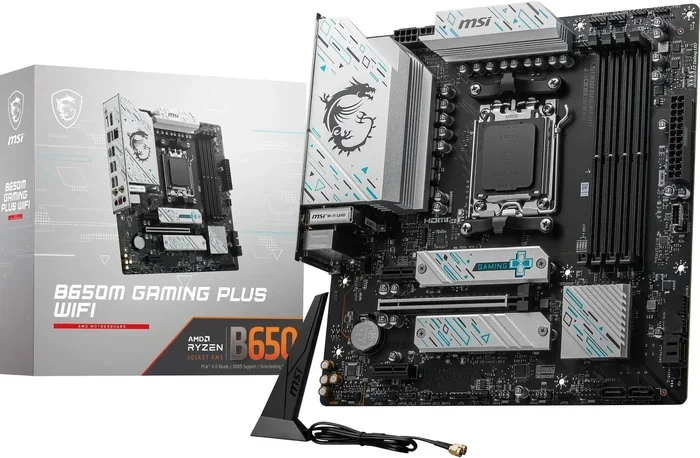
If you are wondering about alternatives, some MSI boards in the B550 line do come with WiFi built in. The MSI B550-A PRO WiFi, for example, includes a wireless module. But the standard MSI B550 Pro does not. Always double-check the exact model name before you buy.
Does Msi B550 Pro Have Wifi? The Direct Answer
Let us get straight to the point. No, the MSI B550 Pro does not have WiFi. There is no wireless module on this board. You will not find any WiFi antenna connectors or built-in wireless chips. The board relies entirely on wired connections for network access.
This is not a flaw. It is a design choice. By leaving WiFi out, MSI keeps the cost down and the board focused on wired performance. Many users actually prefer this approach. They use ethernet cables for gaming and streaming, which gives them a more stable and faster connection than WiFi in most cases.
But not everyone wants to run a cable. Some setups make wired connections difficult. Maybe your desk is far from the router. Maybe you want a cleaner look without cables running everywhere. In those cases, you need to add WiFi yourself. The good news is that it is very doable.
Why Some Motherboards Skip Built-In WiFi
- Cost savings: WiFi modules add to the manufacturing cost.
- Simpler design: Fewer components mean fewer potential failure points.
- Target audience: Gamers and power users often prefer wired connections.
- Flexibility: Users can choose their own WiFi solution based on their needs.
The MSI B550 Pro targets users who want a dependable board without paying extra for features they might not need. If WiFi is essential for you, you will need to invest in an add-on solution.
How to Add WiFi to the MSI B550 Pro
Since the board does not have WiFi built in, you need to add a wireless adapter. There are a few different ways to do this. Each method has its own pros and cons. Let us break them down.
Option 1: PCIe WiFi Card
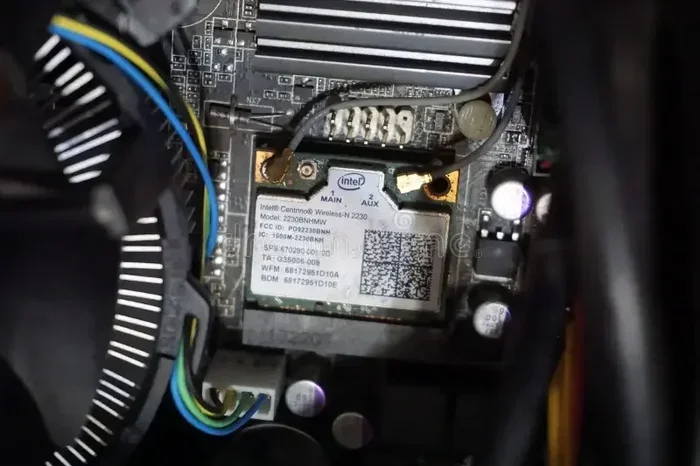
A PCIe WiFi card is the best option for most users. You install it directly into a PCIe slot on the motherboard. This gives you a fast, stable wireless connection with excellent performance.
Here is why a PCIe card works so well:
- Better speeds: PCIe connections offer higher bandwidth than USB.
- More stable: The card is securely mounted inside the case.
- Better range: Internal cards often have better antennas than USB sticks.
- WiFi 6 support: Many modern PCIe cards support the latest WiFi standards.
Popular options include cards from TP-Link, ASUS, and Intel. Look for a card that supports WiFi 6 (802.11ax) for the best speeds. A PCIe WiFi card typically costs between $30 and $80 depending on the model.
Option 2: USB WiFi Adapter
A USB WiFi adapter is the easiest option. You plug it into a USB port, install the drivers, and you are connected. No opening the case required. This is a great choice if you are not comfortable with PC hardware.
However, USB adapters have some limitations:
- Slower speeds: USB connections can bottleneck the WiFi signal.
- Less stable: USB adapters can lose connection if they are bumped.
- Shorter range: The antennas on USB sticks are usually smaller.
If you go the USB route, look for an adapter that supports WiFi 5 or WiFi 6. Avoid cheap adapters that only support older standards. They will not give you the speeds you need.
Option 3: Use an Ethernet Cable Instead
If you do not strictly need wireless, an ethernet cable is the best way to connect your PC to the internet. The MSI B550 Pro has a built-in ethernet port. Just plug in a cable from your router and you are good to go.
Many gamers and streamers prefer this approach. A wired connection is faster, more stable, and has lower latency than WiFi. If your PC is close to your router, this is the way to go.
If your router is far away, you can extend your WiFi with an ethernet cable using a longer run or a powerline adapter. This gives you the best of both worlds: wired speed without a long cable across the room.
Setting Up WiFi on the MSI B550 Pro
Once you have your WiFi adapter or card, the next step is setup. The process is straightforward, but it helps to know what to expect.
Installing a PCIe WiFi Card
- Turn off your PC and unplug it from the power outlet.
- Open the computer case.
- Find an available PCIe slot on the motherboard.
- Remove the corresponding backplate from the case.
- Insert the WiFi card into the PCIe slot firmly.
- Secure the card with a screw.
- Close the case and plug the PC back in.
- Turn on the PC and install the drivers from the manufacturer’s website.
Once the drivers are installed, your PC should detect available WiFi networks. Select your network, enter the password, and you are online. The whole process takes about 10 to 15 minutes.
Setting Up a USB WiFi Adapter
- Plug the adapter into a USB port.
- Install the drivers from the included CD or the manufacturer’s website.
- Restart your PC if prompted.
- Go to your network settings and select your WiFi network.
- Enter the password and connect.
USB adapters are plug-and-play in most cases. Windows 10 and 11 often install basic drivers automatically. But for the best performance, always download the latest drivers from the manufacturer’s site.
Installing WiFi Drivers on MSI B550 Pro
Whether you use a PCIe card or a USB adapter, drivers are essential. They tell your operating system how to communicate with the WiFi hardware. Without the right drivers, your adapter may not work at all or may run at reduced speeds.
Always visit the adapter manufacturer’s website to get the latest drivers. Do not rely on Windows Update alone. The drivers on Windows Update are often outdated and can cause performance issues.
WiFi Performance Tips for the MSI B550 Pro
Once you have WiFi set up, you want to make sure you are getting the best performance possible. Here are some tips to help you get the most out of your wireless connection.
Position Your Router Wisely
- Place your router in a central location in your home.
- Keep it away from walls and metal objects.
- Avoid placing it near microwaves or cordless phones.
- Elevate the router on a shelf for better signal spread.
Use the Right WiFi Band
Most modern routers support two frequency bands: 2.4GHz and 5GHz. The 5GHz band offers faster speeds but shorter range. The 2.4GHz band covers more distance but is slower. Choose the band that fits your needs.
If your PC is close to the router, use the 5GHz band for the best speeds. If you are farther away, the 2.4GHz band will give you a more stable connection.
Update Your WiFi Drivers Regularly
Driver updates often include performance improvements and bug fixes. Check for updates from your adapter manufacturer every few months. This simple step can make a big difference in your wireless experience.
Consider a Mesh WiFi System
If you have a large home or experience weak WiFi signals in certain rooms, a mesh WiFi system can help. You can add mesh WiFi to your existing router to extend coverage throughout your home. Mesh systems use multiple nodes to create a seamless wireless network with no dead zones.
Common Mistakes to Avoid
When adding WiFi to the MSI B550 Pro, some common mistakes can cause problems. Here are a few to watch out for.
- Buying the wrong adapter: Make sure your adapter is compatible with your operating system and supports the WiFi standard you need.
- Skipping driver updates: Outdated drivers can cause slow speeds and connection drops.
- Using a cheap USB adapter: Budget USB adapters often have poor range and slow speeds. Spend a little more for better quality.
- Ignoring the PCIe slot choice: Some PCIe slots run at different speeds. Use a PCIe x1 or x4 slot for the best results with a WiFi card.
- Placing the router poorly: Even the best WiFi adapter will struggle if your router is in a bad location.
Avoiding these mistakes will save you time and frustration. A little planning goes a long way when setting up wireless connectivity.
How the MSI B550 Pro Compares to Other Boards
To put things in perspective, let us compare the MSI B550 Pro to a few other popular motherboards in the same price range.
| Feature | MSI B550 Pro | MSI B550-A PRO WiFi | ASUS ROG Strix B550-F |
|---|---|---|---|
| Built-In WiFi | No | Yes | Yes |
| WiFi Standard | N/A | WiFi 6 | WiFi 6 |
| Bluetooth | No | Yes | Yes |
| PCIe 4.0 Support | Yes | Yes | Yes |
| Price Range | Lower | Mid | Mid-High |
As the table shows, the MSI B550 Pro is the most affordable option but lacks wireless features. The MSI B550-A PRO WiFi includes WiFi 6 and Bluetooth built in. The ASUS ROG Strix B550-F also offers wireless connectivity with premium features.
If you already own the MSI B550 Pro, do not worry. Adding WiFi is easy and affordable. A PCIe WiFi card will give you the same wireless performance as a board with built-in WiFi. You just need to install it yourself.
Also, if you are considering buying a new motherboard and WiFi is important to you, you might want to look at boards that include it. But if you already have the MSI B550 Pro, adding a WiFi adapter is the way to go.
When You Should Consider a Different Motherboard
There are times when the lack of built-in WiFi on the MSI B550 Pro might be a dealbreaker. If any of these situations apply to you, you might want to consider a different board.
- You want a clean, cable-free setup: If you absolutely do not want to add any hardware, a board with built-in WiFi is better.
- You are a casual user who does not want to troubleshoot: Built-in WiFi just works. No drivers, no installation.
- You are building a compact PC: A PCIe WiFi card takes up space inside the case. A USB adapter takes up a USB port. Both can be inconvenient in small builds.
On the other hand, if you are comfortable with a little extra setup, the MSI B550 Pro is a great choice. The board itself is excellent. Adding WiFi is a minor step that opens up all the wireless features you need.
And if you already have a WiFi setup in your home, you might want to check whether your current router and adapter are working well together. Sometimes the issue is not the motherboard but the WiFi equipment you are already using. You can also buy your own WiFi box to upgrade your home network if needed.
Final Thoughts on WiFi and the MSI B550 Pro
So, does Msi B550 Pro have wifi? The answer is no, not out of the box. But that does not mean you are stuck without wireless connectivity. The MSI B550 Pro is a great motherboard that simply leaves WiFi up to you to add.
Whether you choose a PCIe WiFi card, a USB adapter, or stick with a wired ethernet connection, you have options. Each method has its strengths. A PCIe card gives you the best performance. A USB adapter is the easiest to set up. And an ethernet cable delivers the most stable connection of all.
The MSI B550 Pro is a budget-friendly board that punches above its price. Adding WiFi is a small extra step that makes this board even more versatile. Whether you are gaming, working from home, or just browsing the web, you can get the wireless connection you need without spending a fortune.
Take your time, choose the right WiFi solution for your needs, and follow the setup steps in this guide. You will be connected and ready to go in no time. The MSI B550 Pro is a solid foundation for any PC build, and with the right WiFi add-on, it can handle anything from casual browsing to competitive gaming.
Remember to keep your drivers updated, position your router well, and enjoy the wireless experience. The MSI B550 Pro might not have WiFi built in, but with a little effort, it can deliver excellent wireless performance that rivals any board with integrated WiFi.
Frequently Asked Questions
Can I use a USB WiFi adapter with the MSI B550 Pro?
Yes, you can. A USB WiFi adapter is the easiest way to add wireless connectivity to the MSI B550 Pro. Just plug it into a USB port, install the drivers, and connect to your network. For the best speeds, choose an adapter that supports WiFi 5 or WiFi 6.
Does the MSI B550 Pro support WiFi 6?
The MSI B550 Pro itself does not support WiFi 6 because it does not have built-in WiFi. However, you can add WiFi 6 support by installing a PCIe WiFi card or using a USB adapter that supports the WiFi 6 standard.
Is it better to use WiFi or ethernet with the MSI B550 Pro?
Ethernet is almost always better for speed and stability. The MSI B550 Pro has a built-in ethernet port that provides a fast and reliable wired connection. Use WiFi when running a cable is not practical, but go wired whenever possible for the best performance.
How much does a PCIe WiFi card cost for the MSI B550 Pro?
A decent PCIe WiFi card typically costs between $30 and $80. Prices vary depending on the brand, WiFi standard, and features. A WiFi 6 card from a reputable brand will give you the best value for your money.
Can I use a TV antenna to get WiFi on the MSI B550 Pro?
No, a TV antenna is not designed for WiFi signals. TV antennas pick up broadcast television signals, which are completely different from WiFi frequencies. To get WiFi on the MSI B550 Pro, you need a proper WiFi adapter or PCIe card.
Will adding a WiFi card void the MSI B550 Pro warranty?
No, adding a PCIe WiFi card or USB adapter does not void your motherboard warranty. These are standard, user-installable components. Just make sure to handle the board and components carefully during installation to avoid any accidental damage.
=== CONCLUSION ===
The MSI B550 Pro is a reliable and affordable motherboard that delivers strong performance for AMD Ryzen builds. While it does not include built-in WiFi, adding wireless connectivity is simple and affordable. A PCIe WiFi card is the best option for speed and stability, while a USB adapter offers convenience and ease of setup.
Whether you choose to go wireless or stick with a wired ethernet connection, the MSI B550 Pro has you covered. The board provides all the features you need to build a solid PC, and the WiFi options are flexible enough to fit any budget and setup.
Follow the tips in this guide, choose the right WiFi solution for your needs, and you will enjoy a fast, reliable wireless connection on your MSI B550 Pro motherboard. Does Msi B550 Pro have wifi? Not built in, but with the right add-on, it can deliver excellent wireless performance that meets all your needs.