Can A Laptop Be Too Old To Update And Still Run Well
Can a laptop be too old to update and still run well? The short answer is yes — but it doesn’t mean your device is useless. Older laptops often struggle with the latest operating system updates because of hardware limitations, incompatible system requirements, and dropped manufacturer support. However, you can still get solid performance from an aging machine with the right software choices, hardware upgrades, and maintenance habits. This guide breaks down everything you need to know about old laptop performance, operating system support, and how to decide whether to update, upgrade, or replace.
You power on your laptop. The screen takes forever to load. Apps open slowly. Updates keep failing or won’t even start. You start wondering — can a laptop be too old to update and still run well? It’s a frustrating situation that millions of people face every day.
The truth is, laptops do have a lifespan. Technology moves fast. What felt super fast three years ago can feel sluggish today. But “too old” doesn’t always mean “time to throw it away.” There are real answers, practical solutions, and smart choices you can make. Let’s walk through them together.
In this article, we’ll cover exactly what happens when a laptop gets old, how operating systems decide what to support, and what you can do to keep things running. Whether you use a Windows machine or a Mac, this guide has something for you.
Key Takeaways
- Old laptops can miss critical updates: Manufacturers eventually stop supporting older hardware, leaving devices vulnerable to security risks.
- Hardware limits what you can run: Processor compatibility, RAM capacity, and storage type all determine whether a laptop can handle modern updates.
- Performance degrades over time: Even if updates install, performance degradation is common on legacy hardware.
- Upgrades can breathe new life into old machines: Adding RAM or switching to an SSD upgrade makes a huge difference.
- Knowing when to replace saves money: Sometimes the cost of keeping an obsolete laptop running exceeds the cost of a new one.
- Security matters most: Running an unsupported laptop without security patches puts your data at risk.
- Alternative operating systems exist: Lightweight Linux distros can revive laptops that can no longer run Windows or macOS.
📑 Table of Contents
What Happens When Your Laptop Gets Too Old?
As laptops age, they don’t just look worn out. The internal components struggle to keep up with modern demands. Understanding what’s happening inside your machine helps you make better decisions.
The Hardware Gets Left Behind
Every year, chip manufacturers release faster processors. Software developers write programs that take advantage of that speed. But your old laptop has the same processor it came with. Over time, old laptop performance drops because software becomes heavier while hardware stays the same.
Think of it like trying to run the latest video game on a ten-year-old console. The game wants more power than the console can give. The same thing happens with laptops and modern software.
Software Demands Grow Every Year
Operating systems like Windows 10 and Windows 11 have specific system requirements. These requirements keep going up. A laptop that ran Windows 8 perfectly might not meet the bar for Windows 11. That gap is where the trouble starts.
Here are common issues old laptops face:
- Slow boot times and general lag
- Inability to install the latest updates
- Apps crashing or not opening
- Security vulnerabilities from missing patches
- Poor battery life that gets worse over time
- Overheating because older fans can’t cool modern workloads
All of these problems point to one thing — your laptop may have reached its laptop lifespan limit for modern software.
How Operating Systems Decide What’s Supported
Software companies don’t support every device forever. They set rules about which laptops can run their latest updates. Understanding these rules helps you figure out where your laptop stands.
Windows Update Requirements
Microsoft has clear rules for Windows 11. Your laptop needs a TPM 2.0 chip, a compatible processor, and a certain amount of RAM. If your laptop doesn’t have these, you can’t get the official Windows 11 update.
Even Windows 10 has limits. Microsoft ended mainstream support for Windows 10 in October 2025. Older laptops that can’t run Windows 10 or 11 are left without official operating system support.
macOS Compatibility Rules
Apple takes a similar approach. Each new version of macOS supports only certain Mac models. A MacBook from 2012 might run macOS Monterey but not the latest macOS Sonoma or Sequoia. Apple drops support for older Mac OS compatibility with each major release.
Here’s a quick comparison of what major updates typically require:
| Laptop Age | Windows Support | macOS Support | Typical Performance |
|---|---|---|---|
| Less than 2 years | Full support for latest updates | Full support for latest updates | Excellent |
| 2–4 years | Most updates supported | Most updates supported | Good |
| 4–6 years | Some updates skipped | Limited support | Fair to slow |
| 6+ years | Little to no support | Rarely supported | Poor for modern tasks |
This table shows why hardware compatibility matters so much. The older the laptop, the fewer updates it can handle.
Why Companies Drop Support
You might wonder why companies stop supporting older laptops. It comes down to resources. Writing and testing updates for every old device costs time and money. Companies focus their efforts on current hardware so their newest products work better.
They also want you to buy new laptops. Supporting old hardware doesn’t help their business model. So they set cut-off dates and move forward.
Signs Your Laptop Is Too Old For Updates
How do you actually know if your laptop is too old? There are clear warning signs. Watch for these red flags.
Failed Update Attempts
If your laptop keeps failing to download or install updates, that’s a big clue. You might see error messages about incompatible hardware or unsupported processor. These messages mean the update simply won’t work on your machine.
Sluggish Performance After Updates
Sometimes updates do install — but everything slows down afterward. Your laptop takes longer to start. Apps take forever to open. This performance degradation happens because the update demands more from your hardware than it can deliver.
Security Warnings
One of the scariest signs is seeing warnings about security patches. If your laptop can’t receive the latest security updates, you’re exposed. Hackers target older systems because they know those devices don’t have the newest protections.
Apps Won’t Run Properly
Modern apps are built for newer systems. If your favorite apps crash frequently or won’t install at all, your laptop’s operating system version might be too outdated. Developers stop supporting old OS versions to focus on current ones.
Battery and Hardware Issues
Old laptops often have degraded batteries. They overheat more easily. Fans run constantly. These problems make the laptop feel even older than it is. Sometimes the issue isn’t the software — it’s the physical parts wearing out.
Can You Still Make An Old Laptop Work Well?
Here’s the good news. Even if your laptop can’t handle the latest updates, you still have options. Plenty of people use older laptops every day without major problems. The key is knowing what to do.
Stick With a Supported Operating System
If your laptop can’t run the newest version of Windows or macOS, don’t force it. Stay on a version that still receives security patches and works well with your hardware. For example, if your laptop runs Windows 10 fine, stick with it until support ends. Don’t try to upgrade to something your machine can’t handle.
Switch to a Lightweight Operating System
One of the best tricks for old laptop performance is switching to a lightweight operating system. Linux distros like Lubuntu, Linux Mint XFCE, or Puppy Linux are designed for older hardware. They use far fewer resources than Windows or macOS.
Many of these Linux versions are free. They can turn a sluggish, outdated laptop into a fast machine for browsing, writing, and light tasks. The learning curve is small, and the results are impressive.
Upgrade the Hardware
Sometimes the fix is simpler than you think. A few affordable upgrades can dramatically improve old laptop performance:
- SSD upgrade: Replacing an old hard drive with a solid-state drive is the single best thing you can do. Boot times drop from minutes to seconds. Apps open much faster.
- Add more RAM: If your laptop has 4GB of RAM or less, upgrading to 8GB or 16GB makes a huge difference. Modern web browsers eat up memory, and more RAM helps everything run smoother.
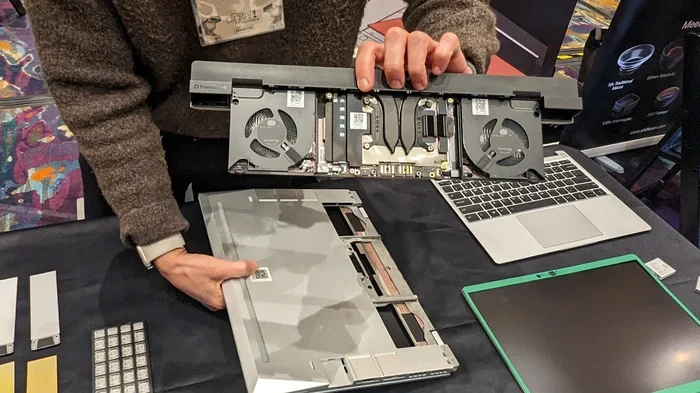
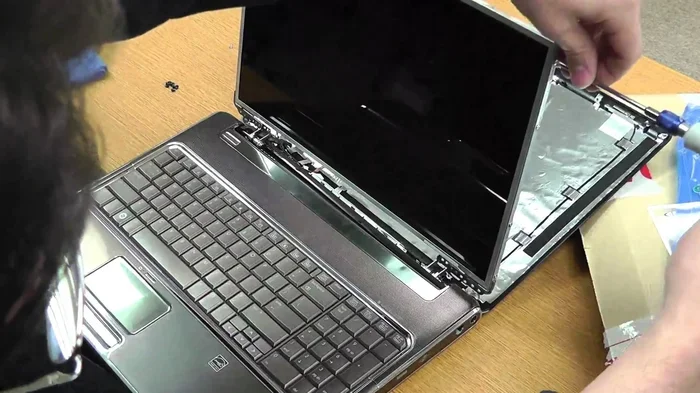
- Clean the inside: Dust buildup causes overheating. Opening the laptop and cleaning the fans and vents can lower temperatures and improve speed.
- Replace the battery: A new battery can make an old laptop feel like new again.
These upgrades cost a fraction of a new laptop. They can extend your machine’s useful life by years.
Use Lighter Apps and Browsers
Even if your laptop can’t run the latest updates, you can choose lighter software. Use browsers like Opera Mini or Brave instead of heavy alternatives. Switch to lightweight office suites. Avoid resource-heavy apps whenever possible.
Every bit of optimization helps an old laptop run better. Small changes add up to noticeable improvements.
Keep Your Data Safe
Older laptops are more prone to failures. Make sure you back up your data regularly. Use an external hard drive or a cloud service. If your laptop dies suddenly, you won’t lose important files.
Security matters too. Even without the latest updates, you can protect yourself by using a good antivirus, avoiding suspicious websites, and keeping your browser up to date.
When Should You Replace Instead Of Update?
Knowing when to let go is just as important as knowing how to keep things running. Sometimes an old laptop has served its purpose, and it’s time for something new.
Cost of Repairs vs. Replacement
If you’re spending more on repairs and upgrades than the laptop is worth, it’s time to replace it. A new laptop costs money upfront but saves you from constant frustration and downtime.
A good rule of thumb: if repairs exceed 50% of the cost of a new laptop, go ahead and buy a new one.
Security Risks Become Unmanageable
When your laptop can no longer receive security patches, you face real risks. Every day without updates is a day your system is exposed to new threats. If you use your laptop for banking, shopping, or storing personal data, running an unsupported system is dangerous.
In these cases, replacing the laptop isn’t just about performance — it’s about protecting your identity and your money.
Your Needs Have Changed
Maybe your old laptop was perfect for basic tasks years ago. But now you work from home, edit photos, or run video calls all day. Those tasks demand more power. If your laptop can’t keep up with your current needs, a newer machine makes sense.
Think about what you actually use your laptop for. Match your needs to the right device.
The Environmental Angle
Replacing a laptop isn’t great for the environment. E-waste is a real problem. If your old laptop still works for basic tasks, consider donating it or recycling it properly. You can also repurpose it as a media player, a home server, or a dedicated machine for kids’ homework.
Getting the most life out of your devices is one of the best things you can do for the planet.
Expert Tips To Extend Your Old Laptop’s Life
Tech experts agree on a few strategies that help older laptops stay useful longer. Here are the best tips from people who work with computers every day.
Keep It Clean Inside and Out
Dust is the enemy of old laptops. It clogs fans, traps heat, and slows everything down. Use compressed air to clean vents regularly. Wipe down the keyboard and screen. A clean laptop runs cooler and lasts longer.
Manage Startup Programs
Many laptops load too many programs when you turn them on. Go into your task manager and disable unnecessary startup apps. This simple step can cut boot time dramatically and free up memory for the things you actually use.
Stay on Supported Software
Use software versions that still receive updates. Even if your laptop can’t run the latest version of an app, older versions that still get patches are safer than completely unsupported ones.
Use Cloud Services When Possible
Cloud storage and cloud-based apps reduce the strain on your laptop’s hardware. Google Docs, cloud photo storage, and browser-based tools let you do more without taxing your old machine.
Monitor Temperatures
Old laptops overheat more easily. Use free temperature monitoring tools to keep an eye on your CPU and GPU temps. If temperatures run high, consider using a cooling pad or reapplying thermal paste.
Reset or Reinstall the OS Periodically
Over time, software builds up and slows things down. A fresh operating system install can work wonders. Back up your files, reinstall Windows or your chosen OS, and start clean. It’s like giving your laptop a new lease on life.
Know When to Move On
Even with the best care, every laptop reaches the end of its useful life. Recognizing that moment saves you time, money, and frustration. If your laptop can’t handle basic tasks safely, it’s okay to say goodbye.
Key Takeaways
- Old laptops can miss critical updates: Manufacturers eventually stop supporting older hardware, leaving devices vulnerable to security risks.
- Hardware limits what you can run: Processor compatibility, RAM capacity, and storage type all determine whether a laptop can handle modern updates.
- Performance degrades over time: Even if updates install, performance degradation is common on legacy hardware.
- Upgrades can breathe new life into old machines: Adding RAM or switching to an SSD upgrade makes a huge difference.
- Knowing when to replace saves money: Sometimes the cost of keeping an obsolete laptop running exceeds the cost of a new one.
- Security matters most: Running an unsupported laptop without security patches puts your data at risk.
- Alternative operating systems exist: Lightweight Linux distros can revive laptops that can no longer run Windows or macOS.
Conclusion
Can a laptop be too old to update and still run well? Yes, it can be too old for certain updates — but that doesn’t mean it’s done for good. With the right approach, you can keep an older laptop useful for everyday tasks, light work, and entertainment.
The key is understanding your laptop’s limits. Check system requirements before trying any update. Pay attention to hardware compatibility and operating system support timelines. When updates stop coming, consider alternatives like lightweight operating systems or hardware upgrades.
Most importantly, keep your data safe and your security in mind. An old laptop that can’t receive security patches is a risk. Know when to upgrade, when to repair, and when it’s simply time to move on.
Every laptop has a lifespan. The goal isn’t to make it last forever — it’s to get the most value and use out of it before responsibly replacing it. With the tips in this guide, you’ll be well equipped to make smart decisions about your aging laptop.
Take a look at your machine today. Check its age, its specs, and what updates it can still handle. A little knowledge goes a long way toward keeping your laptop running smoothly — no matter how old it is.
Can A Laptop Be Too Old To Update And Still Run Well?
Absolutely. But with the right strategy, you can still get great value from it.
Can A Laptop Be Too Old To Update?
Yes, when the hardware no longer meets the system requirements for the latest operating system updates. Manufacturers set specific processor compatibility and hardware requirements that older laptops simply can’t fulfill.
What Happens If You Don’t Update an Old Laptop?
Your laptop becomes vulnerable to security threats. Software bugs aren’t fixed, and new apps may stop working. However, if the laptop is used only for basic offline tasks, the risks are lower.
How Long Should A Laptop Last Before It’s Too Old?
Most laptops last 4 to 6 years before they struggle with modern updates. Heavy users may find their laptops slowing down after 3 years. Light users can often push 5 to 7 years with proper care.
Is It Worth Upgrading an Old Laptop?
It can be. Adding an SSD upgrade or extra RAM costs much less than a new laptop and dramatically improves old laptop performance. Just make sure the rest of the hardware is still in good shape.
Can You Run Linux On A Laptop That’s Too Old For Windows?
Yes, that’s one of the best options for legacy hardware. Lightweight Linux distributions like Lubuntu or Linux Mint XFCE run well on older laptops and can extend their useful life significantly.
When Should You Stop Trying To Update And Just Replace?
When repair and upgrade costs exceed half the price of a new laptop, or when your machine can no longer receive security patches, replacement is the safer and more practical choice.
Frequently Asked Questions
What is Can A Laptop Be Too Old To Update?
Can A Laptop Be Too Old To Update is an important topic with many practical applications.