Do All Laptops Have Usb A Ports And Why It Matters
Not all laptops have USB A ports anymore. Many modern laptops have shifted to USB-C, leaving users confused about connecting older devices. USB A ports are still widely used for peripherals, and knowing which laptops include them can save you time and money. This guide covers everything you need to know about USB A port availability on today’s laptops.
Do all laptops have USB A ports? The short answer is no. If you have been shopping for a new laptop lately, you may have noticed that many slim, lightweight models skip the classic rectangular USB A port altogether. Instead, they rely on USB-C or Thunderbolt connections. This shift in design has left a lot of people scratching their heads. You grab your old flash drive or printer cable, plug it in, and… nothing happens.
The world of laptop ports has changed fast. Manufacturers are dropping USB A in favor of newer, smaller designs. But that does not mean USB A is dead. It is still the most common port for everyday accessories. Understanding which laptops still have USB A and why it matters can help you make smarter buying decisions. Let us break it all down.
Key Takeaways
- Not all laptops include USB A ports: Many newer models have moved entirely to USB-C or Thunderbolt ports.
- USB A is still the standard for many peripherals: Mice, keyboards, flash drives, and printers often rely on USB A connections.
- Adapters and hubs solve the compatibility problem: You can easily add USB A ports to any laptop with a simple adapter.
- USB-C is replacing USB A in modern design: Laptops are trending toward smaller, reversible USB-C ports for faster data and charging.
- Check your laptop specs before buying accessories: Knowing your port types prevents wasted purchases and frustration.
- USB A ports offer backward compatibility: Older devices work seamlessly with USB A without needing extra drivers.
📑 Table of Contents
What Is a USB A Port?
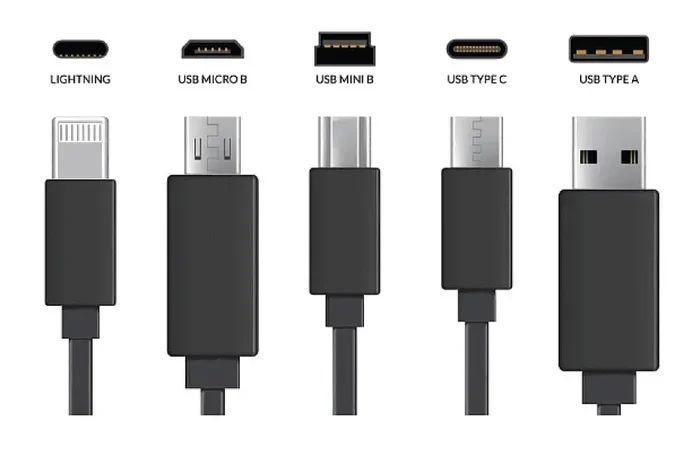
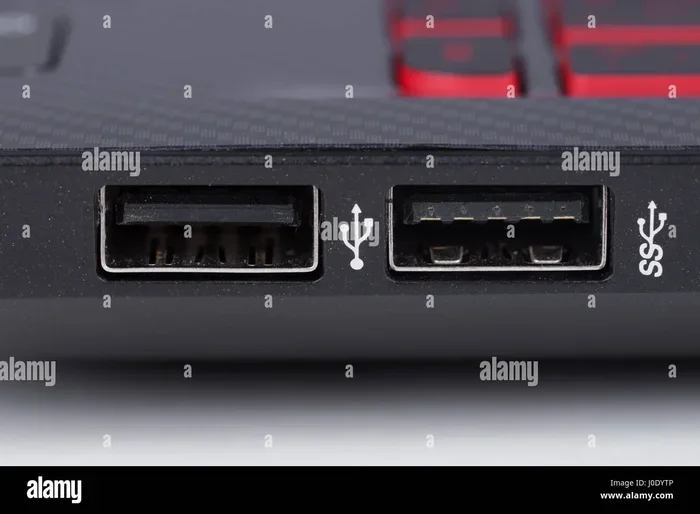
A USB A port is the classic rectangular plug you have been using for decades. It is the flat, wide connector found on almost every computer, TV, and charger from the early 2000s. When most people think of a USB connection, they picture USB A. It is the standard port for connecting peripheral devices like keyboards, mice, and external hard drives.
Why USB A Has Been So Popular
USB A became the universal standard because it works with almost everything. Nearly every accessory made in the last 20 years uses a USB A connector. Whether you are plugging in a computer mouse or a simple flash drive, USB A has you covered. It is simple, reliable, and widely supported.
The port itself is not very fast compared to newer standards, but it gets the job done for most everyday tasks. You can transfer files, charge small devices, and connect a wide range of accessories without any hassle. That is why USB A has stuck around for so long.
Different Versions of USB A
USB A has evolved over the years, even though the shape has stayed the same. Here are the main versions you will encounter:
- USB 2.0: The most common version. It transfers data at up to 480 Mbps. Good enough for keyboards and mice.
- USB 3.0 (USB 3.2 Gen 1): Faster at 5 Gbps. The port is usually blue inside so you can tell it apart.
- USB 3.1 (USB 3.2 Gen 2): Even faster at 10 Gbps. Found on many newer laptops.
- USB 3.2 Gen 2×2: The fastest USB A variant at 20 Gbps. Rare but available on some high-end models.
Even though the port shape has not changed, the speed and power delivery have improved significantly over time. This backward compatibility is one of USB A’s biggest strengths.
Do All Laptops Have USB A Ports?
Here is the honest truth. No, not all laptops have USB A ports. In fact, many modern laptops have completely done away with them. This trend started with ultrabooks and thin-and-light laptops. Brands like Apple, Dell, HP, and Lenovo have all released models that only feature USB-C ports.
Laptops That Still Include USB A
Many business laptops and traditional notebooks still include at least one USB A port. These are designed for users who need to connect older devices without extra adapters. Here are some common examples:
- Dell Latitude series: Popular among professionals, these often include multiple USB A ports.
- HP ProBook and EliteBook: Business-focused laptops that prioritize compatibility.
- Lenovo ThinkPad models: Many ThinkPads still include USB A alongside USB-C.
- Acer Aspire and TravelMate: Budget and mid-range options that keep USB A for convenience.
- ASUS VivoBook and ZenBook (some models): Certain models still offer USB A, but it varies widely.
If you need a laptop with USB A, always check the specifications before you buy. Product pages usually list all available ports. Do not assume a laptop has USB A just because it looks like a traditional design.
Laptops That Have Dropped USB A
On the other side of the spectrum, many laptops have removed USB A entirely. These tend to be ultraportables and premium models:
- Apple MacBook Air and Pro: Apple has used USB-C exclusively since 2015. No USB A in sight.
- Microsoft Surface Laptop: Sleek design means USB-C only.
- LG Gram series: Ultra-light laptops that favor USB-C for weight savings.
- Many Chromebooks: Budget and education-focused Chromebooks often skip USB A to cut costs.
The trend toward USB-C is clear. Manufacturers want thinner laptops, faster data transfer, and universal compatibility. USB-C delivers on all three fronts. But it has also created a compatibility headache for users with older accessories.
Why USB A Ports Still Matter
You might wonder why USB A even matters in a world moving toward USB-C. The answer is simple. A huge number of devices still use USB A connections. Your existing accessories, cables, and peripherals likely rely on USB A. Dropping it from laptops creates friction for everyday users.
Peripheral Device Compatibility
Most printers, scanners, and external hard drives still ship with USB A cables. If your laptop lacks USB A, you need an adapter or a hub every time you want to print something. That is an extra accessory to buy, carry, and potentially lose.
Similarly, many wired computer mice and keyboards use USB A. Gamers, in particular, often prefer USB A for their gaming peripherals because of lower latency and direct connection stability. Removing USB A forces them to use adapters, which can introduce lag or connection issues.
Data Transfer and File Sharing
USB A flash drives are everywhere. Office workers, students, and photographers all rely on them for quick file transfers. If your laptop does not have a USB A port, you need to carry an adapter or buy a USB-C flash drive instead. This adds cost and inconvenience to your daily routine.
Some people also use USB A connections to transfer data between older devices. For example, connecting an old digital camera or MP3 player often requires a USB A cable. Without a USB A port on your laptop, these devices become harder to use.
Charging and Power Delivery
While USB A is not ideal for charging modern laptops, it still works for charging smaller devices. Bluetooth headphones, portable speakers, and fitness trackers often use USB A for charging. Having a USB A port on your laptop means you can charge these devices directly without hunting for a wall outlet or a separate charger.
USB A vs USB-C: The Great Port Debate
The debate between USB A and USB-C is one of the most talked-about topics in laptop accessories. Both ports serve the same basic purpose, but they are very different in design and capability.
Speed Comparison
USB-C is significantly faster than USB A in most cases. USB 3.0 USB A maxes out at 5 Gbps, while USB 3.1 USB-C can reach 10 Gbps. USB 3.2 and Thunderbolt 3/4 USB-C connections go even faster, up to 40 Gbps. For large file transfers, video editing, and external GPU use, USB-C is the clear winner.
However, for simple tasks like connecting a mouse or transferring a few documents, the speed difference barely matters. USB A handles these tasks perfectly well.
Reversibility and Design
One of the biggest advantages of USB-C is that it is reversible. You never have to flip the cable to find the right orientation. USB A, on the other hand, only works one way. We have all flipped that plug three times before getting it right. USB-C eliminates this frustration entirely.
USB-C is also smaller and more compact. This allows laptop manufacturers to build thinner, lighter devices without sacrificing connectivity. For portability, USB-C is the better choice.
Power Delivery
USB-C supports USB Power Delivery, which can charge laptops at up to 100 watts or more. USB A typically maxes out at 7.5 watts for standard charging, though some USB BC 1.2 ports can deliver up to 15 watts. If you want a single cable to charge your laptop and connect peripherals, USB-C is the way to go.
Which One Should You Choose?
The best answer is both. Laptops that offer a mix of USB A and USB-C give you the most flexibility. You get the universal compatibility of USB A and the speed and versatility of USB-C in one machine. If you are buying a new laptop, look for models that offer at least one USB A port alongside USB-C. This gives you the best of both worlds without forcing you to buy extra adapters.
How to Add USB A Ports to Any Laptop
If your laptop does not have a USB A port, you are not stuck. There are several easy ways to add USB A connectivity to any laptop.
USB Adapters
The simplest solution is a USB-C to USB A adapter. These small dongles plug directly into your laptop’s USB-C port and give you a full-size USB A port. They are inexpensive, usually under $15, and incredibly portable. You can keep one in your laptop bag at all times.
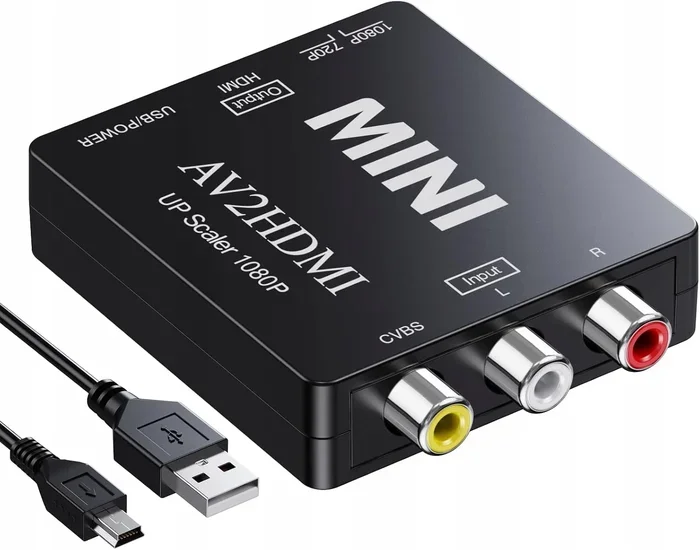
Some adapters also include additional features like SD card readers or HDMI outputs. These all-in-one adapters are great for people who need multiple port types on the go.
USB Hubs
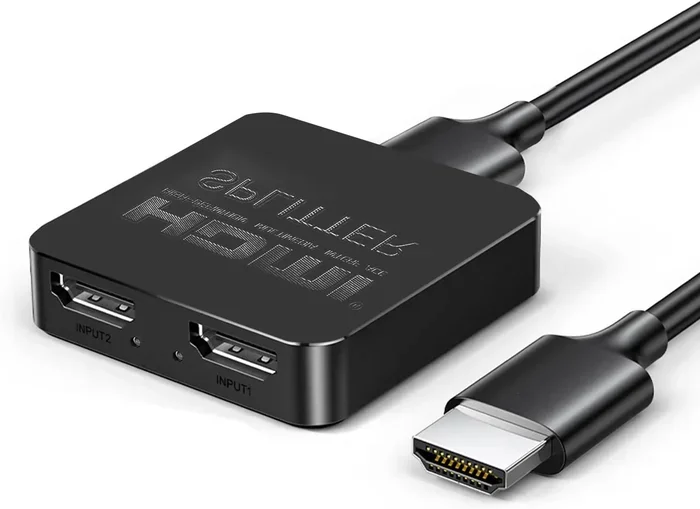
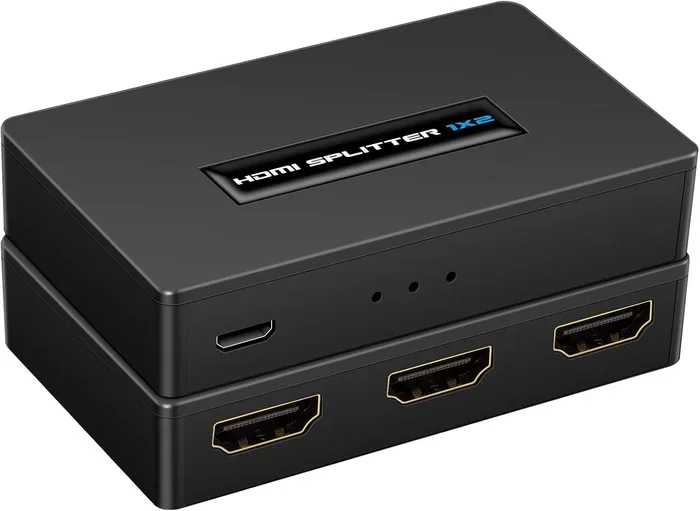
A USB hub is a better option if you need multiple USB A ports at once. A hub plugs into one USB-C port and expands it into several USB A ports, often three to seven. Some hubs also include Ethernet jacks, audio ports, and even HDMI outputs for connecting to external displays.
USB hubs are especially useful for people who work from a desk. You can connect your mouse, keyboard, external hard drive, and printer all at once without reaching behind your laptop for ports.
Docking Stations
For a more permanent setup, consider a docking station. These devices sit on your desk and connect to your laptop through a single USB-C cable. They provide multiple USB A ports, video outputs, power delivery, and Ethernet connectivity. Docking stations are popular among professionals who want a clean, organized workspace.
One thing to keep in mind is that your laptop’s wireless connection, such as WiFi connectivity, should remain stable when using a docking station. Some users experience minor interference when multiple USB devices are connected through a hub, so choosing a quality dock matters.
Quick Tips for Choosing Adapters and Hubs
- Check the USB standard: Make sure your adapter or hub supports USB 3.0 or higher for full speed.
- Avoid cheap adapters: Low-quality adapters can cause data transfer errors or connection drops.
- Consider power delivery: If you want to charge your laptop through the hub, look for one that supports USB Power Delivery.
- Read reviews: Other users will tell you if an adapter or hub has reliability issues.
- Match the port count to your needs: Do not buy a hub with ten ports if you only need two or three.
Common Mistakes People Make With USB A Ports
Even experienced laptop users make mistakes when it comes to USB A ports. Here are some common errors to avoid.
Assuming All USB A Ports Are the Same Speed
Not all USB A ports deliver the same performance. A USB 2.0 port will be much slower than a USB 3.0 port. Before plugging in an external drive for a large transfer, check your laptop’s specs to confirm the port speed. Plugging a USB 3.0 device into a USB 2.0 port will limit your transfer speed to USB 2.0 levels.
Forcing the Connector
USB A only fits one way. If you are struggling to plug it in, flip the connector over. Forcing a USB plug can damage the port or the cable. Take a moment to align it properly. It might take a few tries, but that is normal.
Ignoring Dust and Debris
USB A ports can collect dust and lint over time. This debris can interfere with the connection and cause intermittent issues. Periodically inspect your ports and clean them gently with compressed air or a soft brush. A clean port ensures a reliable connection every time.
Overloading a Single Port
USB A ports have a limited power budget. Connecting too many power-hungry devices to a single port can cause issues. If you need to connect multiple devices, use a powered USB hub. This ensures each device gets the power it needs without overloading the port.
Not Using the Right Cable
The cable matters just as much as the port. A cheap or damaged USB cable can slow down your data transfer or fail to charge your device. Always use high-quality cables that match the USB standard of your port. If you are unsure, look for cables labeled with the USB version they support.
Expert Insights on the Future of Laptop Ports
The writing is on the wall. USB A is gradually being phased out of laptops in favor of USB-C. Industry leaders have been pushing USB-C as the universal standard for years. The USB Implementers Forum (USB-IF) has announced that USB-C will become the mandatory port on all devices in the coming years.
However, the transition is not happening overnight. Many businesses and institutions still rely on USB A peripherals. Printers, barcode scanners, medical devices, and industrial equipment often use USB A connections. Until these devices fully transition to USB-C, there will be demand for laptops that include USB A ports.
For now, the best strategy is to own a laptop that offers both USB A and USB-C. This gives you maximum flexibility and future-proofs your setup. As more devices adopt USB-C, you can rely on the USB A port for legacy accessories. And when the time comes to retire those older devices, you will already be ready.
Technology moves fast. What is standard today may be obsolete in five years. Staying informed about port trends helps you make smarter purchasing decisions and avoid costly surprises. Keep an eye on new laptop releases and pay attention to which ports they include. Your future self will thank you.
Conclusion
So, do all laptops have USB A? No, but many still do. The laptop market is shifting toward USB-C, and USB A is slowly becoming less common. However, USB A remains essential for connecting a wide range of peripherals and accessories. Whether you are a student, professional, or casual user, understanding USB A port availability helps you choose the right laptop and the right accessories.
If your laptop does not have a USB A port, do not worry. Adapters, hubs, and docking stations make it easy to add USB A connectivity whenever you need it. The key is to know your options and plan ahead. A little preparation goes a long way in avoiding connectivity headaches.
Always check your laptop specifications before buying accessories. A few minutes of research can save you from buying the wrong cable or adapter. And when you are in the market for a new laptop, consider one that offers both USB A and USB-C for maximum flexibility. The right port setup makes your digital life smoother and more convenient every single day.
Frequently Asked Questions
Can I use a USB A flash drive on a laptop with only USB-C ports?
Yes, you can. You just need a USB-C to USB A adapter or a USB hub with a USB A port. These adapters are inexpensive and widely available. Simply plug the adapter into your laptop, then connect your flash drive to the adapter. It works just like a native USB A port.
Why are laptops removing USB A ports?
Laptops are removing USB A ports to become thinner and lighter. USB-C is smaller and reversible, which allows manufacturers to design sleeker devices. USB-C also offers faster data transfer and better power delivery. The industry is gradually standardizing on USB-C for all connectivity needs.
Is USB A faster than USB-C?
Generally, USB-C is faster than USB A. USB 3.0 USB A tops out at 5 Gbps, while USB 3.1 USB-C reaches 10 Gbps. Thunderbolt USB-C connections go even faster at up to 40 Gbps. However, for simple tasks like connecting a mouse or keyboard, the speed difference is not noticeable.
Do all USB A cables work the same way?
No, not all USB A cables are the same. USB 2.0 cables are slower than USB 3.0 cables. USB 3.0 cables usually have a blue insert inside the port. The cable quality also matters. A cheap or damaged cable can slow down data transfer or fail to charge your device properly. Always use cables that match the USB standard of your port.
Can I charge my phone using a laptop’s USB A port?
Yes, you can. Most laptop USB A ports provide enough power to charge a smartphone. The charging speed may be slower than using a wall charger, but it works fine for overnight charging or top-ups during the day. Keep in mind that USB A ports deliver less power than USB-C ports, so fast charging may not be possible.
What should I look for in a USB hub for my laptop?
Look for a USB hub that supports USB 3.0 or higher for the best speed. Check the number of USB A ports you need and whether the hub includes extra features like HDMI output or Ethernet. If you want to charge your laptop through the hub, make sure it supports USB Power Delivery. Reading user reviews helps you avoid cheap hubs that cause connection problems.