Can You Use A Ps2 With Hdmi And Improve Picture Quality
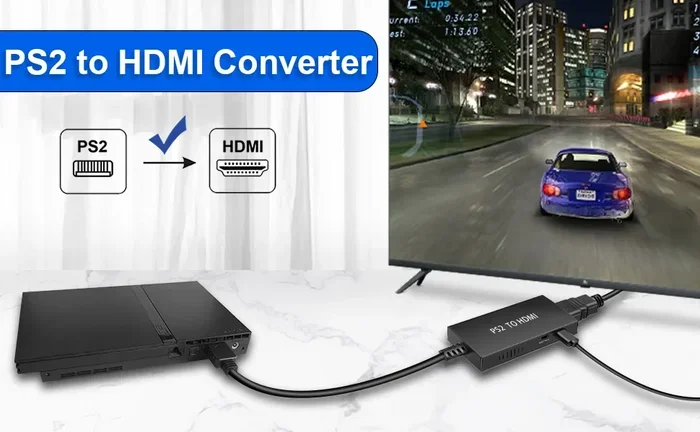
Yes, you can use a PS2 with HDMI, and it can seriously improve your picture quality. The original PlayStation 2 was designed for older TVs, but with the right HDMI adapter or converter, you can enjoy sharper visuals on modern HDTVs. This guide walks you through every option, from cheap composite-to-HDMI converters to high-quality component-based solutions that bring your favorite retro games to life.
There is something special about plugging in your PS2 and diving into a classic game. But if you have a modern TV, you know the struggle. The original cables that came with the console look terrible on today’s screens. Fuzzy lines, dull colors, and laggy visuals can ruin the experience.
So, can you use a PS2 with HDMI? The short answer is yes. And the longer answer is even better. With the right setup, you can transform your old PlayStation 2 into a retro gaming machine that looks fantastic on a big HDTV. Let us walk you through everything you need to know.
Many gamers assume their old console is stuck in the past. But technology has come a long way, and HDMI adapters have made it possible to enjoy vintage games with crisp, clean visuals. Whether you are a collector, a casual player, or someone who wants to relive childhood favorites, this guide has you covered.
Key Takeaways
- You can connect a PS2 to HDMI: Using adapters or converters, the PlayStation 2 can output to modern HDTVs with much better clarity.
- Picture quality improves significantly: HDMI delivers a digital signal that reduces static, ghosting, and blurry lines compared to the original AV cables.
- Not all adapters are equal: Cheap composite converters may not deliver the best results, while component-to-HDMI setups offer the clearest picture.
- Setup is simple: Most HDMI adapters plug in and go, with no complicated software or drivers needed.
- You may need a scaler or upscaler: For the best results, a dedicated scaler can enhance the resolution before sending it to your TV.
- Common issues are fixable: Problems like no signal or audio sync issues usually have straightforward solutions.
📑 Table of Contents
- What Is HDMI And Why Does It Matter For Your PS2?
- Can You Use A PS2 With HDMI? Here Is How It Works
- How To Connect Your PS2 to an HDTV Using HDMI
- Does HDMI Actually Improve Picture Quality on PS2?
- Common Problems When Using PS2 With HDMI And How To Fix Them
- Expert Tips to Maximize Your PS2 HDMI Experience
- Final Thoughts
What Is HDMI And Why Does It Matter For Your PS2?
HDMI stands for High-Definition Multimedia Interface. It is a digital connection that carries both video and audio through a single cable. Almost every modern TV and monitor comes with at least one HDMI port. This makes it the most universal and convenient display option available today.
The original PS2 was released in 2000. At that time, most households used CRT televisions with composite or component inputs. Those cables were standard back then, but they do not hold up well today. When you plug a PS2 into a flat-screen TV using the old cables, the image often looks soft, stretched, or plagued by visual noise.
HDMI solves these problems. It sends a clean digital signal that your TV can display natively. This means sharper edges, better color accuracy, and no interference from loose or damaged cables. For retro gaming enthusiasts, this upgrade is a game-changer. It brings your favorite titles closer to how they were meant to look.
One thing to keep in mind is that the PS2 itself does not have a built-in HDMI port. You need an external device to bridge the gap. The good news is that there are several options available, and they range from budget-friendly to premium quality.
Can You Use A PS2 With HDMI? Here Is How It Works
The answer to “can you use a PS2 with HDMI” depends on the method you choose. There is no single magic cable that plugs directly into the PS2 and outputs HDMI. Instead, you need an adapter or a converter that takes the PS2’s original signal and converts it into a format your TV can read.
Here are the main ways to get HDMI output from your PlayStation 2:
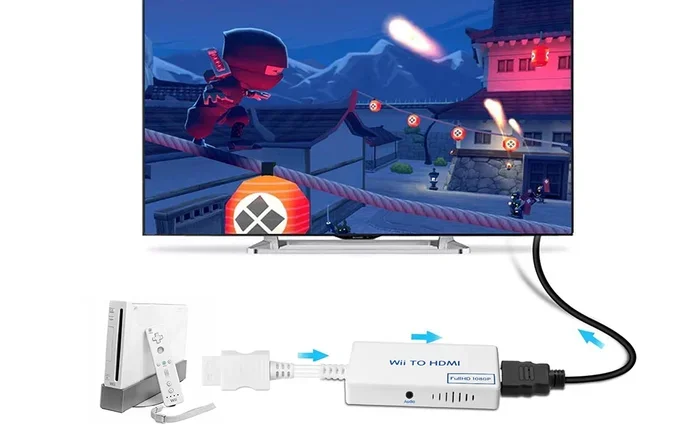
- Composite-to-HDMI Converter: This is the most affordable option. You connect your existing composite cables from the PS2 into the converter, and the converter outputs an HDMI signal. These boxes are small, plug-and-play, and easy to set up.
- Component-to-HDMI Converter: This offers a noticeable step up in quality. Component cables already provide better color separation than composite cables. When paired with an HDMI converter, the result is a much cleaner and sharper image.
- USB HDMI Capture Card (with a PC): Some enthusiasts route the PS2 signal through a capture card connected to a computer. This method is more complex but gives you control over scaling and filtering.
- PS2 HDMI Replacement Boards: For advanced users, you can replace the PS2’s internal video board with one that supports HDMI natively. This is the highest-quality option but requires opening the console and some technical skill.
Each method has its pros and cons. The best choice depends on your budget, your TV setup, and how much effort you want to put in. Let us break down the most popular options so you can decide what works for you.
Composite-to-HDMI Converters: Budget-Friendly and Easy
Composite cables are the yellow, red, and white cables that came in the PS2 box. They carry a single video signal and two audio channels. A composite-to-HDMI converter takes that signal and converts it to digital HDMI output.
These converters are widely available online and usually cost between $10 and $30. They are a great starting point if you want a quick and easy upgrade. Just plug in your PS2, connect the converter to your TV via HDMI, and you are good to go.
However, there is a catch. Composite cables carry a lower-quality signal to begin with. The converter can only improve the signal so much. You will notice a clearer image compared to plugging composite straight into an HDTV, but it will not look as sharp as component or HDMI-native sources.
Component-to-HDMI Converters: The Sweet Spot for Quality
If you want the best balance of quality and simplicity, a component-to-HDMI converter is the way to go. The PS2 supports component output, which uses three separate cables for video (red, green, and blue) plus red and white for audio.
Component cables provide a much better picture than composite. They offer higher resolution support and better color accuracy. When you add an HDMI converter to the mix, the result is a clean, vibrant image that looks great on modern displays.
These converters typically cost between $20 and $60. Some models include upscaling features that can enhance the resolution beyond the PS2’s native capabilities. This is especially helpful for games that were designed for 480i or 480p displays.
When shopping for a component-to-HDMI converter, look for one that supports 480p passthrough or upscaling. Avoid the cheapest models, as they often introduce input lag or produce poor color reproduction. A mid-range converter from a reputable brand will serve you well for years.
Internal HDMI Mods: For the Serious Enthusiast
If you are willing to open up your console, an internal HDMI modification is the gold standard. This involves replacing the PS2’s original video processing board with a custom board that outputs HDMI directly.
The results are impressive. You get a clean digital signal with no conversion artifacts. The image is sharp, colors are accurate, and there is no added latency. Some mod boards even allow you to apply filters that smooth out pixelation and enhance the overall look of retro games.
The downside is that this requires technical skill and patience. You need to open your console, solder connections, and follow detailed instructions. If you are not comfortable with hardware modifications, this might not be the right choice. But for tinkerers and mod enthusiasts, it is the ultimate way to get HDMI output from a PS2.
It is worth noting that internal modifications do not void your ability to use other accessories with your console. If you ever want to compare the experience, you can check out the advantages and disadvantages of using a computer mouse for precise in-game navigation, especially in strategy or simulation titles on the PS2.
How To Connect Your PS2 to an HDTV Using HDMI
Setting up your PS2 with HDMI is simpler than you might think. Follow these steps to get started:
- Choose your adapter: Decide whether you want a composite-to-HDMI converter, a component-to-HDMI converter, or an internal HDMI mod. We recommend the component option for the best results without opening the console.
- Gather your cables: You will need your PS2’s AV cables (composite or component), an HDMI cable, and the converter box. Make sure your HDMI cable is in good condition and supports the resolution you want.
- Connect the PS2 to the converter: Plug the appropriate cables from the PS2 into the converter’s input ports. Match the colors carefully to avoid confusion.
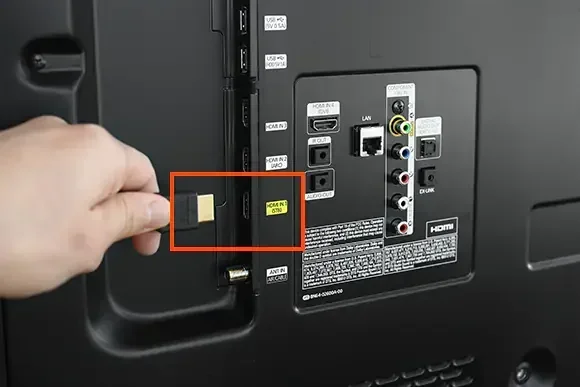
- Connect the converter to your TV: Use your HDMI cable to connect the converter’s output to an available HDMI port on your television or monitor.
- Power on and select the input: Turn on your PS2 and your TV. Use your TV remote to switch to the correct HDMI input channel.
- Adjust the PS2 video settings: Go to the PS2 settings menu and configure the video output. If you are using component cables, select the component output option. If your converter supports it, choose 480p for a progressive scan image.
Once everything is connected, you should see a clear and vibrant image on your screen. If the picture looks off, double-check your cable connections and make sure the converter is receiving power (some models need a USB cable for power).
One common issue people run into is audio problems. If you have no sound, make sure the audio cables are securely plugged into the converter. Some converters handle audio through HDMI, while others require separate audio cables connected directly to your TV. Check your converter’s manual for specific instructions.
Quick Tips for the Best Setup
- Use a high-quality HDMI cable. A cheap or damaged cable can degrade the signal and cause flickering or no picture at all.
- Place the converter close to your TV to minimize cable clutter and signal loss.
- If you experience any display issues, try a different HDMI port on your TV.
- Keep your PS2 in a well-ventilated area. The console can get warm during long gaming sessions, and heat can affect video output.
- For the cleanest look, use the component cables that came with your PS2 or invest in a higher-quality aftermarket set.
Does HDMI Actually Improve Picture Quality on PS2?
This is the question on every retro gamer’s mind. And the answer is a resounding yes. HDMI provides a measurable improvement in picture quality compared to the original composite or even component connections on a modern display.
Here is why. The PS2 outputs an analog video signal. When that signal travels through old composite cables, it picks up interference and degradation. Your TV then has to convert that analog signal back to digital for display. This double conversion introduces noise, blur, and color inaccuracies.
An HDMI converter handles the conversion process more cleanly. It takes the PS2’s signal and converts it to a digital format that your TV can display with minimal loss. The result is a sharper, more stable image with better color accuracy and less visual noise.
Let us compare the three main connection types:
| Connection Type | Signal Quality | Resolution Support | Ease of Setup | Cost Range |
|---|---|---|---|---|
| Composite (Original) | Low | 480i | Very Easy | $0 (included) |
| Component (Original) | Medium | 480p | Easy | $5-$15 |
| Composite-to-HDMI Converter | Medium | 480p (upscaled) | Very Easy | $10-$30 |
| Component-to-HDMI Converter | High | 480p (upscaled) | Easy | $20-$60 |
| Internal HDMI Mod | Very High | 480p (native digital) | Advanced | $50-$100+ |
As you can see, each step up the ladder brings better results. But even the most basic composite-to-HDMI converter will make a noticeable difference. The key takeaway is that any HDMI upgrade is better than using the original cables on a modern flat-screen TV.
Some gamers also use upscaling techniques to push the image quality even further. Upscaling takes the PS2’s native resolution and stretches it to fit your TV’s screen size while maintaining clarity. Many HDMI converters include basic upscaling built in, and some software solutions can do even more.
Common Problems When Using PS2 With HDMI And How To Fix Them
While setting up HDMI on a PS2 is generally straightforward, you may encounter a few hiccups along the way. Here are the most common issues and how to solve them.
No Picture or Black Screen
If your TV shows a black screen, first check that all cables are firmly connected. A loose connection is the most common cause. Try unplugging everything and plugging it back in, making sure each cable clicks into place.
Next, make sure your TV is set to the correct HDMI input. Sometimes the TV defaults to a different port, especially if you have multiple devices connected. Also, verify that the converter box is powered on. Some models need a USB connection for power, while others use an AC adapter.
If you still see nothing, try a different HDMI cable or a different HDMI port on your TV. A faulty cable or port can mimic the symptoms of a bad setup. And just like when you are dealing with stubborn issues like a line that won’t delete in Microsoft Excel, sometimes the simplest fix is checking the most basic connections first.
Audio Sync Issues
If the video looks fine but the audio is out of sync, your converter may be introducing a slight delay. This is more common with budget composite-to-HDMI converters. Try switching to a component-to-HDMI converter for better audio-video synchronization.
You can also check your TV’s audio settings. Some TVs have audio delay or lip-sync adjustments that you can tweak to match the video output.
Flickering or Interference
Flickering can happen if your cables are too long or if the converter is receiving a weak signal. Shorten your cable runs where possible and avoid running cables near power cords or other sources of electromagnetic interference.
If flickering persists, your converter may be defective or incompatible with your TV. Try a different converter or contact the manufacturer for support.
No Sound Through HDMI
Some converters pass audio through HDMI, while others do not. Check your converter’s specifications to confirm whether it supports audio over HDMI. If it does not, you will need to connect the audio cables (red and white) directly from the converter to your TV’s audio inputs.
Expert Tips to Maximize Your PS2 HDMI Experience
Want to get the absolute best out of your PS2 HDMI setup? Here are some expert tips that make a real difference:
- Use a dedicated scaler: A standalone video scaler sits between your PS2 and your TV and provides advanced upscaling and filtering. This is the best way to achieve a near-HD look from your PlayStation 2.
- Clean your game discs: Even with a perfect HDMI setup, a scratched or dirty disc will cause lag and visual errors. Keep your games clean for the best performance.
- Update your TV’s firmware: Some modern TVs have firmware updates that improve compatibility with older devices. Check your TV manufacturer’s website for the latest updates.
- Experiment with TV settings: Your TV likely has game mode, sharpness, and color settings that can enhance the PS2 image. Turn on game mode to reduce input lag and adjust sharpness to your preference.
- Consider a CRT for authenticity: While HDMI on an HDTV looks great, some purists prefer the look of a CRT television. The image on a CRT has a warmth and smoothness that some retro games were designed for. There is no wrong choice here.
These tips can take your setup from good to great. The goal is to make your PS2 feel like a modern console while preserving the charm of classic gaming.
Final Thoughts
So, can you use a PS2 with HDMI? Absolutely. And the improvement in picture quality is well worth the effort. Whether you choose a simple composite converter or invest in a full internal HDMI mod, you will breathe new life into your old PlayStation 2.
The beauty of this upgrade is that it does not require a huge budget. Even a $20 converter can transform your gaming experience. You will see sharper images, richer colors, and a cleaner picture that makes those classic games feel fresh again.
Retro gaming is all about preserving the past while enjoying it in the present. HDMI connectivity lets you do exactly that. Your PS2 was a groundbreaking console in its time, and with the right setup, it can continue to deliver joy for years to come.
Grab your adapter, plug in your console, and get ready to experience your favorite PS2 titles like never before. The upgrade is simple, affordable, and incredibly rewarding. Your old PlayStation 2 deserves to shine on your modern TV, and now it can.
Frequently Asked Questions
Do I need a special HDMI cable for my PS2 setup?
No, you do not need a special HDMI cable. Any standard HDMI cable will work with your PS2 converter or adapter. Just make sure the cable is in good condition and supports the resolution you want. A basic High Speed HDMI cable is more than enough for PS2 output.
Will using HDMI damage my PS2 console?
No, using an HDMI adapter or converter will not damage your PS2. These devices simply convert the video signal from the console. They do not alter or affect the internal hardware of your PlayStation 2. As long as you use a reputable converter, your console will remain safe and fully functional.
Can I get 1080p output from a PS2 with HDMI?
The PS2’s maximum native resolution is 480p. An HDMI converter cannot create resolution that the console does not output. However, a good upscaling converter can make the 480p image look much sharper and cleaner on a 1080p or 4K TV. The image will still be 480p in quality, but it will be displayed more cleanly.
Is a component-to-HDMI converter better than a composite-to-HDMI converter?
Yes, a component-to-HDMI converter provides a noticeably better image. Component cables carry a higher-quality signal with better color separation. When combined with HDMI conversion, the result is a clearer, more vibrant picture compared to what you get from composite cables.
Do I need to buy new games to use HDMI with my PS2?
Not at all. All your existing PS2 games will work perfectly with an HDMI setup. The HDMI upgrade only affects how the image is displayed, not the games themselves. You can play all your old discs and memory card saves just as you always have.
Can I use a PS2 HDMI adapter with a computer monitor?
Yes, you can. As long as your monitor has an HDMI input, you can connect your PS2 to it using the same adapter or converter. This is a great option if you do not have a TV available or prefer playing on a smaller, higher-resolution monitor for a more focused gaming experience.
=== CONCLUSION ===
Using a PS2 with HDMI is one of the best upgrades you can make for retro gaming. It is simple, affordable, and delivers a dramatic improvement in picture quality. Whether you pick a budget composite converter or go all-in with a component setup or internal mod, your PlayStation 2 will look better than ever on your modern display.
Follow the steps in this guide, troubleshoot any issues with the tips provided, and you will be back to gaming in no time. The golden age of PlayStation is still alive and well, and HDMI ensures it looks its absolute best.