Can You Run Hdmi To Dvi Find Out The Easy Way To Connect
Yes, you can run HDMI to DVI with the right adapter or cable. This simple connection lets you link modern HDMI devices to older DVI monitors and displays. We will walk you through every step, from choosing the right adapter to fixing common problems.
Key Takeaways
- HDMI to DVI connections are possible and straightforward with the right adapter or cable.
- You need to understand the difference between digital HDMI and DVI signals for the best setup.
- Audio may not transfer over DVI, so you need a separate audio solution.
- Choosing the right cable or adapter depends on your device and display setup.
- Common problems like no signal or low resolution are easy to fix with basic troubleshooting.
📑 Table of Contents
- Can You Run Hdmi To Dvi? The Simple Truth Revealed
- How HDMI and DVI Signals Work
- The Different Types of HDMI to DVI Cables and Adapters
- Step-by-Step Guide to Connecting HDMI to DVI
- Common Problems When Running HDMI to DVI and How to Fix Them
- Expert Tips for the Best HDMI to DVI Setup
- Key Takeaways
- Conclusion
Can You Run Hdmi To Dvi? The Simple Truth Revealed
If you have ever stared at your TV or monitor and wondered, can you run HDMI to DVI, you are not alone. Many people own older displays with DVI ports and newer devices that only have HDMI outputs. The good news is that connecting them is entirely possible. You just need the right adapter or cable to make it work.
In this guide, we will break down everything you need to know about HDMI to DVI connections. We will cover how they work, what cables to buy, and how to set things up in minutes. Whether you are hooking up a PC to an older monitor or connecting a game console to a legacy display, this article has you covered. Let us get started and make your devices talk to each other.
Why Do People Need HDMI to DVI Connections?
The world of technology moves fast. New devices come out every year with the latest ports and connectors. But many of us still own perfectly good monitors and TVs with DVI inputs. Instead of throwing away perfectly working hardware, a simple HDMI to DVI adapter bridges the gap. It saves you money and keeps your old gear in the game.
Think about your home office setup. You might have a sleek new laptop with only HDMI output. But your desktop monitor has a DVI port. Rather than buying a brand new monitor, you just grab an adapter. It is that easy. This is why understanding how to connect HDMI to DVI is such a valuable skill.
Some people also set up home theater systems with older AV receivers or projectors that only support DVI. Others work in offices where the displays have not been upgraded in years. In all these cases, knowing your options for HDMI to DVI connectivity saves time, money, and frustration.
How HDMI and DVI Signals Work
Before you grab any cable or adapter, it helps to understand what is happening behind the scenes. Both HDMI and DVI transmit video signals, but they do it in different ways. Let us break this down so it makes total sense.
The Digital Signal Behind HDMI
HDMI stands for High-Definition Multimedia Interface. It carries both video and audio signals through a single cable. This is one of the biggest advantages of HDMI. You plug one cable in, and you get picture and sound. That is why HDMI has become the standard for modern TVs, laptops, and streaming devices.
HDMI uses a purely digital signal. This means the data travels in ones and zeroes from your device to your display. There is no conversion or loss of quality along the way. That is why HDMI connections deliver crisp, clear images at high resolutions.
The DVI Connection Explained
DVI stands for Digital Visual Interface. It was developed before HDMI became popular. DVI comes in a few different forms. DVI-D carries a digital signal. DVI-A carries an analog signal. And DVI-I supports both digital and analog signals.
When you are running HDMI to DVI, the digital part of the connection matters most. A DVI-D port will work perfectly with an HDMI signal using the right adapter. But if your display only has a DVI-A port, you will need a different type of converter. Knowing which DVI type you have is the first step to a successful setup.
| Signal Type | DVI Version | HDMI Compatible? |
|---|---|---|
| Digital Only | DVI-D | Yes, with adapter |
| Analog Only | DVI-A | No, needs converter |
| Digital and Analog | DVI-I | Yes, with adapter |
Most modern displays use DVI-D or DVI-I ports. These work great with HDMI to DVI adapters. If you are unsure which type you have, check the label on the back of your monitor or TV. It will tell you exactly what you are working with.
The Different Types of HDMI to DVI Cables and Adapters
Not all HDMI to DVI adapters are the same. There are a few options to choose from, and picking the right one depends on your setup. Let us look at the most common types you will find on the market.
HDMI to DVI-D Cable
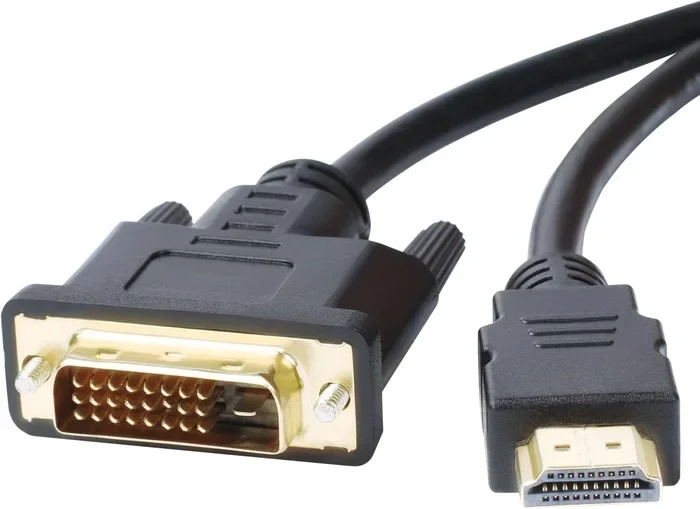
This is the most popular option for connecting HDMI devices to DVI displays. A HDMI to DVI-D cable has an HDMI plug on one end and a DVI plug on the other. It works great for video signals. However, remember that DVI does not carry audio. So if sound matters to you, you will need a separate audio cable or solution.
These cables come in different lengths. You can find them from one foot to over fifteen feet long. Choose a length that fits your room layout. Too short and you cannot reach your display. Too long and you might get signal degradation.
HDMI to DVI Adapter
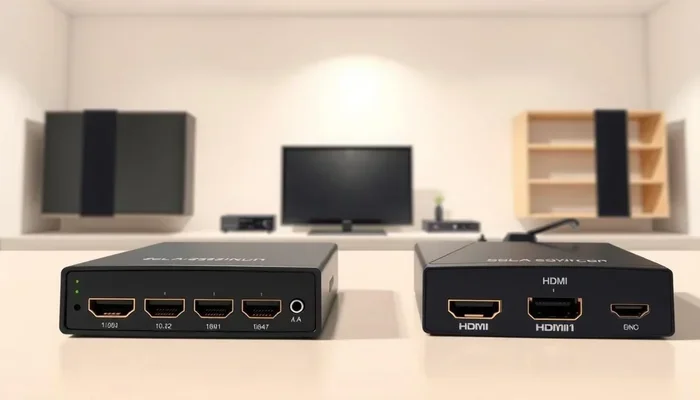
If you do not want a dedicated cable, an HDMI to DVI adapter is a great alternative. These small devices plug into your HDMI output and provide a DVI port for your cable. They are compact and portable. You can keep one in your laptop bag for on-the-go connections.
Some adapters are passive, meaning they just change the physical connection. Others are active and include signal conversion chips. For most setups, a passive HDMI to DVI adapter works perfectly. You do not need to spend extra on an active one unless you have a specific setup that requires it.
HDMI to DVI with Audio Extraction
Since standard DVI does not support audio, some adapters include an audio extraction feature. These adapters split the HDMI signal into video (DVI) and audio (3.5mm jack or optical). This is perfect for home theater setups where you want video on a DVI monitor but sound through separate speakers or a soundbar.
If you are setting up a home theater system with an older display, this type of adapter is a lifesaver. You get the best picture quality through DVI while keeping your audio independent and high-quality.
Step-by-Step Guide to Connecting HDMI to DVI
Now that you know the basics, let us walk through the actual setup process. It is simpler than you might think. Follow these steps and you will have your display running in no time.
Step 1: Check Your Ports
Look at the back of your source device. Is it a laptop, desktop PC, Blu-ray player, or game console? Find the HDMI output port. Now look at your display. Check for a DVI input port. Knowing exactly what ports you have tells you which adapter or cable you need.
If your source device does not have HDMI, you may need a different cable to connect to the HDMI adapter. For example, some older laptops use VGA or DisplayPort outputs. In those cases, you would first convert to HDMI and then to DVI. But that is a topic for another day.
Step 2: Choose Your Adapter or Cable
Based on the ports you found, pick the right HDMI to DVI adapter or cable. If you have a DVI-D port, a simple HDMI to DVI-D cable will do the job. If you need audio support, grab an adapter with audio extraction. Make sure to buy from a reputable brand to ensure signal quality.
Pro tip from the tech experts at 10 Gadgets To Make Moms Life Easier shows how the right accessories simplify any tech setup. The same principle applies here. A good adapter makes all the difference in your daily workflow.
Step 3: Plug Everything In
Connect the HDMI end to your source device. Then plug the DVI end into your monitor or display. If you are using a separate audio cable, connect that to your speakers or sound system now. Power on both devices and switch your display to the correct input channel.
You should see a picture on your screen within seconds. If the image looks blurry or distorted, check your resolution settings. Sometimes Windows or your device defaults to a resolution that does not match your display. Adjusting the settings usually fixes this right away.
Step 4: Adjust Display Settings
On Windows, right-click your desktop and select Display Settings. On macOS, go to System Preferences and then Displays. Make sure your resolution is set to the native resolution of your DVI monitor. This gives you the sharpest and clearest picture possible.
You can also adjust the refresh rate in advanced display settings. A higher refresh rate means smoother motion, which is great for gaming or watching fast-paced videos. Just make sure your DVI cable and adapter can handle the bandwidth required for higher refresh rates.
Common Problems When Running HDMI to DVI and How to Fix Them
Even with the right gear, you might run into some issues. This is totally normal. Most problems have simple fixes. Let us go through the most common ones.
No Signal on the Display
The most frustrating problem is when your screen goes black. First, check that all cables are firmly plugged in. A loose connection is the number one cause of no signal issues. Unplug and replug each end of your HDMI to DVI cable and make sure it clicks into place.
If the cables are secure, try a different port on your display. Some monitors have multiple DVI inputs, and they might be set to the wrong one. Use your monitor’s menu buttons to switch to the correct input source.
No Audio Through DVI
Remember that standard DVI does not carry audio. If you are not hearing any sound, this is why. You have a few options to fix this. You can use a separate 3.5mm audio cable from your source device to your speakers. Or you can get an HDMI to DVI adapter with audio extraction that splits the audio signal to a separate output.
Another option is to use your device’s built-in speakers if your source device has them. For example, if you are connecting a laptop to a DVI monitor, the laptop’s speakers will still work as long as the audio output is set correctly in your system settings.
Low Resolution or Blurry Image
If your picture looks fuzzy or pixelated, your resolution settings might be off. Go into your display settings and select the native resolution of your monitor. Most DVI monitors support up to 1920×1200 or 1920×1080. Setting the resolution correctly makes a huge difference in picture quality.
Also, check your cable quality. Cheap, low-quality HDMI to DVI cables may not support higher resolutions or longer distances. Investing in a good cable from a trusted brand ensures you get the best possible image. A quality cable also means fewer signal dropouts and a more reliable connection.
HDMI to Dvi Adapter Not Recognized
Sometimes your computer does not detect the display at all. This can happen if the adapter is not fully seated or if your graphics driver is outdated. Try removing the adapter, restarting your computer, and plugging it back in. If that does not work, update your graphics drivers from the manufacturer’s website.
For users who also deal with mobile device connections, checking how to manage device settings is important. A resource like Adding Prefixes To Numbers On Iphone reminds us that device configuration settings can affect how external displays and connections are handled across your tech ecosystem.
Expert Tips for the Best HDMI to DVI Setup
Want to get the most out of your HDMI to DVI connection? Here are some expert tips that make a real difference. These small tweaks improve your experience every single day.
Keep Your Cables Short and Quality
Longer cables can lead to signal loss. For the best picture quality, keep your HDMI to DVI cable as short as possible while still reaching your setup. If you need a longer run, consider using a high-quality cable with good shielding to prevent interference.
Update Your Graphics Drivers
Outdated graphics drivers can cause all sorts of display problems. Make it a habit to update your GPU drivers regularly. This ensures your system can handle the latest resolutions and refresh rates over your HDMI to DVI connection.
Use a Powered Adapter for Long Runs
If you need to run your HDMI to DVI cable over a long distance, a passive adapter might not cut it. A powered or active adapter boosts the signal and keeps it strong. This is especially important for resolutions above 1080p or when using longer cable runs.
Match Your Resolution to Your Display
Every monitor has a native resolution. Running your display at a non-native resolution always looks worse. Check your monitor’s specifications and set your output to match. You will immediately notice sharper text and clearer images.
Consider Future-Proofing Your Setup
While HDMI to DVI works great today, technology keeps evolving. Consider adding a DisplayPort or HDMI 2.1 monitor to your setup when the time comes. This future-proofs your display connections and saves you from needing adapters down the road.
Key Takeaways
- Running HDMI to DVI is simple and requires only the right adapter or cable.
- DVI-D and DVI-I ports work with standard HDMI to DVI adapters for digital video.
- DVI does not carry audio, so you need a separate audio solution for sound.
- Choose the right adapter type based on your specific DVI port and setup needs.
- Common issues like no signal or low resolution are easy to fix with basic troubleshooting.
- Keep cables short and high-quality for the best picture and signal reliability.
- Updating your graphics drivers ensures smooth and compatible display performance.
Conclusion
The answer to can you run HDMI to Dvi is a clear yes. With the right adapter, cable, or converter, you can connect virtually any HDMI device to a DVI display. The process is simple, affordable, and takes just a few minutes. You do not need to be a tech expert to get it done.
Whether you are setting up a home office, connecting a game console to an older TV, or building a budget-friendly monitor setup, HDMI to DVI connectivity gives you flexibility. It keeps your old displays useful and saves you money. You do not need to replace working hardware just because it has an older port.
Remember to check your DVI port type before buying an adapter. If you need audio, grab an adapter with audio extraction. And always use quality cables to ensure the best signal. With these tips, your HDMI to DVI setup will work flawlessly for years to come. Now go ahead and connect your devices with confidence.
Frequently Asked Questions
Can You Run HDMI to DVI Without an Adapter?
No, you cannot directly plug an HDMI cable into a DVI port without an adapter or converter. The two connectors have different shapes and pin configurations. You need either an HDMI to DVI cable or an HDMI to DVI adapter to make the physical and signal connection work properly.
Does HDMI to DVI Support Audio?
Standard HDMI to DVI connections do not carry audio. DVI is a video-only interface. If you need sound, you must use a separate audio cable or get an adapter that includes an audio extraction feature. This is the most common limitation people encounter when using DVI displays.
What Resolution Can You Get Over HDMI to DVI?
Most HDMI to DVI setups support up to 1920×1200 or 1920×1080 resolution. This depends on your cable quality, adapter type, and graphics card capabilities. Single-link DVI supports up to 1920×1200, while dual-link DVI can handle even higher resolutions in some cases.
Is a Passive or Active HDMI to DVI Adapter Better?
For most setups, a passive HDMI to DVI adapter works perfectly. It simply changes the physical connection without converting the signal. An active adapter includes signal conversion electronics and is only needed in specific situations where the source device requires it. Check your device specifications before choosing.
Can You Use HDMI to DVI for Gaming?
Yes, you can use HDMI to DVI connections for gaming. The digital signal transfer ensures minimal lag and good image quality. Just make sure your cable and adapter support the resolution and refresh rate you need. For competitive gaming, keep your cable as short as possible for the best performance.
How Do I Know if My DVI Port Is DVI-D or DVI-I?
Look at the pins on your DVI port. A DVI-D port has only flat pins on one side, indicating digital-only support. A DVI-I port has additional pins arranged in a cross pattern, supporting both digital and analog signals. Check your monitor or device manual if you are unsure which type you have.