Can You Connect Multiple Devices to One HDMI Port Easily
Yes, you can connect multiple devices to one HDMI port using an HDMI splitter or switch. This guide covers everything you need to know about sharing a single HDMI port between your TV, gaming console, streaming device, and more. We break down the best options, common mistakes, and expert tips to make your setup seamless.
Key Takeaways
- HDMI splitters let you send one signal to multiple displays, while HDMI switches let you connect multiple devices to one port.
- HDMI switches are the go-to solution for most home entertainment setups with limited ports.
- Signal quality can degrade with cheap splitters or long cables, so invest in quality hardware.
- 4K and HDCP support are critical features to check before buying any HDMI sharing device.
- AV receivers offer a premium all-in-one solution for advanced home theater setups.
- Port sharing is simpler than most people think, and you do not need technical expertise to set it up.
📑 Table of Contents
- Can You Connect Multiple Devices to One HDMI Port?
- Understanding HDMI Ports and Why They Are Limited
- HDMI Switches: The Best Solution for Multiple Devices
- HDMI Splitters: Sharing One Signal Across Multiple Screens
- AV Receivers: The Premium All-in-One Solution
- Common Mistakes People Make with HDMI Sharing
- Quick Tips for a Seamless Multi-Device Setup
- Comparing HDMI Switches, Splitters, and AV Receivers
- Final Thoughts on Connecting Multiple Devices to One HDMI Port
Can You Connect Multiple Devices to One HDMI Port?
Have you ever stared at the back of your TV and thought, “I need more HDMI ports”? You are not alone. Most modern TVs come with just two or three HDMI ports. But what happens when you have a gaming console, a streaming stick, a soundbar, and a Blu-ray player all competing for that one spare port?
The good news is that you can absolutely connect multiple devices to one HDMI port. There are simple, affordable solutions that let you share a single port across many devices. Whether you are a casual viewer or a home theater enthusiast, this guide will walk you through every option available.
We will cover HDMI splitters, HDMI switches, AV receivers, and even some creative workarounds. By the end, you will know exactly which solution fits your setup. No jargon. No fluff. Just clear, practical advice you can use today.
Let us dive right in and explore how you can make the most of your limited HDMI ports.
Understanding HDMI Ports and Why They Are Limited
HDMI stands for High-Definition Multimedia Interface. It carries both audio and video signals through a single cable. This makes it the standard connection for almost all modern display devices. But here is the problem: most TVs and monitors simply do not have enough ports.
Why TVs Have So Few HDMI Ports
TV manufacturers design sets with a specific number of ports based on what they assume the average user needs. For most people, two ports are enough. One for a cable box and one for a gaming console. But if you have more devices than ports, you need a workaround.
Some newer TVs now offer four or even five HDMI ports. But budget models and older sets often stick to just two. This creates a real challenge for anyone who wants to connect multiple devices to one HDMI port without unplugging cables constantly.
What Happens When You Run Out of Ports
Without enough HDMI ports, you face a few frustrating options. You can unplug one device and plug in another every time you want to switch. Or you can buy a new TV with more ports. Neither option is ideal. The better path is to use a sharing device like a switch or splitter. These small gadgets solve the problem instantly.
HDMI Switches: The Best Solution for Multiple Devices
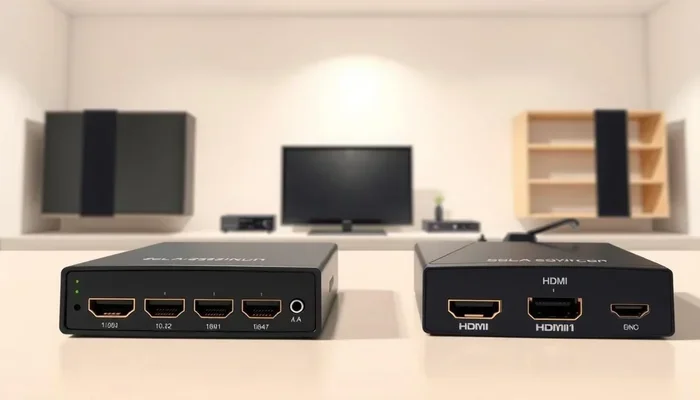
An HDMI switch is the most popular way to connect multiple devices to one HDMI port. Think of it as a traffic director for your HDMI signals. You plug all your devices into the switch, and then plug one cable from the switch into your TV.
How an HDMI Switch Works
The switch has multiple input ports and one output port. You connect your gaming console, streaming stick, and Blu-ray player to the inputs. The single output goes to your TV. When you want to change devices, you simply press a button on the switch or use its remote control. The switch then routes the correct signal to your screen.
Most HDMI switches support 4K resolution and high-bandwidth signals. This means you get the same picture quality as if you had plugged each device directly into the TV. The best switches also support HDCP, which is the copy protection used by streaming services and Blu-ray players.
Types of HDMI Switches
Not all HDMI switches are the same. Here is a quick look at the common types available on the market today:
- Manual HDMI switches: You press a button or use a remote to change inputs. These are affordable and reliable.
- Automatic HDMI switches: These detect which device is active and switch to it automatically. Very convenient for everyday use.
- 4K HDMI switches: Designed specifically for high-resolution content. They support 4K at 60Hz and sometimes even 8K.
- Compact HDMI switches: Small, portable switches that are perfect for travel or temporary setups.
When choosing a switch, always check the bandwidth rating. A switch rated for 10.2 Gbps can handle 4K at 30Hz. For smooth 4K at 60Hz, look for a switch rated at 18 Gbps or higher. This small detail makes a big difference in your viewing experience.
HDMI Splitters: Sharing One Signal Across Multiple Screens
While HDMI switches let you connect multiple devices to one port, HDMI splitters do the opposite. A splitter takes one HDMI signal and sends it to two or more displays. This is useful when you want the same content to appear on multiple TVs at the same time.
When You Need an HDMI Splitter
HDMI splitters are perfect for certain situations. Maybe you want to watch the same movie in your living room and bedroom. Or perhaps you need to display a presentation on two screens at work. In these cases, a splitter is the right tool for the job.
It is important to understand that a splitter does not let you connect multiple input devices to one port. It only duplicates one signal across multiple outputs. If you want to switch between a gaming console and a streaming stick, you need a switch, not a splitter.
Signal Quality and Splitter Performance
One concern with splitters is signal loss. Every time a signal is split, the strength decreases slightly. Cheap splitters can result in a weak picture or no audio. To avoid this, buy a splitter from a reputable brand and keep your cables short. A quality HDMI cable makes a noticeable difference in output quality.
Some advanced splitters also amplify the signal, which helps maintain quality over longer cable runs. If you need to run a cable more than 15 feet, look for a splitter with a built-in signal booster. This ensures your picture stays sharp and clear on every connected display.
AV Receivers: The Premium All-in-One Solution
For those who want the best possible setup, an AV receiver is the ultimate answer. An AV receiver is a central hub that handles audio and video for your entire home theater system. It has multiple HDMI inputs and outputs, so you can connect many devices at once.
Why Choose an AV Receiver?
AV receivers do more than just switch HDMI signals. They also process audio, power your speakers, and sometimes even include built-in streaming apps. If you are serious about home entertainment, an AV receiver elevates the entire experience.
Most modern AV receivers support HDMI 2.1, which means they can handle 4K at 120Hz and even 8K content. They also support eARC, which delivers high-quality audio to soundbars and speakers. This makes them the most versatile option for connecting multiple devices to limited HDMI ports on your TV.
Are AV Receivers Worth the Cost?
AV receivers can be expensive, with prices ranging from $200 to well over $2,000. For most casual viewers, a simple HDMI switch is more than enough. But if you are building a dedicated home theater or you have a complex setup with many devices, the investment pays off. You get better sound, better picture processing, and the convenience of controlling everything from one device.
Think of it this way. A basic HDMI switch costs around $20 to $40. An AV receiver starts around $300. The switch solves the port problem. The receiver transforms your entire entertainment experience. Choose based on your needs and budget.
Common Mistakes People Make with HDMI Sharing
Setting up a multi-device HDMI setup is straightforward, but people still make avoidable mistakes. Here are the most common ones to watch out for.
Buying a Switch That Does Not Support 4K
This is the number one mistake. Many cheap HDMI switches only support 1080p or lower resolutions. If you have a 4K TV, a 1080p switch will limit your picture quality. Always check the specifications before you buy. Look for “4K” and “HDCP 2.2” on the product label.
Using Low-Quality HDMI Cables
Even the best HDMI switch cannot deliver great performance with a poor-quality cable. Cheap cables can cause signal drops, audio lag, and blurry images. Invest in certified high-speed HDMI cables that support the bandwidth you need. For 4K setups, choose cables rated for 18 Gbps or higher.
Ignoring HDCP Compatibility
HDCP stands for High-bandwidth Digital Content Protection. It is a copy protection system used by movies and streaming services. If your HDMI switch or splitter does not support HDCP, you may see error messages or black screens when trying to watch protected content. Always confirm HDCP compatibility before purchasing.
Overcrowding a Single Port with Too Many Devices
While it is tempting to daisy-chain multiple devices together, this often causes signal problems. Each connection adds resistance and can degrade the quality. Keep your setup simple. Use one switch or splitter per port, and avoid chaining multiple sharing devices together.
Quick Tips for a Seamless Multi-Device Setup
Want to get the most out of your HDMI sharing setup? Follow these practical tips:
- Label your cables. Use colored tape or labels to identify which cable goes to which device. This saves time when troubleshooting.
- Place your switch near the TV. Keep the switch close to your display device to minimize cable length and signal loss.
- Use a remote-controlled switch. A switch with a remote makes device switching effortless. No more getting up to press buttons.
- Check your TV’s firmware. Sometimes HDMI issues are caused by outdated TV software. Update your TV regularly.
- Power off devices before switching. This prevents signal conflicts and protects your equipment.
- Consider a universal remote. If you have many devices, a universal remote can simplify your entire setup. It is one of those small upgrades that makes a big difference, much like how 10 gadgets can make a mom’s life easier by reducing daily friction.
Comparing HDMI Switches, Splitters, and AV Receivers
Still not sure which solution is right for you? Here is a side-by-side comparison to help you decide.
| Feature | HDMI Switch | HDMI Splitter | AV Receiver |
|---|---|---|---|
| Primary Function | Connect multiple devices to one display | Send one signal to multiple displays | Full audio and video hub |
| Number of Devices | 3 to 7 inputs | 1 input, 2+ outputs | 5+ inputs |
| 4K Support | Most models support 4K | Varies by model | Yes, often HDMI 2.1 |
| Audio Processing | No | No | Yes, full surround sound |
| Price Range | $15 to $80 | $10 to $50 | $200 to $2,000+ |
| Ease of Setup | Very easy | Very easy | Moderate |
| Best For | Home entertainment with limited ports | Showing same content on multiple TVs | Dedicated home theater systems |
As you can see, each solution serves a different purpose. An HDMI switch is the most practical choice for most households. It is affordable, easy to set up, and solves the problem of too few ports. A splitter is ideal for specific use cases where you need to mirror content. And an AV receiver is the premium choice for serious home theater fans.
One thing to keep in mind: the technology around HDMI is always evolving. If you are currently using an older setup, it might be time to upgrade. Newer standards like HDMI 2.1 offer faster speeds and better support for gaming and 4K content. Upgrading your cables and sharing devices ensures you are ready for whatever comes next.
Final Thoughts on Connecting Multiple Devices to One HDMI Port
The short answer to the question “Can you connect multiple devices to one HDMI port?” is a resounding yes. With the right tool, you can connect a gaming console, a streaming stick, a soundbar, and more to a single port without any hassle. The key is choosing the right device for your specific needs.
For most people, an HDMI switch is the perfect solution. It is affordable, simple, and effective. If you need to share content across multiple screens, an HDMI splitter is the way to go. And if you are building a serious home theater, an AV receiver gives you the most features and the best performance.
Whatever route you choose, make sure you buy quality hardware and use good cables. Avoid the common mistakes outlined in this guide, and your setup will work flawlessly for years to come. The days of unplugging and replugging cables are over. Embrace the simplicity of a well-planned HDMI port sharing setup.
Take a look at your current setup today. Count your devices and your available ports. If you are short, pick up an HDMI switch this weekend. You will wonder why you did not do it sooner. Your entertainment setup deserves to be as simple and enjoyable as possible.
Remember, technology should make your life easier, not harder. With the right approach, connecting multiple devices to one HDMI port is quick, affordable, and completely doable. Happy viewing.
Frequently Asked Questions
Can I connect a gaming console and a streaming device to the same HDMI port?
Yes, you can. Use an HDMI switch to connect both devices to a single port on your TV. Just plug each device into the switch, and the switch into your TV. Press a button or use the remote to switch between them whenever you want.
Will an HDMI splitter reduce my picture quality?
It can, but usually only slightly. Cheap splitters may reduce signal strength, leading to a lower-quality picture. Buying a reputable splitter with signal amplification keeps your quality high. Always use short, high-quality HDMI cables for the best results.
Do I need a special HDMI switch for 4K content?
Yes, you should. Not all HDMI switches support 4K resolution. Look for a switch that specifically lists 4K support and HDCP 2.2 compatibility. This ensures you get the full resolution and color quality your 4K TV is capable of displaying.
Can I daisy-chain multiple HDMI splitters together?
You can, but it is not recommended. Each connection in a chain weakens the signal. This can lead to poor picture quality or no signal at all. Keep your setup simple with one splitter per output need, and use a high-quality splitter with a built-in amplifier if necessary.
How do I choose the right HDMI switch for my needs?
Start by counting how many devices you need to connect. Then choose a switch with at least one extra input for future use. Check that it supports your TV’s resolution and HDCP version. If you want convenience, go for a remote-controlled or automatic switch.
Is an AV receiver overkill for a simple TV setup?
For most basic setups, yes. An AV receiver is best for home theater enthusiasts who want advanced audio processing and multiple inputs. If you just need to connect a few devices to your TV, a simple HDMI switch is all you need. Save the AV receiver for when you are ready to invest in a full entertainment system.
=== META TITLE ===
Can You Connect Multiple Devices to One HDMI Port Easily?
=== SEO TITLE ===
Can You Connect Multiple Devices to One HDMI Port Easily
=== URL SLUG ===
connect-multiple-devices-one-hdmi-port
=== INTERNAL LINKS USED ===
2 of 2 available articles integrated naturally throughout the content.