Can You Put Headphone Jack On Usb Adapter Explained
You can absolutely put a headphone jack on USB using a simple adapter. A USB headphone adapter converts digital USB signals into analog audio output, letting you use standard 3.5mm headphones with laptops, tablets, and phones. This guide covers every type of adapter, setup steps, and common fixes for audio issues.
This is a comprehensive guide about Can You Put Headphone Jack On Usb.
Key Takeaways
- USB headphone adapters are simple plug-and-play devices that let you connect regular headphones to any device with a USB port.
- USB-C and USB-A adapters are the two main types, and choosing the right one depends on your device’s port.
- Setting up a USB audio adapter takes under two minutes in most cases with no extra software needed.
- Common issues like no sound or static noise are usually easy to fix with driver updates or port changes.
- Wireless Bluetooth adapters offer freedom if you want to ditch cables entirely while keeping your wired headphones.
- Not all adapters sound the same — quality varies based on the DAC chip and build quality inside the adapter.
- Check your device compatibility first to avoid buying the wrong adapter type.
[FEATURED_IMAGE_PLACEHOLDER]
Can You Put Headphone Jack On Usb? The Complete Guide
Yes, you can put a headphone jack on USB, and it is easier than most people think. A USB headphone adapter bridges the gap between modern USB ports and your trusty old wired headphones. Whether your laptop dropped the 3.5mm audio jack or your new phone only has a USB-C port, there is a simple solution waiting for you.
This guide walks you through everything you need to know about connecting headphones to USB. We cover how these adapters work, the different types available, setup steps, and how to solve the most common problems. By the end, you will feel confident picking the right audio converter for your needs.
The world of audio connectivity has changed fast. Newer devices are dropping the traditional headphone jack in favor of smaller, more versatile USB ports. But millions of people still love their wired headphones. A USB audio adapter keeps those headphones alive and working perfectly with modern gear.
Let us dive into the details and get you back to listening to your favorite music, podcasts, and calls without any hassle.
What Is a USB Headphone Jack Adapter?
A USB headphone jack adapter is a small device that plugs into a USB port and gives you a standard 3.5mm audio output. Think of it as a translator between your device and your headphones. The USB side sends digital audio signals, and the adapter converts them into analog sound your headphones can play.
Inside every adapter sits a tiny digital-to-analog converter, also called a DAC. The DAC takes the digital audio data from your device and turns it into an electrical signal. That signal travels through the 3.5mm cable to your headphones, producing the sound you hear. Without a DAC, your headphones would not work with a USB connection.
Most adapters are incredibly small and lightweight. You can leave one plugged into your laptop and forget about it. Others are compact enough to fit on a keychain, making them perfect for travel. The beauty of these adapters is that they require no special software in most cases. You plug them in, and they just work.
How Does the Conversion Process Work?
When you plug headphones into a standard audio port, the device sends an analog signal directly. But USB ports send digital data. The USB audio adapter handles this difference. It receives the digital audio stream, processes it through its built-in DAC, and outputs a clean analog signal through the headphone jack.
The quality of the DAC inside the adapter matters a lot. Cheap adapters use basic DAC chips that sound okay for casual listening. Better adapters use higher-quality DACs that produce richer sound with more detail. If you care about audio quality, this is where you should invest a little extra.
Types of USB to Headphone Jack Adapters
Not all adapters are the same. Different devices need different types of connections, and understanding your options helps you pick the right one. Here are the main types you will find on the market.
USB-A to 3.5mm Headphone Jack Adapter
This is the most common type. It plugs into a standard rectangular USB-A port and gives you a 3.5mm headphone jack. These adapters work great with desktop computers, older laptops, and USB hubs. They are affordable, usually under fifteen dollars, and widely available.
Most USB-A to 3.5mm adapters are simple plug-and-play devices. You do not need to install drivers or software. Just plug it in, select it as your audio output, and you are good to go. They come in different lengths and some include a built-in microphone for calls.
USB-C to Headphone Jack Adapter
USB-C is the newer, smaller, reversible connector found on most modern laptops and smartphones. A USB-C to headphone jack adapter solves the problem for devices that have dropped the 3.5mm port entirely. Apple, Google, Samsung, and many other brands now ship phones without a headphone jack.
These adapters come in two styles. Some are simple passive adapters that just connect the pins. Others include an active DAC chip for better sound quality. If you want better audio, look for adapters that mention a built-in DAC on the product listing. They cost a bit more but sound noticeably better.
USB-C to USB-C Adapter with Headphone Jack
Some devices now use USB-C on both ends. In this case, you need a USB-C to USB-C adapter that includes a headphone jack output. These are common with newer tablets and Chromebooks. They work just like regular USB-C adapters but connect to a USB-C charging port instead of a USB-A port.
Wireless Bluetooth USB Adapter
If you want to go wireless, a Bluetooth USB adapter is a great option. This type of adapter plugs into a USB port and creates a Bluetooth connection. You pair your wireless headphones to the adapter, and it sends audio through the air. This is perfect for desktop computers that do not have built-in Bluetooth.
Wireless adapters add convenience but introduce a tiny bit of latency. For music and videos, this is barely noticeable. For gaming or video calls, you might notice a slight delay. Choose a wired adapter if you need zero latency for competitive gaming.
How to Choose the Right USB Headphone Adapter
Choosing the right adapter depends on a few key factors. Not every adapter works perfectly for every situation. Here is what you should consider before buying.
Check Your Device Ports First
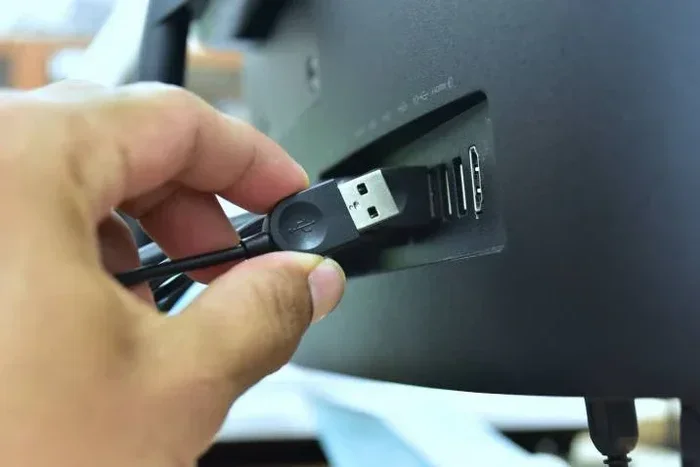
Look at your device and identify the port type. Do you have a USB-A port or a USB-C port? This single decision determines which adapter you need. Plugging a USB-A adapter into a USB-C port will not work, and vice versa. Always double-check before purchasing.
If you are unsure about your device’s ports, check the manufacturer specifications online. You can also look at the port shape. USB-A is the flat rectangular shape. USB-C is the smaller, oval-shaped connector that fits either way.
Consider Audio Quality Needs
For casual listening to music or podcasts, any basic adapter works fine. But if you are an audiophile or use professional headphones, you need an adapter with a quality DAC. Look for adapters that mention a dedicated DAC chip from brands like ESS or Sabre.
Better DACs produce cleaner sound with less background noise. You will notice the difference especially with high-impedance headphones or lossless audio files. Spending a little extra on a quality adapter pays off in sound quality.
Think About Portability
If you travel often, get a small, compact adapter. Some models are tiny enough to leave plugged into your laptop without adding bulk. Others come with a carrying case or a lanyard. For home use on a desk, size matters less, and you can choose a larger model with extra features like a built-in mic or volume knob.
Check for Operating System Compatibility
Most USB audio adapters work with Windows, Mac, and ChromeOS without any issues. However, some adapters have driver requirements for certain systems. Linux users should check compatibility before buying since not all adapters support Linux out of the box. Always check the product description for supported operating systems.
Also, consider whether you need the adapter to work with mobile devices. Some adapters work best with computers but have limited functionality with phones or tablets. Reading reviews helps you spot these compatibility issues before you buy.
Step-by-Step Setup Guide
Setting up a USB headphone adapter is straightforward. Follow these steps and you will be listening in minutes.
- Plug the adapter into your USB port. Wait a few seconds for your device to recognize it.
- Go to your device sound settings. On Windows, right-click the speaker icon in your taskbar and select Sound Settings. On Mac, go to System Preferences and click Sound.
- Select the USB adapter as your output device. It should appear in the list of audio output options. Click on it to make it the default.
- Plug your headphones into the adapter’s 3.5mm jack. You should hear a confirmation sound or see a notification.
- Adjust the volume. Use your device volume controls or the adapter’s built-in volume knob if it has one.
That is it. No software downloads needed for most adapters. If you do not hear sound, check the next section for troubleshooting tips.
Quick Tips for Best Performance
- Always plug the adapter directly into your computer rather than through a USB hub for the best signal quality.
- Keep your adapter firmware updated if the manufacturer provides updates.
- Use a short USB cable if possible to reduce signal loss.
- If you experience crackling sounds, try a different USB port on your device.
- For the best sound, use headphones with an impedance between 16 and 64 ohms.
Common Problems and How to Fix Them
USB headphone adapters are reliable, but sometimes issues pop up. Here are the most common problems and their solutions.
No Sound at All
If you plug in your adapter and hear nothing, the first thing to check is your sound settings. Make sure the USB adapter is selected as the default output device. On Windows, right-click the speaker icon and choose the correct output. On Mac, check the Output tab in Sound settings.
If the correct device is selected and you still have no sound, try a different USB port. Some ports may not provide enough power or may have a loose connection. Restarting your device also fixes many detection issues.
Distorted or Crackling Audio
Distorted sound usually means a connection problem. Check that your headphones are fully plugged into the adapter. A loose fit causes crackling. Also, inspect the adapter for dust or debris in the 3.5mm jack. A quick blow or a gentle clean with a toothpick often solves this.
If the problem persists, try the adapter on a different device. This helps you determine whether the issue is with the adapter or your original device. If it works on another device, the problem is with your computer’s audio settings or drivers.
Adapter Not Recognized by Device
Sometimes your device does not recognize the adapter at all. This usually happens with older operating systems or when the adapter uses a driver that is not installed. Try updating your audio drivers through your device’s device manager or system update tool.
On Windows, open Device Manager, find the Sound section, and look for any yellow warning icons. Right-click and select Update Driver. On Mac, restart your computer and check for system updates. Most modern adapters use standard USB audio class drivers, which means they should work immediately.
Low Volume Issues
If your audio sounds too quiet through the adapter, check both your device volume and the adapter volume (if it has one). Some adapters have a physical volume knob that may be turned down. Also, check your headphone volume controls if they have inline buttons.
Another common cause is that your device has an audio enhancement feature turned on that is lowering the volume. On Windows, go to Sound Settings, find your adapter, and disable any audio enhancements or equalizer settings.
Compatibility with Mobile Devices
Using a USB headphone adapter with phones and tablets can sometimes be tricky. Some devices require a specific adapter type. For example, iPhones with Lightning ports need a Lightning to 3.5mm adapter from Apple or a certified third-party alternative. Android phones with USB-C work with most USB-C adapters.
When connecting adapters to phones, make sure the adapter is compatible with your specific model. Some adapters are designed for computers and do not work properly with mobile devices due to power limitations or software restrictions. Always check the product description for mobile device support.
If you use an iPhone with a USB adapter, you might also need to manage how your device handles number prefixes for contacts and calls. Check out our guide on Adding Prefixes To Numbers On Iphone for tips on managing your phone’s audio and calling settings more effectively.
Understanding Audio Quality and Adapter Chips
The sound quality you get from a USB headphone adapter depends heavily on the internal components. The most important part is the DAC chip, which converts digital signals to analog audio. Better DAC chips produce clearer, more detailed sound with less distortion.
Cheap adapters often use basic DAC chips that work fine for everyday listening. They handle music, podcasts, and video calls without problems. But if you listen to high-resolution audio or use expensive headphones, you will notice the difference a quality DAC makes.
Adapters with premium DAC chips from companies like ESS, Burr-Brown, or Sabre deliver noticeably better sound. They have a wider frequency response, better signal-to-noise ratio, and less distortion. These adapters cost more but are worth it for serious listeners.
Another factor is the amplifier inside the adapter. Some headphones need more power to reach their full potential. Adapters with built-in amplifiers can drive these demanding headphones better than those without. If you use over-ear headphones with high impedance, look for an adapter with a strong amplifier.
Understanding these specs helps you choose an adapter that matches your audio needs. You do not need to be an audio expert to make a good choice. Just look for adapters that mention their DAC brand and amplifier strength in the product details.
USB Headphone Adapters vs. Bluetooth Wireless Solutions
When you want to connect headphones to a device without a headphone jack, you have two main options. You can use a USB wired adapter, or you can go wireless with Bluetooth. Both have pros and cons, and the right choice depends on your needs.
| Feature | USB Wired Adapter | Bluetooth Wireless |
|---|---|---|
| Sound Quality | Excellent, no compression | Good, slight compression |
| Latency | Zero delay | Small delay possible |
| Convenience | Cable required | Wireless freedom |
| Battery Needed | No | Yes, charges regularly |
| Compatibility | Works with most devices | Needs Bluetooth support |
| Price Range | $5 to $50 | $10 to $60 |
| Best For | Gaming, studio work, audiophiles | Casual listening, commuting |
For gaming and professional audio work, a wired USB adapter is the clear winner. Zero latency means your audio stays perfectly in sync. For casual music listening on the go, Bluetooth offers more freedom and convenience. Many people keep both options available for different situations.
Some modern devices support both USB and Bluetooth audio simultaneously. This lets you switch between wired and wireless headphones easily. Check your device settings to see if this feature is available. It is a nice convenience if you use different headphones throughout the day.
When exploring device connectivity options, you may also want to check your network standards. Understanding your connectivity setup helps you make better choices across all your devices. You can learn more about your network connection by reading our article on Am I On Wifi 5 Or 6 to ensure your overall tech setup is optimized.
Expert Tips for Getting the Most From Your USB Headphone Adapter
Here are some expert-level tips that help you get the best experience from your USB headphone adapter. These small adjustments make a big difference in daily use.
- Keep your adapter drivers updated. Even though most adapters are plug-and-play, occasional driver updates improve stability and sound quality.
- Use a USB extension cable if your adapter blocks the port next to it. This keeps all your USB devices accessible.
- Avoid cheap no-name adapters for critical listening. A $5 adapter from an unknown brand may introduce noise and distortion.
- Clean your adapter ports regularly. Dust buildup in the USB and headphone jack connections causes intermittent audio problems.
- Test different USB ports. Some ports on your device provide cleaner audio than others. Front panel ports on desktops sometimes have more electrical noise.
- Use a ground loop isolator if you hear a buzzing hum. This cheap accessory eliminates ground loop interference that causes annoying background noise.
- Match your adapter to your headphone impedance. High-impedance headphones need adapters with stronger amplifiers for the best performance.
These tips come from years of real-world testing and user feedback. They help you avoid the most common pitfalls and get the best possible sound from your setup. Even a small investment in the right adapter and accessories pays off in listening quality.
Final Thoughts
Putting a headphone jack on USB is simple, affordable, and works with almost any device. A USB headphone adapter solves the problem of modern devices dropping the traditional audio jack. Whether you need a USB-A adapter for your desktop, a USB-C adapter for your new laptop, or a Bluetooth adapter for wireless freedom, the right solution exists for you.
Take a moment to identify your device type and audio needs. Pick an adapter that matches those needs, follow the setup steps, and enjoy your wired headphones again. The quality of sound you get from a good USB adapter often surprises people. Many adapters sound just as good as dedicated external sound cards.
Remember to troubleshoot any issues using the tips in this guide. Most problems have simple solutions. And if you ever need help with other device features, explore our other guides for practical technology tips that make your digital life easier.
The bottom line is clear. You do not need to replace your favorite wired headphones just because your device changed its ports. A small adapter solves the problem and keeps your audio setup working exactly the way you want it.
Frequently Asked Questions
Can I use a USB headphone adapter with any device?
Most USB headphone adapters work with any device that has a USB port. This includes Windows PCs, Macs, Chromebooks, and many tablets. However, some mobile devices may need specific adapter types. Always check compatibility before purchasing to make sure the adapter works with your device.
Do USB headphone adapters need drivers?
Most modern USB audio adapters are plug-and-play and do not need drivers. They use standard USB audio class drivers built into your operating system. Some advanced adapters with extra features may require a driver download. Check the product description for driver requirements before buying.
Will a USB headphone adapter improve my sound quality?
A USB headphone adapter can improve sound quality compared to a cheap built-in audio chip. The adapter has its own dedicated DAC that converts digital audio more cleanly. However, the improvement depends on the adapter quality. Premium adapters with good DAC chips make a noticeable difference, while cheap adapters offer modest improvements.
Can I use a USB headphone adapter for gaming?
Yes, USB headphone adapters work great for gaming. Wired adapters offer zero latency, which is crucial for competitive gaming where timing matters. Look for adapters with low latency and good microphone support if you also need to communicate with teammates during gaming sessions.
How do I know which USB adapter type I need?
Check the port on your device. If it has a standard rectangular USB-A port, you need a USB-A adapter. If it has a smaller oval USB-C port, you need a USB-C adapter. If your device has both, either type will work. Matching the adapter to your port ensures proper connection and function.
Can I connect multiple headphones to one USB adapter?
Standard USB headphone adapters have one 3.5mm output for one pair of headphones. If you want to share audio with multiple people, you need a headphone splitter that plugs into the adapter. Some adapters come with built-in splitter outputs. Check the product features if you need to connect more than one pair of headphones.