Can You Play A Dvd From A Usb On Your Home Theater
Yes, you can play a DVD from a USB on most home theater systems, but it requires the right setup and file formats. This guide covers everything you need to know about DVD playback from USB, including compatible formats, step-by-step instructions, and common troubleshooting tips. Whether you want to ditch discs or back up your movie collection, playing DVDs from a USB drive is a game-changer for your home entertainment setup.
Have you ever wanted to watch your favorite movie from a DVD but didn’t want to deal with the disc itself? Maybe your kids scratched it, or you simply prefer a cleaner setup. Can you play a DVD from a USB on your home theater? The short answer is yes. But there are some important details you need to know first.
Playing a DVD from a USB drive is one of the easiest ways to enjoy your movie collection without the clutter of discs. You just plug in a USB flash drive, press play, and enjoy. But not all devices handle this the same way. Your TV, media player, or home theater system might need specific file formats. And the process of getting the DVD onto the USB drive matters a lot.
This guide walks you through everything. We will cover DVD playback from USB in detail. You will learn which formats work best, how to prepare your files, and how to fix common problems. By the end, you will know exactly how to set up disc-free movie watching in your living room.
Key Takeaways
- USB DVD playback is possible: Most modern home theater systems and smart TVs support USB drives with converted DVD files.
- File format matters: Converting your DVD to MP4 or MKV ensures the widest compatibility across devices.
- Capacity is rarely an issue: A standard DVD holds about 4.7 GB, and most USB drives easily handle this size.
- Region codes can cause problems: DVD region restrictions may still apply even when playing from USB.
- Preparation is key: Ripping and converting your DVD before plugging it in saves time and frustration.
- Not all devices are equal: Older home theater systems may lack USB ports or file decoding support.
📑 Table of Contents
- Understanding How DVD Playback From USB Works
- How to Prepare Your DVD for USB Playback
- Best File Formats for Playing DVDs from USB
- Common Home Theater Systems and Their USB Compatibility
- Troubleshooting: Why Your USB DVD Won’t Play
- Expert Tips for the Best DVD-from-USB Experience
- Key Takeaways
- Conclusion
Understanding How DVD Playback From USB Works
When you pop a DVD into a computer or drive, the device reads the disc and decodes the video and audio files stored on it. A USB drive cannot do this on its own. It just stores files. So you cannot plug a blank DVD into a USB port and expect it to work. Instead, you need to copy the actual video files from the DVD onto your USB drive.
The Role of Your Home Theater System
Your home theater system acts as the media player when you use USB. It reads the files from the drive and displays them on your screen. Most modern systems support common video formats like MP4 and MKV. But older models might only play specific file types. This is why converting your DVD before copying it to USB is so important.
Think of it this way. Your DVD is like a book in a library. The USB drive is like a backpack. You cannot carry the whole library shelf. But you can copy the book pages into your backpack and carry them anywhere. That is essentially what happens when you rip a DVD to USB.
Does Your Device Support USB Playback?
Not every home theater system can play videos from a USB drive. Before you start, check your device manual or settings menu. Look for a “USB” or “Media” option. If your system has a USB port and lists supported file formats, you are good to go. Some smart TVs also support this feature natively. If you are unsure, search online for your specific model and “USB playback support.”
How to Prepare Your DVD for USB Playback
Getting your DVD ready for USB playback takes a few steps. But once you do it the first time, it becomes second nature. Here is the full process.
Step 1: Rip the DVD to Your Computer
First, you need to copy the DVD content to your computer. You will need a DVD drive on your computer for this step. Insert the DVD and use a ripping tool to extract the files. Popular free options include HandBrake and VLC Media Player. These tools make the process simple and fast.
During ripping, you will choose what to extract. You can copy the entire disc or just the main movie. Copying the full disc preserves menus and extras. But for USB playback, the main movie file is usually all you need.
Using a computer mouse to navigate through the ripping software makes this process much easier. You can click through menus, select your output folder, and start the conversion with just a few clicks. If you want to learn more about how your mouse affects your workflow, check out our advantages and disadvantages of a computer mouse guide.
Step 2: Convert the File to a Compatible Format
This step is critical. Your home theater system will only play certain file formats. The most widely supported formats are:
- MP4 – Works on almost all devices. Great balance of quality and file size.
- MKV – Supports high-quality video and multiple audio tracks.
- AVI – Older but widely compatible format.
- MOV – Apple-friendly but often works on other systems too.
MP4 is the safest choice for most users. It keeps the file size manageable while delivering great picture quality. HandBrake is an excellent free tool for converting DVD files to MP4 or MKV.
Step 3: Copy the File to Your USB Drive
Once the file is converted, plug your USB drive into your computer. Create a new folder on the drive and name it something easy to recognize, like “Movies” or “DVD Rips.” Then drag the converted video file into that folder. Eject the USB drive safely before unplugging it.
A typical DVD movie file ranges from 4 to 8 GB in size. So make sure your USB drive has enough storage. Most modern USB drives come in 16 GB, 32 GB, or 64 GB sizes, which is more than enough for several movies.
Best File Formats for Playing DVDs from USB
Choosing the right file format is the single most important step in DVD playback from USB. If you pick the wrong format, your home theater system simply will not recognize the file. Here is a closer look at the best options.
| Format | Compatibility | Quality | File Size |
|---|---|---|---|
| MP4 | Excellent – works on nearly all devices | Very Good | Small to Medium |
| MKV | Good – works on most modern systems | Excellent | Medium to Large |
| AVI | Good – older but widely supported | Good | Large |
| MOV | Fair – better on Apple devices | Very Good | Medium |
| ISO | Poor – disc image, not direct playback | Original Quality | Very Large |
Why MP4 Is the Best Choice
MP4 is the most universally supported video format. Almost every smart TV, media player, and home theater system can play MP4 files from a USB drive. The format also offers a great balance between quality and file size. A two-hour movie in MP4 format typically takes up about 4 to 6 GB of space.
If you are converting multiple DVDs, MP4 keeps your USB drive organized and efficient. You can fit several full-length movies on a single 32 GB drive. This makes portable media playback incredibly convenient.
When to Use MKV Instead
MKV is a great choice if you want the highest possible quality. It supports multiple audio tracks, subtitles, and chapter markers. This is ideal if you want to preserve the full DVD experience. However, not all older home theater systems can play MKV files. Check your device specifications before committing to this format.
Formats to Avoid
Some formats are not suitable for USB playback on home theater systems. ISO files are disc images and require special software to mount. WMV files may not play on all devices. And FLV files are outdated and rarely supported. Stick with MP4 or MKV for the best results.
Common Home Theater Systems and Their USB Compatibility
Not all home theater setups handle USB playback the same way. Your experience will depend on the brand, model, and age of your equipment. Here is a breakdown of popular systems.
Smart TVs
Most smart TVs from brands like Samsung, LG, Sony, and TCL support USB video playback. Simply plug in your USB drive, navigate to the media player app, and select your file. These TVs usually support MP4 and MKV formats out of the box. Some models also support AVI and MOV files.
Dedicated Media Players
Devices like the Roku Streaming Stick, Amazon Fire TV Stick, and Apple TV vary in their USB support. The Amazon Fire TV Stick, for example, supports USB playback with certain file formats. Apple TV does not have a USB port at all, so you would need to stream files instead. Always check the manufacturer’s website for supported formats.
Traditional DVD/Blu-ray Players With USB
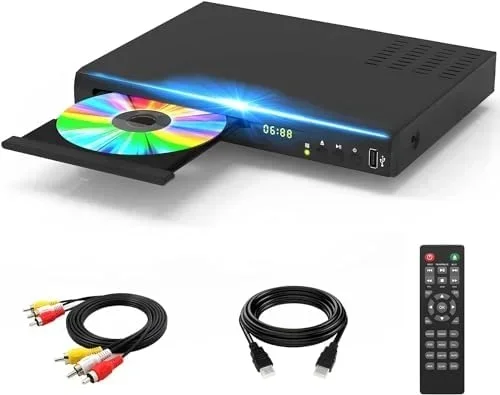
Many modern DVD and Blu-ray players include a USB port. These players can often play video files directly from a USB drive without needing a TV’s built-in media player. This is a great option if you want a simple, dedicated setup for disc-free movie watching. Just make sure your player supports the file format you are using.
Soundbar Systems and AV Receivers
Some AV receivers and soundbar systems include USB ports for media playback. These tend to be more limited in the formats they support. MP4 is the safest bet for these devices. If your system does not recognize your USB file, try converting it to a different format.
Troubleshooting: Why Your USB DVD Won’t Play
Even with the right setup, you might run into issues. Here are the most common problems and how to fix them.
Your Device Does Not Recognize the USB Drive
This is usually a simple fix. Try unplugging the USB drive and plugging it into a different port. Some systems only support certain USB drive types. FAT32 and NTFS are the most commonly supported file systems. If your drive uses exFAT, try reformatting it to FAT32 before plugging it in.
Also make sure your USB drive is not too large. Some older systems cannot read drives larger than 32 GB. If you have a 64 GB or 128 GB drive, try using a smaller one instead.
The Video File Will Not Play
If your device recognizes the USB drive but will not play the file, the format is likely the problem. Try converting the file to MP4 using HandBrake or another conversion tool. Sometimes the video codec inside the file is not supported. Converting to MP4 with H.264 encoding solves most of these issues.
The Video Plays But the Audio Does Not
This happens when the audio codec is not supported by your device. Common audio codecs like AAC and MP3 work on almost all systems. If your file uses DTS or AC3 audio, your system might not decode it. Re-encoding the file with AAC audio usually fixes this problem.
The Video Quality Is Poor or Choppy
Choppy playback usually means your USB drive is too slow. USB 2.0 drives have slower data transfer rates than USB 3.0 drives. If you are playing a large high-definition file, a USB 3.0 drive will perform much better. Also, make sure the file is not corrupted. Re-rip the DVD and try again.
Expert Tips for the Best DVD-from-USB Experience
Once you get the basics down, a few extra tips can make your experience even better. These expert insights come from years of testing and setup.
Keep Your USB Drive Organized
Create a clear folder structure on your USB drive. Use folders for different genres or movie titles. This makes it easy to find what you want without scrolling through a long list of files. A well-organized drive also reduces the chance of file conflicts or playback errors.
Update Your Device Firmware
Manufacturers often release firmware updates that improve USB playback support. Check your device settings or manufacturer website for the latest updates. An outdated firmware version can cause compatibility issues with newer file formats.
Use a High-Quality USB Drive
Not all USB drives are created equal. Brand-name drives from SanDisk, Samsung, or Kingston tend to be more reliable. Cheap no-name drives may fail or corrupt your files over time. Invest in a good quality drive for peace of mind.
Keep a Backup Copy
Always keep your original DVD in a safe place. USB files can sometimes become corrupted. Having the original disc means you can always re-rip the movie if needed. Think of the USB copy as a convenience backup, not a replacement for the original.
Track Your Collection
If you are converting and storing many DVDs on USB drives, it helps to keep a list of what you have. You can use a simple spreadsheet to track your movie collection. Some people run into issues when trying to delete old entries or update their list, similar to how a line won’t delete in Microsoft Excel when the sheet is protected or formatted incorrectly. Keeping your media list clean and well-maintained saves headaches later.
Consider a Powered USB Hub
If your home theater system has a USB port but struggles to read your drive, a powered USB hub can help. It provides a stable power source to the USB drive, which prevents read errors. This is especially useful for larger external hard drives that need more power than a TV USB port can provide.
Key Takeaways
- Yes, you can play a DVD from a USB: Most modern home theater systems and smart TVs support USB playback with converted DVD files.
- Convert before you copy: Ripping your DVD and converting it to MP4 or MKV ensures the widest compatibility across devices.
- File format is everything: MP4 is the safest choice. MKV offers the best quality but may not work on older systems.
- USB drive quality matters: Use a reliable, fast USB drive with enough storage space for your movie files.
- Troubleshooting is straightforward: Most USB playback issues come down to file format, drive speed, or device compatibility.
- Keep your originals safe: Always store your original DVDs as backup copies of your digital files.
Conclusion
Can you play a DVD from a USB on your home theater? Absolutely. It is one of the simplest upgrades you can make to your home entertainment setup. With just a few tools and a little patience, you can convert your DVD collection into digital files that play straight from a USB drive. No more flipping through scratched discs. No more bulky storage boxes.
The key is choosing the right file format, using a reliable USB drive, and knowing your device’s capabilities. MP4 files offer the best balance of compatibility and quality for most users. And if you run into any issues, the troubleshooting steps in this guide will help you get back on track quickly.
Once you make the switch to USB-based movie playback, you will wonder how you ever managed with discs. It is faster, cleaner, and more convenient. Your movies are always ready to go, right there on your USB drive. So grab your USB flash drive, convert your favorite DVDs, and enjoy your home theater the way it was meant to be.
Frequently Asked Questions
Can any TV play a DVD from a USB drive?
Most modern smart TVs can play video files from a USB drive, but not all of them support every file format. Check your TV manual for supported formats like MP4 or MKV. Older TVs without smart features may not have a USB media player at all.
What is the best file format for playing a DVD from USB?
MP4 is the best all-around format for USB playback. It works on almost every device and offers a good balance of quality and file size. MKV is a great alternative if you want higher quality and your device supports it.
Do I need special software to convert a DVD for USB playback?
Yes, you need a DVD ripping and conversion tool. HandBrake is a popular free option that works well for most users. VLC Media Player can also rip and convert DVDs with its built-in tools. Both are easy to use and do not require technical expertise.
Can I play a copy-protected DVD from a USB drive?
Copy-protected DVDs require special ripping software that can bypass the protection. HandBrake and MakeMKV are popular tools that handle most copy protection schemes. However, be aware that circumventing copy protection may be subject to local laws in your country.
How much storage do I need on a USB drive for DVD movies?
A standard DVD movie file takes up about 4 to 8 GB of space after conversion. A 16 GB USB drive can hold one or two movies. A 32 GB drive can hold several. If you plan to store many movies, go for a 64 GB or larger drive.
Why does my home theater system not recognize my USB drive?
This is usually caused by the file system format. Most home theater systems only read FAT32 or NTFS file systems. Try reformatting your USB drive to FAT32 if it uses a different format. Also make sure the drive is not damaged and is properly plugged in.