Can You Output Hdmi Through Usb With These Simple Methods
Yes, you can output HDMI through USB using adapters, converters, and docking stations. This guide covers USB-C to HDMI methods, compatibility tips, and step-by-step setups for laptops, desktops, and tablets. Learn how to connect an external display quickly and easily.
Have you ever been in a situation where you need to connect your laptop to a TV or monitor but only have a USB port available? You are not alone. Many people wonder can you output HDMI through USB when they want to share a screen or extend their display. The short answer is yes. You can absolutely get HDMI output through a USB connection. It just requires the right adapter or cable.
This guide breaks down every method you can use to output HDMI through USB. Whether you have a USB-A port or a USB-C port, there is a solution for you. We will walk through simple adapters, docking stations, and even software-based options. By the end, you will know exactly what to buy and how to set it up in minutes.
The process is simpler than most people think. You do not need to be a tech expert. A basic USB to HDMI adapter can turn any USB port into a video output. Let us dive into the details and explore all the ways you can make this work.
Key Takeaways
- USB Can Carry HDMI Signals: With the right adapter or cable, USB ports can output HDMI video to external displays.
- USB-C to HDMI Is the Most Common Method: A simple USB-C to HDMI adapter works for most modern laptops and tablets.
- Docking Stations Offer More Ports: USB docking stations provide HDMI output plus multiple connectivity options.
- Check Compatibility First: Not all USB ports support video output. Verify your port type before buying an adapter.
- Resolution and Performance Vary: The quality of HDMI output depends on your USB version and adapter quality.
- No Extra Software Is Usually Needed: Most adapters work plug-and-play on Windows, Mac, and Chromebooks.
📑 Table of Contents
- Understanding How HDMI Output Works Through USB
- Method 1: Using a USB-C to HDMI Adapter
- Method 2: Using a USB Docking Station
- Method 3: Using a USB-A to HDMI Converter
- Method 4: Using a DisplayLink Adapter
- Comparison: Which Method Is Right for You?
- Common Mistakes to Avoid When Using USB HDMI Adapters
- Expert Tips for the Best HDMI Output Experience
- Frequently Asked Questions
- Conclusion
Understanding How HDMI Output Works Through USB
Before you buy any adapter, it helps to understand the basics. USB ports were originally designed for data transfer and charging. They were not built for video signals. But technology has evolved, and now USB ports can carry video too.
The Role of USB in Video Transmission
Modern USB standards support video output. USB 3.0 and USB-C can transmit both data and video signals. This is why you can use a USB-C to HDMI cable or adapter to connect to a TV or monitor. The USB port acts as a bridge between your device and the display.
There are two main types of USB ports that support video output:
- USB-C: Found on most modern laptops, tablets, and phones. Supports video output natively.
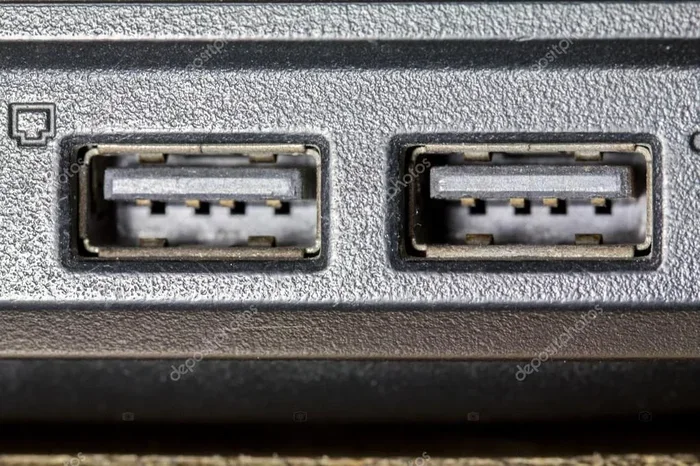
- USB-A (Type-A): The older rectangular port. Needs a converter to output HDMI.
Not every USB port can handle video. Some basic USB ports only support data and charging. You need a port that supports DisplayPort Alt Mode or Thunderbolt for reliable HDMI output.
Why People Need HDMI Output From USB
There are many reasons you might want to connect a USB port to an HDMI display:
- You want to mirror your laptop screen on a TV for a movie night.
- You need a second monitor for work or gaming.
- You are presenting slides in a meeting and only have USB available.
- Your laptop lacks a dedicated HDMI port.
- You want to use a larger screen for photo or video editing.
No matter the reason, outputting HDMI through USB is a practical and affordable solution. You do not need to buy a new laptop or device.
Method 1: Using a USB-C to HDMI Adapter
The easiest and most popular way to get HDMI output from USB is a USB-C to HDMI adapter. This small device plugs into your USB-C port on one end and has an HDMI output on the other. You then connect a standard HDMI cable from the adapter to your TV or monitor.
How to Set It Up
Setting up a USB-C to HDMI adapter is straightforward:
- Plug the USB-C end of the adapter into your laptop or device.
- Connect an HDMI cable to the adapter.
- Plug the other end of the HDMI cable into your TV or monitor.
- Switch your display to the correct HDMI input.
- Your screen should appear on the external display automatically.
Most adapters work plug-and-play. You do not need to install any drivers. Just connect and go. This makes it the best option for people who want a quick and simple solution.
Things to Look For in a USB-C to HDMI Adapter
Not all adapters are the same. Here is what you should check before buying:
- 4K Support: Make sure the adapter supports your desired resolution. Many adapters now support 4K at 60Hz.
- USB Version: USB 3.0 adapters offer better performance than USB 2.0 options.
- Build Quality: Metal adapters tend to be more durable and handle heat better.
- Brand Reputation: Stick with well-known brands like Anker, Belkin, or Cable Matters.
A good USB-C to HDMI adapter costs between $10 and $30. It is one of the cheapest ways to add HDMI output to your device.
Method 2: Using a USB Docking Station
If you need more than just HDMI output, a USB docking station is a great choice. A docking station connects to your USB port and provides multiple ports including HDMI, USB-A, Ethernet, and even charging ports.
Benefits of a Docking Station
Docking stations offer several advantages over simple adapters:
- Multiple Ports: Connect an HDMI monitor, USB drives, and a keyboard all at once.
- Better Performance: Many docking stations use USB 3.0 or Thunderbolt for faster data and video transfer.
- Dual Monitor Support: Some docking stations let you connect two or more displays.
- Charging Pass-Through: You can charge your laptop while using the dock.
Docking stations are especially useful for people who work from home or travel frequently. You can plug everything into one dock and connect it to your laptop with a single USB-C cable.
Top Docking Station Brands
Here are some reliable brands that make excellent USB docking stations with HDMI output:
- CalDigit: Known for Thunderbolt docks with excellent video performance.
- Anker: Offers affordable and reliable USB-C docking stations.
- Dell: Makes docking stations that work well with Dell laptops.
- HyperDrive: Popular for compact and portable docking solutions.
When choosing a dock, make sure it supports HDMI output and matches your USB port type. Thunderbolt docks offer the best performance but cost more.
Method 3: Using a USB-A to HDMI Converter
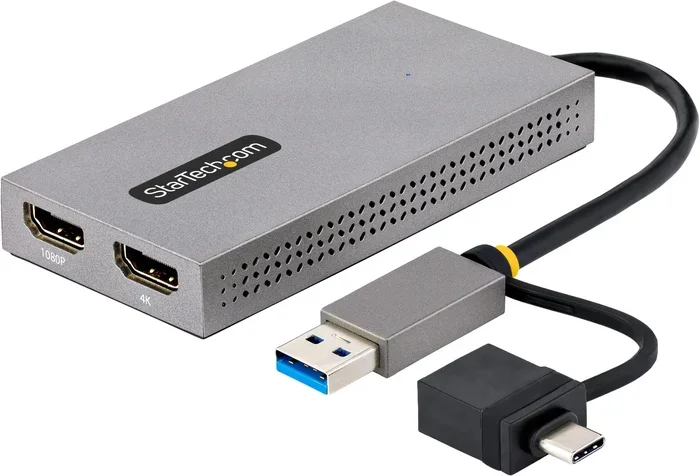
If your laptop or computer has a traditional USB-A port (the flat rectangular one), you can still get HDMI output. You will need a USB-A to HDMI converter. These devices are slightly different from USB-C adapters and often require external power.
How USB-A to HDMI Converters Work
A USB-A to HDMI converter has a USB-A input and an HDMI output. Some models also include a USB port for power. The converter takes the data signal from the USB port and converts it into a video signal that can travel through an HDMI cable.
Here is how to use one:
- Plug the USB-A converter into your computer.
- If the converter has a power port, plug in a USB cable for power.
- Connect an HDMI cable from the converter to your display.
- Select the correct HDMI input on your TV or monitor.
- Your screen should extend or mirror to the external display.
Keep in mind that USB-A to HDMI converters may not support high resolutions like 4K. They usually work best for 1080p output. If you need higher resolution, consider upgrading to a USB-C device or using a different method.
Limitations of USB-A HDMI Converters
There are some things to watch out for:
- Lower Resolution: Many USB-A converters max out at 1080p.
- Power Requirements: Some converters need a separate power source.
- Slower Speeds: USB 2.0 ports may cause lag or lower frame rates.
- Driver Issues: Some converters require software installation on Windows.
Despite these limitations, a USB-A to HDMI converter is still a useful tool for basic screen mirroring and presentations.
Method 4: Using a DisplayLink Adapter
DisplayLink is a technology that allows USB connections to support video output. A DisplayLink adapter uses software to compress video data and send it through a USB connection to an external display.
How DisplayLink Technology Works
DisplayLink adapters are different from standard HDMI adapters. They use your computer’s processor to handle the video output. This means they work with almost any USB port, even older USB 2.0 and USB 3.0 ports that do not natively support video.
Here is what you need to do:
- Buy a DisplayLink USB adapter with HDMI output.
- Install the DisplayLink software from the official website.
- Plug the adapter into your USB port.
- Connect an HDMI cable to the adapter and your display.
- The software will configure the external display automatically.
DisplayLink adapters are great for people who have older laptops or devices without USB-C ports. They offer a flexible way to add HDMI output to almost any computer.
Pros and Cons of DisplayLink Adapters
Like any technology, DisplayLink has its strengths and weaknesses:
- Pros: Works with older USB ports, supports multiple monitors, affordable options available.
- Cons: Requires software installation, may have slight lag, depends on CPU performance.
If you need a reliable HDMI output from an older USB port, a DisplayLink adapter is one of the best options available.
Comparison: Which Method Is Right for You?
With so many options, it can be hard to choose. Here is a quick comparison of the main methods for outputting HDMI through USB.
| Method | Best For | Resolution | Ease of Use | Price Range |
|---|---|---|---|---|
| USB-C to HDMI Adapter | Modern laptops and tablets | 4K @ 60Hz | Very Easy | $10 – $30 |
| USB Docking Station | Workstations and multi-device setups | 4K @ 60Hz | Easy | $50 – $200 |
| USB-A to HDMI Converter | Older laptops with USB-A ports | 1080p | Easy | $15 – $40 |
| DisplayLink Adapter | Older USB ports and multi-monitor setups | 1080p – 4K | Moderate | $30 – $80 |
Choose the method that matches your device and needs. If you have a modern laptop with USB-C, a simple adapter is all you need. If you have an older computer, a DisplayLink adapter or USB-A converter will get the job done.
Common Mistakes to Avoid When Using USB HDMI Adapters
Even though these adapters are simple, there are some common mistakes that can cause problems. Avoiding these will save you time and frustration.
Buying the Wrong Adapter Type
The most common mistake is buying a USB-C adapter for a USB-A port or vice versa. Check your device’s ports before purchasing. A USB-C to HDMI adapter will not fit into a USB-A port. Make sure you know which type of USB port your device has.
Ignoring Resolution Limits
Not all adapters support 4K resolution. If you buy a cheap adapter that only supports 1080p and try to output 4K content, you will get poor image quality or no signal at all. Always check the adapter’s specifications before buying.
Using a Low-Quality USB Hub
If you are using a USB hub to connect your adapter, make sure it is a powered hub. Unpowered hubs may not provide enough power for video output, resulting in a flickering or non-functional display.
Forgetting to Update Drivers
Some adapters, especially DisplayLink models, require updated drivers. If your HDMI output is not working, check the manufacturer’s website for the latest driver updates. This is an easy fix that many people overlook.
Using a Damaged Cable
A faulty HDMI cable can cause all sorts of issues. If you are getting no signal or a poor picture, try a different HDMI cable first. It is a simple step that often solves the problem.
Expert Tips for the Best HDMI Output Experience
Want to get the most out of your USB-to-HDMI setup? Here are some expert tips that make a real difference.
Use High-Speed HDMI Cables
Not all HDMI cables are created equal. For the best experience, use a high-speed HDMI cable that supports the resolution you need. A premium HDMI 2.0 or HDMI 2.1 cable ensures smooth video and accurate colors.
Close Unnecessary Programs
When using a DisplayLink adapter, your computer’s processor handles the video conversion. Closing unnecessary programs frees up processing power and improves performance. This is especially important if you are watching videos or gaming on the external display.
Keep Your Adapter Cool
Adapters can get warm during use. Place them in a well-ventilated area and avoid covering them with other devices. Overheating can cause the adapter to disconnect or produce poor video quality.
Test Different Display Settings
If your external display is not showing correctly, go to your display settings and try different configurations. You can choose to mirror your screen, extend it, or set it as the primary display. Sometimes a simple setting change fixes the issue.
Update Your Operating System
Operating system updates often include improvements for external display support. Make sure your Windows, Mac, or Chrome OS is up to date before troubleshooting HDMI output issues.
Frequently Asked Questions
Can I Output HDMI Through USB on Any Laptop?
Most modern laptops can output HDMI through USB, but it depends on the port type. USB-C ports on newer laptops support HDMI output with the right adapter. Older laptops with USB-A ports may need a converter or DisplayLink adapter. Check your laptop’s specifications to confirm video output support.
Do I Need to Install Drivers for a USB to HDMI Adapter?
Most USB-C to HDMI adapters work plug-and-play and do not require drivers. However, DisplayLink adapters do need software installation. Always check the product description before purchasing to see if drivers are required.
Can I Use a USB Hub With an HDMI Adapter?
Yes, you can use a USB hub with an HDMI adapter, but make sure the hub is powered. Unpowered hubs may not provide enough power for stable video output. A powered hub ensures reliable performance and prevents disconnections.
What Resolution Can I Expect From USB HDMI Output?
Resolution depends on your adapter and USB port type. USB-C adapters typically support 4K at 60Hz. USB-A converters usually max out at 1080p. DisplayLink adapters vary by model but can support up to 4K on newer versions.
Is It Safe to Leave a USB HDMI Adapter Plugged In?
Yes, it is generally safe to leave a USB HDMI adapter plugged in. These adapters use very little power and do not pose a risk to your device. However, if you notice the adapter getting unusually hot, unplug it when not in use.
Can I Connect Multiple Monitors Using USB HDMI Adapters?
Yes, you can connect multiple monitors using USB HDMI adapters, especially with docking stations or DisplayLink adapters. Each adapter adds one external display. Make sure your computer’s graphics card and processor can handle multiple displays for the best experience.
Conclusion
Outputting HDMI through USB is easier than most people think. With the right adapter or docking station, you can connect any device to an external display in seconds. Whether you use a USB-C to HDMI adapter, a docking station, a USB-A converter, or a DisplayLink solution, there is a method that fits your needs and budget.
The key is to match your adapter to your device’s USB port type and your display requirements. A modern laptop with USB-C benefits most from a simple USB-C to HDMI adapter. Older computers may need a DisplayLink adapter or USB-A converter to get HDMI output.
Remember to check for 4K support, invest in quality cables, and avoid the common mistakes we discussed. With these simple methods, you can enjoy a bigger screen, better productivity, and seamless screen sharing wherever you go. Outputting HDMI through USB opens up a world of possibilities, and now you have everything you need to get started.