Can You Get Usb To Usb C This Simple Guide Explains All
Yes, you can get a USB to USB C connection using adapters or cables. This guide covers everything you need to know about USB to USB C compatibility, including the best adapters, cables, and devices. Whether you want to charge your phone or transfer data, understanding USB to USB C options is essential in today’s tech world.
Can you get USB to USB C? The short answer is yes. If you have an older device with a standard USB port and a newer gadget that uses USB C, you are not stuck. There are simple, affordable solutions that let you connect them. In this guide, we will walk you through everything you need to know about USB to USB C connections. You will learn about adapters, cables, compatibility, and which option works best for your needs.
USB C has become the standard connector for most modern devices. Smartphones, laptops, tablets, and even gaming consoles now use USB C. But many of us still have older USB A cables and devices lying around. That is where USB to USB C adapters come in handy. They bridge the gap between old and new technology effortlessly.
Key Takeaways
- USB to USB C adapters are widely available and affordable for connecting older USB devices to newer USB C ports.
- USB C offers faster data transfer speeds and higher power delivery compared to traditional USB A.
- Not all USB to USB C cables are the same — check for USB 3.0, USB 3.1, or USB 3.2 ratings for best performance.
- USB C is reversible, meaning you can plug it in either way, unlike older USB connectors.
- Most modern smartphones, laptops, and tablets now use USB C, making adapters a must-have accessory.
- Thunderbolt 3 and 4 use USB C connectors but offer even faster speeds for professionals and gamers.
- Always buy from trusted brands to avoid counterfeit cables that may damage your devices.
📑 Table of Contents
- What Is USB C and Why Does It Matter?
- Can You Get USB to USB C Adapters?
- USB to USB C Cables: What You Need to Know
- Are USB to USB C Adapters and Cables Safe?
- Which Devices Use USB C?
- USB to USB C and Data Transfer Speeds Explained
- Common Mistakes People Make with USB to USB C
- Expert Tips for Getting the Most Out of USB to USB C
- The Future of USB C and What to Expect
- Final Thoughts
What Is USB C and Why Does It Matter?
USB C stands for Universal Serial Bus Type C. It is a small, oval-shaped connector that has replaced older USB types in most new devices. Unlike the old rectangular USB A plug, USB C is reversible. You can flip it around and plug it in either way. This alone makes life so much easier.
USB C also supports much faster data transfer speeds. USB 3.0 transfers data at 5 Gbps. USB 3.1 doubles that to 10 Gbps. And USB 3.2 can reach speeds up to 20 Gbps. On top of that, USB C supports USB Power Delivery, which means it can charge devices faster and with more power. Some USB C ports can deliver up to 100 watts of power.
Why USB C Replaced Older USB Types
There are several reasons USB C has taken over. First, it is smaller and more compact. This makes it perfect for slim laptops and phones. Second, it is universal. You can use one USB C cable to charge your phone, transfer files to a laptop, and even connect to a monitor. Third, it supports alternate modes like DisplayPort and Thunderbolt. This means one cable can handle video, data, and power all at once.
Most people find that once they switch to USB C, they never want to go back. The convenience and speed are hard to beat.
Can You Get USB to USB C Adapters?
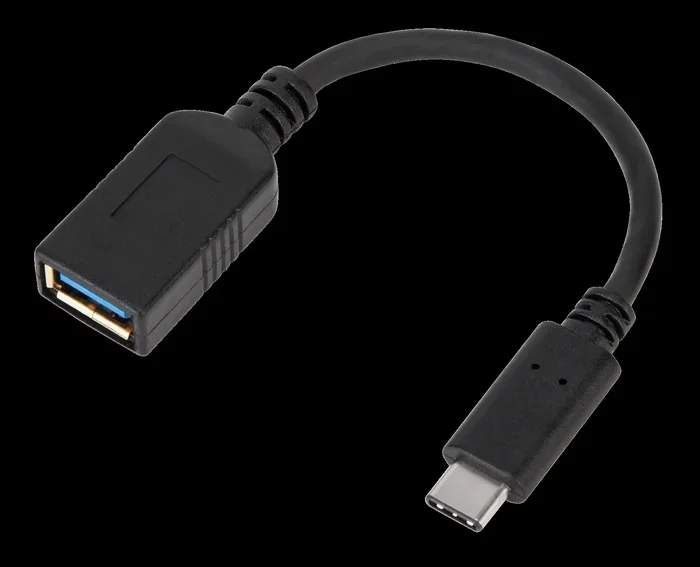
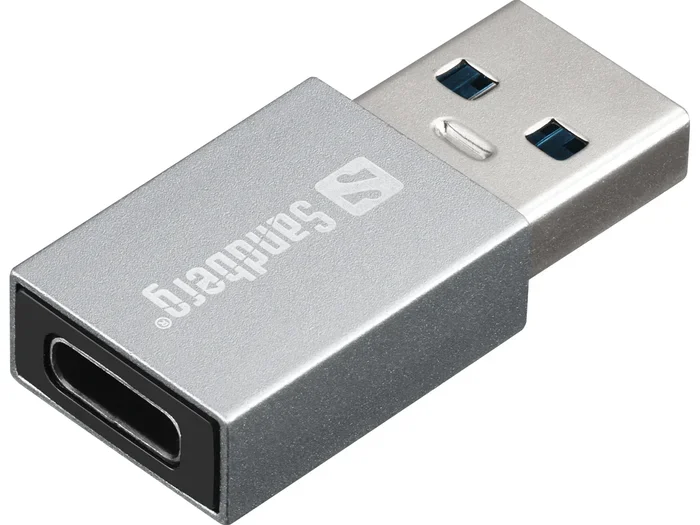
Yes, you absolutely can. USB to USB C adapters are one of the most popular accessories available today. They let you use your existing USB A cables with new USB C devices. You do not need to throw away your old cables or buy all new ones.
These adapters are small, lightweight, and very affordable. You can find them online or at any electronics store for just a few dollars. They plug into the USB C port on your device, and then your regular USB A cable connects to the adapter. It is a simple plug-and-play solution that works every time.
Types of USB to USB C Adapters
Not all adapters are the same. Here are the most common types you will come across:
- USB A to USB C Adapter: This is the most basic type. It converts a USB C port into a USB A port so you can use older cables.
- USB C to USB A Cable: This is a cable with USB C on one end and USB A on the other. No adapter needed — it is all in one piece.
- USB Hub with USB C: These hubs add extra USB A ports to a USB C connection. Great if you need to connect multiple devices at once.
- Multi-Port Adapter: These adapters offer USB C, USB A, HDMI, SD card slots, and more. Perfect for travelers and professionals.
How to Choose the Right Adapter
When picking an adapter, look for a few key things. First, check the data transfer speed. A USB 3.0 adapter will be much faster than a USB 2.0 one. Second, make sure it supports the power delivery you need. If you are charging a laptop, you need an adapter that handles higher wattage. Third, buy from a reputable brand. Cheap knockoff adapters can be unsafe and may damage your devices.
Also, think about what devices you will be using. If you need to connect a flash drive, a basic adapter works fine. But if you want to connect an external hard drive or a camera, go for a USB 3.0 or higher adapter for the best speeds.
USB to USB C Cables: What You Need to Know
Cables are another great way to connect USB devices to USB C ports. A USB to USB C cable has a standard USB A connector on one end and a USB C connector on the other. This lets you connect older USB devices directly to newer USB C gadgets without needing a separate adapter.
These cables are especially useful for charging. If your new phone has a USB C port but your old wall charger has a USB A plug, a USB to USB C cable solves the problem instantly. You just plug the USB A end into your charger and the USB C end into your phone.
USB to USB C Cable Speed Ratings
Not all USB cables transfer data at the same speed. Here is a quick breakdown of the different speed standards:
- USB 2.0: Up to 480 Mbps. Fine for charging and basic file transfers.
- USB 3.0 (USB 3.2 Gen 1): Up to 5 Gbps. Great for most everyday tasks.
- USB 3.1 (USB 3.2 Gen 2): Up to 10 Gbps. Fast enough for large files and external drives.
- USB 3.2 Gen 2×2: Up to 20 Gbps. Premium speeds for professionals.
When shopping for a USB to USB C cable, always check the speed rating on the packaging. If it does not list a speed, it is probably USB 2.0, which is fine for charging but slow for data transfer.
Best Uses for USB to USB C Cables
These cables are incredibly versatile. Here are some common ways people use them:
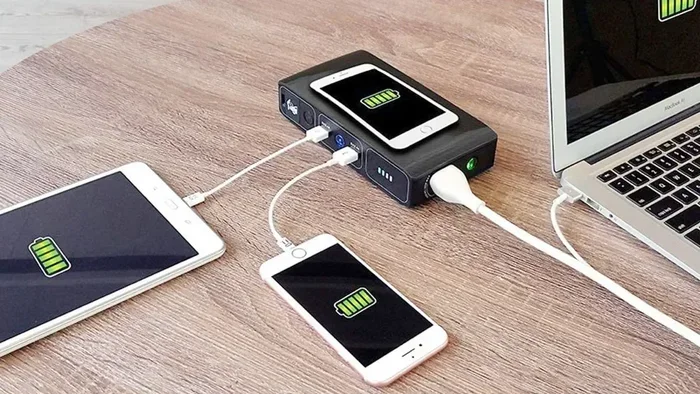
- Charging smartphones and tablets from older USB A wall chargers or power banks.
- Transferring photos from a digital camera to a modern laptop.
- Connecting USB flash drives to newer computers with only USB C ports.
- Linking game controllers to PCs or consoles with USB C ports.
- Connecting external hard drives or SSDs for backup and storage.
One thing to keep in mind is that a cable alone does not change the speed of your devices. If your USB A port is USB 2.0, the data transfer will still be limited to USB 2.0 speeds. The cable can only support the speed of the ports it connects to.
Are USB to USB C Adapters and Cables Safe?
Safety is a big concern for many people when using adapters and cables. The good news is that USB to USB C adapters and cables are generally very safe. They follow strict industry standards and are designed to protect your devices. However, there are a few things to watch out for.
Always buy adapters and cables from reputable brands or trusted retailers. Cheap, unbranded products from unknown sellers may not meet safety standards. They could overheat, deliver incorrect power, or even damage your devices. Spending a little extra on a quality product is always worth it.
Another tip is to avoid using adapters or cables that look damaged. Frayed cables, bent connectors, or loose-fitting adapters can cause short circuits or inconsistent connections. If something looks worn out, replace it right away.
Quick Tips for Safe USB to USB C Use
- Only use adapters and cables from trusted brands.
- Check the power rating before using an adapter with a laptop or tablet.
- Do not force a connector into a port. It should fit snugly but easily.
- Store cables properly to avoid fraying and damage.
- Unplug adapters when they are not in use to reduce wear and tear.
Following these simple tips will keep your devices safe and your connections reliable for years to come.
Which Devices Use USB C?
USB C has become the go-to connector for a huge range of devices. Here is a look at some of the most popular ones:
- Smartphones: Most Android phones now use USB C, including Samsung Galaxy, Google Pixel, and OnePlus models. Apple has also switched to USB C on the iPhone 15 series.
- Laptops: Almost all new laptops from Dell, HP, Lenovo, Apple MacBook, and Microsoft Surface use USB C for charging and data.
- Tablets: iPads, Samsung Galaxy Tabs, and most other modern tablets now feature USB C.
- Gaming Consoles: The Nintendo Switch and Steam Deck both use USB C for charging and accessories.
- Audio Devices: Many wireless earbuds, headphones, and portable speakers now charge via USB C.
- Cameras and Drones: Many modern cameras and drones use USB C for data transfer and charging.
With so many devices using USB C, having a few USB to USB C adapters and cables on hand makes a lot of sense. It keeps you prepared no matter what device you need to connect.
If you are looking for more ways to simplify your tech setup, check out these 10 Gadgets to Make Moms Life Easier. Many of these gadgets work great with USB C connections and can help streamline your daily routine.
USB to USB C and Data Transfer Speeds Explained
One of the biggest reasons people upgrade to USB C is the speed. But the speed you actually get depends on several factors. Let us break it down in simple terms.
First, the cable matters. A USB 3.0 USB to USB C cable can transfer data at up to 5 Gbps. That is fast enough to transfer a full HD movie in seconds. A USB 2.0 cable will be much slower, more like the speeds you are used to with older USB connections.
Second, the port on your device matters. Even if you have a fast USB 3.0 cable, it will only work as fast as the slowest port in the connection chain. So if your computer has a USB 2.0 port, the transfer speed will be limited to USB 2.0 levels.
Third, the device itself matters. Some external hard drives and flash drives have their own speed limits. A fast USB C connection will not make a slow device transfer data any faster.
USB to USB C Speed Comparison Table
| USB Standard | Max Speed | Best For |
|---|---|---|
| USB 2.0 | 480 Mbps | Charging, basic file transfers |
| USB 3.0 | 5 Gbps | Everyday data transfer, external drives |
| USB 3.1 | 10 Gbps | Large file transfers, video editing |
| USB 3.2 Gen 2×2 | 20 Gbps | Professional workflows, fast backups |
| Thunderbolt 3/4 | 40 Gbps | High-end creative work, docking stations |
When you are shopping for a USB to USB C cable or adapter, always check the specs. Look for the USB standard number on the packaging or product description. This tells you exactly what speed you can expect.
Common Mistakes People Make with USB to USB C
There are a few common mistakes that people make when using USB to USB C adapters and cables. Avoiding these can save you time, money, and frustration.
1. Buying the Cheapest Cable Available
It is tempting to grab the cheapest USB to USB C cable you can find. But cheap cables often use thinner wires and lower-quality connectors. They may charge slowly, overheat, or fail after a few weeks. Investing in a quality cable from a trusted brand pays off in the long run.
2. Ignoring Power Delivery Ratings
Not all USB to USB C cables support the same power levels. If you need to charge a laptop, you need a cable that supports USB Power Delivery (PD). A basic cable might only support 15 watts, which is not enough for most laptops. Always check the wattage rating before buying.
3. Assuming All USB C Ports Are the Same
This is a big one. Not all USB C ports support the same features. Some only support charging. Others support data transfer. And some support video output and Thunderbolt. Before buying an adapter or cable, check what your USB C port can do.
4. Forcing Connectors Into Ports
USB C connectors are designed to fit snugly but should not require force. If a connector does not go in easily, do not push harder. Check the orientation and try again. Forcing a connector can damage both the cable and the port.
5. Not Checking Cable Length Needs
Longer cables are convenient but can sometimes result in slower charging or data transfer. If you need maximum speed, a shorter cable (around 1 to 3 feet) is usually the best choice. For convenience, a longer cable is fine for charging.
If you are setting up a tech-friendly home or office, you might also find these tips for adding prefixes to numbers on iPhone helpful for organizing your contacts and device settings more efficiently.
Expert Tips for Getting the Most Out of USB to USB C
Here are some expert tips that will help you get the best performance from your USB to USB C setup:
- Label your cables. If you have multiple USB to USB C cables, label them by speed rating or use case. This saves time when you need a specific cable for a specific task.
- Keep a spare adapter in your bag. You never know when you will need to connect an older device to a new one. A small USB to USB C adapter in your backpack or desk drawer is always handy.
- Update your device firmware. Sometimes, updating your device software can improve USB C compatibility and performance.
- Use cable management. Tangled cables can cause strain on connectors. Use cable ties or a cable organizer to keep things neat.
- Test your setup. After connecting a new adapter or cable, test both data transfer and charging to make sure everything works as expected.
These small habits can make a big difference in how long your USB to USB C accessories last and how well they perform.
The Future of USB C and What to Expect
USB C is here to stay. In fact, the European Union has already mandated USB C as the standard charging port for most electronic devices. This means more and more gadgets will use USB C in the years to come.
New USB standards are also being developed. USB4 is the latest generation, and it uses the USB C connector. USB4 supports speeds up to 40 Gbps, which is the same as Thunderbolt 3 and Thunderbolt 4. As USB4 becomes more common, USB to USB C connections will become even faster and more versatile.
For now, USB to USB C adapters and cables are an essential part of the modern tech ecosystem. They keep your older devices working with new technology and save you money in the process.
Final Thoughts
So, can you get USB to USB C? Absolutely. Whether you choose an adapter or a cable, connecting older USB devices to modern USB C gadgets is simple and affordable. The key is to pick the right product for your needs, check the speed and power ratings, and buy from a trusted source.
USB to USB C solutions have made our lives so much easier. No more buying all new cables or getting rid of perfectly good devices just because they use an older connector. With the right adapter or cable, everything works together seamlessly.
Now that you know everything about USB to USB C connections, you can shop with confidence. Pick the adapter or cable that fits your setup, and enjoy the speed and convenience that USB C has to offer.
Frequently Asked Questions
Do I need a special USB to USB C cable for fast charging?
Yes, for fast charging you need a cable that supports USB Power Delivery (PD). Standard USB to USB C cables may only support basic charging speeds. Look for cables rated for higher wattage if you want fast charging.
Can I use a USB to USB C adapter for data transfer?
Yes, most USB to USB C adapters support data transfer. However, the speed depends on the USB standard of the adapter. USB 3.0 adapters offer much faster transfer speeds than USB 2.0 adapters.
Are USB to USB C adapters compatible with all devices?
Most USB to USB C adapters are universal and work with any device that has a USB C port. However, always check the specs of your device to confirm compatibility, especially for power delivery requirements.
Can I charge my laptop with a USB to USB C cable?
Yes, if your laptop supports USB Power Delivery and your cable and adapter are rated for the correct wattage. Most modern laptops charge via USB C, but you need the right power rating for best results.
Why is my USB to USB C connection slow?
Slow connections usually happen when using a USB 2.0 cable or adapter. Upgrade to a USB 3.0 or higher cable for faster speeds. Also, check that both ports support the same speed standard.
How do I know if my USB to USB C cable is genuine?
Buy cables from reputable brands and authorized retailers. Check for proper branding, certification logos, and quality build. Avoid cables that seem very cheap or have no brand information on them.
=== CONCLUSION ===
Can you get USB to USB C? Yes, and it is easier than you think. USB to USB C adapters and cables are affordable, widely available, and incredibly useful. They let you connect your older devices to modern USB C gadgets without any hassle. Whether you need to charge your phone, transfer files, or set up a workspace, USB to USB C solutions have you covered.
Remember to check the speed rating, power delivery, and compatibility before buying. Choose trusted brands, avoid cheap knockoffs, and take care of your cables and adapters. With the right USB to USB C setup, you will enjoy faster data transfer, quicker charging, and a more connected tech experience every single day.