Can You Do Lightning Port To Hdmi With These Simple Tips
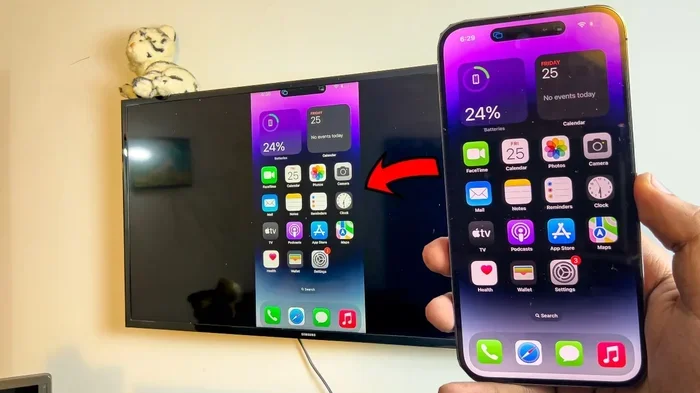
Yes, you can do Lightning Port to HDMI with the right adapter and a few simple steps. Whether you want to mirror your iPhone screen to a TV or output video and audio, a Lightning to HDMI adapter makes it easy. This guide covers everything from choosing the best adapter to fixing common connection issues.
Key Takeaways
- Lightning to HDMI is possible: You just need a compatible adapter or cable to connect your iPhone or iPad to a TV or monitor.
- MFi certification matters: Always choose MFi-certified adapters to ensure safety and full compatibility with your Apple devices.
- Setup is simple: Plug the adapter into your device, connect an HDMI cable, and switch your TV to the right input.
- Common issues are fixable: Most problems like no signal or audio issues can be solved with basic troubleshooting steps.
- Not all devices work the same: Check your iOS version and device model before buying an adapter.
- You can charge while mirroring: Some adapters support pass-through charging so you can power your device at the same time.
📑 Table of Contents
- Can You Do Lightning Port to HDMI? Yes, Here Is How
- Choosing the Right Lightning to HDMI Adapter
- Step-by-Step Setup Guide
- Devices That Support Lightning to HDMI
- Common Problems and How to Fix Them
- Expert Tips for the Best Lightning to HDMI Experience
- Lightning Port to HDMI vs. Wireless Options
- Frequently Asked Questions
- Final Thoughts
Can You Do Lightning Port to HDMI? Yes, Here Is How
Connecting your iPhone or iPad to a TV or monitor might seem tricky at first. But the truth is, Lightning Port to HDMI connections are straightforward and very doable. You do not need to be a tech expert to make it work. With the right adapter and a basic understanding of your device, you can stream videos, mirror your screen, and even play games on a bigger display.
Many people want to know if this connection is possible. The short answer is yes. Apple has made it easy to output video and audio from your Lightning-equipped device to any screen with an HDMI input. Whether you are at home, in a hotel room, or presenting at work, this setup gives you flexibility and convenience.
In this guide, we walk you through everything you need to know. We cover the types of adapters available, how to set things up, what devices work best, and how to solve common problems. By the end, you will feel confident connecting your device to any HDMI display. Let us get started.
Why Connect Lightning Port to HDMI?
There are many reasons to connect your iPhone or iPad to a TV or monitor. The most common reason is screen mirroring. You want to watch a video, share photos, or play a game on a larger screen. It is just more fun and easier on the eyes when everything is bigger.
Another reason is presentations and productivity. If you use your iPad for work, you can connect it to a projector or monitor during meetings. This lets you share your screen with a group without needing extra software or apps. It is clean, simple, and professional.
Some people also use this setup for gaming. Playing games on a big TV screen feels completely different from using a small phone display. With the right adapter, you can enjoy your favorite games in high definition. You can also use this connection for educational purposes, like showing lessons or tutorials on a classroom TV.
How Does Lightning Port to HDMI Work?
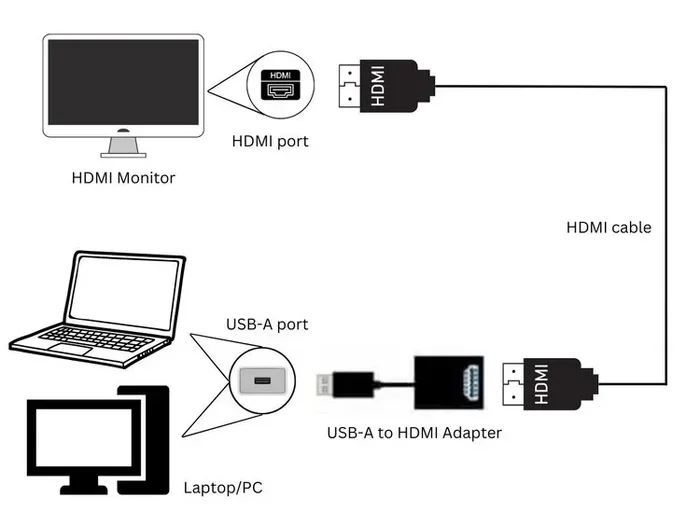
Understanding how this connection works helps you make better choices. Your iPhone or iPad has a Lightning port that handles data transfer and charging. An HDMI port on your TV or monitor receives video and audio signals. The bridge between these two is an adapter.
The adapter takes the digital signal from your Apple device and converts it into an HDMI signal. This signal carries both video and audio. So you get a complete multimedia experience on your TV screen. Most adapters also support standard resolutions like 1080p and 720p. Some newer adapters even support 4K output, though this depends on your device model.
The process is plug and play. You do not need to install any software or drivers. Just connect the adapter to your device, plug in an HDMI cable, and switch your TV to the correct input. Everything should work right away. This simplicity is one of the biggest advantages of using a Lightning to HDMI adapter.
Choosing the Right Lightning to HDMI Adapter
Not all adapters are created equal. Choosing the right one can save you from frustration and wasted money. There are a few key factors you should consider before making a purchase.
MFi Certification Is a Must
Apple has a program called MFi, which stands for Made for iPhone. When you see this label on an adapter, it means Apple has tested and approved the product. MFi-certified adapters guarantee compatibility and safety. They will not damage your device or cause software issues.
Always avoid cheap, uncertified adapters. They might seem like a good deal, but they often cause problems. You might experience flickering screens, no audio, or even damage to your charging port. Spending a little more on a certified adapter is always worth it.
Types of Lightning to HDMI Adapters
There are mainly two types of adapters you can buy. The first is the Apple Digital AV Adapter. This is the official adapter made by Apple. It costs more but offers the best reliability and performance. It works with all Lightning-equipped devices and supports HD video output.
The second type is third-party adapters. Many reputable brands make great alternatives at lower prices. Brands like Belkin, Anker, and Amazon Basics offer quality options. Just make sure whatever you buy is MFi-certified. You can also check reviews from other users before purchasing.
Pass-Through Charging
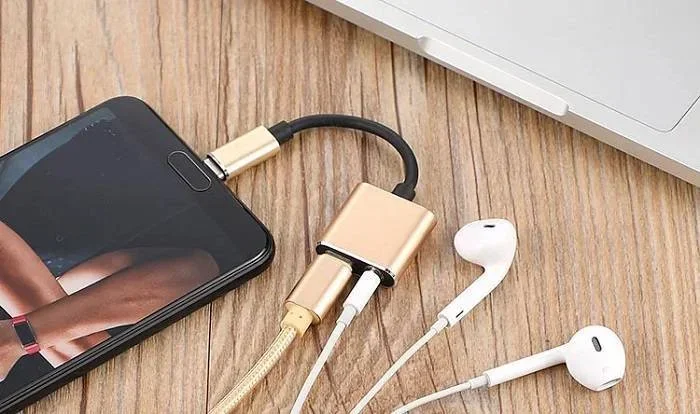
One feature worth looking for is pass-through charging. Some adapters have an extra port that lets you charge your iPhone while it is connected to the TV. This is really useful for long movie nights or gaming sessions. Your device stays powered, so you never run out of battery mid-stream.
Not all adapters offer this feature. If it matters to you, check the product description before buying. It is a small detail that makes a big difference in your overall experience.
Step-by-Step Setup Guide
Setting up your Lightning Port to HDMI connection is quick and easy. Follow these simple steps and you will be watching your favorite content on the big screen in no time.
- Get your adapter ready. Make sure you have an MFi-certified Lightning to HDMI adapter. Check that it is compatible with your device model.
- Plug the adapter into your iPhone or iPad. Insert the Lightning end firmly into your device’s charging port. You should feel a secure click.
- Connect an HDMI cable. Plug one end of the HDMI cable into the adapter. Plug the other end into an available HDMI port on your TV or monitor.
- Switch your TV to the right input. Use your TV remote to select the HDMI input where you connected the cable. Most TVs label these as HDMI 1, HDMI 2, and so on.
- Trust the device if prompted. On your iPhone or iPad, you might see a message asking if you trust the connected device. Tap Trust to allow the connection.
- Start mirroring or streaming. Your screen should now appear on the TV. Open any app, video, or photo to test the connection.
That is it. No apps to download, no settings to configure. The adapter handles everything automatically. If you do not see anything on your TV, double-check all connections and make sure your TV is on the correct input source.
Quick Tips for a Smooth Setup
- Use a high-quality HDMI cable for the best results.
- Restart your iPhone if the connection does not work the first time.
- Make sure your TV firmware is up to date for best compatibility.
- Keep your iOS updated to the latest version available.
- Avoid using extension cables; connect directly whenever possible.
Devices That Support Lightning to HDMI
Not every Apple device supports this connection. You need a device with a Lightning port and the right software version. Here is a breakdown of what works and what does not.
Compatible iPhones
Most iPhones from the iPhone 5 onward use a Lightning port. This means they can potentially connect to HDMI. However, the best experience comes with newer models. The iPhone 12, 13, 14, and 15 series all support HD video output through a Lightning adapter.
Older models like the iPhone 5S and iPhone 6 also work. But you might notice some limitations with newer apps or higher resolutions. Always check your device specs before assuming full compatibility.
Compatible iPads
iPads with Lightning ports include the iPad Air series, iPad mini series, and several iPad Pro models. These devices handle video output very well. You can mirror your screen or use the iPad as a secondary display for your TV.
The iPad Pro models offer the best performance. They support higher resolutions and smoother streaming. If you have an older iPad with a Lightning port, it will still work for basic mirroring and video playback.
iPod Touch
The iPod Touch 7th generation also has a Lightning port. It supports video output to HDMI displays. This is a great option if you want a portable streaming device without using a phone. You can connect it to any TV and enjoy your content on a bigger screen.
Common Problems and How to Fix Them
Even with the right adapter, you might run into issues now and then. Most problems are easy to fix with simple steps. Here are the most common issues and their solutions.
No Signal on Your TV
If your TV shows no signal, the first thing to check is the HDMI cable connection. Unplug it and plug it back in firmly. Try a different HDMI port on your TV if available. Sometimes the port you chose is not working properly.
Next, restart your iPhone or iPad. A simple reboot often fixes connection issues. Also, make sure your adapter is fully seated in the device port. A loose connection can prevent the signal from reaching your TV.
No Audio Output
If you see the video but hear no sound, check your TV audio settings. Make sure the volume is not muted and the correct audio output is selected. Some TVs have separate settings for HDMI audio that need to be enabled.
On your iPhone, go to Settings and check the volume level. Also, make sure nothing is connected to Bluetooth speakers. Your device might be sending audio to a Bluetooth device instead of the HDMI output. Turning off Bluetooth temporarily can help diagnose this issue.
Flickering or Distorted Display
A flickering screen usually points to a cable or adapter problem. Try a different HDMI cable first. If that does not work, test with a different adapter. The adapter might be faulty or not fully compatible with your device.
Also, check if your TV supports the resolution your device is trying to output. Some older TVs only handle 720p or 1080i. Your iPhone might try to push a higher resolution that the TV cannot display. Lowering the output resolution in your device settings can fix this.
Adapter Overheating
Adapters can get warm during use, especially during long streaming sessions. This is normal. However, if the adapter gets too hot to touch, disconnect it immediately. Let it cool down before using it again.
Overheating can be caused by using a low-quality adapter or charging your device while streaming. If this happens often, invest in a better-quality adapter. A well-made Lightning to HDMI adapter should not overheat under normal use.
Expert Tips for the Best Lightning to HDMI Experience
Once you have your setup working, there are a few pro tips that can elevate your experience. These small adjustments make a big difference in quality and reliability.
Use a High-Speed HDMI Cable
Not all HDMI cables are the same. A high-speed HDMI cable supports better resolution and smoother video playback. Look for cables rated at HDMI 2.0 or higher for the best results. A cheap, low-quality cable can limit your output even if your adapter is top-notch.
Keep Your iOS Updated
Apple regularly releases iOS updates that improve compatibility and performance. Keeping your device updated ensures the best experience with your adapter. Sometimes, an update fixes bugs that cause HDMI output problems.
Consider a Dock Station
If you use your device for presentations or home entertainment, consider a dock station with HDMI output. These docks offer more ports and features than simple adapters. They often include USB ports, SD card slots, and pass-through charging. They are a great investment if you use this setup frequently.
Explore Gadgets That Make Your Setup Better
There are many accessories that complement your Lightning to HDMI setup. From cable organizers to portable stands, small additions can make your life much easier. If you want to explore more useful tools, check out these gadgets that make life easier for everyday use.
Manage Your iPhone Settings for Optimal Output
Did you know you can tweak your iPhone settings to improve HDMI performance? Adjusting display settings, turning off unnecessary background apps, and managing notifications can all help. For more iPhone tips and tricks, you can also learn about customizing your iPhone settings for a better overall experience.
Lightning Port to HDMI vs. Wireless Options
While Lightning to HDMI is a great option, it is worth comparing it to wireless alternatives. Both have their strengths and weaknesses.
Wired connections offer a stable, lag-free experience. You get consistent video quality and reliable audio sync. This makes them ideal for gaming, presentations, and watching fast-moving content. The downside is that you need cables and adapters, which can feel limiting.
Wireless options like AirPlay offer more freedom. You do not need any cables, and you can stream from anywhere in the room. However, wireless connections can suffer from lag, compression, and occasional disconnections. They also depend on a strong Wi-Fi network.
For the best quality and reliability, a wired Lightning to HDMI adapter is hard to beat. For convenience and flexibility, wireless streaming works well. Many people use both depending on the situation.
Frequently Asked Questions
Do I Need an MFi-Certified Adapter for Lightning to HDMI?
Yes, you should always use an MFi-certified adapter. This ensures your adapter is compatible with your Apple device and will not cause any damage. Non-certified adapters can lead to poor performance, no audio, or even harm your device.
Can I Charge My iPhone While Using a Lightning to HDMI Adapter?
It depends on the adapter you buy. Some adapters have a pass-through charging port that lets you connect a charger at the same time. If your adapter does not have this feature, your iPhone will not charge while connected to HDMI.
Does Every iPhone Support Lightning to HDMI Output?
Most iPhones with a Lightning port support HDMI output. This includes models from iPhone 5 onward. However, always check your specific model to confirm compatibility. Very old models might have limited support for newer apps or features.
What Resolution Can I Expect from a Lightning to HDMI Connection?
Most adapters support up to 1080p HD resolution. Some adapters and newer devices can push 4K output, but this depends on your device model and the adapter quality. Check your adapter specifications for exact resolution support.
Why Is There No Sound When I Connect to HDMI?
This is usually caused by a loose connection, incorrect TV input, or Bluetooth interference. Check all cable connections first. Then make sure your TV is set to the right HDMI input. Finally, turn off Bluetooth to ensure audio is not being sent to another device.
Can I Use a Lightning to HDMI Adapter with an iPad?
Yes, iPads with Lightning ports work perfectly with HDMI adapters. Both iPads and iPhones use the same connection standard for video output. Just make sure your iPad is running a supported iOS version for the best experience.
Final Thoughts
Lightning Port to HDMI is a simple and effective way to connect your Apple device to any TV or monitor. With the right adapter and a basic understanding of the setup process, you can enjoy your favorite content on a bigger screen anytime. The key is to choose a quality, MFi-certified adapter and follow the setup steps carefully.
Most issues you might encounter are easy to fix with basic troubleshooting. Whether it is checking your cables, restarting your device, or updating your software, solutions are always within reach. Do not let small problems stop you from enjoying the benefits of a wired HDMI connection.
This setup works beautifully for streaming, gaming, presentations, and everyday use. It adds versatility to your Apple devices and opens up new ways to enjoy your content. So go ahead, grab an adapter, and start connecting. Your TV screen is waiting.