Does Every PC Have Bluetooth Heres What You Need to Know
Not every PC has Bluetooth, and that can surprise many users. Whether you own a desktop or a laptop, your computer may or may not include this wireless feature out of the box. This guide walks you through how to check for Bluetooth, how to add it if its missing, and the best options for wireless connectivity.
Key Takeaways
- Many desktop PCs lack Bluetooth entirely: Most budget and mid-range desktops ship without any built-in wireless capability.
- Laptops are more likely to have it: Modern laptops almost always include Bluetooth, but older models may not.
- You can easily add Bluetooth to any PC: A USB Bluetooth adapter or internal PCIe card solves the problem quickly.
- Checking for Bluetooth is simple: You can verify Bluetooth support through Device Manager, Settings, or your PCs specs.
- Bluetooth versions matter: Newer versions like Bluetooth 5.0 and 5.3 offer better range, speed, and stability.
- Driver updates are essential: Even PCs with Bluetooth may fail to work properly without the right drivers installed.
📑 Table of Contents
- Does Every PC Have Bluetooth Heres What You Need to Know
- What Is Bluetooth and Why Does It Matter on a PC
- How to Check if Your PC Has Bluetooth
- Why Some PCs Do Not Have Bluetooth
- How to Add Bluetooth to Any PC
- Bluetooth Versions and Why They Matter
- Common Bluetooth Problems and How to Fix Them
- Best Bluetooth Accessories for Your PC
- Final Thoughts
Does Every PC Have Bluetooth Heres What You Need to Know
The short answer is no. Not every PC comes with Bluetooth built in. This surprises a lot of people, especially those who switch from laptops to desktops or buy older refurbished machines. Bluetooth has become a standard feature on most modern laptops, but the story is different for desktop computers. Many desktop PCs simply do not include wireless capabilities out of the box.
If you have ever tried to connect a wireless mouse, keyboard, or Bluetooth headphones for gaming and found nothing, you are not alone. The good news is that adding Bluetooth to any PC is straightforward and affordable. This guide covers everything you need to know about Bluetooth on computers, from checking if your PC has it to adding it yourself.
Wireless connectivity has become essential in our daily lives. We connect to wireless speakers, wireless peripherals, and even wireless audio devices without thinking twice. But not all computers are created equal when it comes to built-in Bluetooth. Understanding what your PC supports and how to expand its capabilities can save you time, money, and frustration.
What Is Bluetooth and Why Does It Matter on a PC
Bluetooth is a short-range wireless technology that lets devices talk to each other without cables. It uses radio waves to send data over short distances, typically up to 30 feet. The technology has been around for over two decades and has evolved significantly over the years.
On a PC, Bluetooth opens up a world of convenience. You can connect wireless mice, wireless keyboards, speakers, headsets, and even your phone for file transfers. Without Bluetooth, you are stuck with wired connections. For many users, going wireless is a must. Whether you are working at a desk or gaming on a setup, Bluetooth wireless connectivity removes the clutter of cables.
How Bluetooth Works
Bluetooth uses low-power radio waves in the 2.4 GHz frequency band. When two Bluetooth-enabled devices come within range, they pair together and create a small personal network. This process is called Bluetooth pairing. Once paired, the devices can exchange data seamlessly.
Every Bluetooth connection has a version number. The higher the version, the better the performance. Bluetooth 5.0 and later versions offer significantly improved range, speed, and battery efficiency compared to older versions like Bluetooth 2.0 or 3.0.
How to Check if Your PC Has Bluetooth
If you are not sure whether your computer supports Bluetooth, there are several easy ways to find out. You do not need to be a tech expert to check this. Here are the most reliable methods.
Method 1: Check Device Manager
Device Manager is the quickest way to see if your PC recognizes Bluetooth hardware. Follow these steps:
- Right-click the Start button on your taskbar.
- Select Device Manager from the menu.
- Look for a category called Bluetooth or Bluetooth Radios.
- If you see it, expand the category. You should see your Bluetooth adapter listed.
If there is no Bluetooth section at all, your PC likely does not have Bluetooth hardware installed. This is common with many desktop builds.
Method 2: Check Windows Settings
You can also check through your Windows Settings app:
- Open Settings by pressing Windows + I.
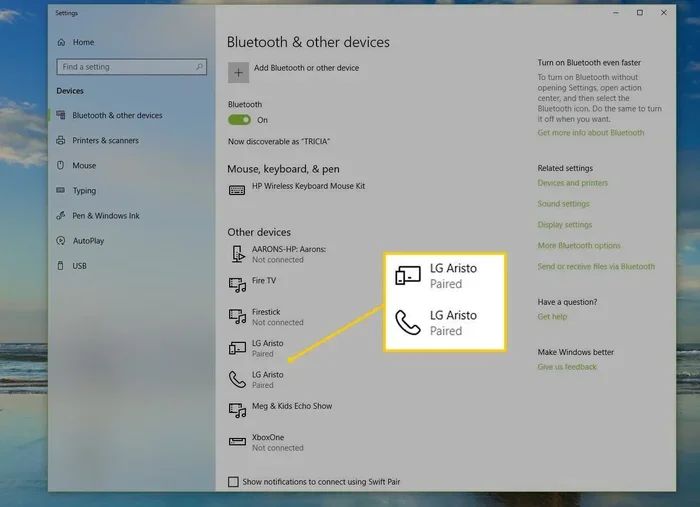
- Click on Devices or Bluetooth and devices.
- Look for a toggle switch for Bluetooth.
- If you see the option and can turn it on, your PC has Bluetooth.
If the Bluetooth option is missing entirely from Settings, your computer does not have Bluetooth capability. This is a clear sign that you need to add it.
Method 3: Check Your PCs Specs
Another option is to look up your PCs model number online. Visit the manufacturers website and check the specifications page. Look for terms like Bluetooth enabled, wireless connectivity, or 802.11n/ac/ax with Bluetooth. If the spec sheet does not mention Bluetooth, your PC does not have it.
This method works especially well if you have a prebuilt PC or laptop. For custom-built desktops, you may need to check the motherboard manual or the case specifications.
Why Some PCs Do Not Have Bluetooth
It might seem strange that not every computer includes Bluetooth these days. But there are logical reasons for this. Understanding why some PCs lack Bluetooth can help you make better purchasing decisions.
Desktop PCs Often Skip Wireless Features
Desktop computers are designed with modularity in mind. Manufacturers often assume that users will add peripherals through USB ports or other wired connections. Because of this, many desktop motherboards do not include a Bluetooth chip. This keeps costs down and lets buyers choose exactly which wireless features they need.
Budget desktop PCs are the most likely to lack Bluetooth. If you bought a basic office PC or a home theater build, there is a good chance it does not have wireless capabilities. Gaming desktops sometimes include Bluetooth, but many still rely on wired connections for mice, keyboards, and headsets.
Older Computers Were Built Before Bluetooth Became Standard
Bluetooth became a common feature on laptops around 2010 to 2012. Before that, very few computers included it. If you are using an older machine, there is a high chance it does not have Bluetooth at all. Even some laptops from the early 2010s may lack wireless support.
Older desktop computers that were built or upgraded before Bluetooth became standard also typically do not have it. If your PC is more than 8 to 10 years old, you should not be surprised if Bluetooth is missing.
Some Motherboards Simply Do Not Include It
Not all motherboards are created equal. Some budget motherboards, especially those designed for office use or basic computing, leave out the Bluetooth chip entirely. They may include Wi-Fi, but skip Bluetooth to save money. This is a common practice among manufacturers who target cost-conscious buyers.
Higher-end motherboards, especially those aimed at gamers and professionals, almost always include Bluetooth. But if you are working with a basic or older motherboard, Bluetooth may simply not be on the board.
How to Add Bluetooth to Any PC
If your PC does not have Bluetooth, you have several options to add it. Each method has its pros and cons, and the right choice depends on your budget and needs.
Option 1: USB Bluetooth Adapter
A USB Bluetooth adapter is the easiest and most affordable way to add Bluetooth to any PC. These small devices plug directly into a USB port and provide Bluetooth functionality instantly. Most adapters cost between $10 and $30, making them a very budget-friendly option.
Here is what you need to know about USB Bluetooth adapters:
- Plug and play: Most adapters work right out of the box with no extra setup.
- Bluetooth 5.0 and 5.3 options: Newer adapters offer better range and faster speeds.
- Portable: You can unplug and move the adapter between computers.
- Wide compatibility: Works with Windows, Mac, and even some Linux systems.
When choosing a USB adapter, look for one that supports at least Bluetooth 5.0. This ensures better performance and compatibility with modern devices like wireless speakers, headsets, and peripherals.
Option 2: Internal PCIe Bluetooth Card
For a more permanent solution, you can install a PCIe Bluetooth card inside your desktop PC. These cards slot into an available PCIe expansion slot on your motherboard. They offer better performance and more reliable connectivity than USB adapters.
PCIe Bluetooth cards are a great choice if you:
- Want a cleaner setup without USB dongles.
- Need stronger and more stable Bluetooth signals.
- Plan to use Bluetooth heavily for audio or gaming.
These cards typically cost between $20 and $50. Some models also include Wi-Fi support, which can replace a separate wireless network card.
Option 3: Bluetooth-enabled USB Hub
If you need extra USB ports anyway, consider a Bluetooth-enabled USB hub. These hubs combine a USB hub with a built-in Bluetooth adapter. They are a convenient all-in-one solution for PCs that need both more ports and wireless capability.
This option works well if you already have too many USB devices and need more ports. You get the Bluetooth functionality and additional connectivity in one device.
Option 4: Upgrade Your Motherboard
In some cases, you may want to upgrade your entire motherboard to gain Bluetooth support. This is a bigger investment and more complex, but it makes sense if your current motherboard is outdated or lacks other features you need.
Before going this route, make sure a USB adapter or PCIe card does not solve your problem. Upgrading a motherboard also means reinstalling your operating system and potentially replacing other components.
Bluetooth Versions and Why They Matter
Not all Bluetooth is the same. The version of Bluetooth your PC supports affects range, speed, battery usage, and compatibility with other devices. Here is a quick look at the most common Bluetooth versions you will encounter.
| Version | Release Year | Max Range | Max Speed | Key Improvement |
|---|---|---|---|---|
| Bluetooth 4.0 | 2010 | ~30 feet | ~25 Mbps | Low Energy (BLE) support |
| Bluetooth 4.2 | 2014 | ~30 feet | ~25 Mbps | Better privacy and IoT support |
| Bluetooth 5.0 | 2016 | ~80 feet | ~50 Mbps | Double speed and 4x range |
| Bluetooth 5.2 | 2020 | ~80 feet | ~50 Mbps | LE Audio and multipoint support |
| Bluetooth 5.3 | 2021 | ~80 feet | ~50 Mbps | Better power efficiency and security |
If you are buying a Bluetooth adapter or card, always go for Bluetooth 5.0 or higher. These versions offer much better range and performance than older versions. They also use less power, which is great for wireless peripherals that run on batteries.
Newer Bluetooth versions also support wireless audio improvements. If you use Bluetooth headphones or speakers, a newer Bluetooth version means better audio quality and fewer dropouts. This is especially important for gaming and media consumption.
Common Bluetooth Problems and How to Fix Them
Even when your PC has Bluetooth, you may run into issues from time to time. Here are the most common problems and simple fixes for each one.
Bluetooth Not Showing Up in Settings
If Bluetooth does not appear in your Settings or Device Manager, the Bluetooth driver may be missing or outdated. Try these steps:
- Open Device Manager.
- Click Action and select Add legacy hardware.
- Follow the wizard to search for and install the Bluetooth driver.
- Alternatively, visit your PCs manufacturer website and download the latest Bluetooth driver manually.
Sometimes a simple restart after updating the driver fixes the issue. If the Bluetooth option still does not appear, your hardware may not be properly seated or connected.
Bluetooth Devices Keep Disconnecting
Intermittent disconnections are frustrating but common. They usually happen because of interference or outdated drivers. Try moving closer to the Bluetooth device and reducing the number of wireless devices in the area. You should also update your Bluetooth driver through Device Manager or your manufacturers support page.
If you are using a USB Bluetooth adapter, try plugging it into a different USB port. USB 3.0 ports can sometimes interfere with Bluetooth signals. A USB 2.0 port may work more reliably.
Paired Devices Will Not Connect
If a device shows as paired but will not connect, try removing it from the paired devices list and pairing it again. Go to Settings, find Bluetooth and devices, select the device, and click Remove device. Then start the pairing process fresh.
This simple reset often solves connection problems. It works for wireless keyboards, mice, speakers, and headsets alike.
Bluetooth Not Working After a Windows Update
Windows updates sometimes break Bluetooth drivers. If Bluetooth stopped working after an update, roll back the driver through Device Manager. Right-click the Bluetooth device, select Properties, go to the Driver tab, and click Roll Back Driver. If that does not work, uninstall the driver and restart your PC. Windows will reinstall a fresh driver automatically.
Best Bluetooth Accessories for Your PC
Once you have Bluetooth working on your PC, you can start enjoying the benefits of wireless connectivity. Here are some popular Bluetooth accessories that work great with any computer.
- Wireless keyboard and mouse combo: Eliminate cable clutter on your desk.
- Bluetooth speaker: Great for music, video calls, or amplifying your voice during presentations.
- Wireless headset: Perfect for gaming, calls, or watching movies without wires.
- Bluetooth printer: Print documents and photos without running a cable.
- Wireless game controller: Connect controllers for gaming without extra adapters.
Many of these accessories work with any Bluetooth-enabled device. If you want to turn regular speakers into Bluetooth, you can also use a Bluetooth receiver. These small adapters plug into the audio output of your speaker and give it wireless capability.
For those who use wired headphones but want the freedom of wireless, you can make wired headphones Bluetooth with a simple Bluetooth audio transmitter. These devices plug into the headphone jack or USB port and send audio wirelessly to your headphones.
Final Thoughts
The answer to whether every PC has Bluetooth is clear: no, not every PC has it. Many desktop computers, especially budget and older models, do not include Bluetooth out of the box. Laptops are more likely to have it, but even some older laptops lack wireless support.
The good news is that adding Bluetooth to any PC is easy and affordable. A USB Bluetooth adapter solves the problem in minutes. For a more permanent setup, a PCIe card offers better performance. Either way, you will be able to connect wireless devices and enjoy the convenience of wireless connectivity on your computer.
Take a few minutes to check your PCs Bluetooth capability today. If it is missing, pick up an adapter and get connected. Once you experience the freedom of wireless peripherals, you will wonder how you ever managed with cables.
Frequently Asked Questions
Can I add Bluetooth to a PC that does not have it?
Yes, you can easily add Bluetooth to any PC that does not have it built in. The simplest way is to buy a USB Bluetooth adapter. Just plug it into a USB port, and your PC will have Bluetooth capability. Internal PCIe Bluetooth cards are another option for desktop users who want a more permanent solution.
How do I know if my desktop PC has Bluetooth?
Open Device Manager and look for a Bluetooth category. If you see Bluetooth Radios listed, your PC has Bluetooth. You can also check Windows Settings under Devices or Bluetooth and devices. If the Bluetooth toggle is missing, your PC likely does not support it.
What is the best Bluetooth version for a PC?
Bluetooth 5.0 or higher is the best choice for most users. It offers better range, faster speeds, and lower power consumption than older versions. If you are buying a Bluetooth adapter, look for one that supports Bluetooth 5.0 or 5.3 for the best performance.
Does a USB Bluetooth adapter work with all PCs?
Most USB Bluetooth adapters work with any PC that has a USB port and runs a supported operating system. They are compatible with Windows, macOS, and many Linux distributions. Make sure to check the adapters system requirements before purchasing.
Why is my Bluetooth not showing up on my PC?
This usually happens when the Bluetooth driver is missing or outdated. Open Device Manager, look for any unknown devices, and update or reinstall the Bluetooth driver. Restarting your PC after installing the driver often fixes the issue. If Bluetooth still does not appear, your PC may not have Bluetooth hardware at all.
Can I connect Bluetooth headphones to a PC without Bluetooth?
You cannot connect Bluetooth headphones directly to a PC without Bluetooth hardware. However, you can use a USB Bluetooth adapter to add wireless capability. Once the adapter is installed, your PC will be able to pair with Bluetooth headphones just like any other Bluetooth device.