Can You Connect An Iphone To A Hdmi Cable Step By Step
Yes, you can connect an iPhone to an HDMI cable using the right adapter. This guide walks you through every step, from picking the correct Lightning to HDMI adapter to troubleshooting common issues. Whether you want to mirror your screen or play media on a bigger display, you will find clear, simple instructions here.
Have you ever wanted to show photos or videos from your iPhone on a bigger screen? Maybe it is for a family movie night, a work presentation, or just sharing memories with friends. The good news is that connecting your iPhone to an HDMI cable is totally doable. You just need the right adapter and a few simple steps.
In this guide, we will walk you through the entire process step by step. We will cover which adapters work, how to set everything up, and what to do when things do not go as planned. By the end, you will feel confident plugging in your device and enjoying content on a larger TV screen.
Let us get started. No tech expertise is needed here. If you have used a charging cable before, you can follow along just fine.
Key Takeaways
- You need a compatible adapter: A Lightning to Digital AV Adapter or USB-C to HDMI adapter is essential for connecting your iPhone to an HDMI cable.
- Screen mirroring works on most models: From older iPhones to the latest iPhone 15 series, HDMI output is supported with the right accessory.
- Check your TV input: Always switch your television to the correct HDMI port for the best results.
- Audio comes through too: Your iPhone audio will play through your TV speakers when connected via HDMI.
- Common issues have simple fixes: Most connection problems can be solved with a cable reset, adapter replacement, or software update.
📑 Table of Contents
- Why Connect Your iPhone to an HDMI Cable?
- What You Need to Connect an iPhone to HDMI
- Step by Step: How to Connect Your iPhone to HDMI
- Common Problems and How to Fix Them
- Wired vs Wireless: Which Is Better for iPhone HDMI?
- Tips for the Best HDMI Mirroring Experience
- Which iPhone Models Support HDMI Output?
- Final Thoughts
Why Connect Your iPhone to an HDMI Cable?
There are many reasons people want to hook their iPhone up to a television or monitor. The most common reason is screen mirroring. This lets you see everything on your phone displayed on a much larger display. It is incredibly useful in many situations.
For example, imagine you are at a family gathering and want to show off vacation photos. Instead of passing around a small phone screen, you can display them on the living room TV. Or maybe you need to present a slideshow at work. A wired HDMI connection gives you a reliable, lag-free experience.
Some people also prefer a wired connection over wireless options like AirPlay. A cable connection does not depend on Wi-Fi quality. It does not drop out or lag. This makes it great for situations where stability matters. If you have ever experienced choppy wireless streaming, you know exactly what we mean.
Who Benefits from HDMI Connection?
Lots of people find this setup useful. Here are some common examples:
- Parents who want to share family videos on the big screen.
- Professionals giving presentations or training sessions.
- Travelers staying in hotels with a TV but no streaming apps.
- Gamers who want to play mobile games on a larger display.
- Educators using their device for classroom instruction.
You might also enjoy reading our article on 10 Gadgets To Make Moms Life Easier for more accessory ideas that simplify everyday tech tasks.
What You Need to Connect an iPhone to HDMI
Before you start, make sure you have the right equipment. The setup is simple, but using the wrong adapter will cause frustration. Let us go over what you need.
Step 1: Get the Right Adapter
Your iPhone does not have a built-in HDMI port. So you need an adapter that bridges the gap. The adapter you need depends on your iPhone model.
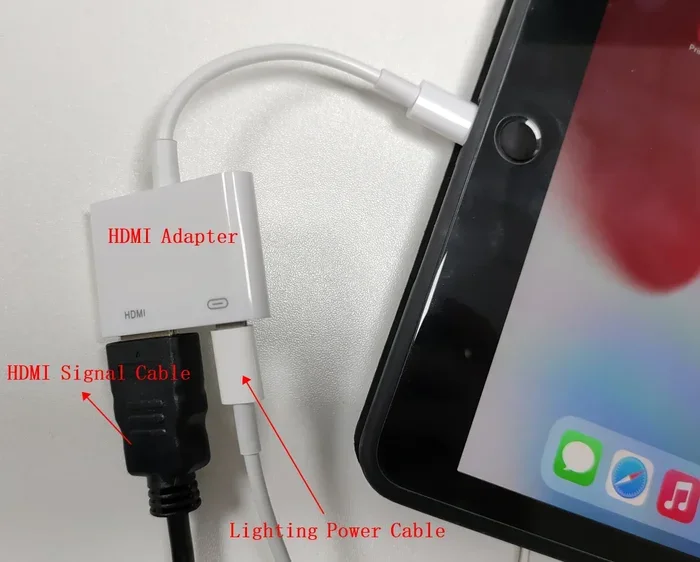
For older iPhones with a Lightning port, you need a Lightning to Digital AV Adapter. Apple makes an official version, and there are many third-party options too. For newer iPhones like the iPhone 15 and iPhone 16 series, you need a USB-C to HDMI adapter since these models dropped the Lightning port.
Here is a quick look at what you need:
- Lightning to Digital AV Adapter — for iPhone models up to iPhone 14.
- USB-C to HDMI adapter — for iPhone 15 and newer.
- Standard HDMI cable — any decent quality cable will work.
- An HDMI-compatible TV or monitor — most modern TVs have HDMI ports.
When buying an adapter, stick with reputable brands. Apple’s official adapter is the safest choice, but many third-party options work well too. If you are unsure which adapter fits your device, check your iPhone model number first.
Step 2: Choose a Good HDMI Cable
Not all HDMI cables are created equal. For most iPhone connections, a standard High-Speed HDMI cable works perfectly. You do not need an expensive premium cable for basic screen mirroring.
However, if you want to output video at higher resolutions, look for an HDMI cable that supports 4K or even 8K. Most modern cables sold today are high-speed and will handle HD and Full HD without any issues. Keep your cable length reasonable too. A cable that is too long can sometimes cause signal issues.
Step 3: Check Your TV or Monitor
Make sure your TV has an available HDMI port. Most modern TVs have at least three or four ports. If all ports are taken, you might need a simple HDMI splitter or switch. This is a small device that lets you plug in multiple HDMI sources and switch between them.
Step by Step: How to Connect Your iPhone to HDMI
Now for the part you have been waiting for. Here is the actual process of connecting your iPhone to an HDMI cable. Follow these steps carefully and you will be up and running in minutes.
Step 1: Plug in the Adapter
First, take your Lightning to Digital AV Adapter or USB-C to HDMI adapter. Plug it firmly into the charging port on the bottom of your iPhone. You should feel it click into place. Make sure it is seated properly. A loose connection can cause problems later.
Step 2: Connect the HDMI Cable
Next, take your HDMI cable and plug one end into the adapter. The other end goes into an available HDMI port on your TV or monitor. Push it in gently until it fits snugly. Most HDMI cables only go in one way, so do not force it.
Step 3: Switch Your TV Input
This is the step many people forget. Your TV needs to be set to the correct input source. Grab your TV remote and press the Input or Source button. Select the HDMI port you plugged the cable into. It might say HDMI 1, HDMI 2, HDMI 3, and so on. Choose the one that matches the port you used.
Once you switch the input, your TV screen should show your iPhone display. If you see your home screen on the TV, you are already doing great!
Step 4: Adjust Display Settings
Go to Settings on your iPhone. Tap Display Brightness or go to Display & Brightness. You may want to adjust the screen brightness so it looks good on the TV. Some people find that turning down the brightness reduces eye strain when viewing from a distance.
You can also check your resolution settings in Settings. Go to Display & Brightness and look for display zoom options. Adjusting these can make the mirrored image fit your TV screen better.
For those managing multiple iOS devices, you might find our guide on adding prefixes to numbers on iPhone helpful for organizing your contacts or files across devices.
Step 5: Play Your Content
Open any app on your iPhone. Photos, YouTube, Netflix, or any video app will now display on your TV. The audio will also come through your TV speakers. This is one of the best parts of the setup. You get better sound quality without needing separate speakers.
Try opening a photo album and scrolling through your pictures on the big screen. It is a simple pleasure that never gets old. Or queue up a favorite movie and enjoy it the way it was meant to be seen.
Common Problems and How to Fix Them
Even with the right equipment, you might run into issues. This happens to everyone. The good news is that most problems have easy solutions. Let us go through the most common ones.
No Signal on the TV
If your TV shows no signal, the first thing to check is the HDMI cable connection. Unplug it from both ends and plug it back in firmly. Sometimes cables loosen without you noticing. Also double check that you have selected the right input source on your TV.
If the cable is secure and the input is correct, try removing the adapter from your iPhone and plugging it back in. A quick reset of the physical connection often solves this problem.
Black Screen on the TV
A black screen usually means the adapter is not sending a signal properly. Try these fixes:
- Remove the adapter and wait 10 seconds before plugging it back in.
- Restart your iPhone by holding the power button and sliding to power off.
- Check if your adapter is compatible with your specific iPhone model.
- Try a different HDMI cable to rule out a faulty cable.
Poor Video Quality or Lag
If the video looks blurry or stuttery, a few things could be causing it. First, check that you are using a good quality HDMI cable. Cheap, damaged cables can degrade the signal. Also, make sure your adapter is not overheating. Unplug it for a few minutes and try again.
Background apps running on your iPhone can sometimes cause lag. Close apps you are not using by swiping up from the bottom of the screen. This frees up resources for smoother mirroring.
No Audio Through the TV
Sometimes the video shows up but there is no sound. This usually means the audio output is not set correctly. Go to Settings on your iPhone and look for the audio output settings. Make sure it is set to output through the HDMI connection rather than through the phone speakers.
If that does not work, try adjusting the volume on both your iPhone and the TV. It sounds simple, but sometimes the TV volume is muted or set very low.
Wired vs Wireless: Which Is Better for iPhone HDMI?
You might wonder whether a wired HDMI connection is better than wireless options like AirPlay or screen mirroring over Wi-Fi. Both have their strengths. Let us compare them.
| Feature | Wired HDMI | Wireless AirPlay |
|---|---|---|
| Connection Stability | Very stable, no drops | Depends on Wi-Fi strength |
| Latency | Near zero lag | Slight delay possible |
| Setup Ease | Plug and play | Requires same Wi-Fi network |
| Video Quality | Consistent and reliable | Can vary with network |
| Cable Management | Requires a cable | No cables needed |
| Best For | Presentations, gaming | Casual streaming |
For most people, a wired HDMI connection gives the best experience. The video and audio stay perfectly in sync. There is no buffering or lag. This matters a lot if you are gaming or giving a live presentation.
Wireless options are more convenient because you do not need any cables. But they can be affected by network congestion or distance from the router. If you want reliability above all else, go with a cable.
Speaking of tech accessories, if you are curious about the pros and cons of different input devices, check out our article on advantages and disadvantages of a computer mouse for helpful insights on wired vs wireless peripherals.
Tips for the Best HDMI Mirroring Experience
A few small tips can make a big difference in how your mirrored screen looks and feels. Here are some expert recommendations.
- Keep your iPhone charged. Screen mirroring uses extra battery power. Plug your phone into a charger during long viewing sessions.
- Use a high-quality adapter. Cheap adapters can overheat or produce poor video quality. Investing in a reliable brand saves headaches.
- Close unnecessary apps. This frees up memory and processing power for smoother mirroring.
- Update your iOS. Apple regularly fixes bugs that can affect display output. Keeping your software up to date helps.
- Use a shorter HDMI cable. Shorter cables maintain a stronger signal. If you must use a longer cable, buy a high-quality one designed for long runs.
- Adjust TV picture settings. Sometimes tweaking brightness, contrast, or color on your TV makes the mirrored image look much better.
Which iPhone Models Support HDMI Output?
Most modern iPhones support HDMI output with the right adapter. Here is a quick breakdown:
- iPhone 5 through iPhone 14 — Use a Lightning to Digital AV Adapter.
- iPhone 15 and iPhone 16 — Use a USB-C to HDMI adapter.
- iPhone SE (all generations) — Use a Lightning to Digital AV Adapter.
Older models may have limited resolution support. Always check your specific model for compatibility details. Apple’s support page has a full list of compatible adapters and supported devices.
Remember that your iPhone model determines which adapter you need. Buying the wrong one is the most common mistake people make. Take a moment to verify before you purchase.
Final Thoughts
Connecting your iPhone to an HDMI cable opens up a world of possibilities. You can share photos, watch movies, give presentations, and play games on a big screen. The process is straightforward once you have the right adapter and cable.
Start by identifying your iPhone model and getting the correct adapter. Follow the step-by-step connection process. If you run into trouble, the troubleshooting tips in this guide should help you get back on track quickly.
Once you experience the convenience of a wired HDMI connection, you will wonder how you ever managed without it. The reliability and quality are hard to beat. Give it a try and enjoy your content the way it was meant to be seen.
Frequently Asked Questions
Do I need an Apple-branded adapter to connect my iPhone to HDMI?
No, you do not need an Apple-branded adapter. Many third-party adapters work just as well. However, Apple’s official adapter offers the most reliable performance and compatibility. If you choose a third-party option, look for reputable brands with good reviews to avoid issues.
Can I connect my iPhone to any TV with an HDMI port?
Yes, you can connect your iPhone to any TV that has an HDMI port. Most modern TVs manufactured in the last 15 years include at least one HDMI port. Simply use the appropriate adapter for your iPhone model and plug in the cable. Switch your TV to the matching input and you are good to go.
Why does my screen mirror look blurry on the TV?
A blurry mirrored image can be caused by a low-quality HDMI cable or adapter. It can also happen if your iPhone resolution settings are not optimized for the TV display. Try using a different cable or adapter first. You can also adjust your display zoom settings in the iPhone Display & Brightness menu.
Can I charge my iPhone while it is connected to HDMI?
Yes, but it depends on the adapter you use. Some Lightning to Digital AV Adapters have a pass-through charging port that lets you plug in a charger at the same time. USB-C adapters on newer iPhones may also support charging while mirroring. Check the specifications of your specific adapter to confirm.
Is HDMI mirroring the same as AirPlay?
No, they are different. HDMI mirroring uses a physical cable connection to send your screen to a TV. AirPlay is a wireless technology that streams your screen over Wi-Fi. Wired HDMI gives you a more stable, lag-free connection, while AirPlay offers more convenience without cables.
What resolution can I expect from an iPhone connected to HDMI?
Most iPhones support HDMI output at up to 1080p resolution. Newer models may support higher resolutions depending on the adapter and cable quality. The actual output depends on your iPhone model, the adapter you use, and the capabilities of your TV or monitor.
=== CONCLUSION ===
Connecting your iPhone to an HDMI cable is easier than most people think. With the right adapter, a standard HDMI cable, and a TV with an HDMI port, you can mirror your screen in just a few minutes. We have covered everything from the equipment you need to troubleshooting common issues.
Remember to match your adapter to your iPhone model. Use quality cables for the best results. And do not be afraid to try the simple fixes when something goes wrong. Most connection issues are quick and painless to resolve.
Now that you know how to make this work, go ahead and give it a try. Share your favorite photos on the big screen. Watch your favorite shows with better sound. Present your work with confidence. A wired HDMI connection from your iPhone is one of those simple upgrades that makes a real difference in your daily life.