Can You Connect A Usb To An Hdmi And Why It Matters
Yes, you can connect a USB to an HDMI using an adapter or converter. This simple connection lets you mirror your screen, add extra displays, and share video from your laptop or phone to a larger monitor. Whether you use a USB-C to HDMI cable or a full adapter, the process is quick and easy once you know what gear you need.
Have you ever sat down at your desk, ready to share something on a big screen, only to realize your cables don’t match? Maybe you have a USB port on your laptop and an HDMI input on your TV or monitor. The gap between these two connection types can feel frustrating. But here is the good news. You can connect a USB to an HDMI, and it is way simpler than most people think.
In this guide, we will walk through everything you need to know. We will cover the different types of USB ports, how HDMI adapters work, and whether your specific setup will support video output. By the end, you will feel confident picking the right adapter and getting your display up and running. Let us dive in.
Key Takeaways
- USB-to-HDMI adapters are widely available: You can find passive and active options for almost any device.
- Not all USB ports support video output: USB-C and Thunderbolt ports handle video, while older USB-A ports usually do not.
- Resolution and bandwidth matter: Your adapter must support the resolution and refresh rate you need.
- Plug and play is common: Most adapters work instantly without extra software or drivers.
- Check your device first: Knowing your port type and output capabilities saves time and money.
📑 Table of Contents
- What Does It Mean to Connect USB to HDMI?
- Types of USB Ports and Their Video Capabilities
- How to Choose the Right USB-to-HDMI Adapter
- Step-by-Step: How to Connect USB to HDMI
- Common Problems and How to Fix Them
- Why Connecting USB to HDMI Matters
- Quick Tips for the Best USB-to-HDMI Experience
- Common Mistakes to Avoid
- Expert Insights on USB-to-HDMI Connectivity
- Key Takeaways
- Conclusion
What Does It Mean to Connect USB to HDMI?
When we talk about connecting USB to HDMI, we are really talking about signal conversion. Your USB port sends data, and your HDMI port carries both video and audio signals. An adapter or converter bridges that gap. It takes the data from your USB connection and turns it into a display signal your screen or TV can read.
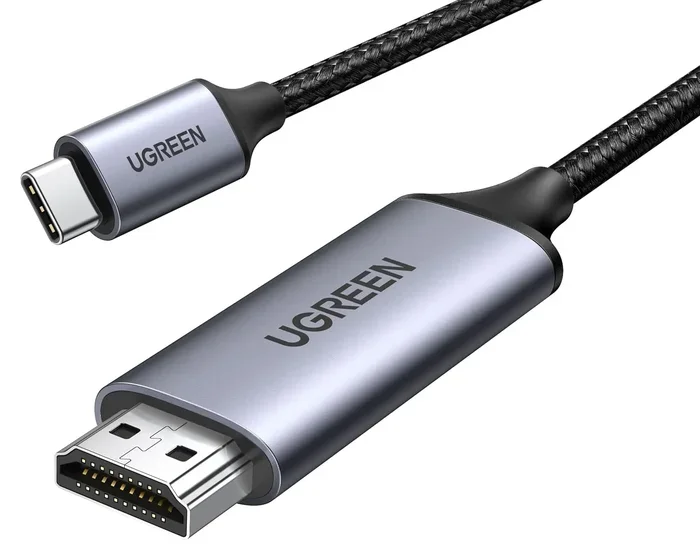
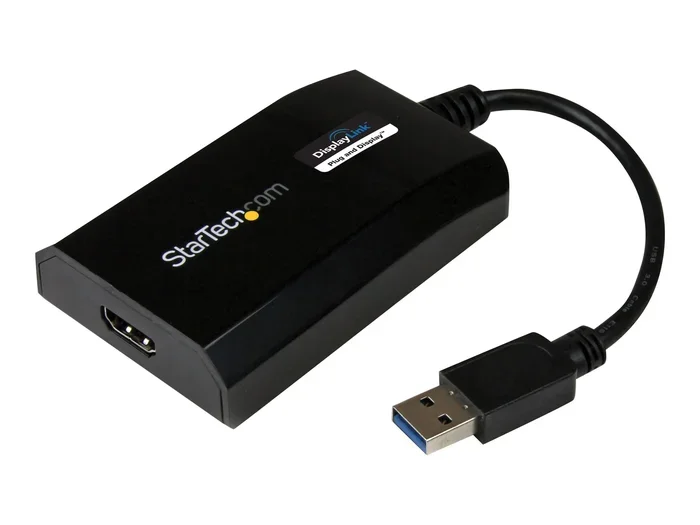
There are two main types of adapters you will run into. A passive adapter simply changes the shape of the connector. A USB-C to HDMI cable with a built-in adapter falls into this category. An active adapter, on the other hand, contains extra circuitry. It actually processes the signal and converts it from one format to another. Active adapters are more common when you are connecting older USB-A ports to modern HDMI displays.
How Signal Conversion Works
Signal conversion might sound complicated, but it is really just translation. Your computer sends a digital signal through the USB port. The adapter reads that signal and repackages it into the format an HDMI display understands. This is why bandwidth matters so much. A low-quality adapter may not carry enough data to support high resolutions or smooth refresh rates.
Most modern adapters handle audio video sync automatically. You plug in the USB end, connect the HDMI cable to your display, and the image appears. Some adapters even carry sound through the same cable, so you do not need a separate audio connection. This plug and play experience is a huge reason why these adapters have become so popular.
Types of USB Ports and Their Video Capabilities
Not every USB port can send video to an HDMI display. The type of USB port on your device determines what is possible. Let us break down the most common ones you will encounter.
USB-A Ports
The classic rectangular USB-A port is what most people think of. You find it on older laptops, desktop computers, and peripheral connection devices like keyboards and mice. Standard USB-A ports were not designed to carry video signals. So connecting a USB-A directly to an HDMI without an active converter will not work for display purposes.
If your computer only has USB-A ports, you need an active adapter that includes its own processing chip. These adapters can be bulkier but they get the job done. Many people use them for office setups where they need to extend their digital display to a second monitor.
USB-C Ports
USB-C is the modern standard. It is small, reversible, and capable of carrying video, data, and power all at once. This is where things get exciting. A USB-C to HDMI connection is one of the most common and reliable ways to mirror or extend your screen. Most newer laptops, tablets, and even some streaming devices use USB-C as their primary output.
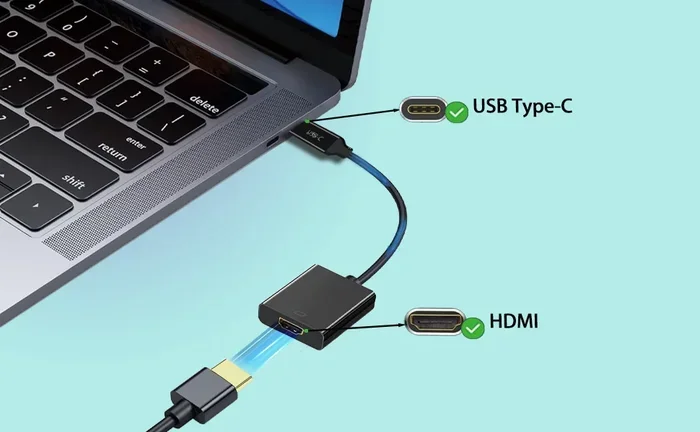
If you have a USB-C port, check whether it supports DisplayPort Alt Mode or Thunderbolt. These protocols mean your port can natively handle video output. A simple USB-C to HDMI cable or adapter will work perfectly in these cases. You get clean video and audio with no extra software needed.
Thunderbolt and USB4 Ports
Thunderbolt 3 and Thunderbolt 4 ports use the USB-C connector but offer much higher bandwidth. This means they can support 4K and even 8K resolution on external displays. USB4, the newer universal standard, works similarly. If your device has one of these ports, you have serious display connection flexibility. You can daisy-chain multiple monitors or connect high-refresh-rate displays without any lag.
For everyday users, a basic USB-C to HDMI adapter is all you need. But power users who game or edit video should look for adapters rated for higher resolutions and faster refresh rates.
How to Choose the Right USB-to-HDMI Adapter
Walking into a store or browsing online for an adapter can be overwhelming. There are dozens of options, and the price range varies wildly. Here is how to pick the right one for your needs without overspending.
Check Your Device Compatibility First
Before you buy anything, look at your device’s ports. What kind of USB does your computer have? Does it support video output? This is the single most important step. A computer mouse and other basic peripherals work with any USB port, but video output has stricter requirements. If you are not sure, check your laptop or phone manual or look up the model online.
For example, if you have an older laptop with only USB-A ports, you will need an active adapter with a built-in chip. If you have a modern laptop with USB-C, a simple cable-style adapter will do the trick. Matching the adapter to your port type prevents wasted money and frustration.
Consider Resolution and Refresh Rate
What resolution do you need? If you just want to share slides in a meeting, 1080p is plenty. If you are editing photos or videos, you may need 4K support. The adapter you choose must match or exceed your display’s capabilities.
Refresh rate matters too, especially for gaming or smooth video playback. A standard adapter handles 60Hz, which is fine for most tasks. But if you want 120Hz or 144Hz for gaming, you need an adapter rated for that speed. Always check the product specs before you buy.
Do You Need Audio Support?
Most HDMI adapters carry both video and audio through the same cable. But not all of them do. If you plan to connect your laptop to a TV and want sound to come through the TV speakers, make sure your adapter supports audio transfer. Look for product descriptions that mention “audio and video” or “HDMI audio pass-through.”
Some adapters only handle video and require a separate audio cable. This adds clutter and complexity. For a clean, simple setup, choose an adapter that handles both in one connection.
Portability vs. Permanence
Think about how you will use the adapter. If you travel often, a compact USB-C to HDMI cable is a great choice. It plugs directly into your laptop and your display with no extra dongles. If you set up a permanent desk station, a slightly larger adapter with extra ports might be more convenient. Some adapters include USB-A ports for charging your phone or connecting a mouse while you work.
For those looking for handy tech tools that simplify everyday life, check out this collection of 10 gadgets to make moms life easier. Many of these tools work great alongside your display adapters for a more organized and efficient workspace.
Step-by-Step: How to Connect USB to HDMI
Getting your display set up is straightforward once you have the right adapter. Follow these steps and you will be up and running in minutes.
Step 1: Gather Your Equipment
You need three things. Your computer or device with the USB port. An HDMI cable. And a USB-to-HDMI adapter or converter. If your adapter has a USB-C connector on one end and an HDMI connector on the other, you may not need a separate HDMI cable. Many adapters come with a cable already attached.
Step 2: Plug in the Adapter
Connect the USB end of the adapter to your computer. If you are using a USB-C to HDMI cable, plug the USB-C end into your laptop. Make sure the connection is firm. A loose connection can cause flickering or no signal at all.
Step 3: Connect to Your Display
Plug the HDMI end into your TV, monitor, or projector. If you are using a separate HDMI cable, connect it from the adapter to the display. Turn on your display and select the correct HDMI input source using your TV remote or monitor buttons.
Step 4: Configure Your Display Settings
On most computers, the display should mirror automatically. If it does not, go to your display settings. On Windows, right-click the desktop and select Display Settings. On Mac, go to System Settings and click Displays. From there, you can choose to mirror your screen or extend it as a second display.
If you are using the setup for productivity, extending your display gives you more screen real estate. You can have your main workspace on one screen and reference materials on the other. This is especially helpful for tasks like spreadsheet work or coding.
For those who work with spreadsheets regularly, you might also find it useful to learn how to fix common formatting issues. Check out this guide on a line wont delete in Microsoft Excel to keep your spreadsheets clean and professional.
Step 5: Test Audio and Video
Play a video or open a presentation to test both the visual and audio output. Make sure the sound comes through your display if that is what you want. Adjust volume and display settings as needed. Most setups work perfectly the first time, but it is always good to double-check.
Common Problems and How to Fix Them
Even with the right adapter, you might run into issues. Here are the most common ones and how to solve them quickly.
No Signal on the Display
This is the most frequent problem. Usually, it means the adapter is not properly seated or the display is on the wrong input. Unplug the adapter, plug it back in firmly, and make sure your display is set to the correct HDMI input. If you are using a USB hub, try plugging the adapter directly into your computer to rule out power issues.
Flickering or Glitchy Video
Flickering often points to a bandwidth problem. Your adapter or cable may not support the resolution you are trying to use. Lower the resolution in your display settings and see if the problem goes away. Also, make sure you are using a high-quality HDMI cable. Cheap cables can cause signal interference, especially at longer lengths.
No Audio Through HDMI
If your video works but there is no sound, your computer may still be outputting audio through its own speakers. Go to your sound settings and change the output device to your HDMI display. On Windows, click the speaker icon in the taskbar and select your HDMI display. On Mac, go to Sound Settings and choose the HDMI output.
Adapter Not Recognized
Some adapters need drivers to work properly, especially older models or those with special features. Check the manufacturer’s website for driver downloads. In most cases, a simple restart after plugging in the adapter solves the problem. If you are using a streaming device or a smart TV, make sure the input source matches the port where you connected the adapter.
Why Connecting USB to HDMI Matters
You might wonder why this matters so much. The answer is simple. Flexibility. The ability to connect any device to any display opens up a world of possibilities. You can turn any TV into a computer monitor. You can present slides in a boardroom without carrying special cables. You can share your phone screen on a big display for movie night.
For professionals, this means fewer cable headaches and more productive meetings. For students, it means the ability to study on a big screen instead of squinting at a small laptop. For families, it means turning the living room TV into a gaming or streaming station with minimal effort.
With the right adapter converter, your devices talk to each other seamlessly. The technology has gotten so good that most connections are truly plug and play. You do not need to be a tech expert to get it working. You just need the right adapter and a few minutes to set things up.
Mobile users will especially appreciate how easy it is to go from phone to screen. If you want to learn more about managing your phone’s connectivity settings, you might find this guide on adding prefixes to numbers on iPhone helpful for organizing your contacts and communication setup.
And if you are curious about how different computer accessories compare in terms of convenience and daily use, our article on the advantages and disadvantages of a computer mouse offers great insights into the peripherals that shape our everyday tech experience.
Quick Tips for the Best USB-to-HDMI Experience
- Buy from reputable brands: Quality adapters prevent signal loss and compatibility issues.
- Check your USB port version: USB 3.0 and USB-C handle video best. Older USB 2.0 ports may struggle.
- Keep your adapter drivers updated: This solves most recognition and performance problems.
- Use a short HDMI cable: Shorter cables mean stronger signal and fewer connection drops.
- Test before important presentations: Always set up your adapter before a meeting or event to avoid surprises.
- Store your adapter safely: A small pouch or case prevents damage when you travel.
Common Mistakes to Avoid
- Buying the wrong adapter type: USB-A to HDMI and USB-C to HDMI are not interchangeable. Check your port first.
- Ignoring resolution limits: A 1080p adapter will not magically output 4K. Match the adapter to your display.
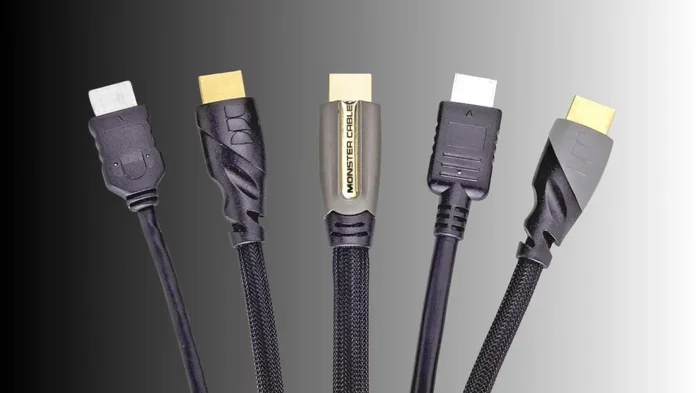
- Using a cheap HDMI cable: A bad cable ruins a good adapter. Invest in quality cables.
- Forgetting about power: Some active adapters need power from a USB port. If your display does not turn on, try a different USB port or a powered hub.
- Skipping display settings: Plugging in the adapter is only half the job. Always check your display settings to confirm the connection is active.
Expert Insights on USB-to-HDMI Connectivity
Technology experts agree that USB-to-HDMI adapters have come a long way. A few years ago, these adapters were clunky and unreliable. Today, a quality USB-C to HDMI adapter costs under $20 and works flawlessly in most setups. The key is knowing what your device supports and buying accordingly.
One thing professionals emphasize is portability. If you travel for work, a compact USB-C to HDMI cable is worth its weight in gold. It takes up no space in your bag and lets you connect to any projector or monitor with confidence. Gone are the days of carrying multiple adapters and cables for every possible scenario.
Another expert tip is to always have a backup adapter. Adapters can fail, get lost, or stop being compatible after a software update. Keeping a spare in your bag or desk drawer saves you from scrambling before an important meeting or presentation.
The future of display connectivity is moving toward wireless solutions. Technologies like Chromecast, AirPlay, and Miracast let you stream your screen without any cables at all. But for now, USB-to-HDMI remains the most reliable and universal method. It works with virtually every display and every modern device. That is why it still matters and why every tech-savvy person should keep one handy.
Key Takeaways
- USB-to-HDMI adapters bridge the gap: They convert USB data signals into HDMI display signals so you can connect almost any device to any screen.
- USB-C is the gold standard for video output: If your device has USB-C, you have the easiest and most reliable path to HDMI connectivity.
- Match your adapter to your needs: Consider resolution, refresh rate, audio support, and portability before you buy.
- Most setups are plug and play: You do not need special software or technical skills to get a display working over USB-to-HDMI.
- Common problems have simple fixes: No signal, flickering, and audio issues can usually be solved by checking connections and settings.
- Keep a spare adapter on hand: It is a small investment that saves you from major headaches during presentations or travel.
Conclusion
So, can you connect a USB to an HDMI? Absolutely. The answer is yes, and the process is easier than most people expect. Whether you use a simple USB-C to HDMI cable or a full active adapter, the right display connection opens up your screen to bigger, better viewing experiences. You can work on a larger monitor, present to a group, or enjoy your favorite content on the big screen.
The key is understanding your device’s ports and choosing an adapter that matches your needs. Check for video output support, pick the right resolution, and always test before you need the setup to work. With a quality adapter converter in your bag, you are always ready to connect. The world of peripheral connection is at your fingertips, and it is more accessible than ever before.
Take a few minutes today to check your setup. If you do not have a USB-to-HDMI adapter yet, grab one that fits your device. You will wonder how you ever managed without it. Simple, reliable, and incredibly useful, this small piece of technology makes a big difference in how we work, learn, and play.
Frequently Asked Questions
Can any USB port connect to an HDMI display?
Not every USB port supports video output. USB-C ports with DisplayPort Alt Mode or Thunderbolt can carry video signals. Older USB-A ports usually cannot send video to an HDMI display without an active adapter with built-in processing. Check your device specs to confirm what your USB port supports before buying an adapter.
Do I need to install drivers for a USB-to-HDMI adapter?
Most modern USB-to-HDMI adapters are plug and play and do not require any drivers. You simply plug them in and the display shows up automatically. However, some older or specialized adapters may need a driver download from the manufacturer’s website. Always check the product description before purchasing.
Can I use a USB-to-HDMI adapter for gaming?
Yes, but you need an adapter that supports your display’s refresh rate and resolution. Standard adapters handle 1080p at 60Hz, which is fine for casual gaming. For competitive gaming at higher refresh rates like 120Hz or 144Hz, look for adapters rated for those speeds and make sure your USB port has enough bandwidth, such as USB-C or Thunderbolt.
Why is there no sound when I connect USB to HDMI?
This usually happens because your computer is still sending audio through its built-in speakers instead of the HDMI output. Go to your sound settings and change the output device to your HDMI display. On Windows, click the speaker icon in the taskbar and select the HDMI option. On Mac, check Sound Settings and choose the HDMI output.
Can I connect my phone to a TV using a USB-to-HDMI adapter?
Yes, if your phone has a USB-C port, you can use a USB-C to HDMI adapter or cable to connect it to a TV. iPhones do not have USB-C, so you would need a Lightning to HDMI adapter instead. Make sure your phone supports video output over USB, which most modern Android phones do natively.
What is the difference between a USB-C to HDMI cable and a USB-C to HDMI adapter?
A USB-C to HDMI cable has the HDMI connector built directly into the cable end. It is compact and great for travel. A USB-C to HDMI adapter is a small dongle that you plug into your USB-C port and then connect a separate HDMI cable to. Both achieve the same result, but the cable style is more convenient while the adapter style offers more flexibility with cable length and type.