Can Thunderbolt 2 Output Video Everything Explained
Yes, Thunderbolt 2 can output video to external displays using its built-in Mini DisplayPort signal. You can connect monitors, projectors, and TVs with the right adapter or cable. This port supports resolutions up to 4K and can even carry audio alongside the video signal. Whether you use a Mac or a Windows laptop, Thunderbolt 2 gives you flexible display options for work and entertainment.
Thunderbolt 2 has been around for a while, and many people still rely on it every day. Whether you have an older Mac Pro, a MacBook Pro from 2015, or a Windows workstation with a Thunderbolt 2 slot, you might wonder if this port can handle video output. The short answer is yes. Thunderbolt 2 was designed to carry video signals, and it does so very well for most everyday tasks.
In this guide, we will walk you through everything you need to know about using Thunderbolt 2 for video. We will cover how it works, what resolutions it supports, which adapters you need, and how to troubleshoot common problems. By the end, you will feel confident connecting any display to your Thunderbolt 2 port.
Key Takeaways
- Thunderbolt 2 can output video: It uses a Mini DisplayPort signal to send video to external screens.
- 4K resolution is supported: You can run a 4K display at 30Hz or a 1080p display at 60Hz through Thunderbolt 2.
- Adapters are essential: You will need a Mini DisplayPort to HDMI or DisplayPort adapter to connect most modern monitors.
- Audio travels with video: Thunderbolt 2 can carry both audio and video signals through a single cable.
- Daisy chaining works: You can connect multiple displays in a chain from one Thunderbolt 2 port.
- Thunderbolt 3 is newer and faster: If you need higher refresh rates or more bandwidth, consider upgrading to Thunderbolt 3 or 4.
📑 Table of Contents
- What Is Thunderbolt 2 and How Does It Work?
- Can Thunderbolt 2 Output Video? The Complete Answer
- How to Connect Thunderbolt 2 to External Displays
- Thunderbolt 2 Video Resolution and Performance
- Thunderbolt 2 vs Thunderbolt 3 for Video Output
- Common Problems and Expert Fixes for Thunderbolt 2 Video
- Best Adapters and Accessories for Thunderbolt 2 Video
- Final Thoughts
What Is Thunderbolt 2 and How Does It Work?
Thunderbolt 2 is a hardware interface developed by Intel. It combines PCI Express and DisplayPort into a single connection. This means it can transfer data and send a video signal through the same cable. The port uses a Mini DisplayPort connector, which looks like a smaller version of the standard DisplayPort plug.
The Thunderbolt 2 port offers a bandwidth speed of 20 gigabits per second. That might sound like a lot, and it is. But when you split that bandwidth between data and video, the video portion gets a share of that total. This is important to understand because it affects how many displays you can run and at what resolution.
Thunderbolt 2 was introduced in 2013. It replaced the original Thunderbolt 1, which had half the bandwidth. Many professionals still use Thunderbolt 2 devices today because they are reliable and widely compatible. You will find this port on older Apple computers, some Windows laptops, and certain eGPU enclosures.
Key Features of Thunderbolt 2
- Mini DisplayPort connector: The physical shape of the port is a Mini DisplayPort, which is smaller than a full-size DisplayPort.
- 20 Gbps bandwidth: This is twice as fast as Thunderbolt 1, allowing smoother video and faster data transfers.
- Hot plugging: You can plug in and unplug Thunderbolt 2 devices while your computer is running.
- Daisy chain support: You can connect up to six devices in a chain from a single Thunderbolt 2 port.
- DisplayPort protocol: The video signal uses DisplayPort technology, which is widely supported across the display industry.
Can Thunderbolt 2 Output Video? The Complete Answer
Yes, Thunderbolt 2 can output video. In fact, that was one of its main design goals from the start. The Thunderbolt 2 port carries a native DisplayPort video signal, which means it can directly drive external monitors and projectors without any extra software or drivers in most cases.
When you plug a display into a Thunderbolt 2 port, the video signal travels from your computer’s graphics processor through the Thunderbolt controller and out through the Mini DisplayPort connector. The display receives this signal and renders the image on screen. It is a seamless process that works on both Mac and Windows machines.
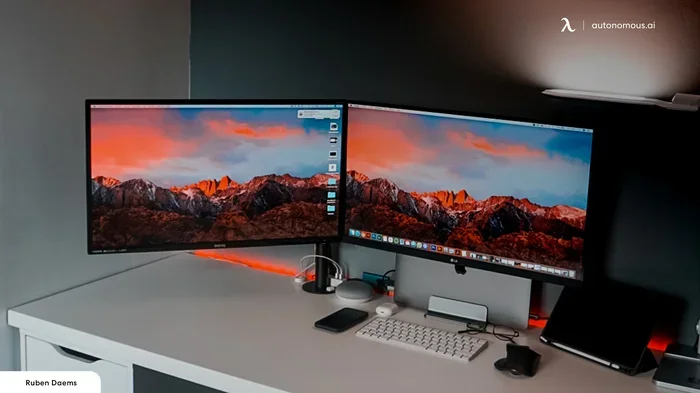
Thunderbolt 2 supports one external display per port natively. However, if you use a Thunderbolt docking station or a Thunderbolt hub, you can connect multiple monitors through that single port. The docking station splits the video signal and sends it to each connected display.
What About Audio?
One great thing about Thunderbolt 2 video output is that it can carry audio too. The DisplayPort protocol supports both video and audio in the same signal. So when you connect a monitor with built-in speakers or an external display with audio capabilities, you can get sound through the same cable. You do not need a separate audio connection in most cases.
However, some adapters might not pass through audio. If you use a Mini DisplayPort to HDMI adapter, check that it supports audio transmission. Most modern adapters do, but older or cheaper ones might only carry the video signal. This is a small detail that can save you a lot of frustration.
Quick Tips
- Always check that your adapter supports audio if you need sound through your display.
- If you get no sound, go to your system sound settings and select the external display as the audio output device.
- Use high-quality adapters from reputable brands to avoid signal issues.
How to Connect Thunderbolt 2 to External Displays
Connecting a display to a Thunderbolt 2 port is straightforward, but you need the right cable or adapter. The port itself is a Mini DisplayPort, so your first decision is whether your monitor has a matching input.
If your monitor has a Mini DisplayPort input, you can use a simple Mini DisplayPort to Mini DisplayPort cable. This gives you the best signal quality because there is no adapter in the middle to potentially degrade the connection.
Most modern monitors, however, use HDMI or full-size DisplayPort inputs. In that case, you will need an adapter. Here are the most common setups:
- Mini DisplayPort to HDMI: This is the most popular adapter type. It lets you connect any HDMI monitor or TV to a Thunderbolt 2 port.
- Mini DisplayPort to DisplayPort: Use this if your monitor has a full-size DisplayPort input.
- Thunderbolt 2 Docking Station: These hubs offer multiple display outputs, USB ports, and charging in one device.
- USB-C to HDMI Adapter (with Thunderbolt 2 compatibility): Some adapters work with Thunderbolt 2 ports, but always check compatibility first.
Step-by-Step Connection Guide
- Identify the Thunderbolt 2 port on your computer. It will have the Lightning bolt icon next to it.
- Choose the right cable or adapter for your display input type.
- Plug the Mini DisplayPort end into your computer’s Thunderbolt 2 port.
- Connect the other end of the cable or adapter to your monitor.
- Turn on your monitor and select the correct input source.
- Your computer should automatically detect the display and extend or mirror your screen.
Common Mistakes When Connecting Thunderbolt 2 to Displays
- Using a full-size DisplayPort cable directly: The connector sizes do not match. You need an adapter.
- Buying a passive adapter for 4K: Some passive adapters only support 4K at 30Hz. For smoother video, look for active adapters.
- Forgetting to update display drivers: On Windows, outdated graphics drivers can cause detection issues with external monitors.
- Using a damaged cable: A frayed or bent cable can cause flickering or no signal at all.
Expert Insight
According to display technology experts, always match your adapter to your specific use case. If you need 4K resolution, invest in an active Mini DisplayPort to HDMI 2.0 adapter. Passive adapters are fine for 1080p and lower resolutions but may struggle with higher pixel counts.
Thunderbolt 2 Video Resolution and Performance
The video resolution you can achieve with Thunderbolt 2 depends on several factors. These include your adapter type, the display you are using, and what your computer’s graphics processor can handle. Let us break down the supported resolutions and what you can expect in real-world use.
Supported Resolutions
Thunderbolt 2 supports a range of display resolutions. Here is what you can expect:
- 1080p (Full HD) at 60Hz: This is the sweet spot for Thunderbolt 2. You will get smooth, tear-free video at this resolution with any standard adapter.
- 1440p (QHD) at 60Hz: Supported with good adapters and modern displays. This resolution works well for creative professionals.
- 4K (Ultra HD) at 30Hz: Thunderbolt 2 can push a 4K signal, but only at 30Hz. This means the video may not feel as smooth as a 60Hz 4K display.
- 4K at 60Hz: Not natively supported over a single Thunderbolt 2 connection. You would need a Thunderbolt 3 or 4 port for that.
Comparison: Thunderbolt 2 vs Thunderbolt 3 for Video
| Feature | Thunderbolt 2 | Thunderbolt 3 |
|---|---|---|
| Bandwidth Speed | 20 Gbps | 40 Gbps |
| Connector Type | Mini DisplayPort | USB-C |
| Max 4K Resolution | 4K at 30Hz | 4K at 60Hz |
| Max External Displays | 1 native, more with docking | 2 native, more with docking |
| Audio Support | Yes | Yes |
| Data Transfer Speed | 20 Gbps | Up to 40 Gbps |
| Power Delivery | No | Up to 100W |
| Daisy Chain Support | Up to 6 devices | Up to 6 devices |
As you can see from the table, Thunderbolt 3 has a clear advantage for video output. It offers double the bandwidth, which means higher refresh rates and better 4K performance. However, Thunderbolt 2 still handles most common video tasks very well.
Common Mistakes
- Expecting 4K at 60Hz from Thunderbolt 2: The port simply does not have enough bandwidth for that. If you need 4K at 60Hz, you need Thunderbolt 3 or later.
- Using cheap adapters: Budget adapters can cause signal dropouts, flickering, or no signal at all. Spend a little more on a reliable brand.
- Ignoring refresh rate settings: Your operating system might default to a lower refresh rate. Check your display settings and select the highest supported rate.
Thunderbolt 2 vs Thunderbolt 3 for Video Output
If you are deciding between a Thunderbolt 2 setup and a Thunderbolt 3 setup, it helps to understand the key differences. Thunderbolt 3 uses a USB-C connector and offers much higher bandwidth. This translates to better video performance, especially at higher resolutions and refresh rates.
Thunderbolt 2 is still perfectly fine for most office work, web browsing, and general productivity. If your main use is connecting one external monitor at 1080p or 1440p, Thunderbolt 2 will serve you well. The video signal is clean, stable, and reliable.
However, if you are a video editor, a graphic designer, or a gamer, Thunderbolt 3 is the better choice. The higher bandwidth allows for smoother playback of high-resolution video, better color accuracy, and support for multiple high-refresh-rate displays.
When to Stick with Thunderbolt 2
- You have an older computer that only has Thunderbolt 2 ports.
- Your work involves standard office tasks and one external monitor.
- You already own Thunderbolt 2 cables and adapters that work well.
- You do not need 4K at 60Hz or multiple high-resolution displays.
When to Upgrade to Thunderbolt 3
- You need 4K video at 60Hz for creative work or gaming.
- You want to connect multiple high-resolution displays from a single port.
- You need faster data transfer speeds for large video files.
- You want to use USB-C power delivery to charge your laptop while using an external display.
Quick Tips
- If you are buying a new laptop and care about video output, look for Thunderbolt 3 or Thunderbolt 4 ports.
- You can use a Thunderbolt 3 to Thunderbolt 2 adapter to connect older Thunderbolt 2 devices to newer computers.
- Keep your Thunderbolt 2 firmware and drivers updated for the best compatibility.
Common Problems and Expert Fixes for Thunderbolt 2 Video
Even though Thunderbolt 2 is a mature technology, you might run into issues when using it for video output. Here are the most common problems and how to fix them.
No Signal on the External Display
This is the most common issue. If your monitor shows no signal, start by checking the cable connections. Make sure the Mini DisplayPort connector is fully seated in both the computer and the adapter. Try a different cable if you have one available.
Next, check your display settings. On a Mac, go to System Settings and look for Displays. On Windows, go to Settings > System > Display. Make sure the external display is detected and enabled. Sometimes Windows will show the display as “disconnected” even when it is physically connected. Updating your graphics drivers often fixes this.
Flickering or Intermittent Signal
Flickering usually points to a faulty cable or adapter. Try replacing the adapter first, as it is the most likely culprit. If you are using a docking station, bypass it and connect the display directly to the Thunderbolt 2 port to see if that resolves the issue.
Low Resolution or Blurry Image
If your external display looks blurry or stuck at a low resolution, your computer might not be detecting the display’s native resolution. Go to your display settings and manually select the recommended resolution for your monitor. Also, make sure your adapter supports the resolution you are trying to use.
Audio Not Working Through the Display
If you have video but no sound, check your system audio output settings. On a Mac, go to System Settings > Sound and select the external display as the output device. On Windows, right-click the speaker icon in the taskbar and choose the display as your audio output.
Expert Insight
Display technicians recommend keeping a spare Mini DisplayPort to HDMI adapter in your bag. Adapters are small and easy to lose, and having a backup can save you from being stuck without video output when you need it most.
Best Adapters and Accessories for Thunderbolt 2 Video
Choosing the right adapter makes a big difference in your Thunderbolt 2 video experience. Here are some reliable options to consider.
- Apple Mini DisplayPort to HDMI Adapter: This is Apple’s official adapter. It works well with Mac computers and supports both video and audio.
- StarTech Mini DisplayPort to HDMI Adapter: A reliable third-party option that supports 4K at 30Hz and is widely reviewed positively.
- CalDigit Thunderbolt 2 Dock: A premium docking station that offers multiple display outputs, USB ports, and Gigabit Ethernet.
- UGREEN Mini DisplayPort to HDMI Cable: A budget-friendly option that works well for 1080p and 1440p displays.
- Belkin Mini DisplayPort to DVI Adapter: Useful if you have an older DVI monitor that you want to connect to a Thunderbolt 2 port.
When shopping for adapters, look for ones that explicitly mention Thunderbolt 2 or Mini DisplayPort compatibility. Avoid adapters that only list “DisplayPort” without specifying the Mini size, as they will not fit your Thunderbolt 2 port.
Final Thoughts
Thunderbolt 2 can absolutely output video, and it does so reliably for most use cases. Whether you are connecting a single 1080p monitor for office work or using a docking station for a dual-display setup, Thunderbolt 2 gets the job done. The key is using the right adapter and managing your expectations around resolution and refresh rate.
While Thunderbolt 3 and Thunderbolt 4 offer better performance, Thunderbolt 2 remains a solid and dependable option. Millions of people still use Thunderbolt 2 devices every day without any issues. If you have a Thunderbolt 2 port on your computer, do not hesitate to use it for video output. Just make sure you have the right cable and adapter, and you will be up and running in minutes.
Take some time to test your setup. Try different adapters, check your resolution settings, and make sure your audio is routing correctly. A little experimentation goes a long way in getting the most out of your Thunderbolt 2 video connection. With the right setup, you will enjoy a smooth and reliable display experience every time.
Frequently Asked Questions
Can Thunderbolt 2 support dual monitors?
A single Thunderbolt 2 port natively supports one external display. However, you can connect two or more monitors by using a Thunderbolt 2 docking station or a Thunderbolt hub that splits the video signal. Some Mac computers also have additional video outputs like HDMI, which can be used alongside Thunderbolt 2 for a dual-monitor setup.
What is the maximum resolution Thunderbolt 2 can output?
Thunderbolt 2 supports 4K resolution at 30Hz and 1080p at 60Hz. For most everyday tasks, 1080p at 60Hz provides a smooth and clear image. If you need 4K at 60Hz, you will need a Thunderbolt 3 or Thunderbolt 4 port instead.
Do I need special drivers for Thunderbolt 2 video output?
On most Mac computers, no drivers are needed. Thunderbolt 2 video works out of the box with macOS. On Windows, you may need to update your graphics drivers to ensure proper detection of external displays. Always keep your operating system and drivers up to date for the best compatibility.
Can I use a Thunderbolt 2 port for gaming on an external monitor?
You can use a Thunderbolt 2 port for gaming, but the experience depends on the game and your expectations. Thunderbolt 2 supports 1080p at 60Hz, which is fine for casual and indie games. For competitive or graphics-heavy games, the limited bandwidth and resolution support may not provide the best experience.
Is Thunderbolt 2 the same as Mini DisplayPort?
Thunderbolt 2 uses the same physical connector as Mini DisplayPort, and it carries a DisplayPort video signal. The key difference is that Thunderbolt 2 also supports data transfer through the PCI Express protocol. A Mini DisplayPort-only cable or monitor will work with a Thunderbolt 2 port, and vice versa.
Can I connect a TV to a Thunderbolt 2 port?
Yes, you can connect a TV to a Thunderbolt 2 port using a Mini DisplayPort to HDMI adapter. Most modern TVs have HDMI inputs, making this a simple and effective setup. Just make sure your adapter supports audio if you want sound through your TV speakers.
=== CONCLUSION ===
Thunderbolt 2 can output video to a wide range of external displays, and it does so with reliability and ease. From basic office work to creative professional tasks, this port handles video output gracefully. With the right adapter, cable, and display settings, you can enjoy a smooth and productive experience every time.
Remember to check your adapter compatibility, keep your drivers updated, and manage your resolution expectations. Thunderbolt 2 may not be the newest technology, but it still has plenty of life left in it. If you follow the tips and advice in this guide, you will get the most out of every Thunderbolt 2 video connection you make.