Can I Connect 2 Monitors Using Dp Cable And Why It Matters
Can I Connect 2 Monitors Using Dp Cable? Yes, you can! Using a DisplayPort cable with Multi-Stream Transport, you can easily hook up two screens to a single port or daisy chain them. This setup boosts productivity and creates an immersive workspace without needing extra adapters.
Are you looking to expand your screen real estate? Many people ask, Can I Connect 2 Monitors Using Dp Cable? The answer is a resounding yes! Whether you are a gamer, a video editor, or just someone who loves having multiple windows open, adding a second screen changes everything. It makes multitasking feel effortless and keeps your workflow smooth. You do not need a complicated setup to get started either.
Using a DisplayPort connection for a dual monitors setup is incredibly popular. It offers great bandwidth and reliable video signal transmission. In this guide, we will walk you through everything you need to know. We will cover the basics, the step-by-step setup, and how to troubleshoot any issues. By the end, you will know exactly how to build your multi monitor setup with confidence.
People often wonder about the difference between using a docking station and a direct cable. Both methods work well, but they serve different needs. A direct cable is simpler and cheaper. A docking station offers more ports and flexibility. No matter which route you choose, understanding your graphics card is the first step. Let us dive into the world of display port connections and see how easy it is to get two screens running.
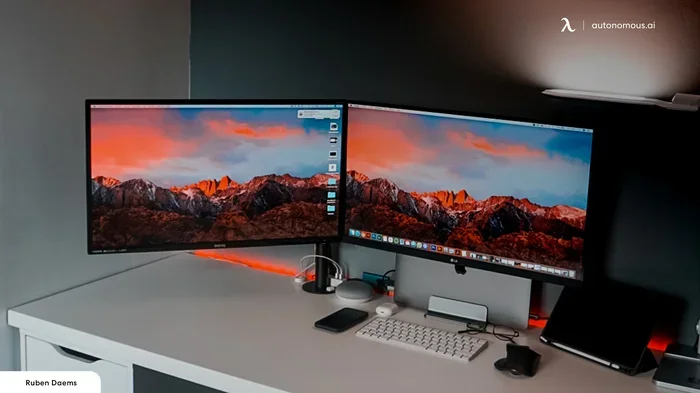
Imagine having your email open on one screen while writing a report on the other. Or playing a game on one screen while keeping your walkthrough guide on the second. This kind of setup is no longer just for professional offices. Home users and students benefit greatly from extra screen space too. The key to making it all work is choosing the right cable connection and knowing how to set it up properly.
Key Takeaways
- Yes, it works: You can connect two monitors using a single DP cable if your graphics card supports MST.
- Check your ports: Make sure your PC and monitors have DisplayPort outputs and inputs for daisy chaining.
- Bandwidth matters: DP 1.2 and DP 1.4 offer different speeds for high-resolution multi monitor setups.
- Daisy chaining is key: You can link monitors in a chain from one single cable output.
- Adjust display settings: Windows and Mac have simple tools to arrange your extended desktop perfectly.
- Cable quality counts: Use passive or active DP cables depending on your desk length and resolution needs.
📑 Table of Contents
- Can I Connect 2 Monitors Using Dp Cable? The Complete Guide
- How to Connect 2 Monitors Using Dp Cable (The Step-by-Step Guide)
- Choosing the Right DP Cable for Your Setup
- Resolving Common Connection Issues
- Optimizing Your Multi-Monitor Setup
- Can I Connect 2 Monitors Using Dp Cable on a Laptop?
- Why Does a Dual Monitor Setup Matter?
Can I Connect 2 Monitors Using Dp Cable? The Complete Guide
DisplayPort, often called DP, is a digital display interface developed by VESA. It was designed to replace older video standards like VGA and DVI. You will find DP ports on most modern graphics cards and monitors. But why should you choose it over an HDMI cable or VGA? Let us break it down.
The main advantage of DP is its high bandwidth. Bandwidth is the amount of data a cable can carry at one time. More bandwidth means higher screen resolution and smoother motion. This is crucial for a multi monitor setup. When you run two screens, you are pushing twice the amount of data compared to a single screen. A strong cable connection ensures both screens look crisp and clear. Without enough bandwidth, your images might look blurry or laggy.
Understanding the Basics of DP
A standard DisplayPort cable carries both video and audio signals. This means you only need one cable to transmit your content. It also supports high screen resolution and fast refresh rate numbers. For example, DP 1.2 can handle 4K at 60Hz. DP 1.4 pushes even further, supporting 8K resolutions. When you ask, Can I Connect 2 Monitors Using Dp Cable, the answer relies heavily on these standards. The version of DP you use determines what your screens can do.
Another important feature is Multi-Stream Transport, or MST. MST allows one DP output to drive multiple monitors. This is the magic behind connecting two screens with a single cable. Without MST, you would need two separate DP ports on your computer. Most modern graphics cards include MST support. This makes the whole process much easier for everyday users. You just plug in one cable and let the technology do the work for you.
DP vs HDMI for Multi-Monitor Setups
Many users wonder if they should use HDMI instead of DP. Both are excellent choices, but they have differences. DP generally offers higher bandwidth than standard HDMI. This makes it better for demanding tasks like video editing or gaming. HDMI is still great for connecting a single TV or monitor. However, for a serious cable connection between a PC and two screens, DP often wins. It was built specifically for computer displays.
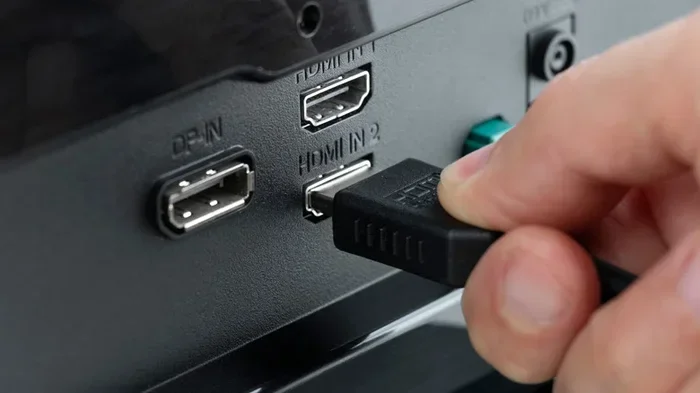
You will also notice that DP connectors have a locking mechanism. This little clip keeps the cable securely in place. HDMI cables can sometimes wiggle loose, causing a flickering video signal. The DP lock solves this problem. It ensures a stable cable connection at all times. For a permanent dual monitors desk setup, this reliability is a big plus. You never have to worry about your screens going dark because a cable slipped out.
How to Connect 2 Monitors Using Dp Cable (The Step-by-Step Guide)
Setting up your dual monitors with a DP cable is straightforward. You just need to follow a few simple steps. Before you plug anything in, make sure you understand your options. There are a few different ways to connect two screens to one port. We will walk through each method so you can pick the one that fits your desk best.
Checking Your Graphics Card Support
The first step is to check your graphics card. Not all GPUs support multiple outputs from a single DP port. Look at the back of your computer. Do you see a DisplayPort output? If yes, check your GPU specifications online. Look for terms like MST or Multi-Stream Transport. MST is the technology that allows one DP output to drive two or more monitors. Without MST, you might need a second DP port on your graphics card. If your card supports MST, you are ready to move to the next step.
You can also check your PC settings. On Windows, right-click your desktop and pick Display Settings. Scroll down to the Multiple Displays dropdown. If you see options to extend your desktop, your PC is ready. Sometimes, you just need to update your graphics card drivers. A quick restart after updating can activate hidden monitor support. It is a simple fix that many people overlook. Always make sure your drivers are current before starting a new setup.
The Daisy Chain Method
Daisy chaining is the most common way to connect two monitors with one cable. It means linking the monitors together in a sequence. You plug the first monitor into your PC. Then, you use a second DP cable to connect the first monitor to the second monitor. This creates a chain. The first monitor acts as a bridge. It receives the video signal and passes it to the second screen. This method requires that both of your monitors have DP In and DP Out ports. Check the back of your screens to confirm they have these specific inputs and outputs.
Not all monitors support daisy chaining. You need to look for a DisplayPort Out port on your first screen. If your monitor only has a DP In port, you cannot daisy chain it. In that case, you will need to use a second DP port on your PC, or use an MST hub. Always check your monitor manual before buying extra cables. This saves a lot of frustration later on. Reading the manual takes just five minutes but can save you hours of troubleshooting.
Can I Connect 2 Monitors Using Dp Cable and an MST Hub?
If daisy chaining feels too complex, consider an MST hub or a docking station. An MST hub plugs into your PC’s DP port. Then, you connect two or more monitor support cables from the hub to your screens. This is a great option if your monitors only have DP In ports. You do not need to route cables from one screen to another. The hub splits the video signal into multiple streams. It is a clean, desk-friendly solution that keeps your cables neat.
Just make sure your hub supports the resolution and refresh rate you need. Cheap hubs might limit your screen resolution to 1080p. If you want 4K on both screens, invest in a high-quality hub. Look for hubs that explicitly state they support DP 1.2 or DP 1.4. The right hub makes your multi monitor setup feel seamless and professional. It is a small investment that pays off in daily convenience and screen quality.
Choosing the Right DP Cable for Your Setup
Not all DP cables are created equal. Buying the right one is key to a successful dual monitors experience. A bad cable can cause flickering, low resolution, or no signal at all. You want to make sure you get the best cable connection possible for your needs. Take your time when picking a cable, as it affects everything.
Passive vs Active DP Cables
There are two main types of DP cables: passive and active. A passive cable simply carries the signal. It works well for short distances, usually under 6 feet. An active cable has built-in chips that boost the signal. This allows it to travel much farther without losing quality. If your desk is large and your monitors are far from your PC, an active cable is a must.
For most people, a standard passive cable works perfectly. Keep the cable length as short as possible. A 3-to-6-foot cable provides the strongest video signal. It also reduces clutter on your desk. When in doubt, always buy a cable that supports the highest DP version your hardware uses. A cable that supports DP 1.4 is a safe bet for most modern setups. It ensures you are ready for whatever your next upgrade might be.
DP 1.2 vs DP 1.4 Cables
You will often see cables labeled DP 1.2 or DP 1.4. What does this mean? DP 1.2 supports up to 4K at 60Hz. DP 1.4 supports 4K at 120Hz and even 8K at 60Hz. If you want the best screen resolution and a smooth refresh rate, choose a DP 1.4 cable. It is backward compatible too. You can plug a DP 1.4 cable into a DP 1.2 port, and it will work. It just limits the performance to DP 1.2 speeds. Always match your cable to your monitor’s capabilities for the best results.
Resolving Common Connection Issues
Even with the best setup, you might run into a few bumps. Do not worry if your screens do not work right away. Most problems have simple fixes. Let us look at the most common issues people face when setting up dual monitors. A little patience goes a long way toward a working setup.
No Signal Problems
When you plug in your cable connection and see a black screen, check the basics first. Is the monitor powered on? Is the DP cable fully seated in the port? Sometimes cables look connected but are slightly loose. Try unplugging the cable and plugging it back in firmly. If you are using an MST hub, make sure the hub is powered on if required. Some hubs need a USB cable for power. Also, ensure your graphics card drivers are up to date. Outdated drivers often cause no signal errors.
Another quick fix is to try a different port. Sometimes a specific DP port on your graphics card stops working temporarily. Switching to another port can wake it up. If you are using a docking station, try connecting the cable directly to the PC. This helps isolate whether the problem is the hub or the cable itself. Restarting your computer can also reset the video signal and fix temporary glitches. Do not panic when you see a black screen. Simple checks often solve the problem immediately.
Resolution and Refresh Rate Drops
Another common issue is when the image looks fuzzy or the refresh rate drops. This usually happens because of bandwidth limits. A single DP cable has a limit on how much data it can push. If you run two 4K monitors at high refresh rates, you might hit this limit. To fix this, you can lower the resolution or refresh rate on one or both screens.
DP 1.4 handles more data than DP 1.2. If you want the best screen resolution, make sure you are using the right DP version. Upgrading your cable can sometimes solve this problem instantly. Also, check your display settings. Windows sometimes defaults to a lower resolution when it detects multiple screens. You can manually set the resolution in the Display Settings menu to match your monitor’s native resolution. This small tweak can make a huge difference in image sharpness.
Optimizing Your Multi-Monitor Setup
Once your screens are working, you need to set them up properly. A correct setup makes your workflow much more efficient. You do not want to have to drag your mouse off one screen and have it get stuck in a weird spot. Proper optimization turns a basic setup into a professional command center.
Display Settings on Windows and Mac
Both Windows and macOS make it easy to arrange your screens. On Windows, right-click your desktop and select Display Settings. You will see two rectangles representing your monitors. Drag them to match their physical positions on your desk. This ensures your mouse moves naturally from one screen to the next. You can also click “Identify” to see which monitor is which number. This is super helpful when you have two identical screens side by side.
On a Mac, go to System Settings and look for Displays. You can choose to extend your desktop or mirror it. For productivity, always choose the extended desktop option. This gives you a massive workspace to work with. You can also set the primary display here. The primary display is where your desktop icons and taskbar appear by default. Taking five minutes to arrange these settings saves a lot of frustration every single day.
Taskbar and Workflow Tips
Having two screens is only half the battle. You need to organize your workflow to get the most out of them. Put your main work app on your primary screen. Keep reference materials, chat windows, or media players on the second screen. This keeps your focus right where you need it. A clean workspace leads to a clear mind.
You can also customize your taskbar settings. In Windows, you can choose to show the taskbar on both screens or just the main one. This helps keep your interface clean. Many professionals also use virtual desktops. You can assign different virtual desktops to different screens. This adds another layer of organization to your multi monitor setup. Experiment with different layouts until you find what works best for your daily routine.
Think about the apps you use most. Put them on the screen where you can reach them fastest. For example, put your email on the left screen and your main document on the right. This way, you can glance at new messages without losing your focus. Some people also put a clock or a calendar on their second screen. This keeps important info visible without cluttering your main workspace.
Color Calibration for Consistency
When you have two screens, colors might look different on each one. This happens because every monitor has its own color settings. You can fix this by calibrating your displays. Both Windows and Mac have built-in calibration tools. You can also buy a color calibration device for perfect accuracy. Matching colors is especially important if you do photo or video editing. Consistent colors make your work look professional across both screens.
Can I Connect 2 Monitors Using Dp Cable on a Laptop?
Yes, you can connect two monitors to a laptop using a DP cable, but you might need an adapter. Many modern laptops only have USB-C or Thunderbolt ports. You can use a USB-C to DP adapter or a docking station with DP outputs. This flexibility allows you to create a proper workstation anywhere. Just make sure your laptop’s graphics card supports external displays.
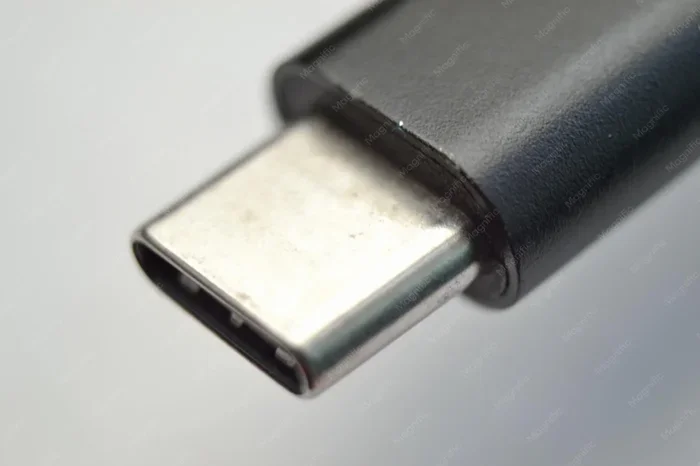
Some laptops support DP Alt Mode over USB-C. This means the USB-C port can directly output a DP signal. Check your laptop’s manual to see if it supports this feature. If it does, you can use a simple USB-C to DP cable. This is a great way to expand your workspace while traveling or working from home.
Why Does a Dual Monitor Setup Matter?
Adding a second screen is not just about having extra space. It fundamentally changes how you work and play. Studies show that dual screen setups can boost productivity by up to 30 percent. You can keep your reference materials on one screen while writing on the other. Gamers enjoy playing games on one screen while keeping chat or guides on the second. The ability to connect 2 monitors transforms any desk into a command center.
When you use a DisplayPort to achieve this, you get the best performance. You do not have to sacrifice image quality or speed. The video signal remains strong and clear. Whether you are editing a video, coding an app, or simply browsing the web, two screens make the task faster and more enjoyable. It is a small change that delivers big results. Start your multi monitor setup today and feel the difference.
Many people find that they save time every day just by not switching between windows. Instead of minimizing a game to check a strategy guide, you just look over. Instead of scrolling through a long spreadsheet, you can view the whole thing on one screen while typing on the other. This physical separation of tasks reduces mental fatigue. You feel less stressed because you are not constantly jumping back and forth. It is a simple change that improves your daily life in big ways.
Frequently Asked Questions
Can I Connect 2 Monitors Using Dp Cable Without a Graphics Card?
No, you cannot. You need a graphics card with a DisplayPort output to connect two monitors. The graphics card processes the video signal and sends it to your screens. Without it, your PC cannot output video to any monitor.
Does Daisy Chaining Monitors Reduce Image Quality?
No, daisy chaining does not reduce image quality if you use the right cable. The video signal passes through each monitor without losing quality. However, you must ensure your DP cable supports the resolution you want. A cheap or damaged cable might cause issues.
What is MST in DisplayPort?
MST stands for Multi-Stream Transport. It is a feature that allows one DisplayPort output to drive multiple monitors. MST is the technology that makes connecting two screens with a single cable possible. Check your graphics card specs to confirm it supports MST.
Can I Use a DP to HDMI Adapter for Dual Monitors?
Yes, you can use adapters, but you must be careful. An MST hub with multiple HDMI outputs works best for this. A simple DP to HDMI adapter usually only supports one monitor. Always check if the adapter supports multi-stream output before buying.
Why is My Second Monitor Not Detected?
This usually happens because of loose cables or outdated drivers. First, check that your DP cables are fully plugged in. Next, update your graphics card drivers and restart your computer. You can also try plugging the monitor into a different DP port on your PC.
Do I Need a Docking Station to Connect 2 Monitors?
No, a docking station is not strictly necessary. You can daisy chain monitors directly if they both have DP Out ports. However, a docking station makes cable management much easier and offers extra USB ports. It is a great choice for a clean and organized desk.